Frequently Asked Questions

IDrive® Spaces

IDrive® Spaces

If your question is not addressed below, please contact us through our support form and we'll get back to you shortly.

General

What is IDrive® Spaces?
How do I get started with IDrive® Spaces?
What is a workspace?
What is a filespace?
How does IDrive® Spaces keep my sensitive data protected?

Workspace Management

How do I create a workspace?
Can I link my own storage to a workspace?
How many workspaces can I create?
Is it possible to exit a workspace?
How do I rename a workspace?
Can I delete a workspace?

Filespace Management

How do I create a filespace?
How do I connect to a filespace?
How do I disconnect a filespace?
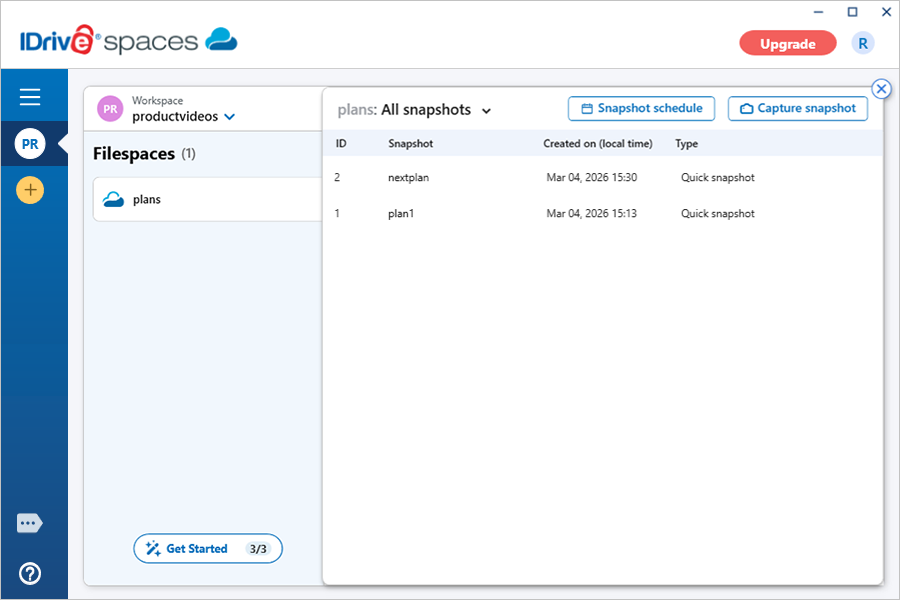
How do I capture a quick snapshot of a filespace?
Can I schedule a snapshot for a filespace?
How do I stop a filespace snapshot schedule?
Can I delete a filespace snapshot schedule?
How do I delete a snapshot?
How do I view the details of a filespace?
How do I modify the settings of a filespace?
Can I configure cache sizes for my filespace?
How do I set or change the cache path?
How do I configure a mount path?
Can I exclude specific file types from compression?
How do I delete a filespace?

User Management

How do I add members to a workspace?
How do I create a group in my workspace?
Can I add users to a group?
Can I delete users from a group?
How do I rename a group?
How do I delete a group?

Access and Permissions

How do I grant access permission to an entire filespace?
How do I grant access permission to a specific folder?
Is it possible to modify the existing permissions for a filespace or specific folders?
Can I remove the existing permissions for a filespace or specific folders within it?

What is IDrive® Spaces?

IDrive® Spaces provides instant cloud-based file access, enabling users to work on files effortlessly without syncs or downloads. Designed for fast and remote workflows, this file sharing solution is ideal for large media, design, and creative projects. With its easy file organization and access controls, teams can work efficiently on files from anywhere.

How do I get started with IDrive® Spaces?

To get started, sign in to your IDrive® account from the web and enable IDrive® Spaces. Download and install the IDrive® Spaces desktop application for your computer. After installation, launch the application and sign in using your IDrive® account credentials. Once signed in, create workspaces for file streaming and team collaboration on different projects. Within the workspace, create filespaces to organize your files, upload existing files or folders, create new folders, and invite your team members to start working together.

Browse the FAQs below for detailed steps on using and managing your account efficiently.

What is a workspace?

A workspace is a shared collaborative environment where users can access, edit, and manage cloud files in real time. It acts as a central hub for creating filespaces to store and organize project files, with admin controls to grant and revoke access permissions.

What is a filespace?

A filespace is a shared storage environment that allows users to save, access, and collaborate on files remotely. It functions as a local drive and enables users to open and edit files instantly without downloading or syncing.

Multiple filespaces can be created within a workspace, with access permissions for users.

How does IDrive® Spaces keep my sensitive data protected?

IDrive® Spaces secures your data with end-to-end AES-256 encryption during transfer and storage. We never store or access the encryption keys, ensuring privacy. Granular access controls let admins set user permissions for specific files and folders, while the cloud-native file system enables direct access without downloads, minimizing exposure.

How do I create a workspace?

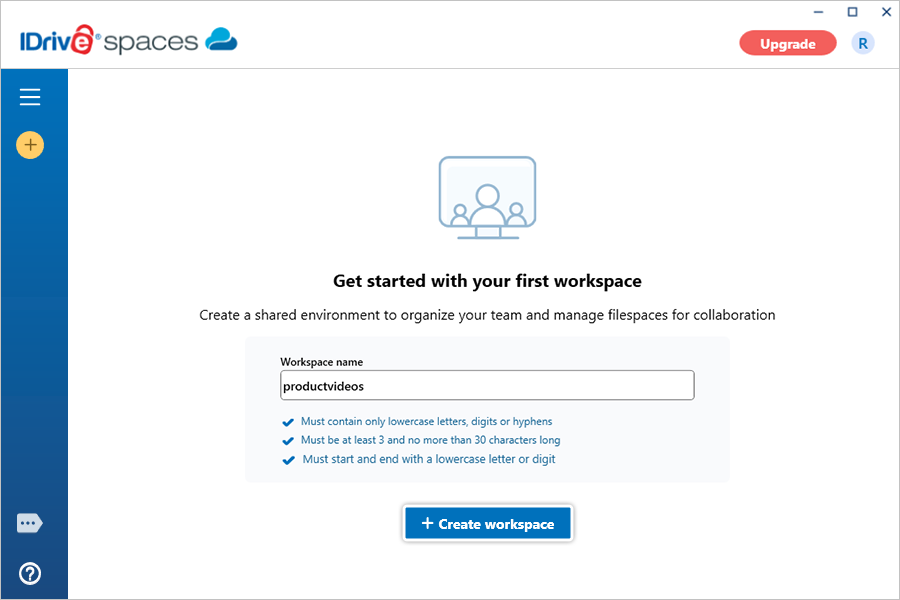
To create a workspace,

  1. Launch the IDrive® Spaces desktop application and sign in to your account.
  2. Enter a name in the Workspace name field that your team can easily identify. Alternatively, click  view client wise status
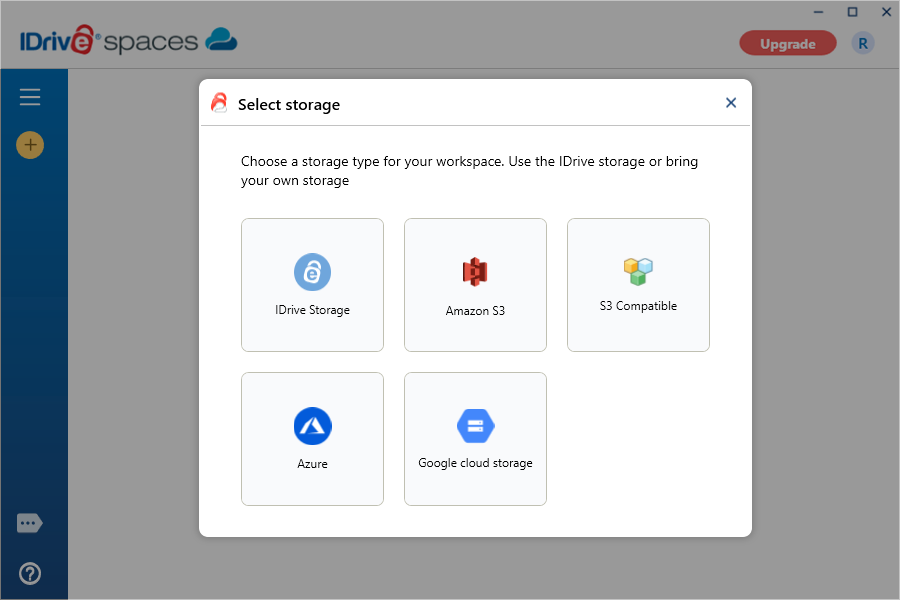
  3. Click Create workspace. The Select storage popup will appear.
     view client wise status
  4. Choose a storage option from IDrive storage, Amazon S3, other S3 compatible storage, Azure or Google cloud storage.

    Note: By default, you can use IDrive cloud storage. To use your own storage, integrate your existing storage with IDrive® Spaces. Follow the authorization steps mentioned in this FAQ - Can I link my own storage to a workspace?.

  5. Provide the applicable parameters for authorization.
  6. Click Continue.

Can I link my own storage to a workspace?

Yes, you can link your own storage to a workspace. Integrate your existing AWS S3, other S3-compatible storage, Microsoft Azure, and Google Cloud Storage with IDrive® Spaces. This provides greater control and flexibility by allowing you to use your current storage.

To link your storage,

  1. Launch the IDrive® Spaces desktop application and sign in to your account.
  2. Enter a workspace name that your team can easily identify.
  3. Click Create workspace. The Select storage popup will appear.
  4. Choose a storage option from Amazon S3, other S3 compatible storage, Azure, or Google cloud storage.
     view client wise status
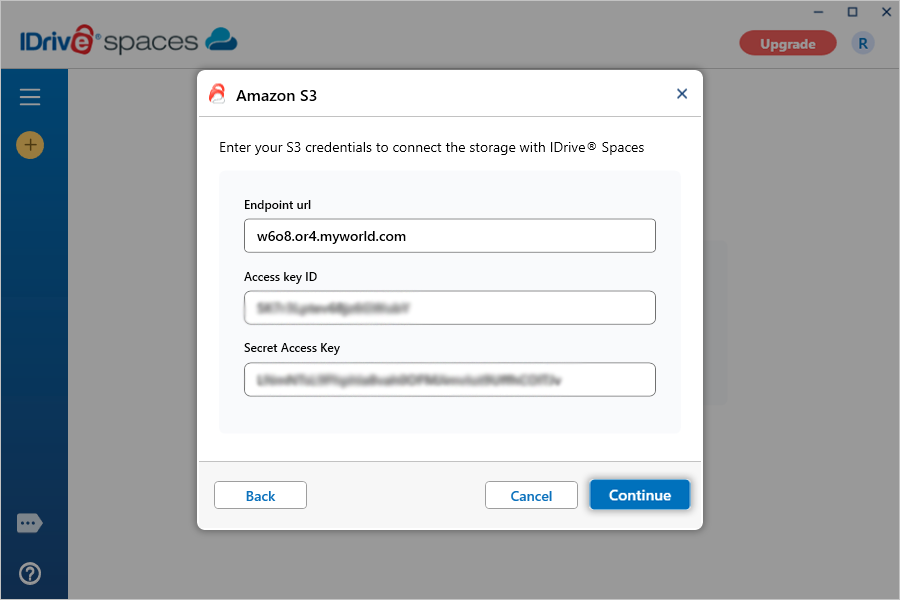
  5. Use the following applicable parameters for authorization:
    • Amazon S3:
      • Endpoint URL - Enter the endpoint URL of your storage provider
      • Access key ID - Enter the access key ID of your IDrive storage account
      • Secret Access key -Enter the secret access key of your AWS S3 account
       view client wise status
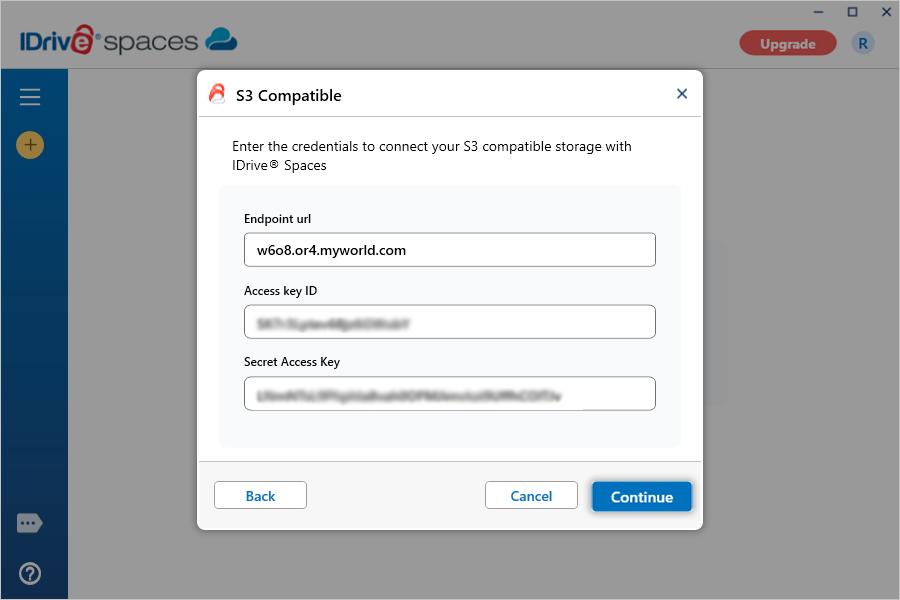
    • S3 compatible storage:
      • Endpoint URL - Enter the endpoint URL of your storage provider
      • Access key ID - Enter the access key ID of your storage provider
      • Secret access key - Enter the secret access key of your storage provider
      •  view client wise status
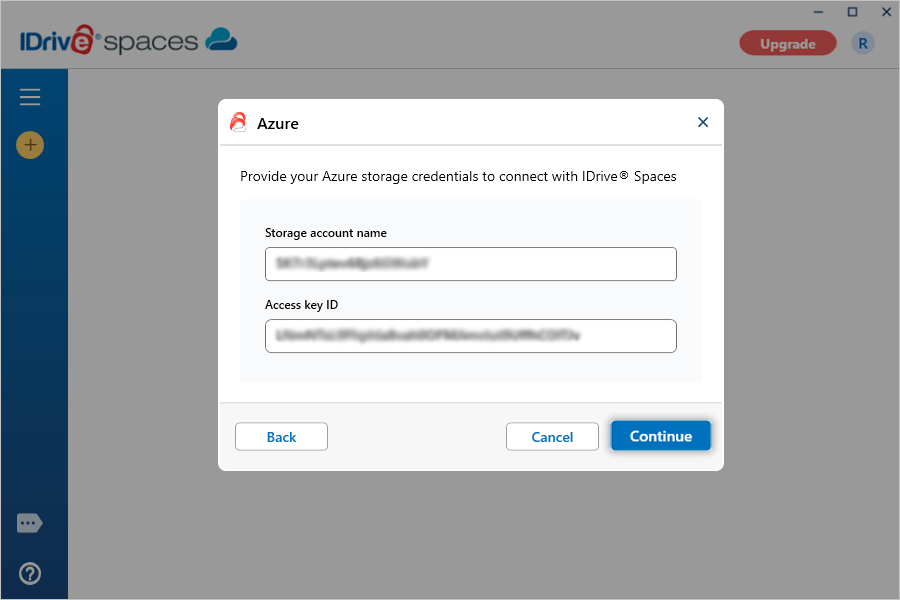
    • Azure:
      • Storage account name - Enter the name of your Azure storage account
      • Access key ID - Enter the access key ID of your Azure account
       view client wise status
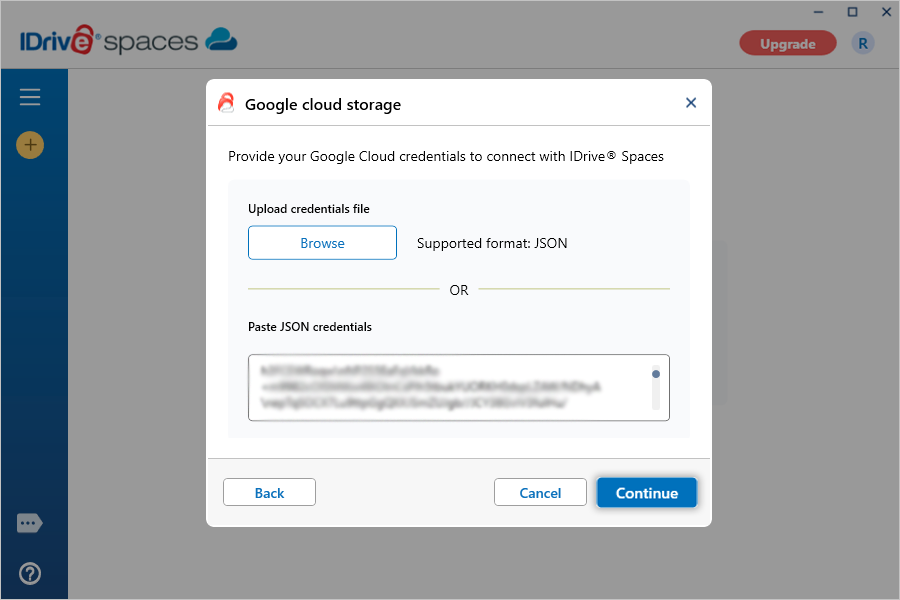
    • Google cloud storage:
      • Upload credentials file - Browse and upload the credentials file of your Google Cloud storage account
      • Paste JSON credentials - Alternatively, paste the JSON credentials of your Google Cloud storage account
    • Click Continue.
       view client wise status

    The workspace will be linked to the selected storage, giving you full control and flexibility over where your data is stored.

How many workspaces can I create?

You can create multiple workspaces. Each workspace functions as an independent shared cloud environment. You can set up workspaces for different projects or teams and manage the member access and permissions, as needed.

Is it possible to exit a workspace?

You cannot exit a workspace you created, but you can exit a shared workspace any time. Once you leave, you will no longer have access to the files and folders shared with you.

To exit a workspace,

  1. Launch the IDrive® Spaces desktop application and sign in to your account.
  2. From the left panel, click the workspace you want to leave, then click the  view client wise status next to its name in the top-left corner.
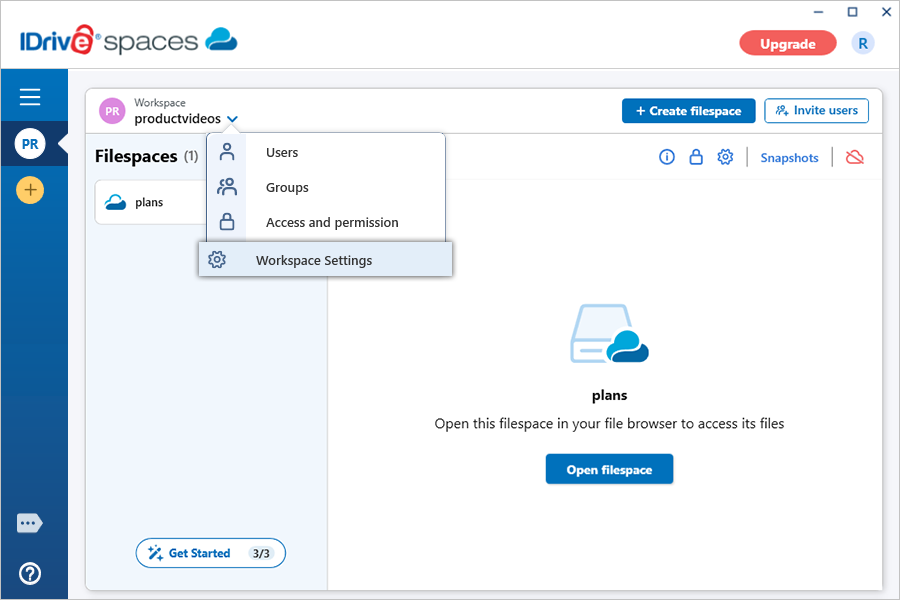
  3. Select Workspace Settings from the dropdown.
     view client wise status
  4. Click Exit workspace.

How do I rename a workspace?

To rename a workspace,

  1. Launch the IDrive® Spaces desktop application and sign in to your account.
  2. From the left panel, click the workspace you want to rename, then click the  view client wise status next to its name in the top-left corner.
  3. Select Workspace Settings from the dropdown.
     view client wise status
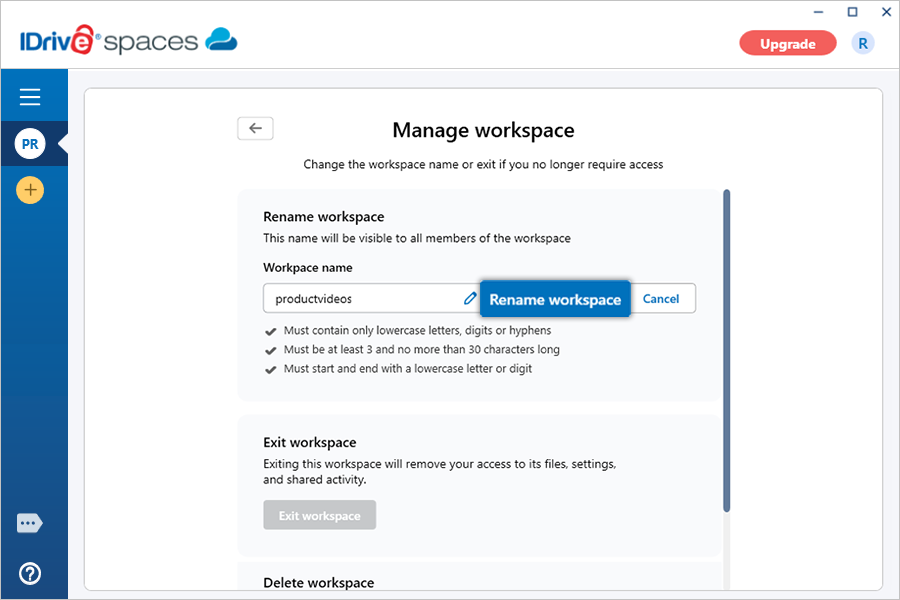
  4. In the Rename workspace section, click  view client wise status next to the workspace name.
  5. Enter a new name for the workspace.
  6. Click Rename workspace.
     view client wise status

Note: You can rename a workspace only if no filespace exists in the workspace.

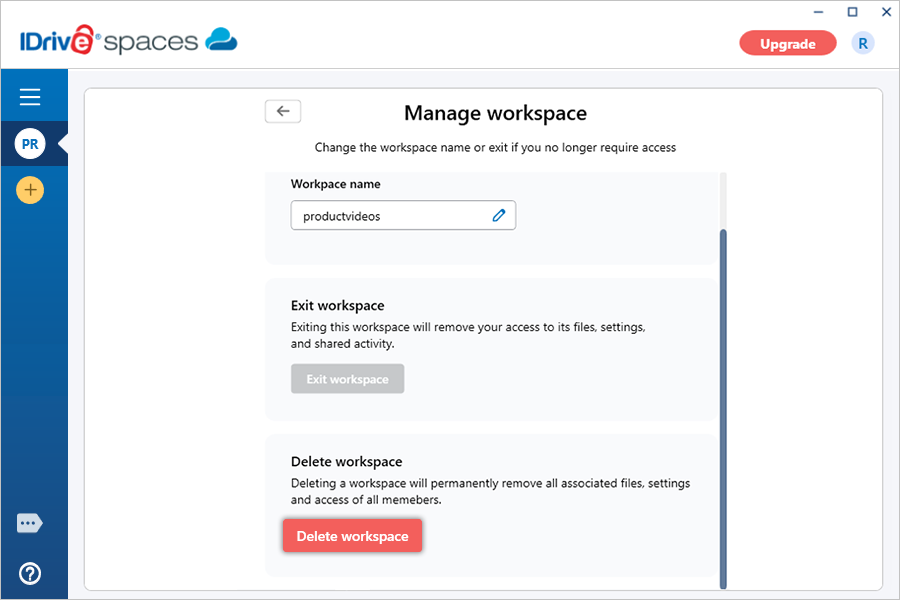
Can I delete a workspace?

Only the workspace owner can delete a workspace. The workspace must be empty with no filespaces before it can be deleted.

To delete a workspace,

  1. Launch the IDrive® Spaces desktop application and sign in to your account.
  2. From the left panel, click the workspace you want to delete, then click the  view client wise status next to its name in the top-left corner.
  3. Select Workspace Settings from the dropdown.
     view client wise status
  4. Click Delete workspace.
     view client wise status
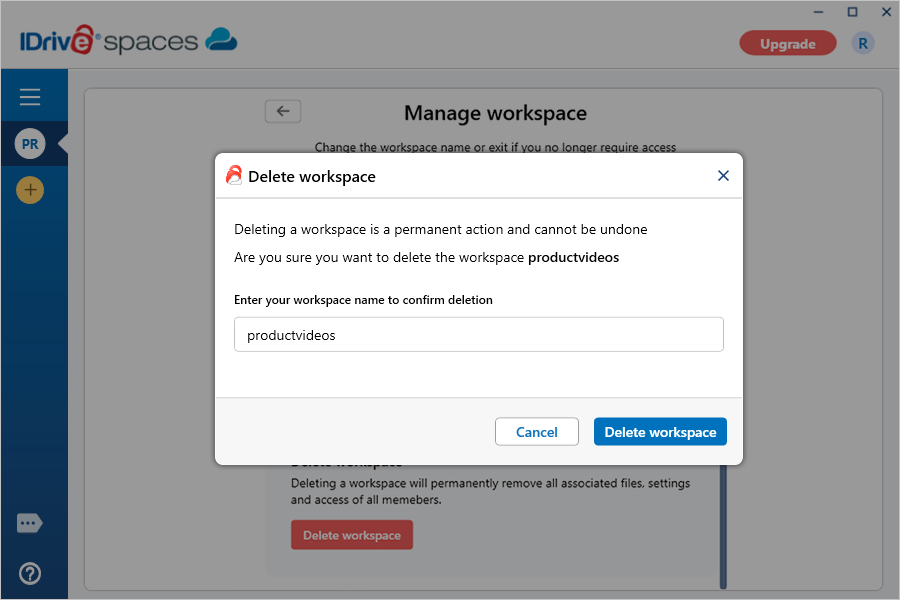
  5. Type the workspace name for confirmation.
     view client wise status
  6. Click Delete workspace.

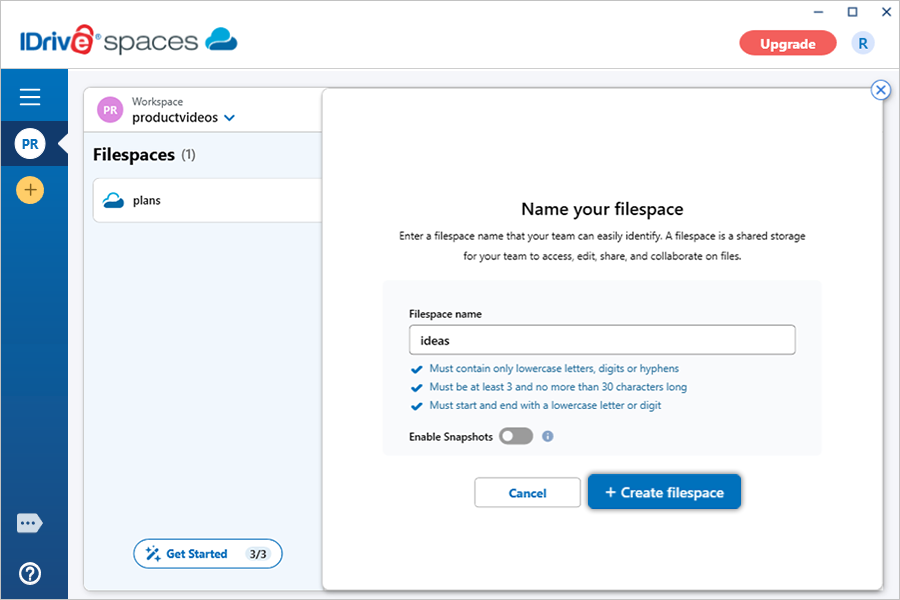
How do I create a filespace?

To create a filespace,

  1. Launch the IDrive® Spaces desktop application and sign in to your account.
  2. Enter a name in the Filespace name field that your team can easily identify.
  3. Click Create filespace.

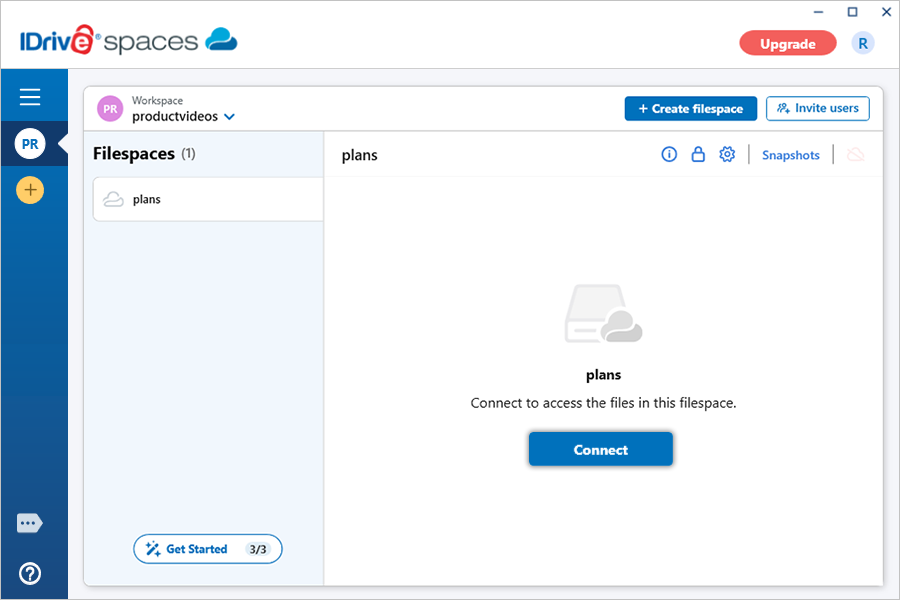
How do I connect to a filespace?

To connect to a filespace,

  1. Launch the IDrive® Spaces desktop application and sign in to your account.
  2. Open the workspace that contains the filespace you want to connect to.
  3. Click the relevant filespace.
  4. Click Connect.

    Alternatively, click  view client wise status next to the relevant filespace, select Filespace details, and click Connect filespace in the Filespace details popup.
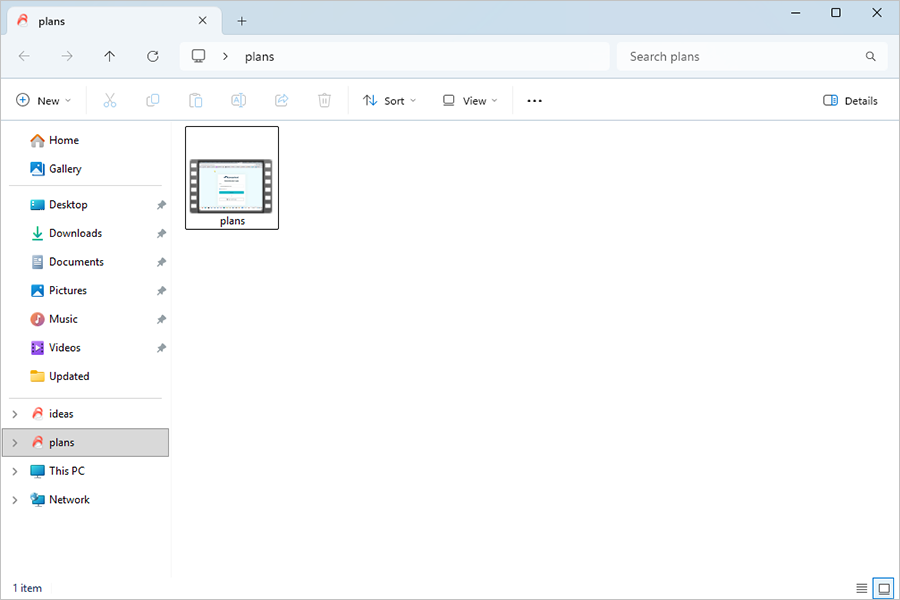
  5. Once connected, click Open filespace. The filespace will open as a drive on your computer. Alternatively, hover on the relevant filespace and click Open.

You can now create folders, upload files and folders, and access them from your computer. If you connect to multiple filespaces, each filespace will appear as a separate drive.

How do I disconnect a filespace?

To disconnect a filespace,

  1. Launch the IDrive® Spaces desktop application and sign in to your account.
  2. Open the workspace that contains the filespace you want to disconnect.
  3. Click  view client wise status next to the relevant filespace.
  4. Click Disconnect from the dropdown menu.
    Alternatively, open the corresponding filespace page and click  view client wise status in the top-right corner.

How do I capture a quick snapshot of a filespace?

To capture a snapshot,

  1. Launch the IDrive® Spaces desktop application and sign in to your account.
  2. Open the workspace that contains the filespace for which you want to capture a snapshot.
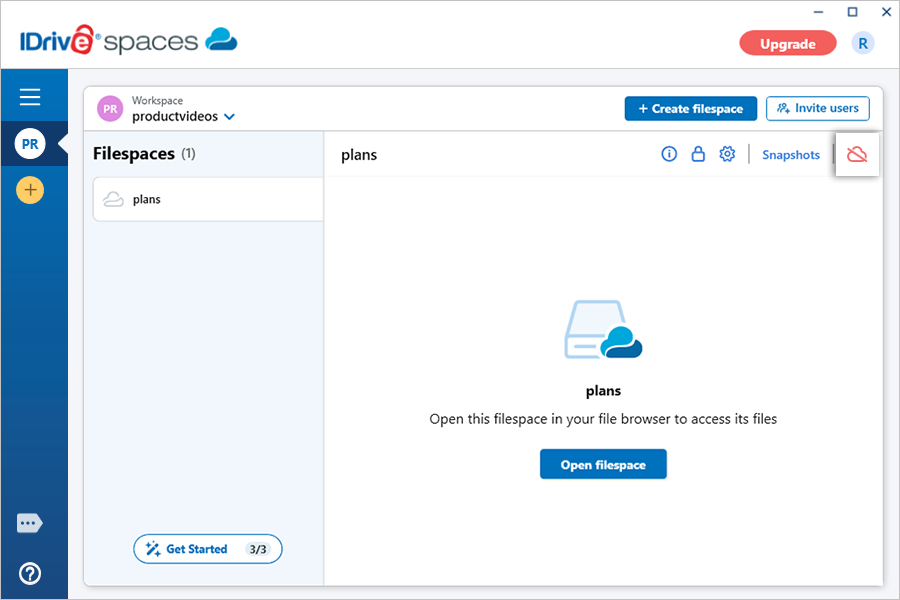
  3. Click the relevant filespace.
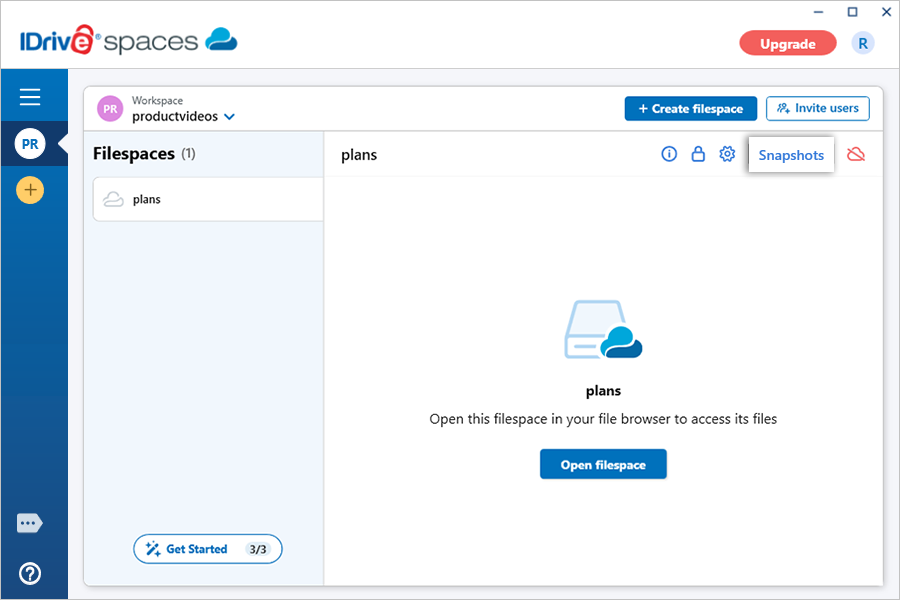
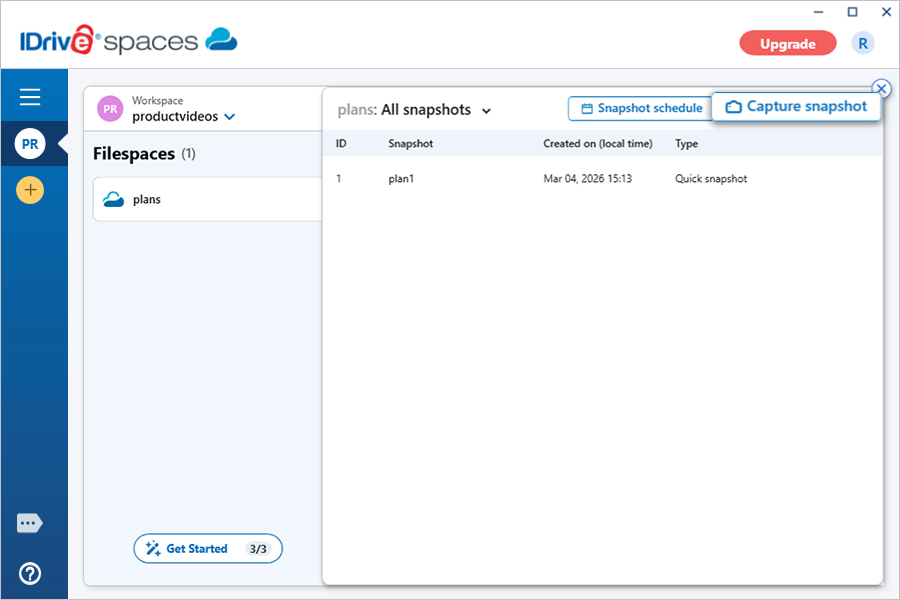
  4. Navigate to Snapshots.
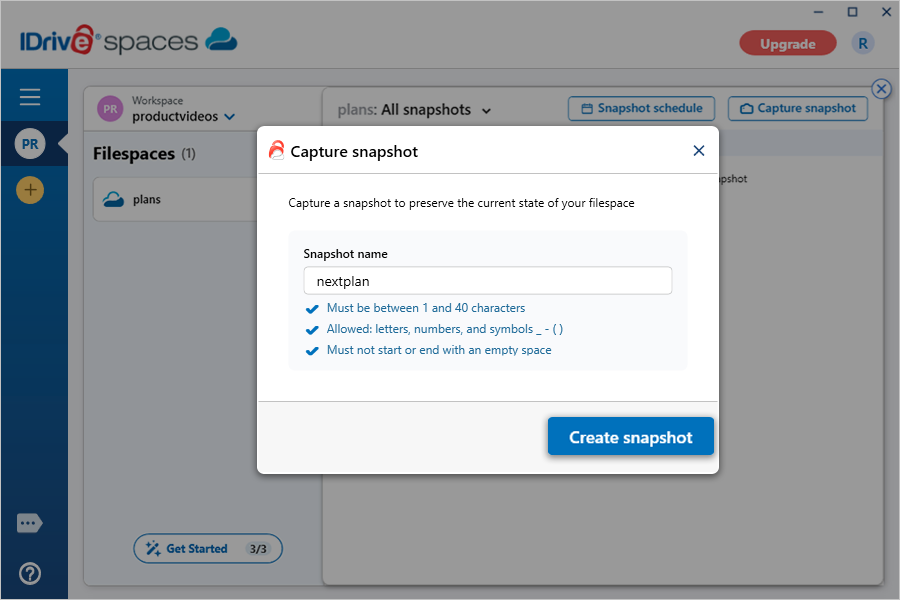
  5. Click Capture snapshot. A popup screen will appear.
  6. Enter a name for the snapshot.
  7. Click Create snapshot.

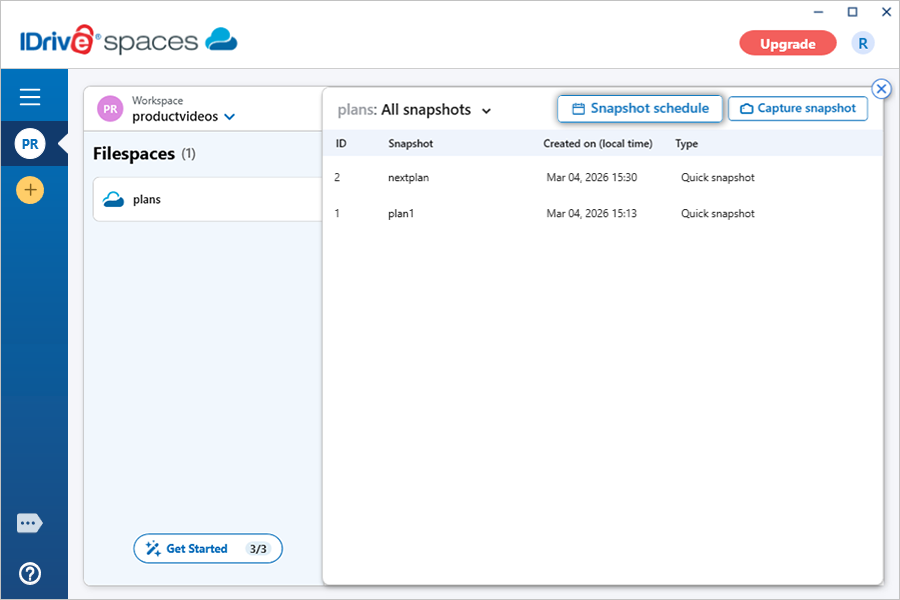
Can I schedule a snapshot for a filespace?

Yes, you can schedule a snapshot for your filespace for a later time.

To schedule a snapshot,

  1. Launch the IDrive® Spaces desktop application and sign in to your account.
  2. Open the workspace that contains the filespace for which you want to capture a snapshot.
  3. Click the relevant filespace.
  4. Navigate to Snapshots.
  5. Click Snapshot schedule.
     view client wise status
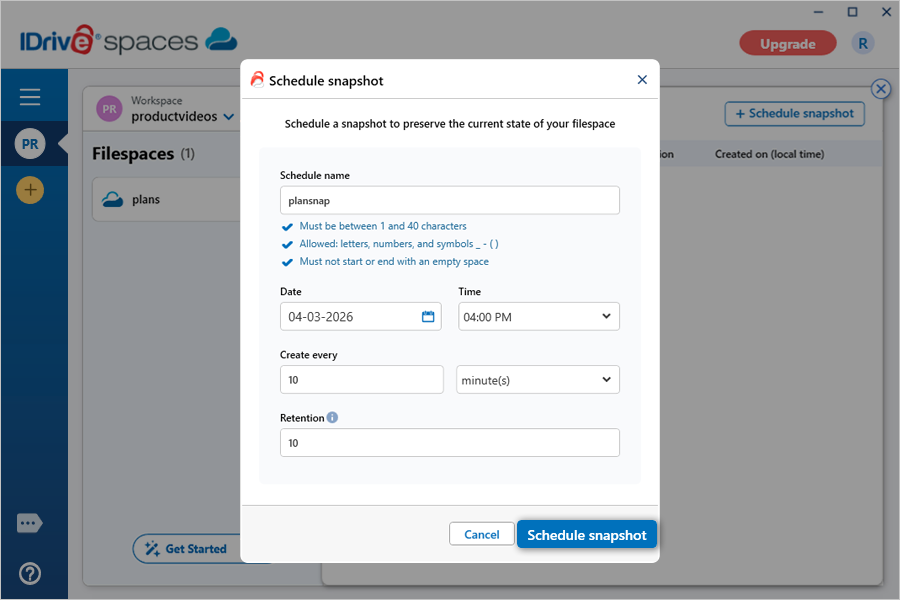
  6. Click Schedule snapshot. A popup will appear.
  7. Enter a schedule name.
  8. Select a start date and time.
  9. Choose the snapshot creation frequency.
  10. Set the retention value. It can be between 1-100.

    Note: Older snapshots exceeding this limit will be automatically removed.

  11. Click Schedule snapshot.
     view client wise status

How do I stop a filespace snapshot schedule?

To stop a snapshot schedule,

  1. Launch the IDrive® Spaces desktop application and sign in to your account.
  2. Open the workspace that contains the filespace for which you want to stop a snapshot schedule.
  3. Click the relevant filespace.
  4. Navigate to Snapshots.
  5. Click Snapshot schedule.
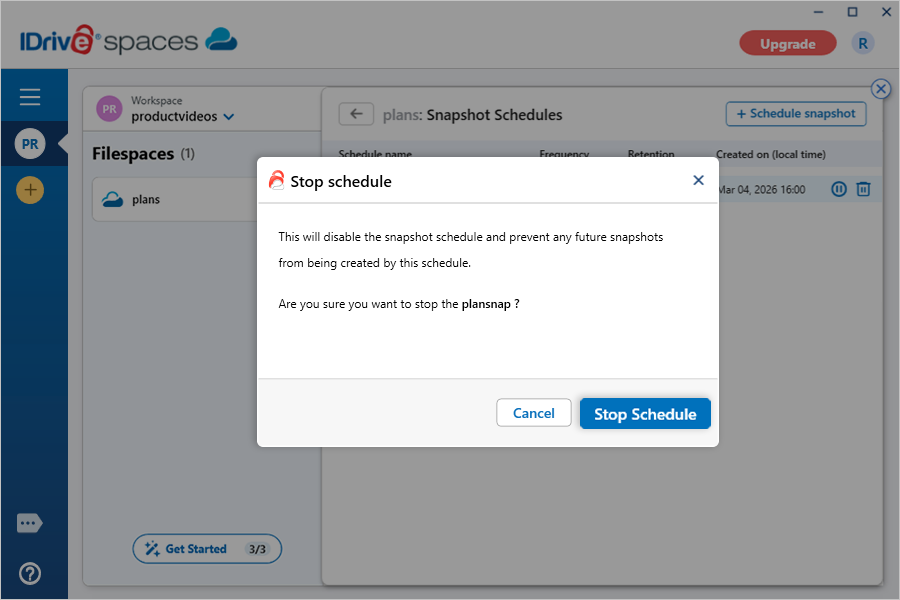
  6. Hover over the schedule that you want to stop and click  view client wise status.
  7. Click Stop schedule in the confirmation popup.
     view client wise status

The snapshot schedule is disabled, and no future snapshots will be created by it.

Can I delete a filespace snapshot schedule?

Yes, you can delete snapshot schedules configured for a filespace.

To delete a snapshot schedule,

  1. Launch the IDrive® Spaces desktop application and sign in to your account.
  2. Open the workspace that contains the filespace for which you want to stop a snapshot schedule.
  3. Click the relevant filespace.
  4. Navigate to Snapshots.
  5. Click Snapshot schedule.
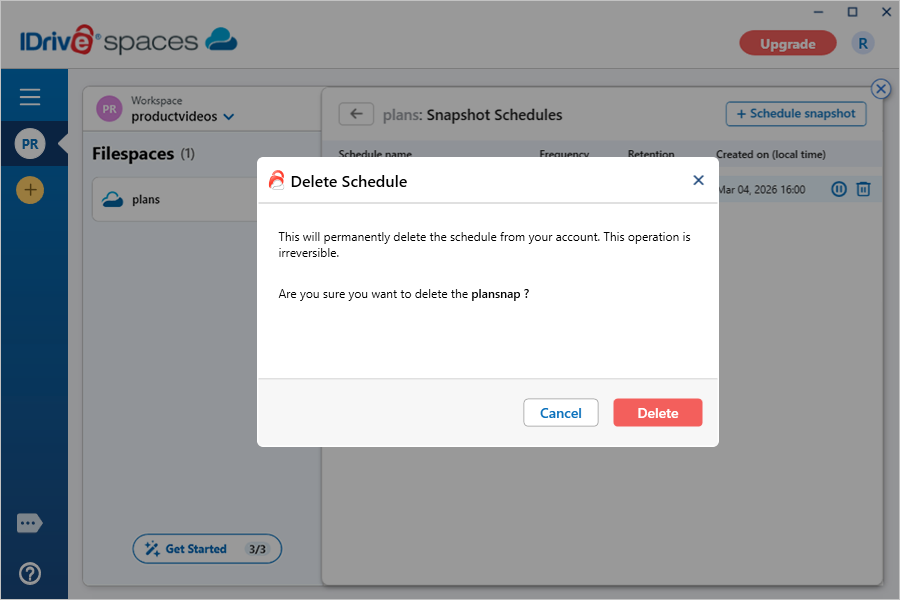
  6. Hover over the schedule that you want to delete and click  view client wise status.
  7. Click Delete in the confirmation popup.
     view client wise status

The snapshot schedule will be permanently deleted from your account.

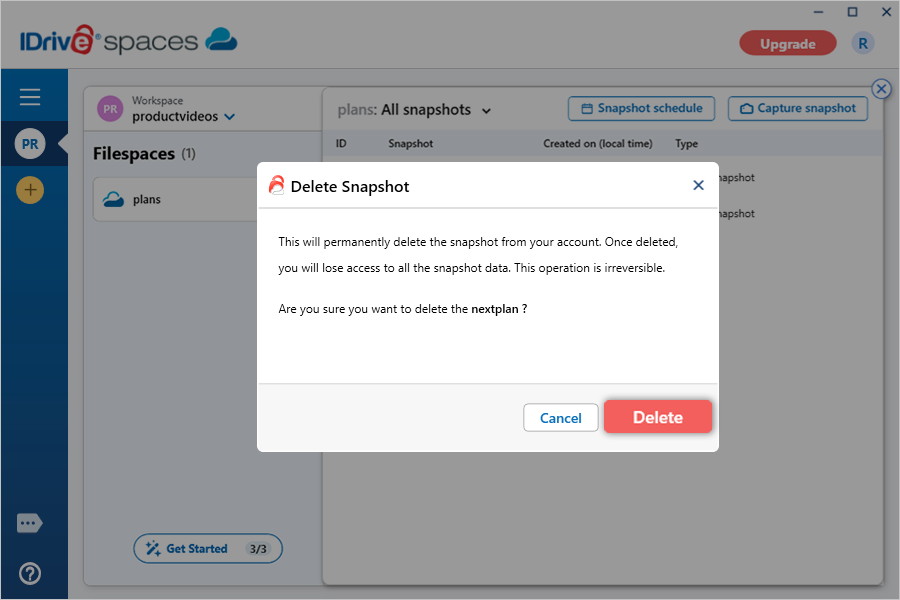
How do I delete a snapshot?

To delete a snapshot,

  1. Launch the IDrive® Spaces desktop application and sign in to your account.
  2. Open the workspace that contains the filespace from which you want to delete the snapshot.
  3. Click the relevant filespace.
  4. Navigate to Snapshots. A list of active snapshots appears.
  5. Hover over the snapshot you want to delete and click  view client wise status.
  6. Click Delete in the confirmation popup.

Once a snapshot is deleted, the owner and the team members will no longer be able to access its data.

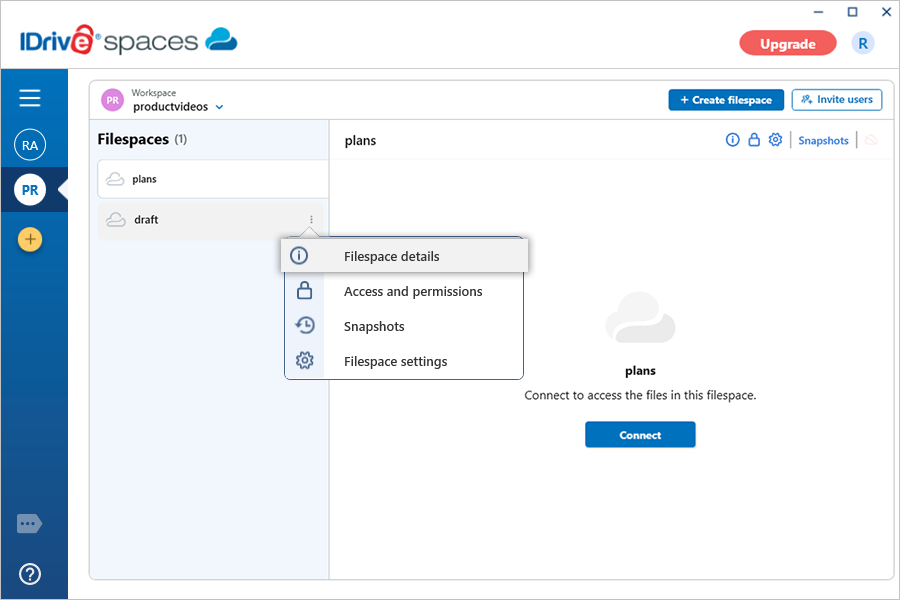
How do I view the details of a filespace?

To view the details of a filespace,

  1. Launch the IDrive® Spaces desktop application and sign in to your account.
  2. Open the workspace that contains the filespace for which you want to view details.
  3. Click  view client wise status next to the relevant filespace.
  4. Select Filespace details from the dropdown. The Filespace details popup appears.

    The popup displays information such as the cloud provider, remaining files, and remaining uploads for the filespace.
    From this screen, you can click Open filespace to access the filespace, click  view client wise status to manage access and permissions, or click  view client wise status to configure filespace settings.

How do I modify the settings of a filespace?

To modify the settings of a filespace,

  1. Launch the IDrive® Spaces desktop application and sign in to your account.
  2. Open the workspace that contains the filespace for which you want to modify the parameters.
  3. Click  view client wise status next to the relevant filespace and select Filespace settings.
  4. Edit the required parameters as needed.

Alternatively, open the relevant filespace and click  view client wise status to reconfigure its parameters.

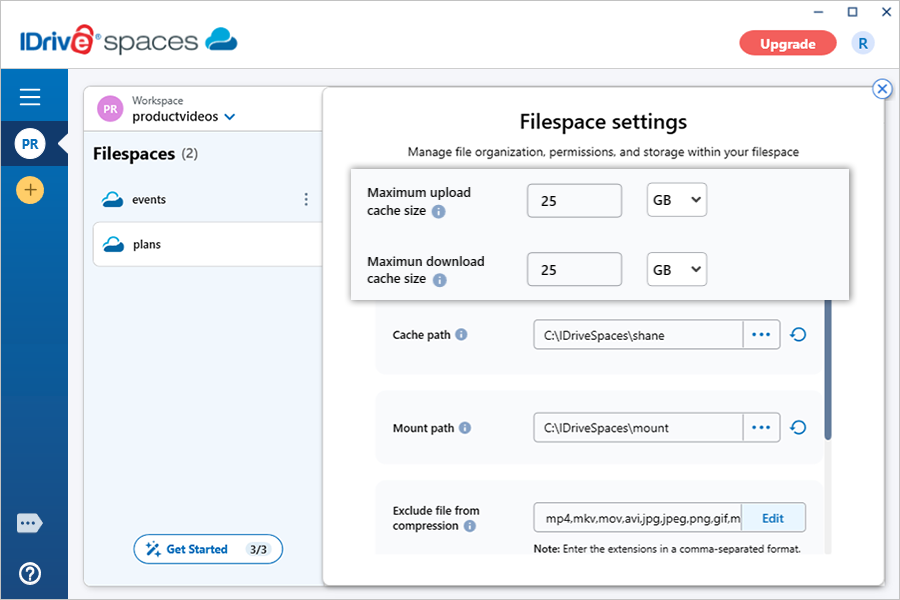
Can I configure cache sizes for my filespace?

Yes, you can set the following cache sizes to improve performance when uploading or downloading files:

  • Upload cache size: The space on your local drive temporarily reserved for storing files during uploads.
  • Download cache size: The space on your local drive temporarily reserved for storing files during downloads.

To configure cache size,

  1. Launch the IDrive® Spaces desktop application and sign in to your account.
  2. Open the workspace that contains the filespace for which you want to view details.
  3. Click  view client wise status next to the relevant filespace and select Filespace settings.
  4. Enter the desired size (in GB) and select the unit for the Maximum upload cache size and Maximum download cache size fields.

Note: By default, Upload cache is set to 100 GB, and Download cache is set to 25 GB.

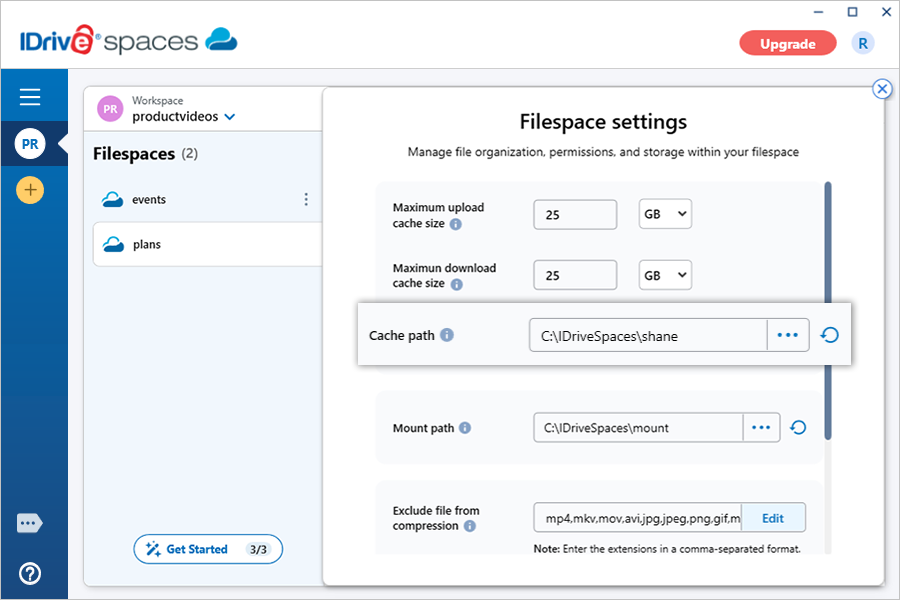
How do I set or change the cache path?

The cache path is the folder on your local computer where temporary files are stored.

To change the cache path,

  1. Launch the IDrive® Spaces desktop application and sign in to your account.
  2. Open the workspace that contains the filespace for which you want to view details.
  3. Click  view client wise status next to the relevant filespace and select Filespace settings.
  4. Click  view client wise status next to the Cache path field.
  5. Browse to select a folder where the cache files will be stored.
  6. Click  view client wise status to set the selected cache path as the default.
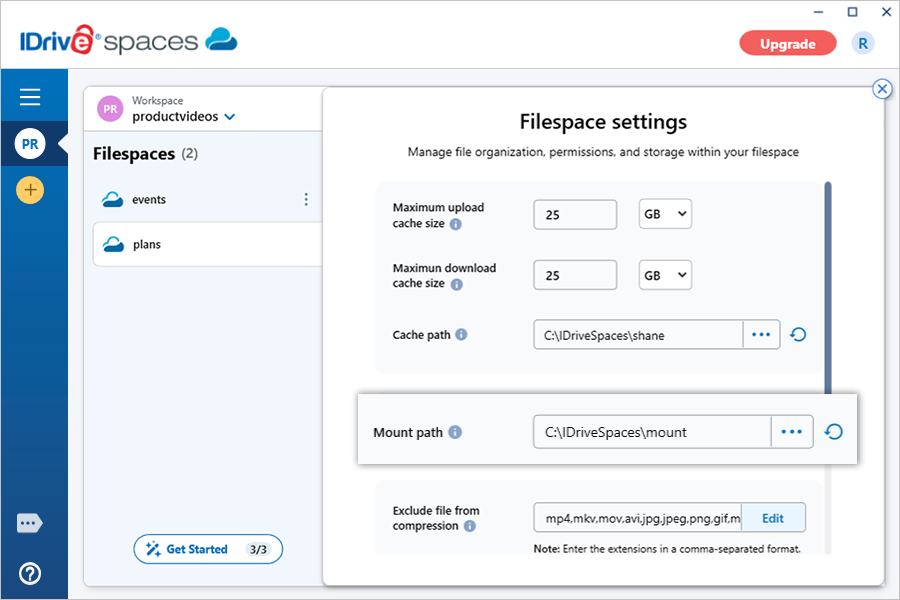
How do I configure a mount path?

The mount path is the local folder where your filespace is mounted, allowing you to access your cloud files directly from your computer.

To configure a new mount path,

  1. Launch the IDrive® Spaces desktop application and sign in to your account.
  2. Open the workspace that contains the filespace for which you want to view details.
  3. Click  view client wise status next to the relevant filespace and select Filespace settings.
  4. Click  view client wise status next to the Mount path field.
  5. Browse to select a folder where the filespace will be mounted.
  6. Click  view client wise status to set the selected mount path as the default.
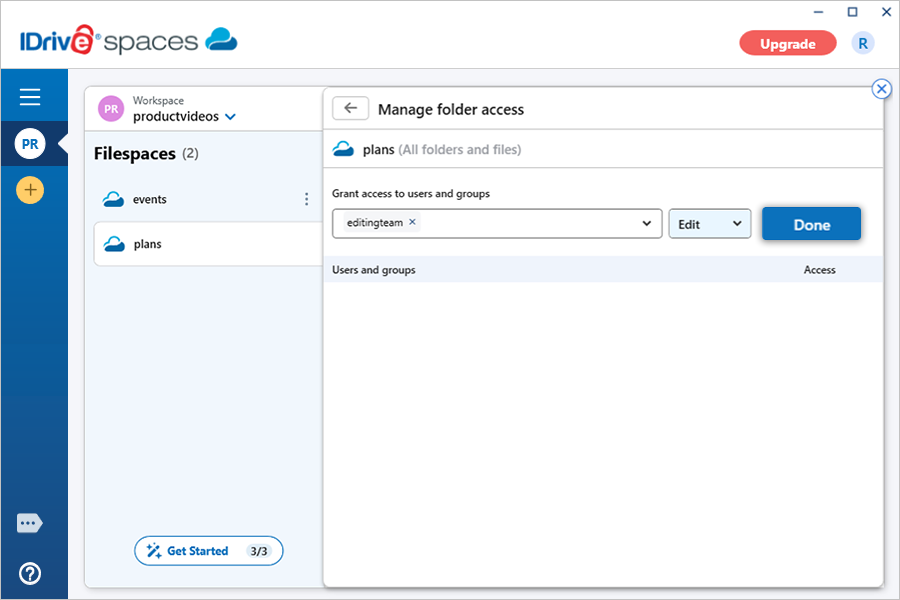
Can I exclude specific file types from compression?

Yes. IDrive® Spaces allows you to exclude specific file types or extensions from compression.

To exclude file extensions,

  1. Launch the IDrive® Spaces desktop application and sign in to your account.
  2. Open the workspace that contains the filespace for which you want to configure the exclusion.
  3. Click  view client wise status next to the relevant filespace and select Filespace settings.
  4. Click Edit next to the Exclude file from compression field.
  5. Enter the file extensions you want to exclude in a comma-separated format without spaces (e.g., EXE,BMP,MP4).
  6. Click Save to apply the changes.

How do I delete a filespace?

To delete a filespace,

  1. Launch the IDrive® Spaces desktop application and sign in to your account.
  2. Open the workspace that contains the filespace you want to delete.
  3. Click  view client wise status next to the relevant filespace.
  4. Select Filespace settings from the dropdown menu.
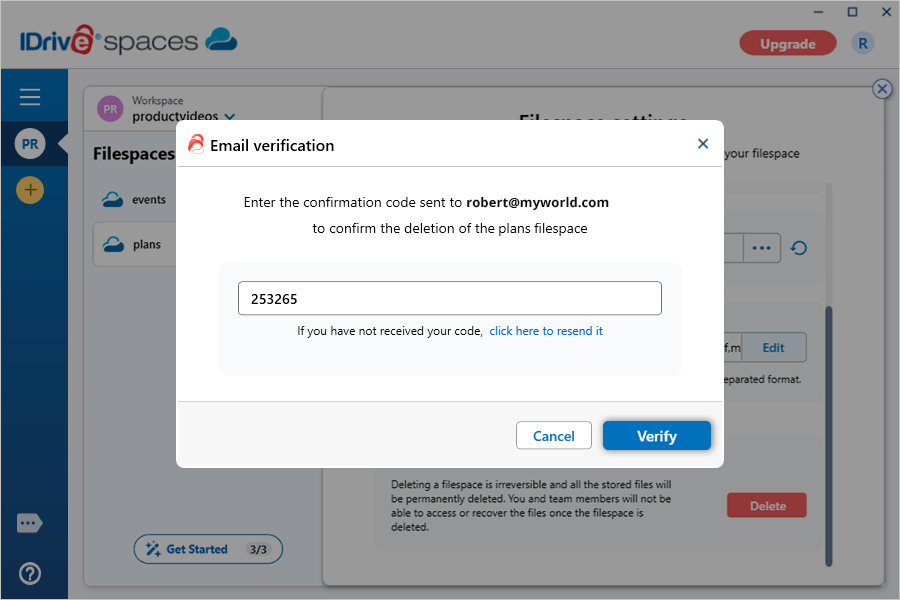
  5. Click Delete under the Delete filespace section.
  6. Enter the confirmation code sent to your registered email address.
  7. Click Verify.
     view client wise status

After verification, the filespace and all associated files will be permanently removed from your account.

How do I add members to a workspace?

To invite members to a workspace,

  1. Launch the IDrive® Spaces desktop application and sign in to your account.
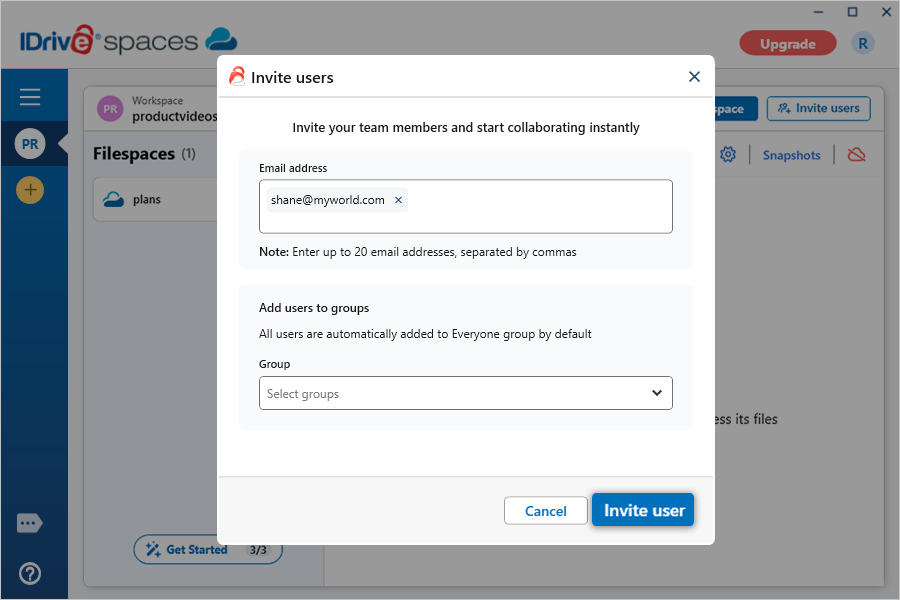
  2. Open the workspace where you want to add users and click Invite users.
  3. Enter the email address of the persons you want to invite. You can enter up to 20 email addresses separated by commas.
  4. Select a group under Add users to groups to add the users to the desired groups.
    Note: All users will be automatically added to the Everyone group by default.
  5. Click Invite user. The users will receive an invitation link via email to create an account.

Once the recipient accepts the invitation, they will be added to the workspace.
After joining, you need to grant them access to the files and folders in the filespaces within the workspace. You can choose to assign them view or edit access to an entire filespace or specific folders.

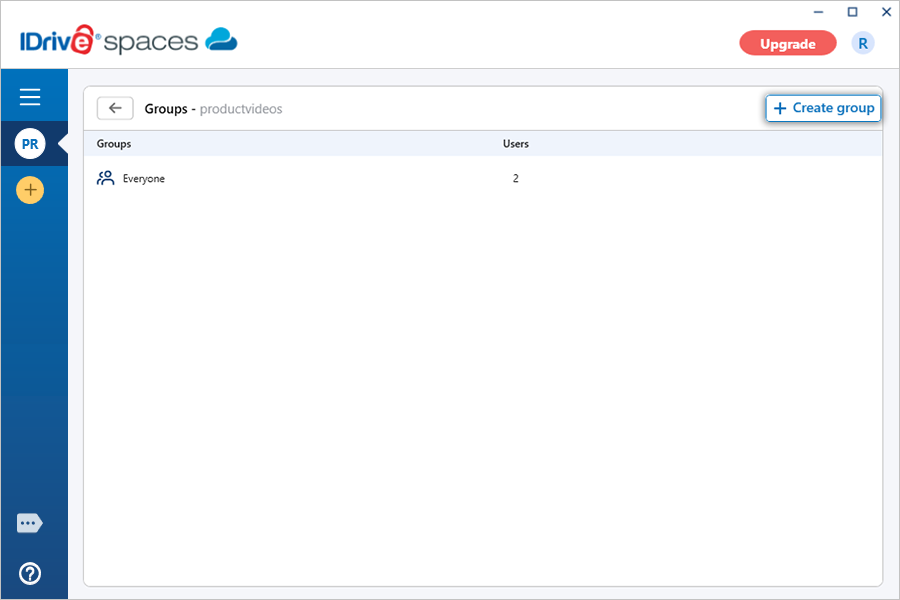
How do I create a group in my workspace?

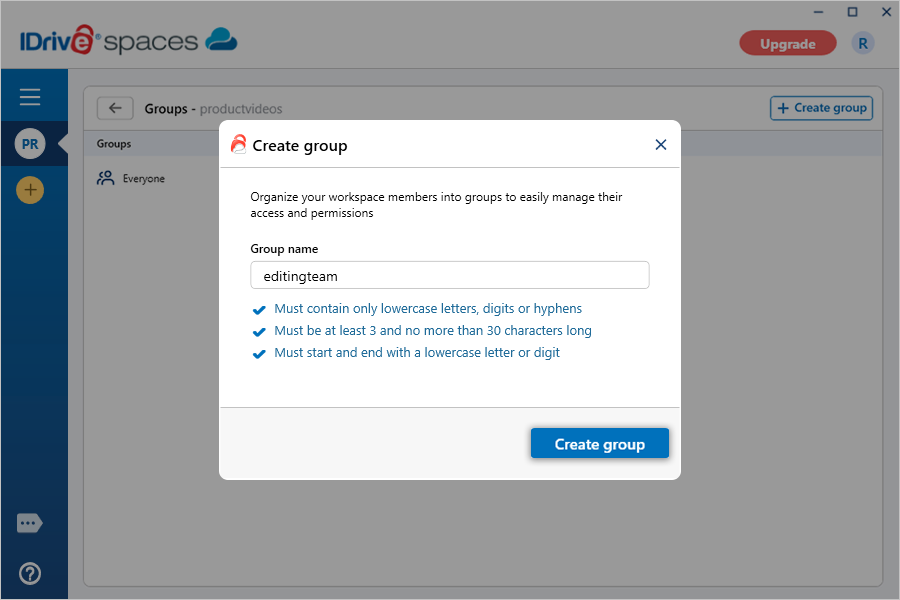
To create a group of users,

  1. Launch the IDrive® Spaces desktop application and sign in to your account.
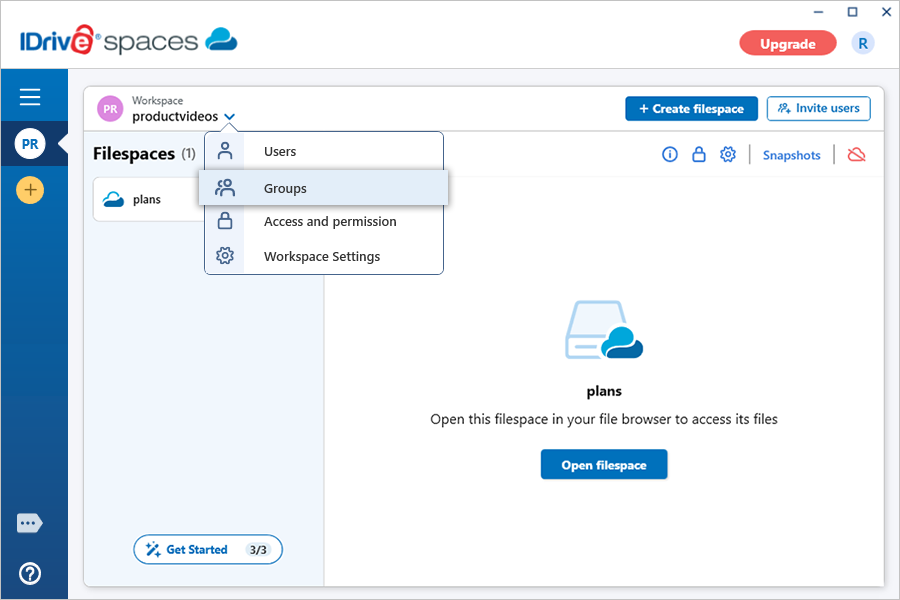
  2. Open the workspace where you want to create a group and click  view client wise status next to its name.
  3. Select Groups.
  4. Click Create group.
  5. Enter a name for your group.
  6. Click Create group.

Can I add users to a group?

Yes, you can add multiple users to a group.

To add users,

  1. Launch the IDrive® Spaces desktop application and sign in to your account.
  2. Open the workspace where you want to create a group and click  view client wise status next to its name.
  3. Select Groups. A list of groups will appear.
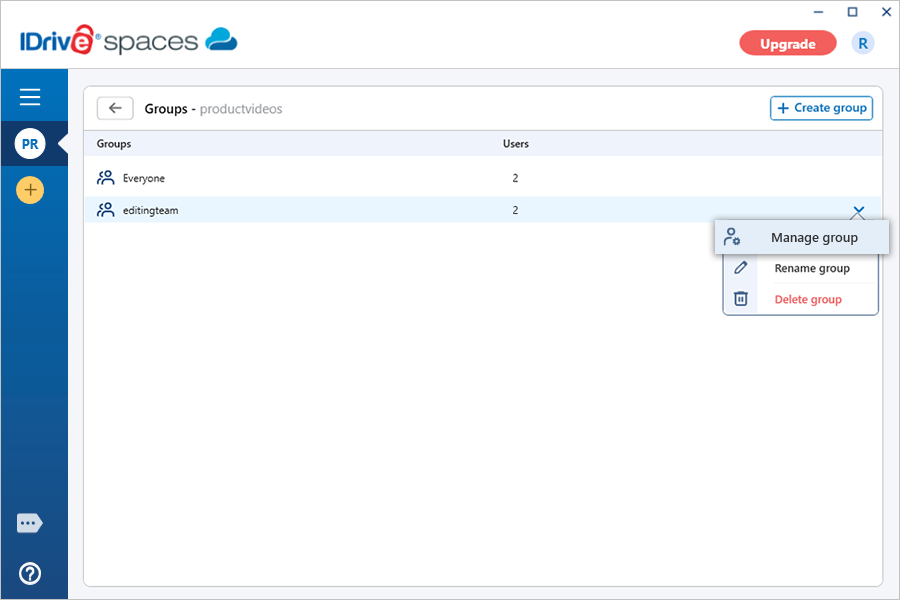
  4. Hover over the group you want to add members to and click  view client wise status next to it.
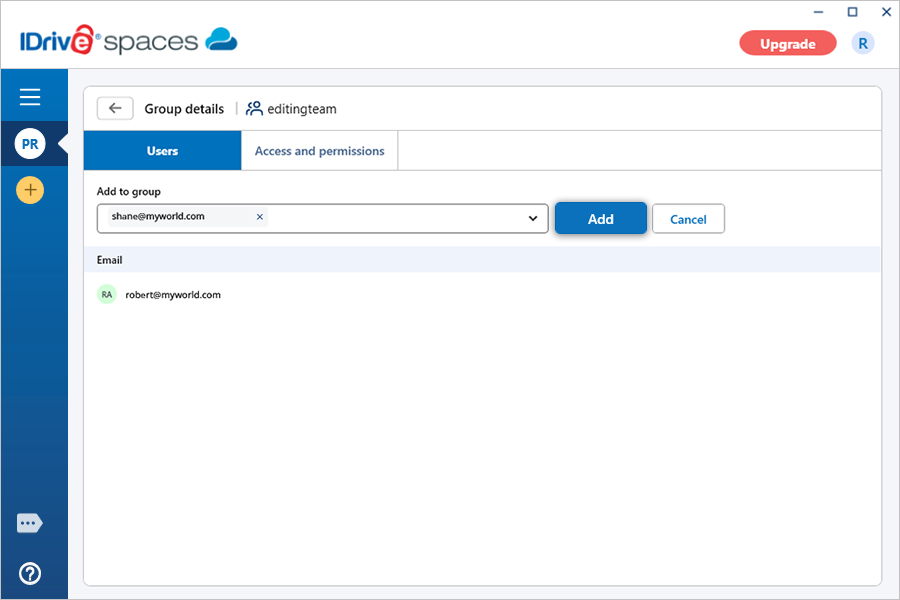
  5. Select Manage group. The Group details page appears.
  6. Click Add users to group. The 'Group details' page appears.
  7. Select the users you want to add from Add to group dropdown.
  8. Click Add.

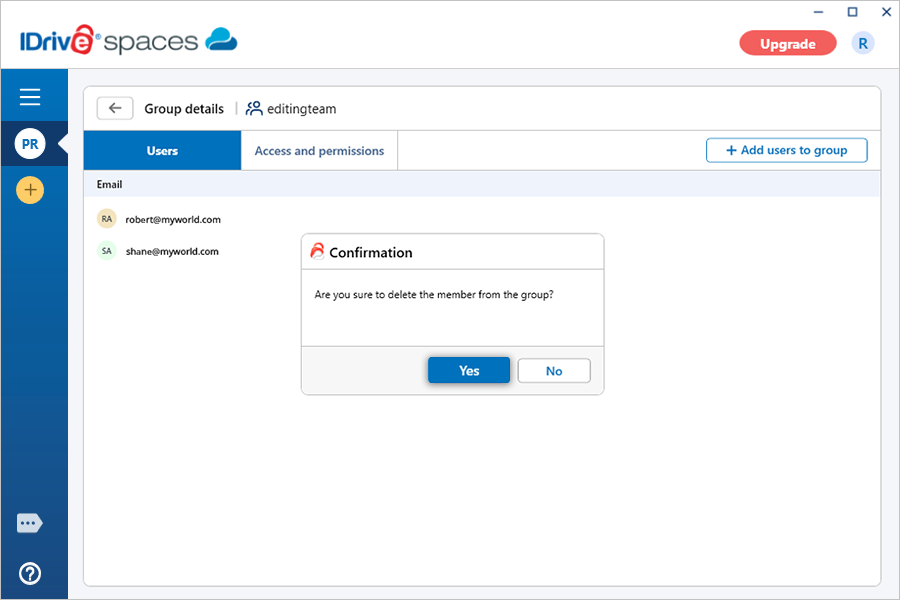
Can I delete users from a group?

Yes, you can delete a user from a group.

To delete a user,

  1. Launch the IDrive® Spaces desktop application and sign in to your account.
  2. Open the workspace containing the group you want to delete users from and click  view client wise status next to its name.
  3. Select Groups. A list of groups will appear.
  4. Hover over the group from which you want to delete users and click  view client wise status next to it.
  5. Select Manage group. The Group details page appears.
  6. Hover over the intended user and click  view client wise status.
  7. Click Yes in the confirmation popup.
     view client wise status

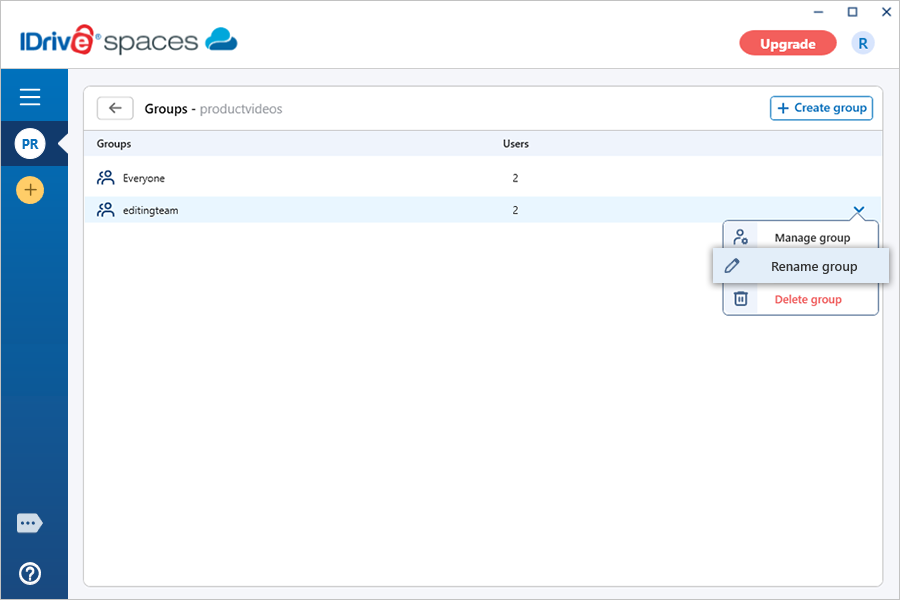
How do I rename a group?

To rename a group,

  1. Launch the IDrive® Spaces desktop application and sign in to your account.
  2. Open the workspace containing the group you want to rename and click  view client wise status next to its name.
  3. Select Groups. A list of groups will appear.
  4. Hover over the group you want to rename and click  view client wise status next to it.
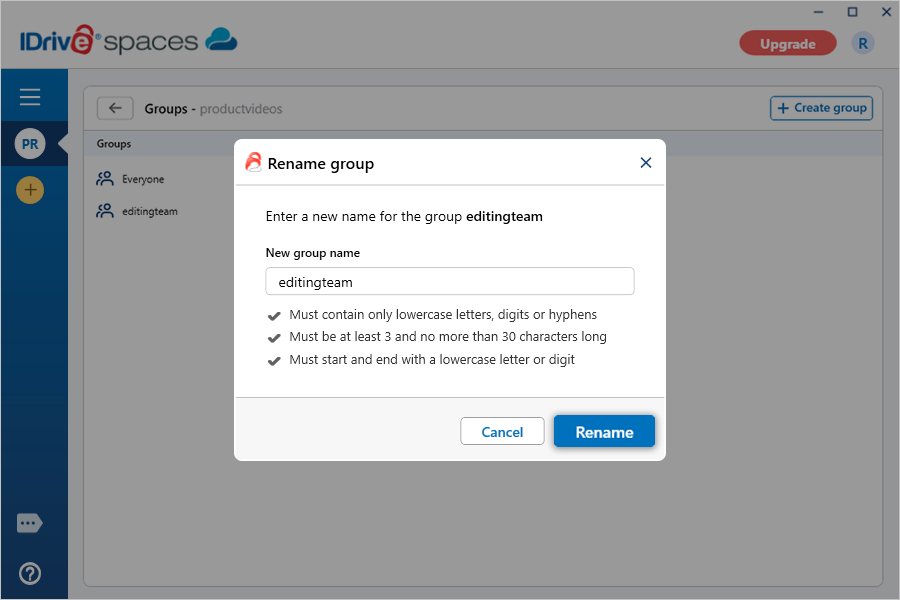
  5. Select Rename group. A slider screen will appear.
  6. Enter a new name for the group.
  7. Click Rename.

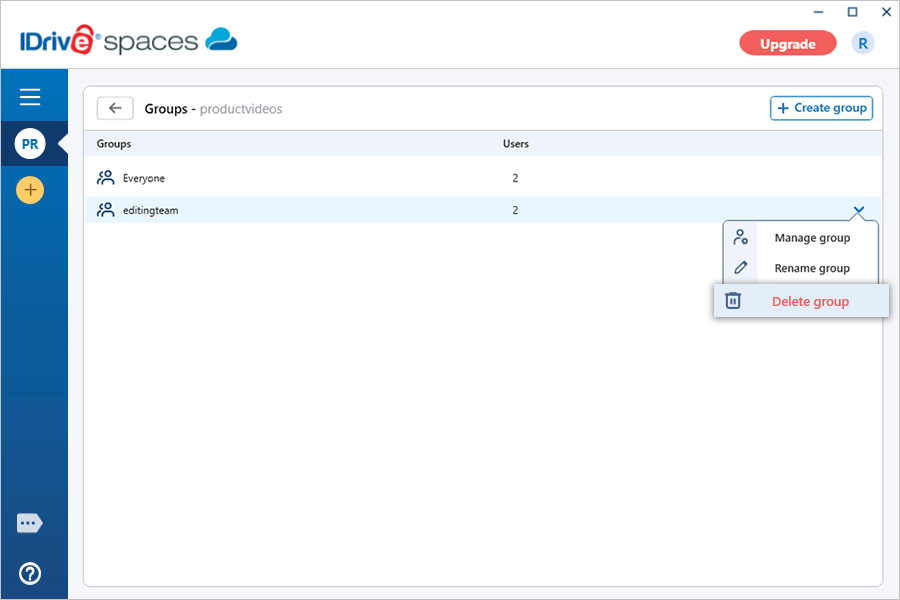
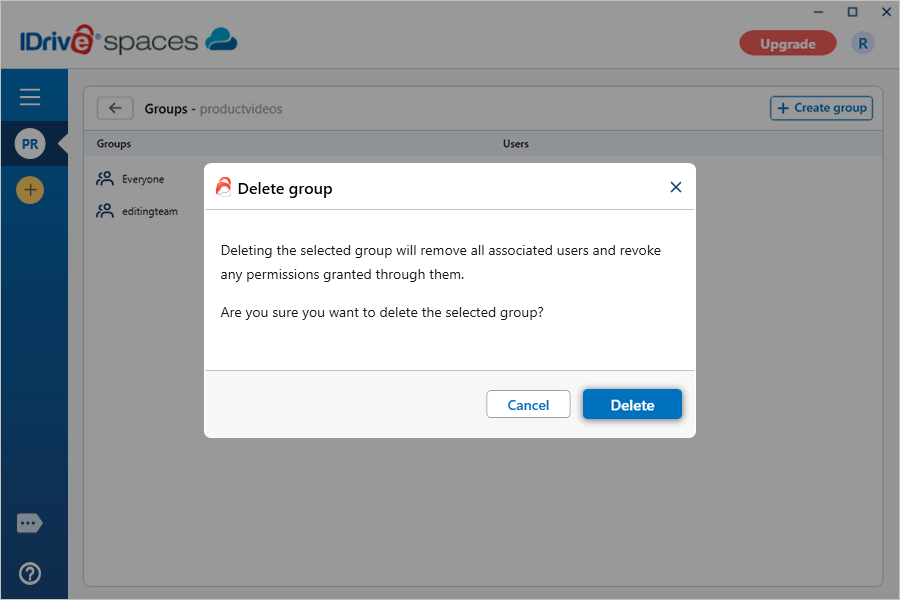
How do I delete a group?

To delete a group,

  1. Launch the IDrive® Spaces desktop application and sign in to your account.
  2. Open the workspace containing the group you want to delete and click  view client wise status next to its name.
  3. Select Groups. A list of groups will appear.
  4. Hover over the group you want to delete and click  view client wise status next to it.
  5. Select Delete group.
  6. Click Delete in the confirmation popup.

How do I grant access permission to an entire filespace?

You can grant View or Edit access to a filespace for multiple users or groups.

To grant access to a filespace,

  1. Launch the IDrive® Spaces desktop application and sign in to your account.
  2. Open the workspace that contains the required filespace.
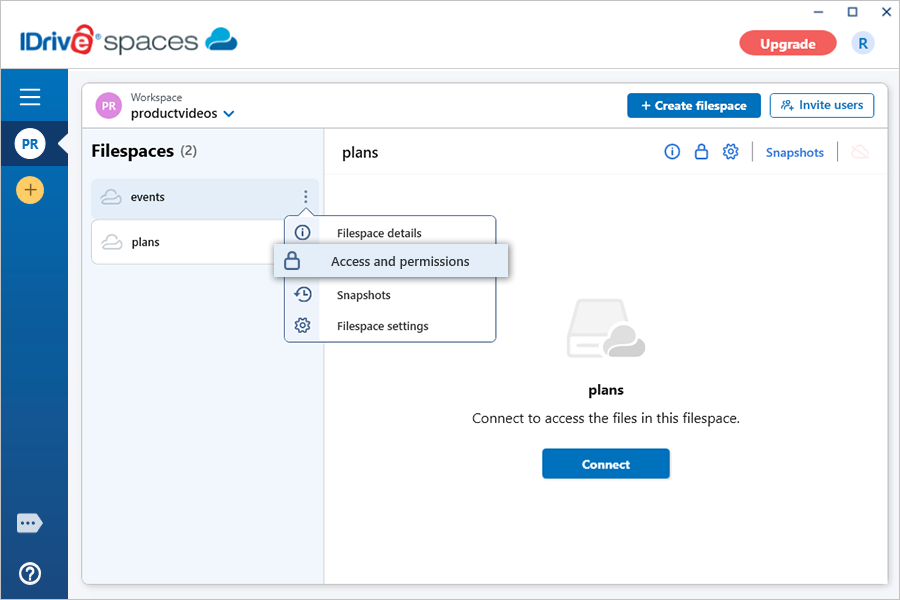
  3. Click  view client wise status next to the filespace name.
  4. Click Access and permissions.
  5. Go to the Users or Groups tab.
  6. Click Grant access corresponding to the required user or group.
  7. Select the required permission level (View or Edit).

Note: Select the default Everyone group to grant access to all users in the workspace.

How do I grant access permission to a specific folder?

You can grant View or Edit access to a specific folder within a filespace.

To grant folder access,

  1. Launch the IDrive® Spaces desktop application and sign in to your account.
  2. Open the workspace that contains the required filespace.
  3. Click  view client wise status next to the filespace name.
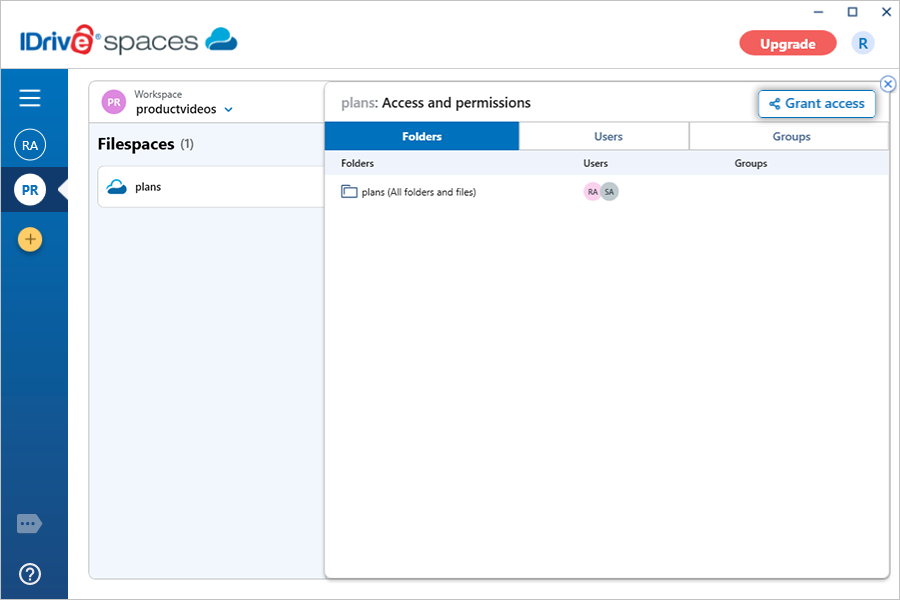
  4. Click Access and permissions.
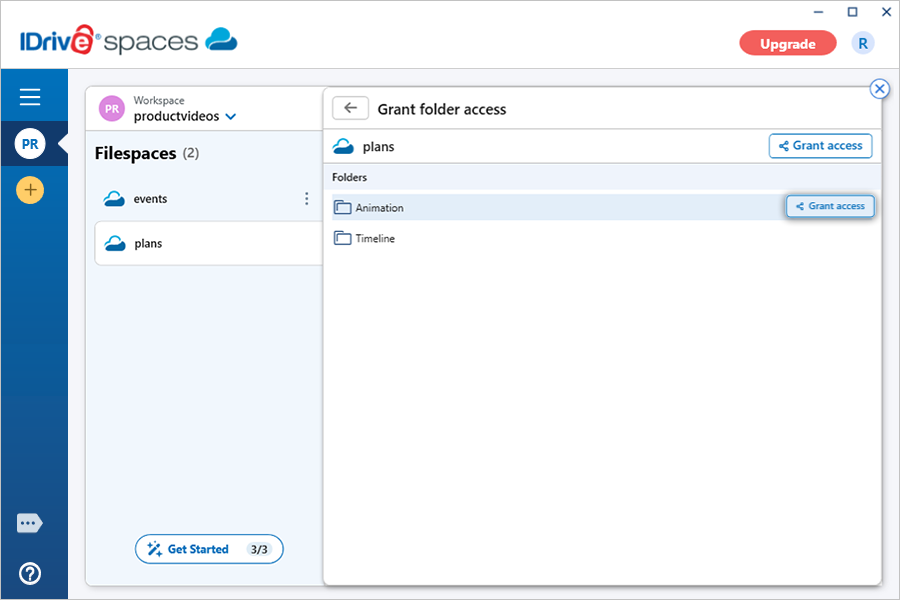
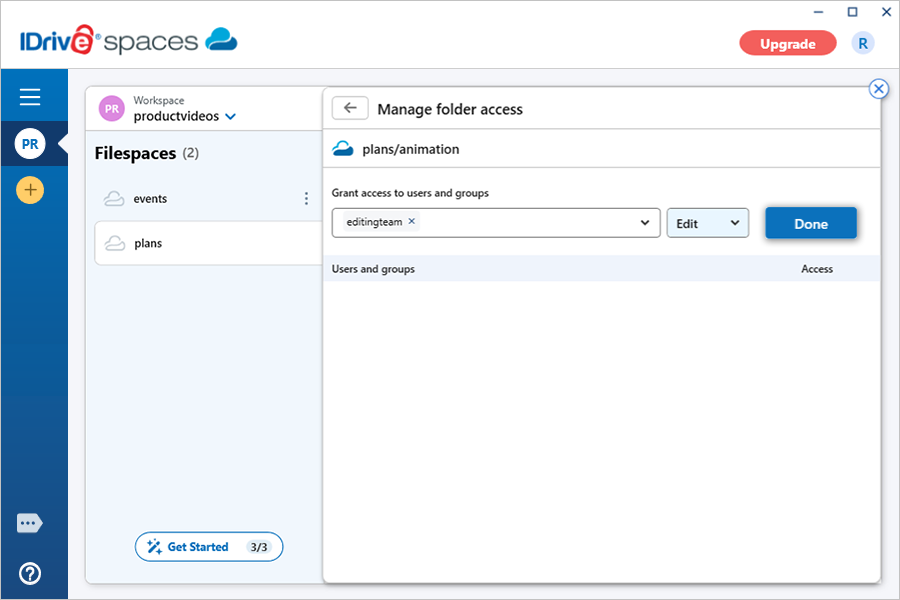
  5. In the Folders tab, click Grant access. The Grant folder access screen appears.
  6. Click Grant access next to the folder you want to grant access to.
  7. Enter the user or group names.
  8. Select the required permission level (View or Edit).
  9. Click Done.

Note: Select the default Everyone group to grant access to all users in the workspace.

Is it possible to modify the existing permissions for a filespace or specific folders?

Yes. You can modify the access permissions for an entire filespace or specific folders within it.

To modify permissions for all users and groups,

  1. Launch the IDrive® Spaces desktop application and sign in to your account.
  2. Open the workspace that contains the required filespace.
  3. Click  view client wise status next to the filespace name.
  4. Click Access and permissions
  5. Change the permission level (View or Edit) for for all users or groups listed.

To modify permissions for a specific user or group,

  1. Open the workspace containing the filespace and click  view client wise status next to its name.
  2. Select Users or Groups.
  3. Hover over the required user or group and click  view client wise status next to it.
  4. Select Manage group. The Group details screen appears.
  5. Click Access and permissions.
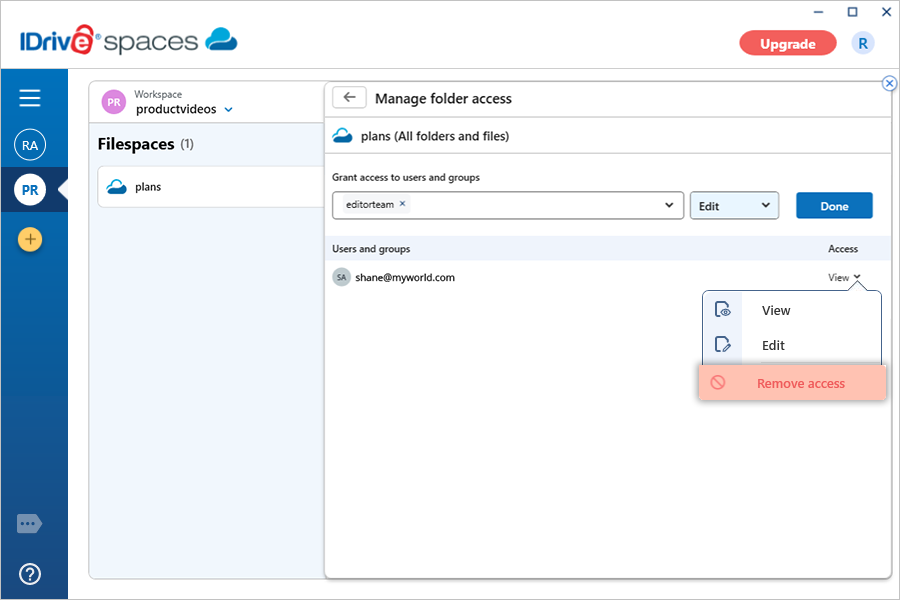
  6. Hover over the filespace or folder and click Manage access.
  7. Change the permission level (View or Edit) for the user or group.

Can I remove the existing permissions for a filespace or specific folders within it?

You can remove access permissions for an entire filespace or for specific folders.

To remove permissions from a filespace or folder,

  1. Launch the IDrive® Spaces desktop application and sign in to your account.
  2. Open the workspace that contains the required filespace.
  3. Click next to the filespace name.
  4. Click Access and permissions
  5. Select the users or groups whose access you want to remove.
  6. Click the required folder (if removing folder-specific permissions) and click Remove access.

To remove permissions for a specific user or group,

  1. Open the workspace containing the filespace and click  view client wise status next to its name.
  2. Select Users or Groups.
  3. Hover over the required user or group and click  view client wise status next to it.
  4. Select Manage group.
  5. Click Access and permissions.
  6. Hover over the filespace or the folder and click Manage access.
  7. Click Remove access next to the required filespace or folder.
 

1-818-485-4333