Frequently Asked Questions

Google Classroom

Google Classroom

If your question is not addressed below, please contact us through our support form and we'll get back to you shortly.

How can I configure and connect to Google Classroom as an existing Google Workspace user?
Where can I find a list of all the classes created in Google Classroom?
I see a few backup actions listed in the Classes section. What do these backup actions suggest?
How can I ensure the backup action is active for newly added classes in Google Classrooms?
How can I set the backup action as active for all the classes simultaneously?
What action does the Unprotect all button do?
How can I back up my Google Classroom account data using IDrive® Google Workspace Backup?
How do I ensure the number of classes available in the IDrive® Google Workspace Backup account matches that in my native Google Classroom account?
Can I download a list of all available classes in my Google Workspace Backup account?
How can I search for a particular class in my IDrive® Google Workspace Account?
What does the Backup status of any particular class indicate?
How can I obtain an overview of class details, including any changes?
Where can I access the details of any specific class created in Google Classroom on the IDrive® Google Workspace Backup console?
What restoration methods are available for restoring classroom backups in Google Workspace Backup?
How can I restore the backed-up data associated with my Google Classroom account using the IDrive® Google Workspace Backup?
Where can I view all the restored classroom data in Google Workspace Backup?
How can I search for a specific class or its attributes using the IDrive® Google Workspace Backup?
How can I export the Google Classroom data to my local storage?
Where can I find the exported data for all classes in IDrive® Google Workspace Backup?
Where can I view a list of all the class restores in IDrive® Google Workspace Backup?
Where can I view a list of all the class backups in IDrive® Google Workspace Backup?
Where can I view a summary of all my class activities in IDrive® Google Workspace Backup?
Where can I view the details of the Administrator Actions in IDrive® Google Workspace Backup?
Where can I view details for all backups, exports, restores, and other events in IDrive® Google Workspace Backup?

How can I configure and connect to Google Classroom as an existing Google Workspace user?

You can configure and connect to Google Classroom as an existing Google Workspace user by following the steps below.

  1. Navigate to Seat Management or Recovery.
  2. Click Classroom.
     view client wise status
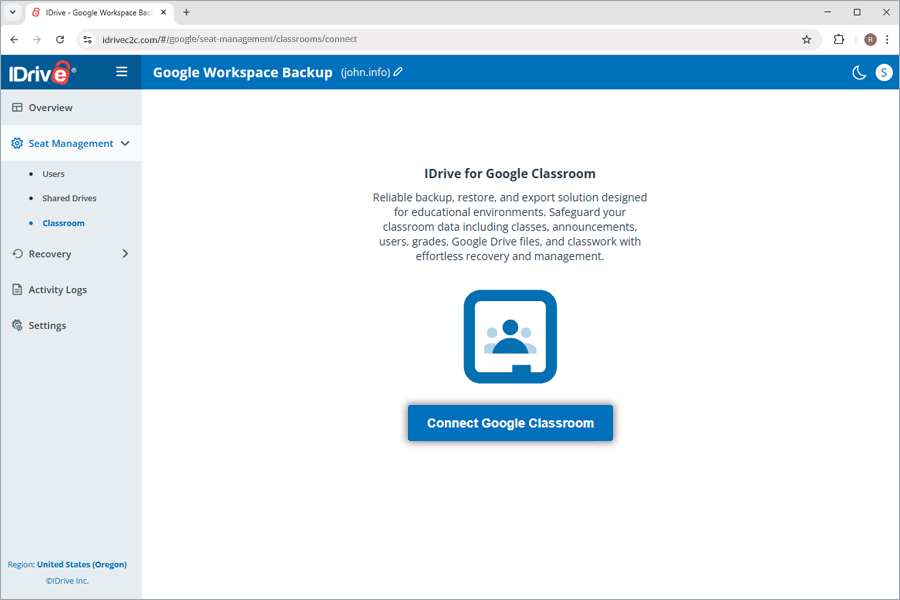
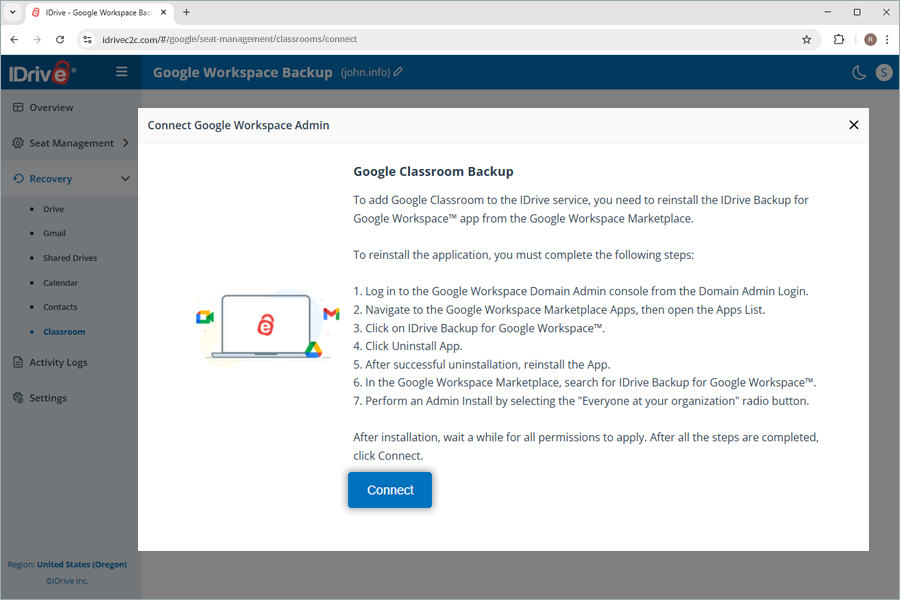
  3. Click Connect Google Classroom. The Connect Google Workspace Admin popup appears. To add Google Classroom to the IDrive service, follow the on-screen instructions to reinstall the IDrive® backup for Google Workspace™ app from the Google Workspace Marketplace.
     view client wise status
  4. Click Connect. You are now connected to Google Classroom on the Google Workspace Backup console.
     view client wise status

Where can I find a list of all the classes created in Google Classroom?

You can find all the classes that have been successfully configured in Google Classroom under Classroom.

To view the list of classes:

  1. Navigate to Seat Management.
  2. Click Classroom. The classes are available in a list format.

I see a few backup actions listed in the Classes section. What do these backup actions suggest?

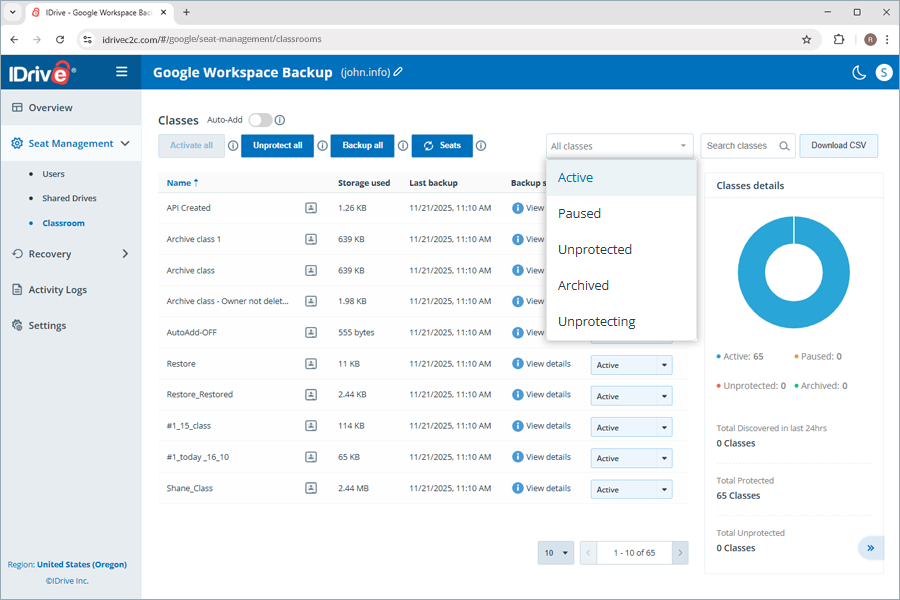
The backup actions available in Google Classroom are Active, Paused, Unprotected, and Archived.

  • Active
    If the backup action is set to active for any particular class, regular three backups, as well as manual on-demand backups, can be performed.
  • Paused
    When setting the backup action for a class to paused, no further backup operations can be performed for that specific class. The existing backup snapshots data will still be available in IDrive cloud storage.
  • Unprotected
    If the backup action is set to unprotected, all the existing backup snapshots' data will be permanently deleted from the IDrive cloud storage.
  • Archived
    If a class is permanently deleted in the native Google Classroom account, the backup action for that specific class is set to archived.
     view client wise status

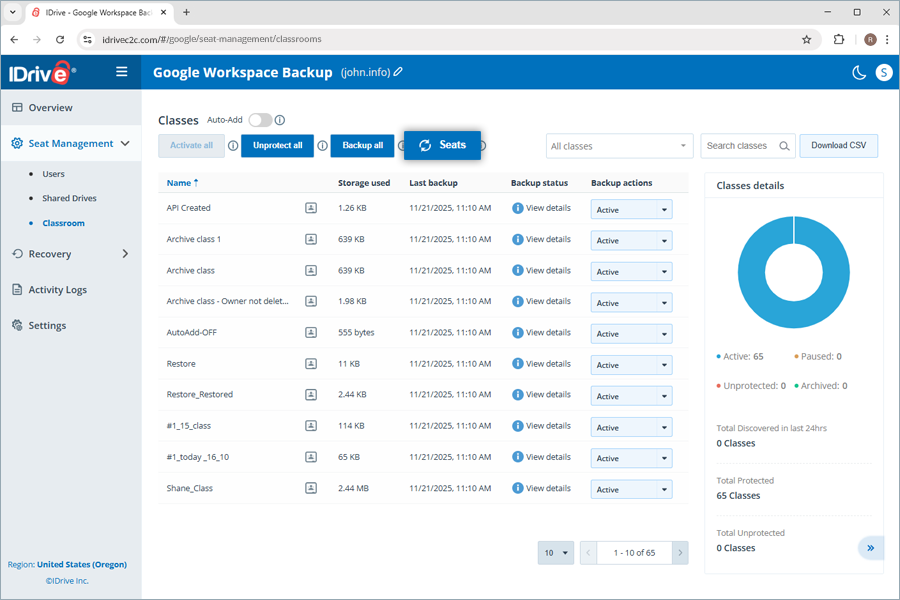
To filter classes by backup action, click the toggle button and select the desired backup action. The list of classes with the selected backup action appears in the grid below. To view the current backup action, including data changes for any class, click Seats Refresh.

 view client wise status

How can I ensure the backup action is active for newly added classes in Google Classrooms?

The backup action can be set to active for newly added classes using the Auto-Add option. When enabled, this option automatically sets the backup action to active for newly added classes, ensuring that new data is included in upcoming automated or manual backup snapshots.

How can I set the backup action as active for all the classes simultaneously?

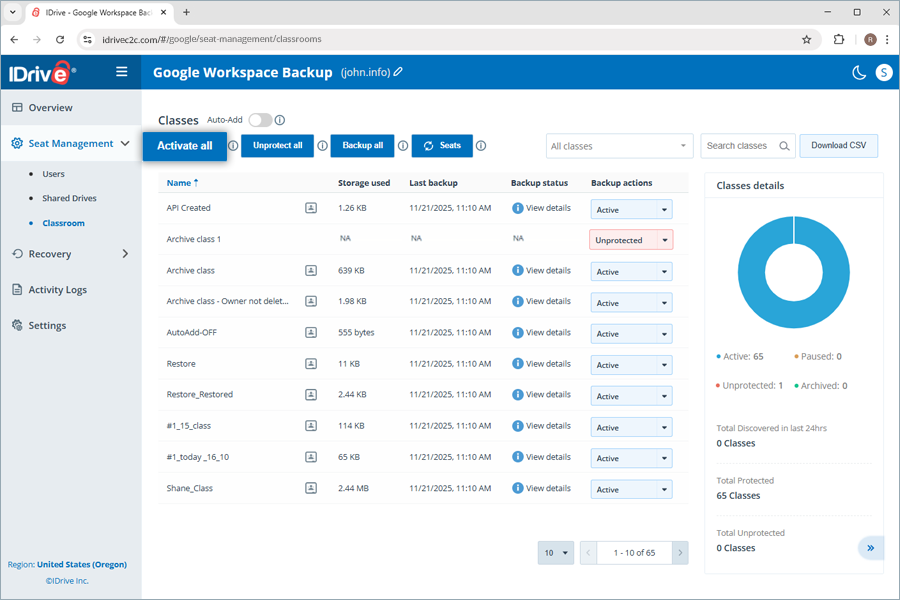
You can set the backup action to active for all classes at once using the Activate all button. Upon pressing this button, the backup action for all available classes is set to active, enabling simultaneous backup for all classes.

What action does the Unprotect all button do?

Upon pressing the Unprotect all button, the backup action for the classes is set to unprotected. It can help you in scenarios where you intend to simultaneously delete existing backup data for all classes and perform a backup from scratch.

How can I back up my Google Classroom account data using IDrive® Google Workspace Backup?

You can back up your Google Classroom account data by following the steps below.

  1. Navigate to Classroom under Seat Management.
  2. The seats with Backup actions set to Active can be backed up. To ensure that all available seats are set to Active, click Activate all. Clicking this button changes the status of unprotected and paused classes to active.
     view client wise status
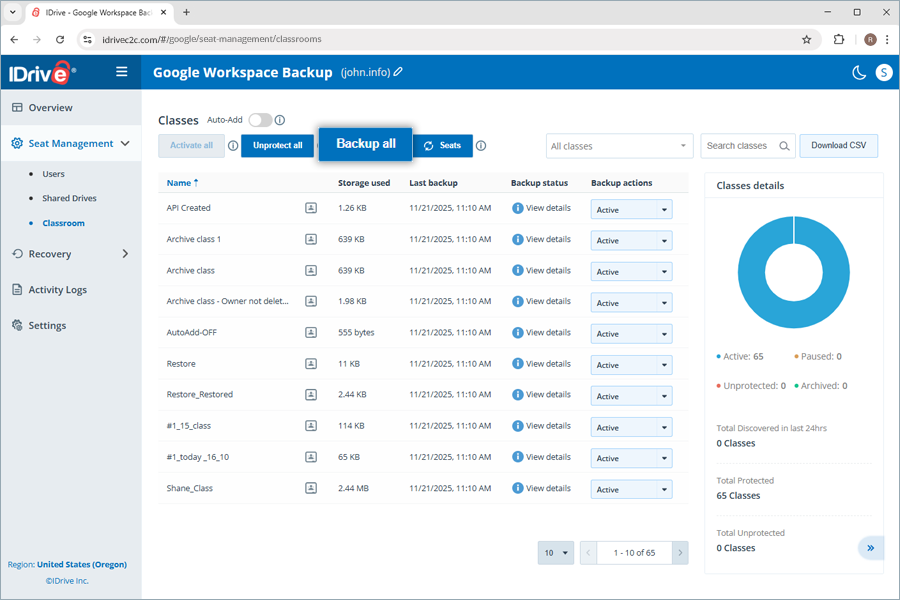
  3. Click Backup all. The backup for all the active classes begins.
     view client wise status
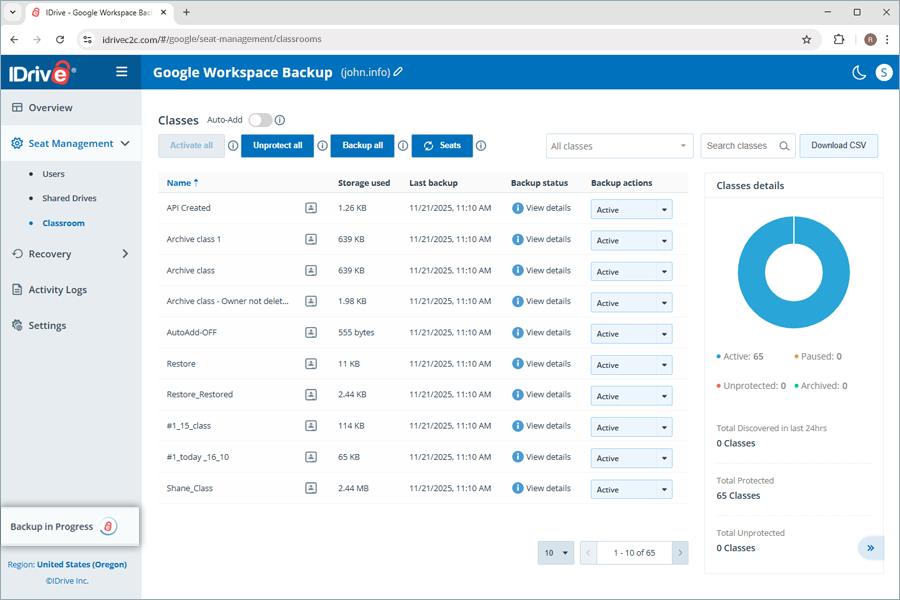
    A dialog Backup in progress appears in the left-side panel.
     view client wise status

To perform a selective backup for particular classes,

  1. Navigate to Classroom under Recovery.
  2. Select the class you wish to back up, then click Backup now.
  3. A dialog Backup in progress appears in the left-side panel.
     view client wise status

Once the classes are backed up, you can locate the backups by following the steps below.

  1. Navigate to Classroom under Recovery.
  2. Go to the Backups tab.
  3. All the backed-up classes will appear in grid view below.

How do I ensure the number of classes available in the IDrive® Google Workspace Backup account matches that in my native Google Classroom account?

To ensure a similar number of classes in your native Google Classroom account and your IDrive Google Workspace Backup account, click Seats refresh. Upon clicking this button, all changes made to the data in your native Google Classroom will be reflected in your IDrive Google Workspace Backup account. The seat count will be refreshed as new seats are discovered, and the status of existing seats will be updated.

Can I download a list of all available classes in my Google Workspace Backup account?

Yes, you can download the data for the available classes in your IDrive Google Workspace Backup account by following these steps.

  1. Navigate to Classroom under Seat Management.
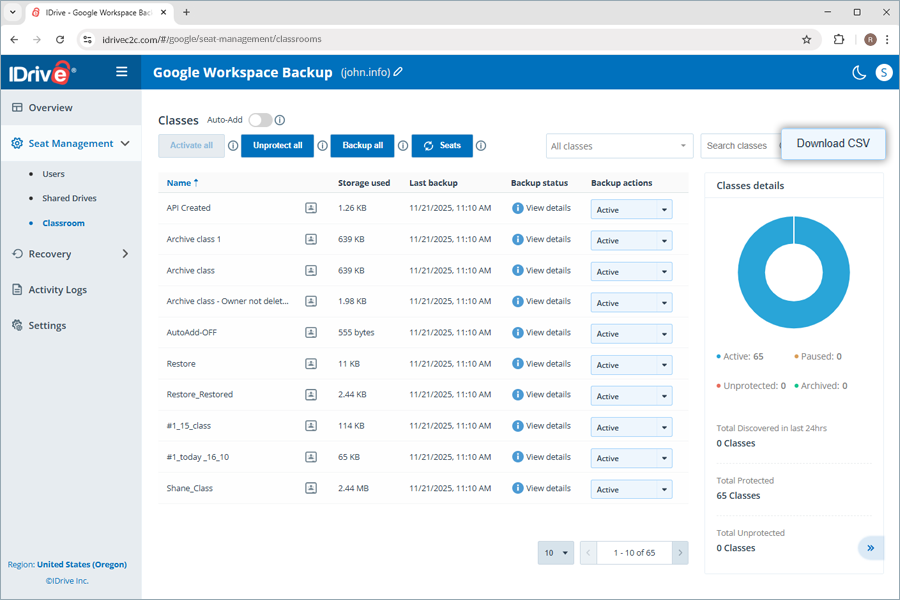
  2. Click Download CSV. The entire classroom data has now been downloaded to your local storage as a CSV file.
     view client wise status

How can I search for a particular class in my IDrive® Google Workspace Account?

You can search for a specific class in your Google Workspace account using the steps below.

  1. Navigate to Classroom under Seat Management.
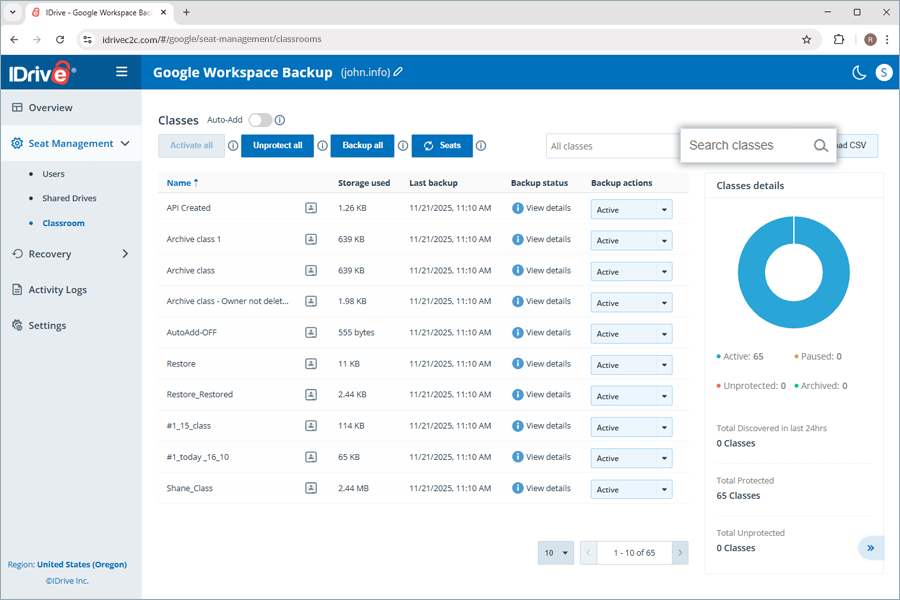
  2. Click the Search classes search bar.
     view client wise status
  3. Enter the name of the class you wish to search. The corresponding class (es), along with their details, appear in the grid below.

What does the Backup status of any particular class indicate?

The Backup status of any specific class indicates the current backup status of that class. To view the backup status of any particular class,

  1. Navigate to Classroom under Seat Management.
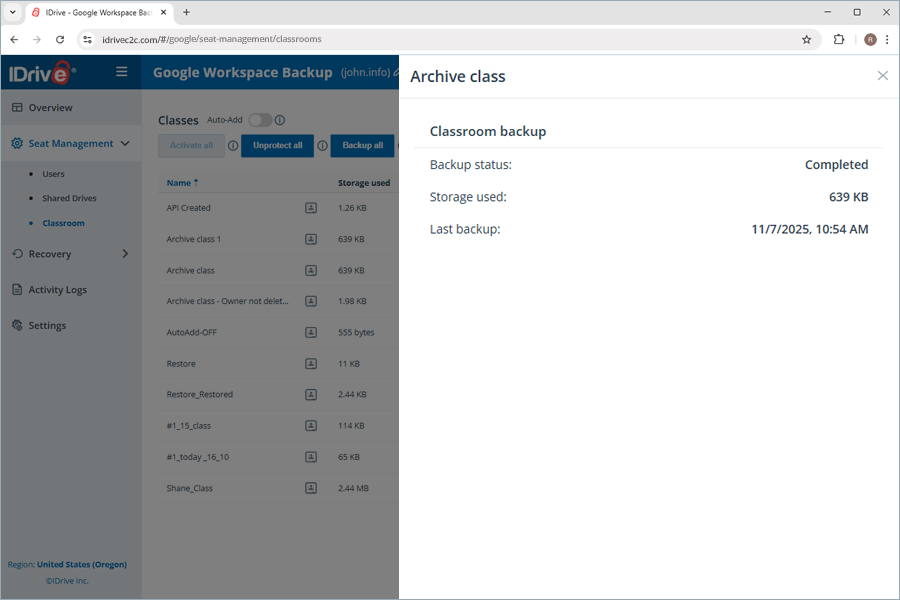
  2. In the list of classes grid, under the Backup status column, hover over the View details tooltip for any class.
  3. An Overview popup appears, displaying the seat type (e.g., classroom) and its status (e.g., completed).
     view client wise status

How can I obtain an overview of class details, including any changes?

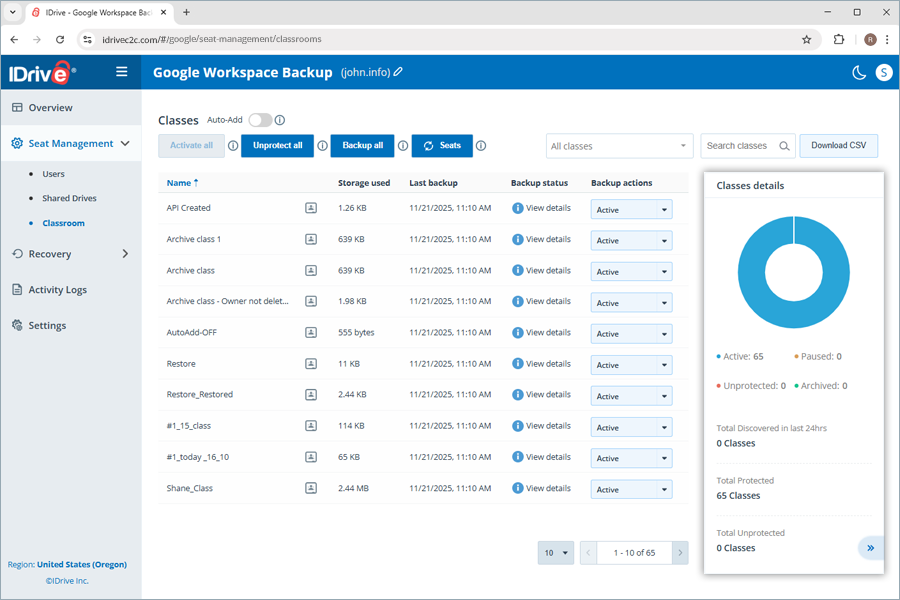
You can obtain an overview of all the classes, including their backup actions details and changes, by hovering over the Classes details section.

The donut chart displays the distribution of class statuses, segmented by Active, Paused, Unprotected, and Archived backup actions.

Clicking a specific backup action displays the corresponding classes and their pagination value in the grid view.

The Total Discovered in last 24hrs count displays the total number of classes discovered in the IDrive Google Workspace Account.

The Total Protected and Total Unprotected counts show the corresponding classes: those that are currently backed up and those that are not.

 view client wise status

Where can I access the details of any specific class created in Google Classroom on the IDrive® Google Workspace Backup console?

You can access details for any class created in the native Google Classroom account in the IDrive Google Workspace Backup console by following the steps below.

  1. Navigate to Classroom under Seat Management.
  2. Click the icon next to a class name in the list of classes.
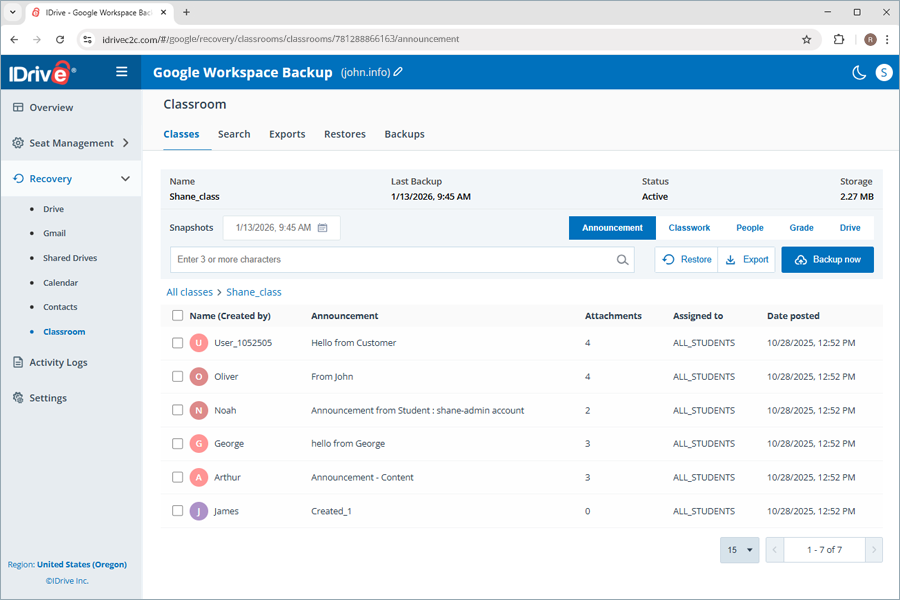
  3. You are directed to Recovery > Classroom, where the list of classes appears in a grid view, with columns for announcement, classwork, people, grade, and drive.
    1. Announcement
      The classroom data created in Stream within Google Classroom is displayed in the announcement section of IDrive Google Workspace Backup.
    2. Classwork
      The data available in Classwork is reflected in the Classwork section of the IDrive Google Workspace Backup.
    3. People
      It shows the total number of user roles (e.g., teacher and student) available, along with the number of guardians assigned to a specific student, in a grid view.
    4. Grade
      It displays a grid list view of all students, including classwork titles, assignment creation and due dates, submission statuses, grades, and grade types.
    5. Drive
      The files uploaded for any class-related activities appear in Drive, with attributes such as name, size, type, and last modified timestamp.
    6.  view client wise status

Changes made to data in any class on the native Google Classroom account will be reflected in these sections and backed up according to the selected backup actions.

What restoration methods are available for restoring classroom backups in Google Workspace Backup?

You can restore your classroom backups in Google Workspace Backup using either of the following two methods.

  1. Non-destructive/New Class
    Performing a restore using this method creates a new Google Classroom and restores all available data for announcement/classwork/people/drive, excluding grades, without affecting the existing classes in the native Google Classroom account.
  2. Destructive/Skip existing data
    Performing a restore using this method skips the existing announcement/classwork/people/drive data (content and attachments) in the native Google Classroom account and restores the rest of the data.

How can I restore the backed-up data associated with my Google Classroom account using the IDrive® Google Workspace Backup?

You can restore the backed-up data associated with your Google Classroom account following the steps below.

  1. In the Classes tab, click any of the classes.

    Note: The grid view shows only the classes with backup actions set to Active, Paused, or Archived. The classes with Unprotecting and Unprotected backup actions aren’t available in this list.

  2. The details of the specific class appear that include attributes such as the last backup timestamp, status, and storage size.
  3. The class backups are segregated by announcement, classwork, people, grade, and drive. Select either of these options by clicking their respective buttons.

    Note: Backups under the Grade category aren’t eligible for backup. Hence, the Restore button is hidden when this category is selected.

  4. To perform a selective restore of the class data
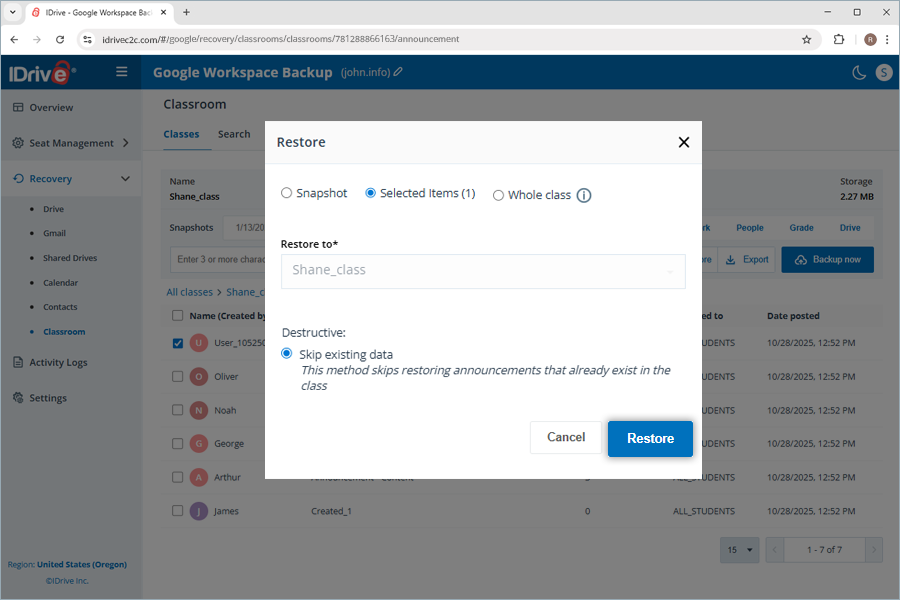
    1. Select any of the categories (announcement, classwork, people, drive), and the respective item checkboxes, and click Restore.
    2. The Restore popup appears. The Selected Items with the item count in brackets and the Skip existing data radio buttons are preselected.
    3. Click Restore.
       view client wise status

      Note: For the first restore instance, you are prompted to enter the verification code received on the email ID of the account administrator.
    4. Click Verify and Restore. The classroom data is restored while skipping the existing data.
  5. To perform a snapshot restore,
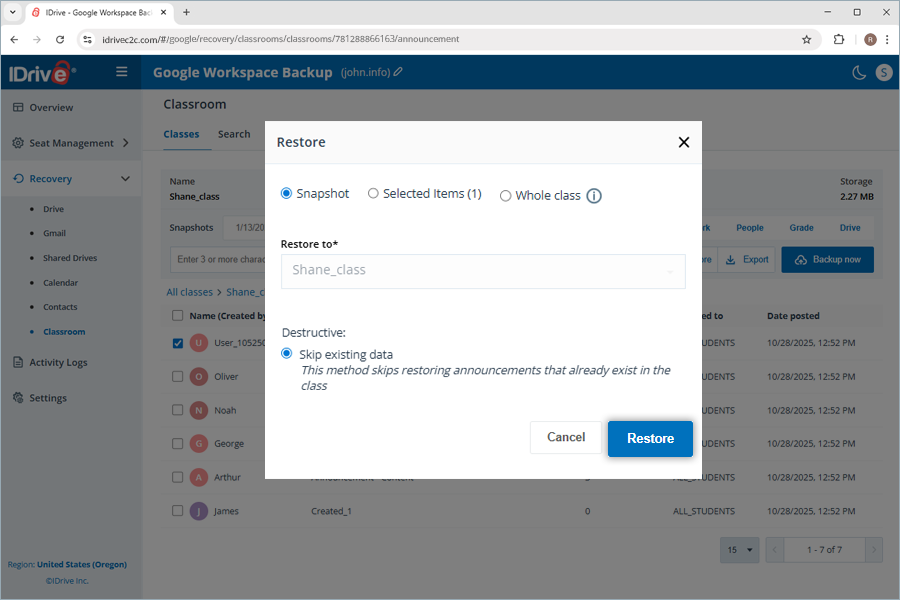
    1. Select any of the categories (announcement, classwork, people, drive), and the respective item checkboxes, and click Restore.
    2. The Restore popup appears. The Snapshot and the Skip existing data radio buttons are preselected.
    3. Click Restore. The classroom data is restored while skipping the existing data.
       view client wise status
  6. To perform a whole-class restore,
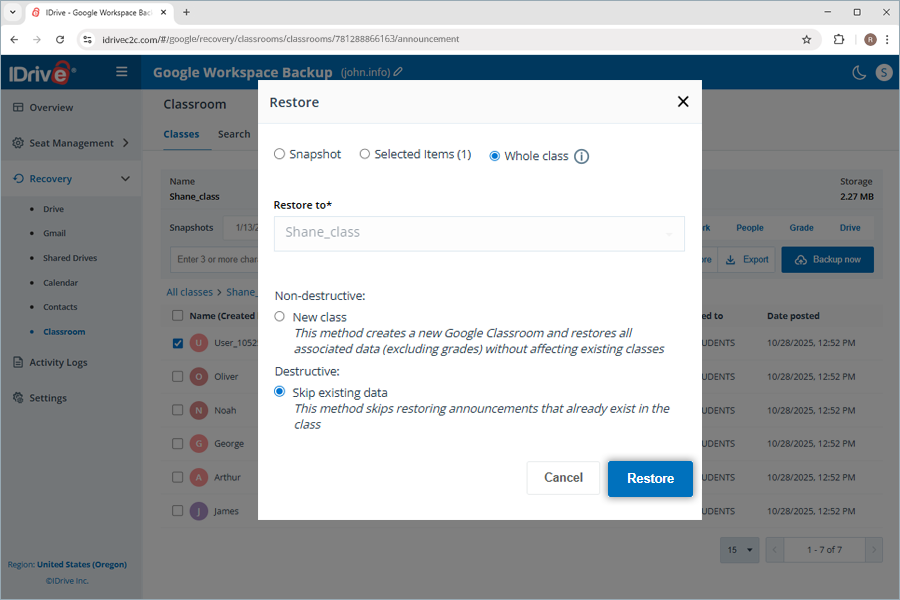
    1. Click Restore.
    2. The Restore popup appears. Select the Whole class radio button.
    3. Select either of the following radio buttons based on your preference.
      1. New class
      2. Skip existing data
    4. Click Restore.
       view client wise status
      The classroom data is restored either by skipping the existing data or by creating a new class followed by a timestamp in the native Google Classroom account.

Where can I view all the restored classroom data in Google Workspace Backup?

You can view all the restored classroom data by following the steps below.

  1. Navigate to Classroom under Recovery.
  2. Click the Restores tab. All the restored classroom data appear in a grid view.

How can I search for a specific class or its attributes using the IDrive® Google Workspace Backup?

You can search for a specific class or its attributes, such as announcement, classwork, people, grades, and drives, using the Search option.

  1. Navigate to Classroom under Recovery.
  2. Click the Search bar and enter the class name.
  3. Click Snapshots and select the backup timestamp.
  4. Select an option in the Classes dropdown.
  5. Click Search. All relevant classes are listed below in a grid view.

Additionally, you can also export the searched or selected classes by clicking Export.

How can I export the Google Classroom data to my local storage?

To export any classroom data to your local storage,

  1. Navigate to Classroom under Recovery.
  2. In the Classes tab, click any of the classes.
  3. Click Export.
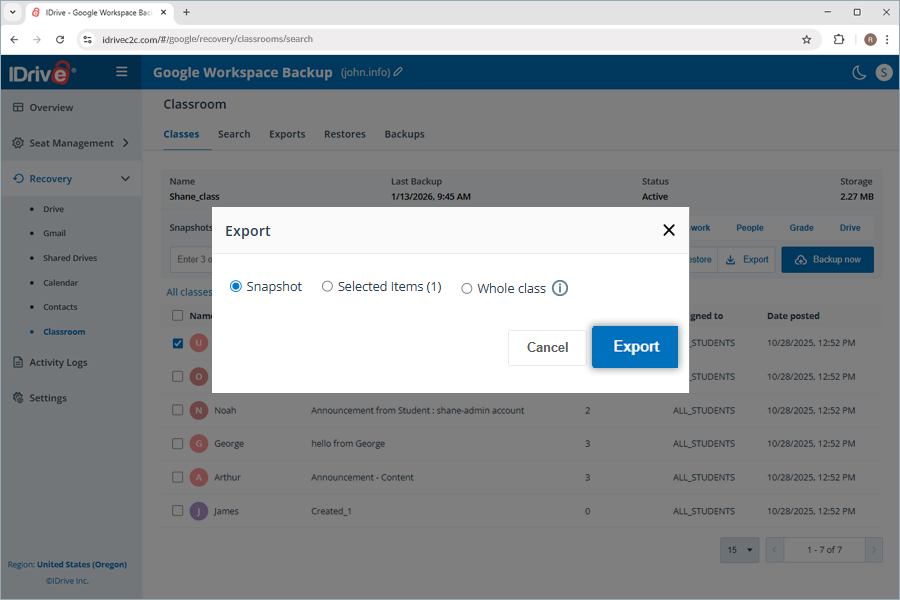
  4. To perform a snapshot export,
    1. The Snapshot radio button is selected by default. To continue with the snapshot export, click Export.
       view client wise status
    2. Click Export.
      Note: For the first export instance, you are prompted to enter the verification code received on the email ID of the account administrator.
    3. Click Verify and Export. The classroom data is exported.
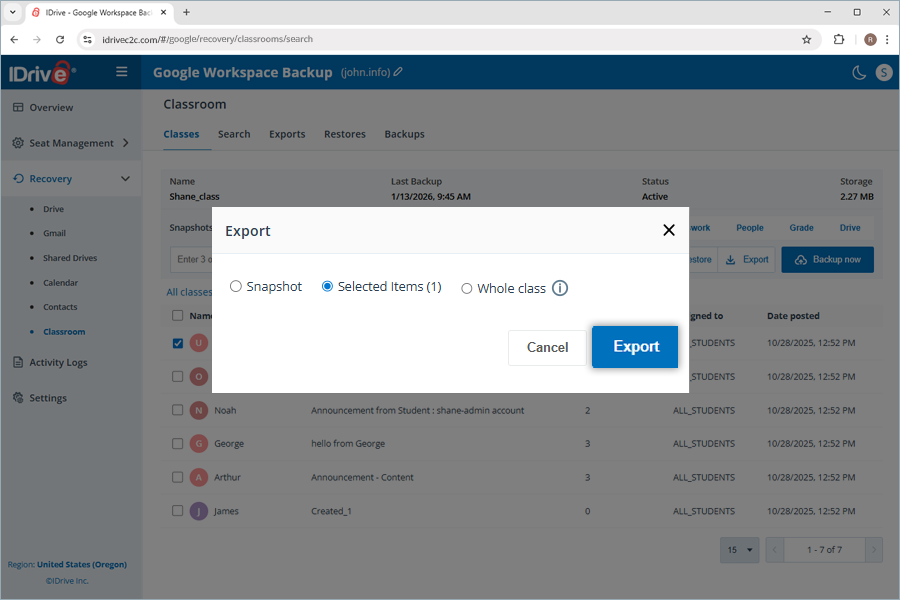
  5. To perform a selective export,
    1. Click Export.
    2. The Export popup appears. The Selected Items with the item count in brackets is preselected.
    3. Click Export.
       view client wise status
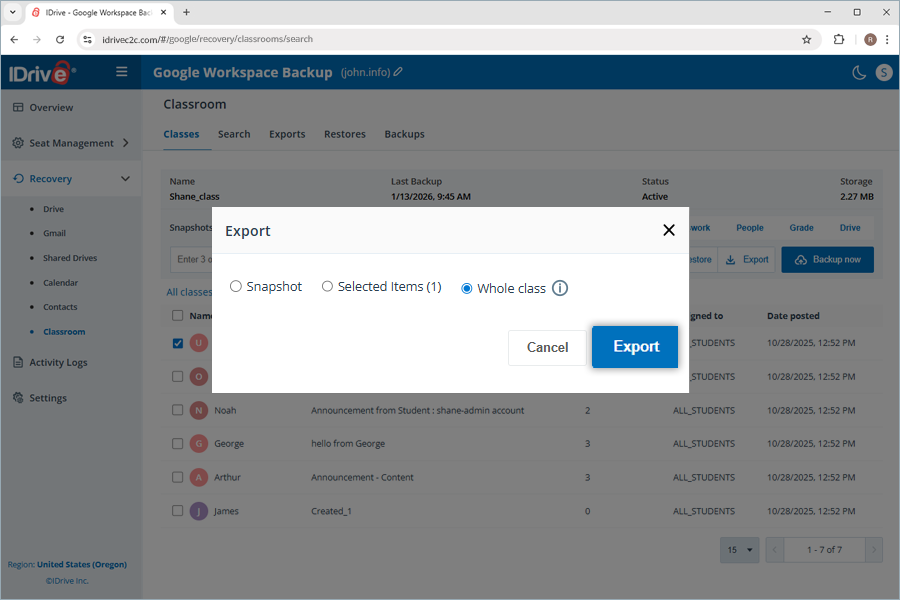
  6. To perform a whole-class export,
    1. Click Export.
    2. The Export popup appears. Select the Whole class radio button and click Export.
       view client wise status

You can download the generated export files in the Exports tab by clicking cancel next to successful exports. Alternatively, click drive to delete the exported data.

Note: Exported data will be downloaded as zip files.

To cancel an ongoing data export, click close icon and click Yes in the confirmation popup.
Where can I find the exported data for all classes in IDrive® Google Workspace Backup?

You can find the exported data for all the classes by following the steps below.

  1. Navigate to Classroom under Recovery.
  2. Click the Exports tab. All the class data that has been exported is listed here in a grid view, segregated by type of export, destination, number of items, size, timestamp, status, and export state.
  3. Click cancel to download the corresponding class details to your local storage. Click drive to permanently delete any exported file.

Where can I view a list of all the class restores in IDrive® Google Workspace Backup?

You can find the restores for all the classes by following the steps below.

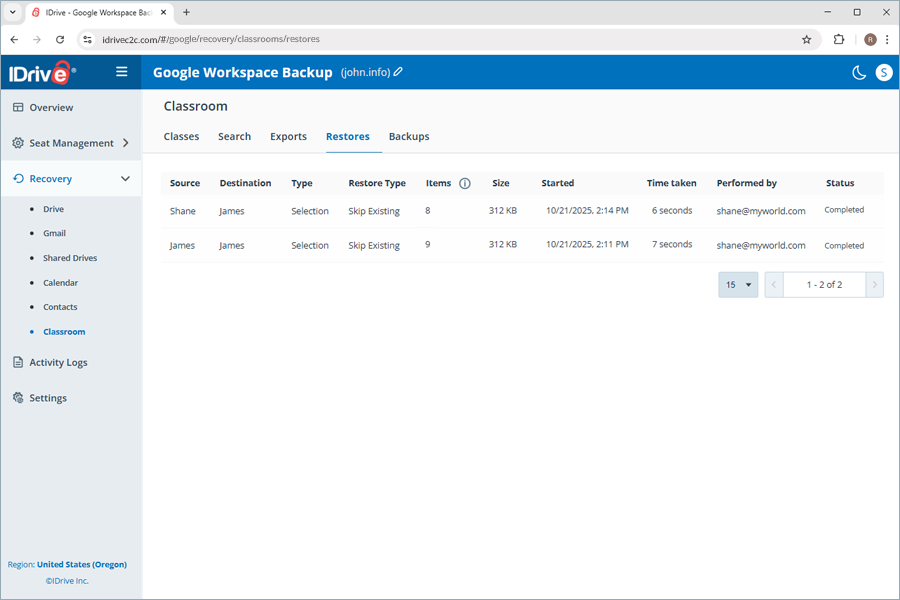
  1. Navigate to Classroom under Recovery.
  2. Click the Restores tab. All the class backup snapshots data that has been restored is listed here in a grid view, segregated by source, destination, type, restore type, items, size, restore timestamps, Google Workspace account, and status.
     view client wise status

Where can I view a list of all the class backups in IDrive® Google Workspace Backup?

You can find the backups for all the classes by following the steps below.

  1. Navigate to Classroom under Recovery.
  2. Click the Backups tab. All the class backup snapshots are listed here in a grid view, segregated by backup timestamp, class name, and status.
  3. Click the Search classes dropdown and the Status dropdown to filter backup snapshots by class name and status (All, Pending, In progress, Completed, Failed), respectively.
  4. Click Search. All the corresponding backup snapshots appear in a grid view below.

Where can I view a summary of all my class activities in IDrive® Google Workspace Backup?

You can view the details of class-related backup or restore activities by following the steps below.

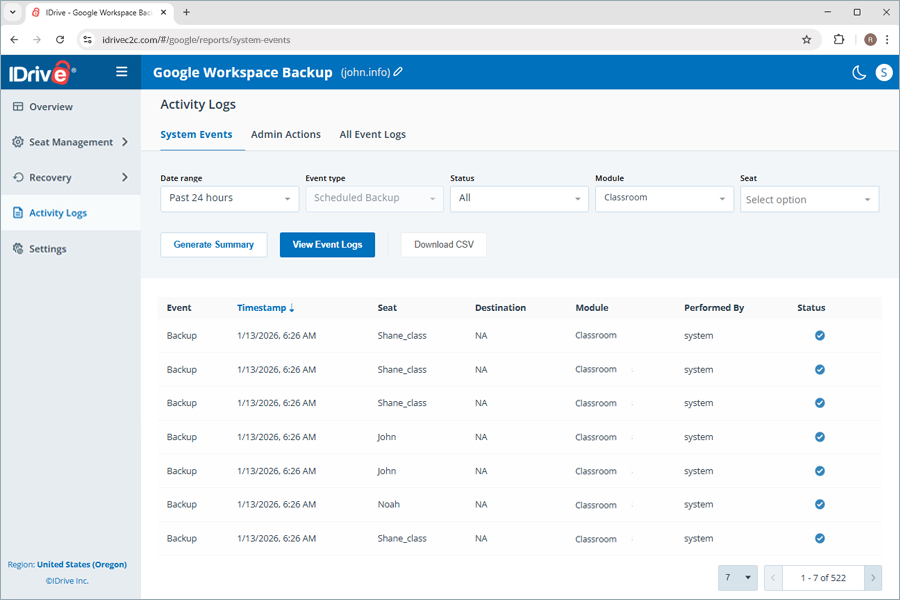
  1. Navigate to Activity Logs.
  2. Click the System Events tab.
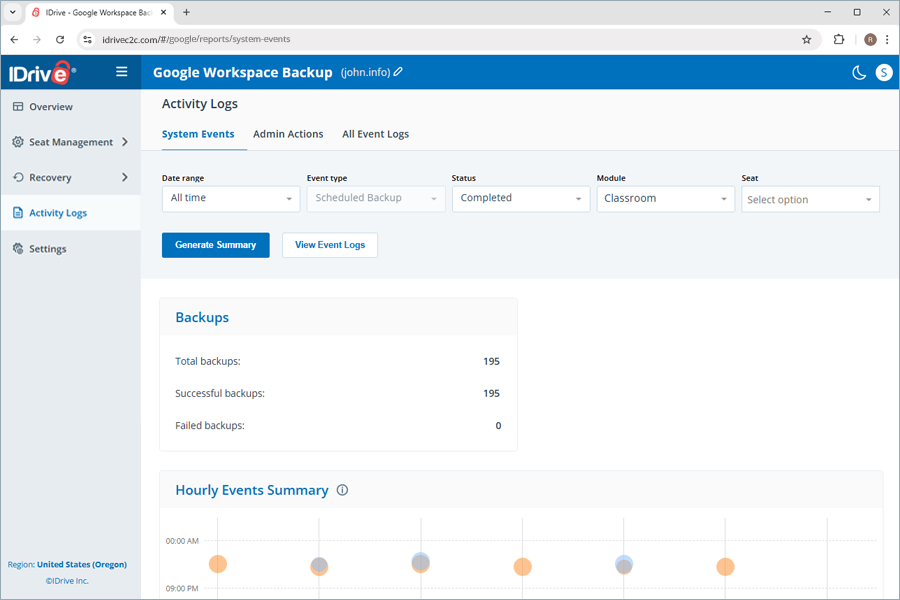
  3. Click the Date range, Event type, Status, Module, and Seat dropdowns to filter the activities based on the time frame, type of event, activity status, module type (classroom), and seat name.
  4. Click Generate Summary. A list of the filtered items appears in the grid view below.
     view client wise status
  5. Click View Event Logs to see all the events segregated into event, timestamp, seat, destination, module, account credential, and status.
     view client wise status

Where can I view the details of the Administrator Actions in IDrive® Google Workspace Backup?

You can view the details of the Administrator Actions in IDrive Google Workspace Backup by following the steps below.

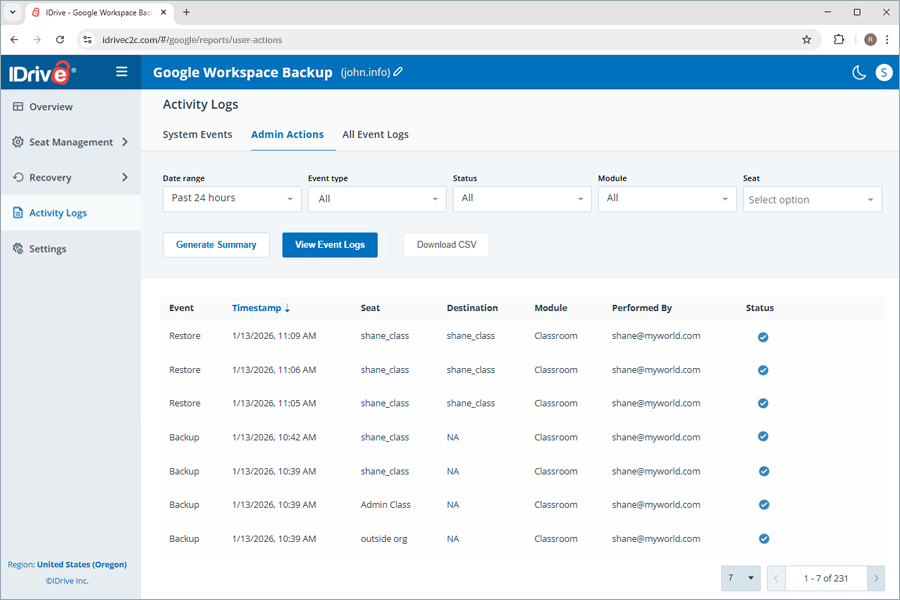
  1. Navigate to Activity Logs.
  2. Click the Admin Actions tab.
  3. Click the Date range, Event type, Status, Module, and Seat dropdowns to filter admin actions based on the time frame, type of event, activity status, module type (classroom), and seat name.
  4. Click Generate Summary. A list of the filtered items appears in the grid view below.
  5. Click View Event Logs to see all actions, segregated by event, timestamp, seat, destination, module, account credential, and status.
     view client wise status
  6. The individual sections below provide a summary of backups, exports, restores, and other events, each with its own details.

Where can I view details for all backups, exports, restores, and other events in IDrive® Google Workspace Backup?

You can view details of all events in IDrive Google Workspace Backup by following the steps below.

  1. Navigate to Activity Logs.
  2. Click the All Event Logs tab.
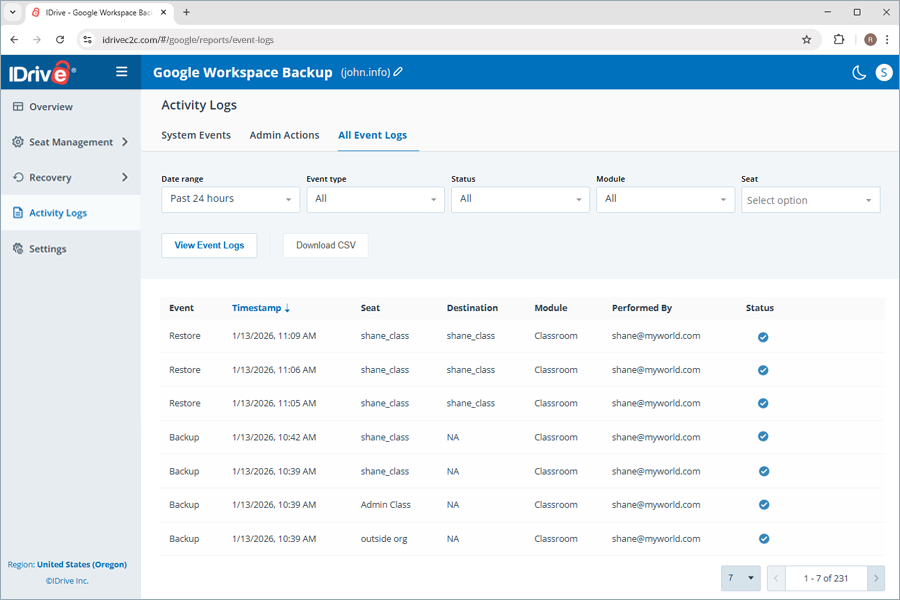
  3. Click the Date range, Event type, Status, Module, and Seat dropdowns to filter the events based on the time frame, type of event, activity status, module type (classroom), and seat name.
  4. Click View Event Logs to see all the events segregated into event, timestamp, seat, destination, module, account credential, and status.
     view client wise status
  5. To download the details of all events, click Download CSV. The file gets downloaded to your local storage.
-->

1-818-485-4333