Mass Deployment for IDrive® Mirror

Deploy IDrive® Mirror via Group Policy Objects (GPO)

Deploy IDrive® Mirror via Group Policy Objects (GPO)


Remotely install the IDrive® Mirror backup application on multiple computers across your network using Windows Server and Microsoft Active Directory Group Policy. Create a Group Policy Object, move the IDrive® Mirror MSI package to a shared network folder, and publish the GPO to all computers across the domain. See the steps below for details.


Prerequisites for remote MSI deployment:

  • Sign in and download the IDrive® Mirror MSI installer package. Alternatively, click the 'Copy Link' button to copy the installation link.
  • Configuration ID copied from the 'Add Computers' section in the Backup Console
  • Shared folder accessible to all domain users
  • Active Directory environment

Steps to create a Group Policy Object (GPO) in an Active Directory environment

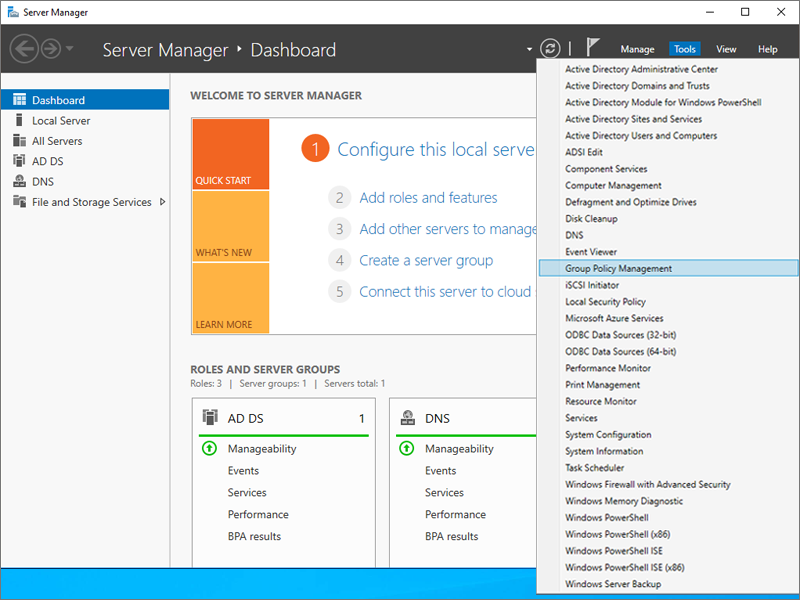
  1. From the 'Server Manager Dashboard' menu, go to 'Tools' and open 'Group Policy Management'.
    IDrive Mirror
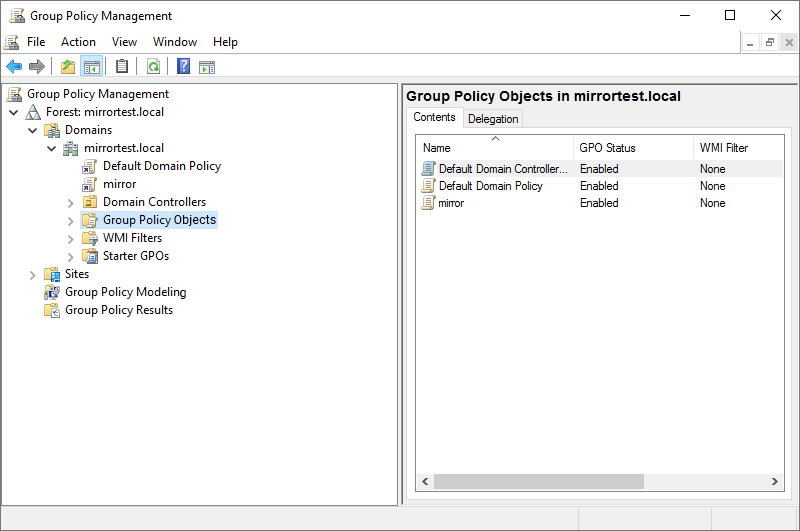
  2. In the 'Group Policy Management' console, navigate to 'Forest' and select the folder in which you want to create the Group Policy.
  3. Double-click 'Domains' and navigate to 'Group Policy Object'.
    IDrive Mirror
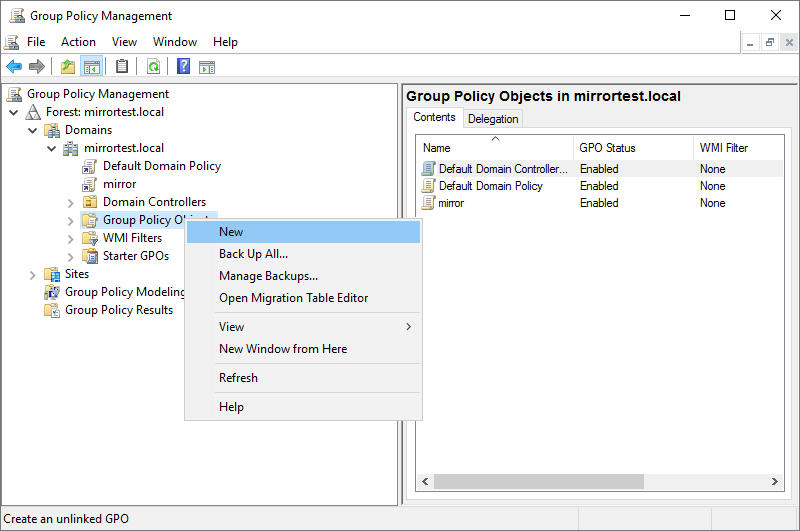
  4. Right-click 'Group Policy Object' and select 'New' from the drop-down menu.
    IDrive Mirror
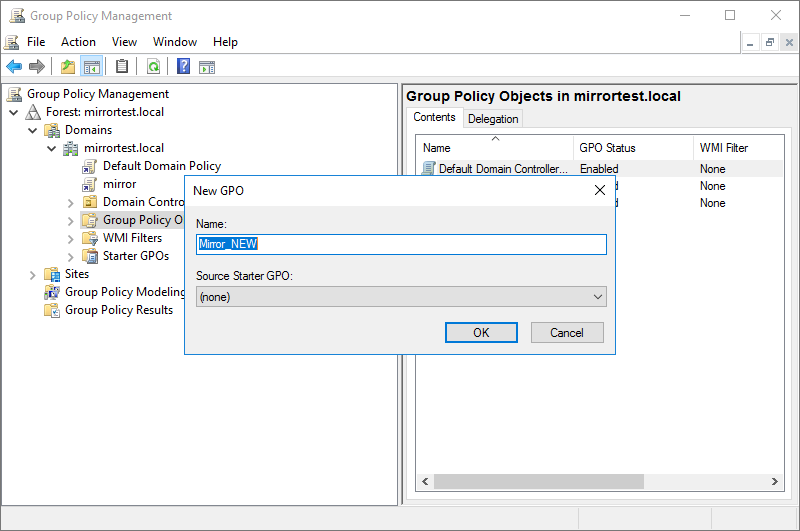
  5. Assign a name to the GPO and click 'OK'.
    IDrive Mirror

Steps to assign and install the IDrive® Mirror application on domain computers

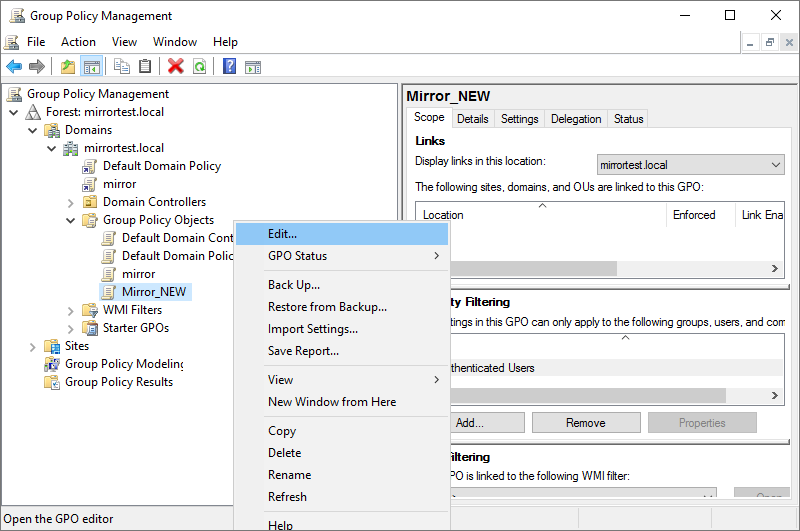
  1. Right-click the new group policy and select 'Edit' from the drop-down menu. This will launch the 'Group Policy Management Editor'.
    IDrive Mirror
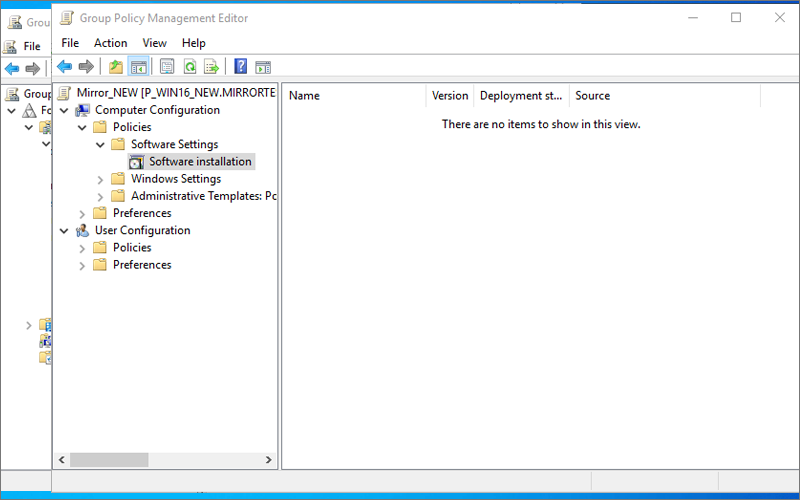
  2. Navigate to 'Computer Configuration' > 'Policies' > 'Software Settings' > 'Software installation'.
    IDrive Mirror
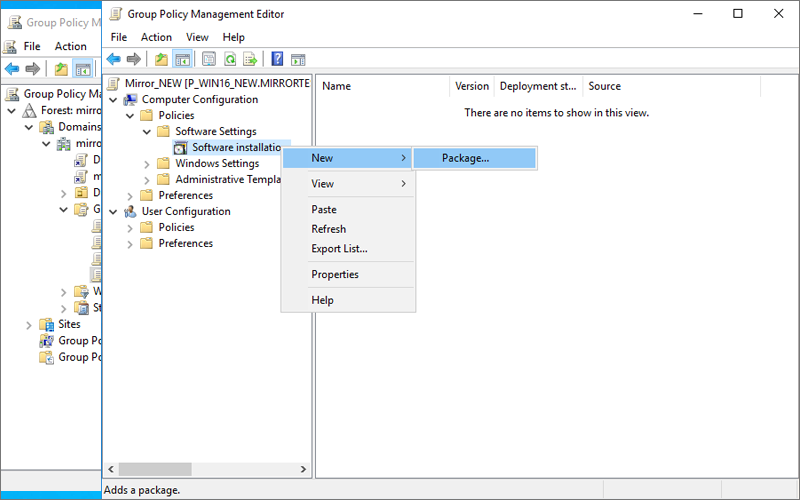
  3. Right-click 'Software installation' and navigate to 'New' > 'Package'.
    IDrive Mirror
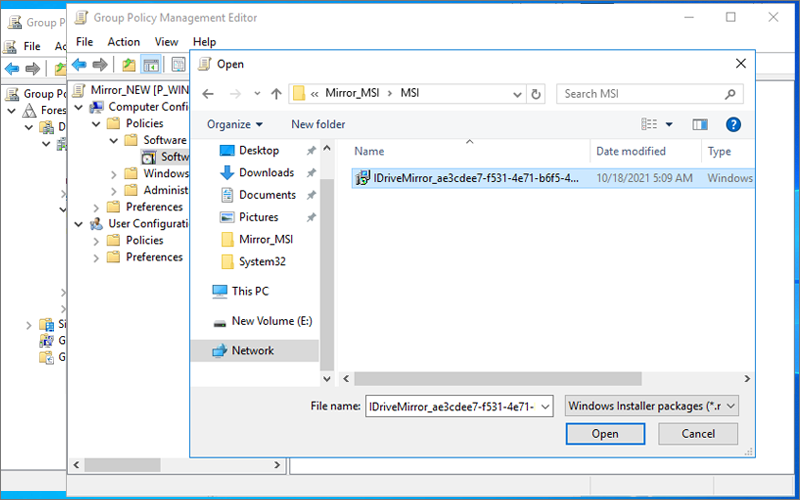
  4. Locate the shared network folder with the IDrive® Mirror MSI installer package.
  5. Select the package and click 'Open' to add to the software installation container.
    IDrive Mirror
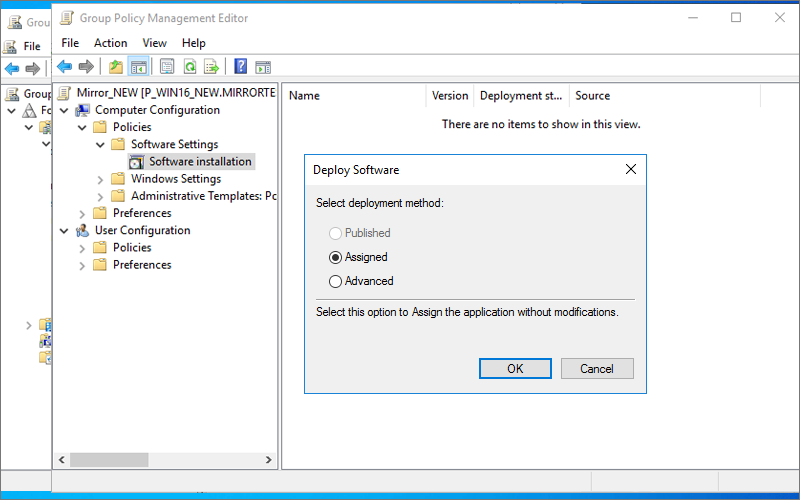
  6. Select 'Assigned' and click 'OK'. This process may take a while depending on the size of the software.
  7. Right-click on the MSI package and select 'Properties'. The 'IDrive® Mirror Properties' window appears.
  8. Go to the 'Deployment' tab. Under 'Deployment type', select 'Assigned' and under 'Deployment options', select 'Install this application at logon' for the 'User Configuration' type, and click 'OK'.
    IDrive Mirror
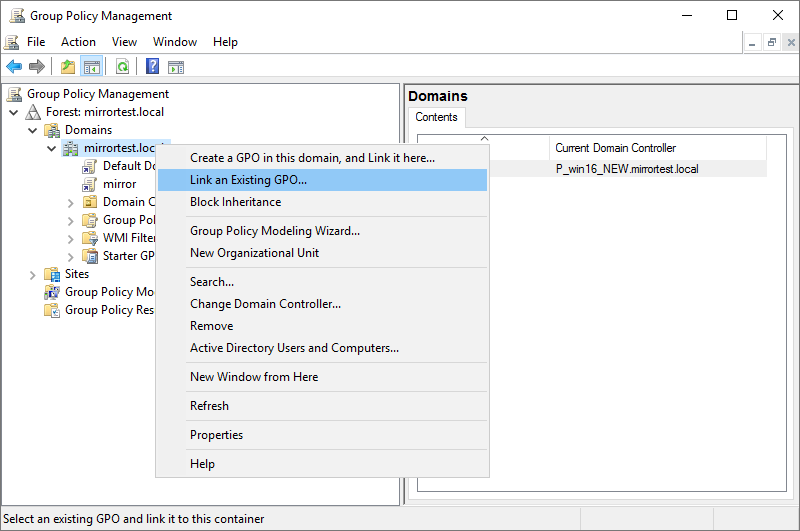
  9. Right-click the domain and select 'Link an Existing GPO'. The 'Select GPO' screen appears.
    IDrive Mirror
  10. Select the newly created Group Policy and click 'OK'.

The IDrive® Mirror application will be assigned to domain users the next time they sign in and to domain computers the next time they restart.

Steps to register computers via GPO using a batch script when the MSI installer file name does not contain a configuration ID

  1. Copy the configuration ID from the 'Add Computers' section in the Backup Console.
  2. Create a batch file (e.g. IDriveMirror_Register_Group.bat) with the following commands.
    1. To install the complete desktop application, use the following command.
    2. msiexec /i "D:\IDriveMirror.msi" ID=Copied_Configuration ID

      Example:

      msiexec /i "\\ws08r2\Share\Org\IDriveMirror_5c0c6acc-1b06-4fd3-b6df-af3fdeae9c30.msi" ID=5c0c6acc-1b06-4fd3-b6df-af3fdeae9c30

      where:

      • IDriveMirror.msi: The installer downloaded from the 'Add Computers' page. Make sure the file is placed in Share and is accessible to all domain users.
      • ID=5c0c6acc-1b06-4fd3-b6df-af3fdeae9c30 : The ID is the configuration ID copied from the 'Add Computers' section in the Backup Console.
      • In the Group Policy, use the batch file instead of the IDrive® Mirror installer.
      • Deploy the batch file via GPO to add the computers.
      • After successful deployment, the computers will be listed in the Dashboard.
    3. To install the thin client application, use the following command. Only a tray icon will be installed on the computer, and all operations will be redirected to the web.
    4. msiexec.exe /i "IDriveMirror.msi" ID=0d34e1e1-e241-43a2-8696-67a1e755cf8a Thin="y" 
    5. To install the application so that it runs as a service, use the following command. There will be no tray icon or desktop application on the computer.
    6. msiexec.exe /i "IDriveMirror.msi" ID=0d34e1e1-e241-43a2-8696-67a1e755cf8a NoTray=true
    7. To automatically enable the computers during installation and add them to the default backup plan, use the following command. This command can also be used with the thin-client or no-tray options.
    8. msiexec.exe /i "IDriveMirror.msi" ID=0d34e1e1-e241-43a2-8696-67a1e755cf8a Thin="y" Enable=true
 

1-818-485-4333