System State Restore
Restore essential system-level components of your Windows server or domain controller in the event of a system crash, corruption, or misconfiguration using IDrive 360 System State Restore. This functionality helps bring the system back to an operational state and supports business continuity with minimal downtime.
Components Restored
During a System State restore, the following elements can be recovered:
- Boot files
- COM+ Class Registration database
- Windows Registry
- Boot Configuration Data (BCD)
For domain controllers, additional components included in the restore are:
- Active Directory database (NTDS)
- SYSVOL folder
- DNS server configuration
Prerequisites for Running a Restore
Before initiating the System State restore, ensure the following conditions are met:
- Perform the restore on the same machine and the same Windows OS version used for the backup.
- Keep the System State backup on locally attached storage or removable media. Mapped network locations are not supported.
- Launch the restore utility with administrative privileges.
- Make sure all Windows updates are applied and the system has been rebooted, if required.
- Confirm that sufficient disk space exists on the OS drive to complete the operation.
Important Notes
- Restores must be executed on the original system. Restoring to a different machine, domain, or forest is not supported.
- The restore process cannot be interrupted once it begins, as doing so may cause system instability.
- System State backups older than half the tombstone lifetime (generally 30 days) may not be usable for restoring a domain controller.
- Restoring a domain controller requires booting into Directory Services Restore Mode (DSRM).
Restore Instructions
- Boot the server into Directory Services Restore Mode (DSRM).
- Sign in using the DSRM administrator credentials.
- Open the System State Restore tool with administrator rights.
- Navigate to and select the ‘IDSystemStateData’ backup directory.
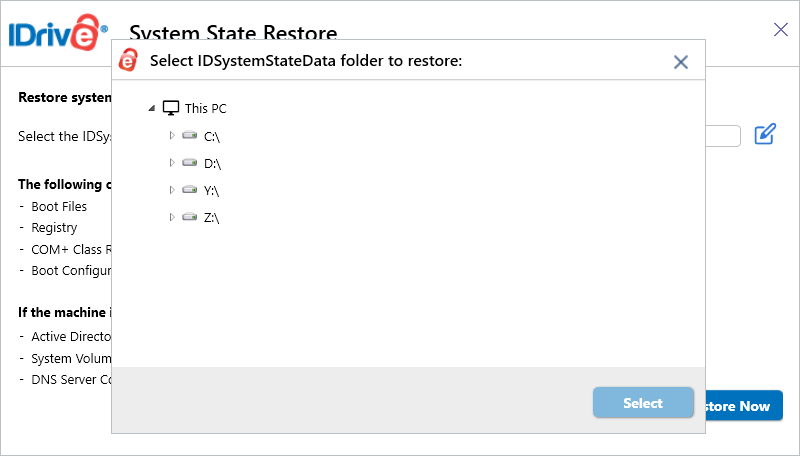
- Click ‘Restore Now’ and confirm the restore operation.
- After the restore completes, restart the machine in normal operating mode.
Booting into Directory Services Restore Mode (DSRM)
Option 1: Using the System Configuration Utility (msconfig)
- Press ‘Win + R’, type msconfig, and press Enter.
- Go to ‘Boot’ tab.
- Enable ‘Safe boot’ and choose ‘Active Directory repair’.
- Click ‘OK’, then restart the server.
The machine will restart directly into DSRM.
Option 2: Using Advanced Startup Options
- Restart the server and open the ‘Advanced Boot Options’ menu.
- Go to ‘Troubleshoot’ > ‘Advanced Options’ > ‘Startup Settings’ > ‘Restart’.
- From the list, select ‘Directory Services Repair Mode (DSRM)’.
Login Credentials
Log in using the DSRM administrator account:
- Username: .\Administrator
- Password: The DSRM password configured when the server was promoted to a domain controller (or modified later using ntdsutil).
After signing in, start the System State Restore tool to proceed with recovery.
Disclaimer
- Restores may fail due to hardware inconsistencies, boot errors, or system-specific issues.
- A completed backup does not guarantee a successful restore under every scenario.