Oracle Server Backup
Offsite automated backups safeguard your organization's Oracle databases through secure, encrypted data transfers. With Oracle database backup capabilities, you can back up databases directly to your IDrive 360 account without impacting live operations or causing service interruptions.
Features
- Oracle database authentication for backup.
- Provision to back up the Oracle database without disrupting the running Oracle server services.
- Provision to report the progress of backup operations.
- Capability to schedule backups for a future date and time with multiple scheduling options.
- Provision to send Email and Desktop notifications once scheduled backup jobs are completed.
- Provision to generate logs for each of the backup operations.
- Enhanced security with data transferred and stored using 256-bit AES encryption, and a user-defined key that is never stored anywhere on the IDrive 360 servers.
Prerequisites for backup
Before configuring an Oracle server backup, ensure the following:
- Install the IDrive 360 desktop application on the computer where the Oracle instance is running.
- Make certain there is sufficient disk space for database backup and restore.
- The database must be running in ARCHIVELOG mode.
- The database must be in OPEN state.
- The user must have SYSDBA privilege to initiate backup.
- Oracle Recovery Manager (RMAN) must be available on the computer where the IDrive 360 for Windows application has been installed.
Enabling ARCHIVELOG Mode
To enable ARCHIVELOG mode using Oracle Recovery Manager (RMAN):
- RMAN> connect target <username>/<password>@<service name>;
- RMAN> shutdown immediate;
- RMAN> startup mount;
- RMAN> alter database archivelog;
- RMAN> alter database open;
Procedure To Perform Oracle Server Backup
To backup your Oracle server,
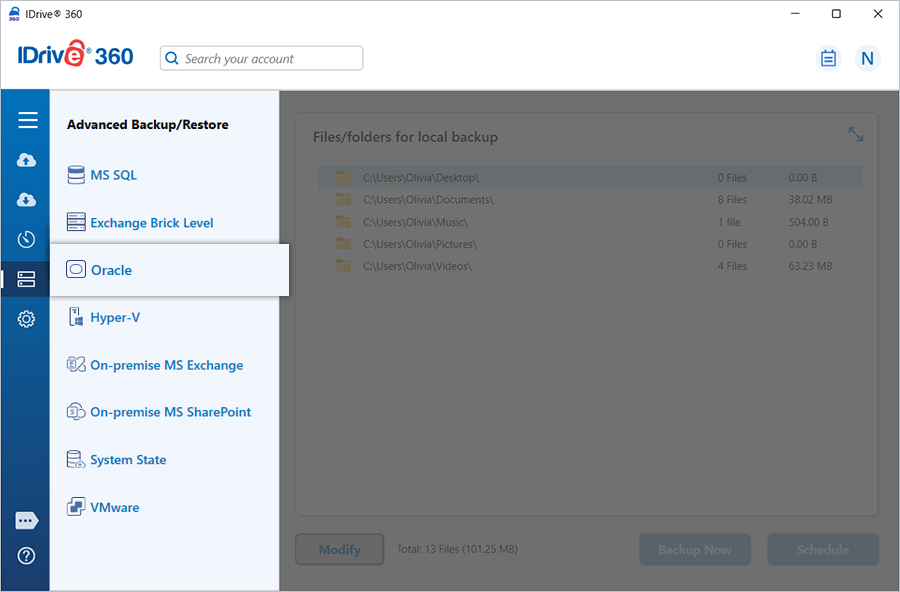
- Sign in to the IDrive 360 application and click 'Server Backup'. A slider menu will appear. Select 'Oracle'.
- The Oracle Connection screen appears. By default, the Oracle Backup tab is selected.
- Provide the Oracle Instance authentication information when prompted. Enter the Host String in the EZCONNECT format:
<host name>:<port name>/<service name>
For e.g. 192.168.1.245:1521/ORCL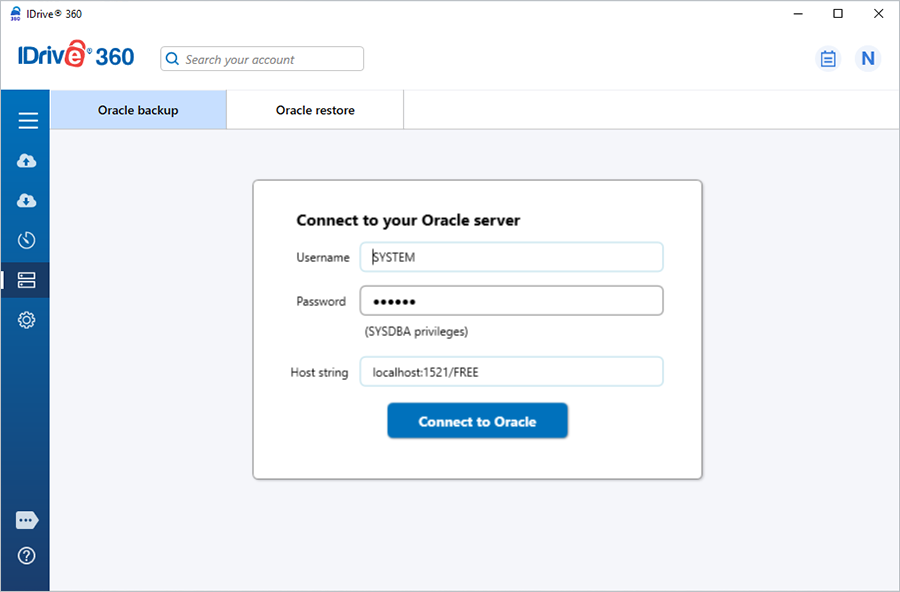
Click 'Connect to Oracle'.NOTE: Ensure that the user has SYSDBA privileges.
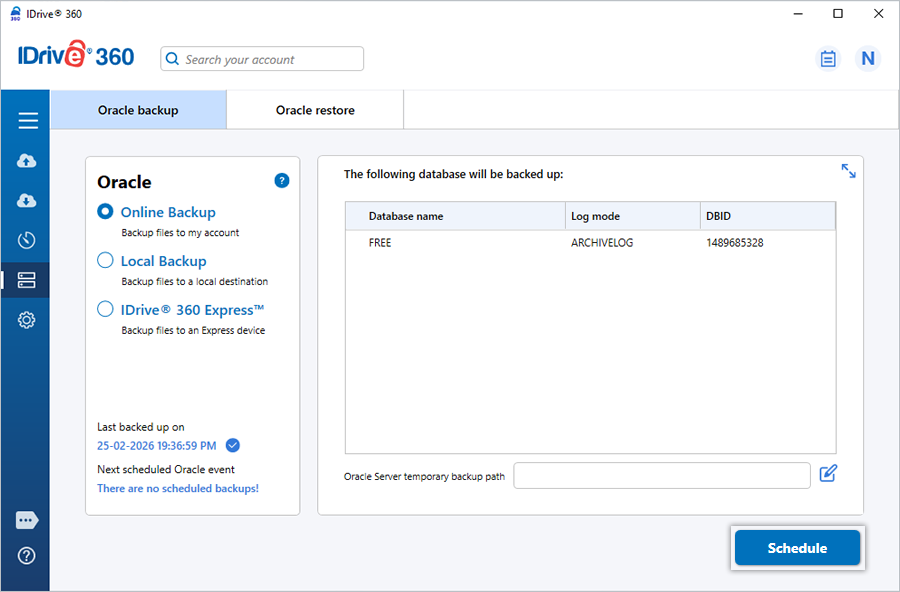
- Choose the desired backup option from 'Online Backup', 'Local Backup', or 'IDrive® 360 Express™ Backup'.
Note: While 'Online Backup' stores data in the IDrive cloud, 'Local Backup' and 'IDrive® 360 Express Backup' store data on local drive.
- Select the Container Database (CDB) and specify a temporary path for the local backup.
Note: Ensure the selected temporary directory path is located on the computer hosting the Oracle instance and has enough capacity for the backup resources.
- Click 'Schedule'. The 'Scheduler' is displayed where you can schedule the backup for any future day and time or perform an immediate backup of the selected Container Database.
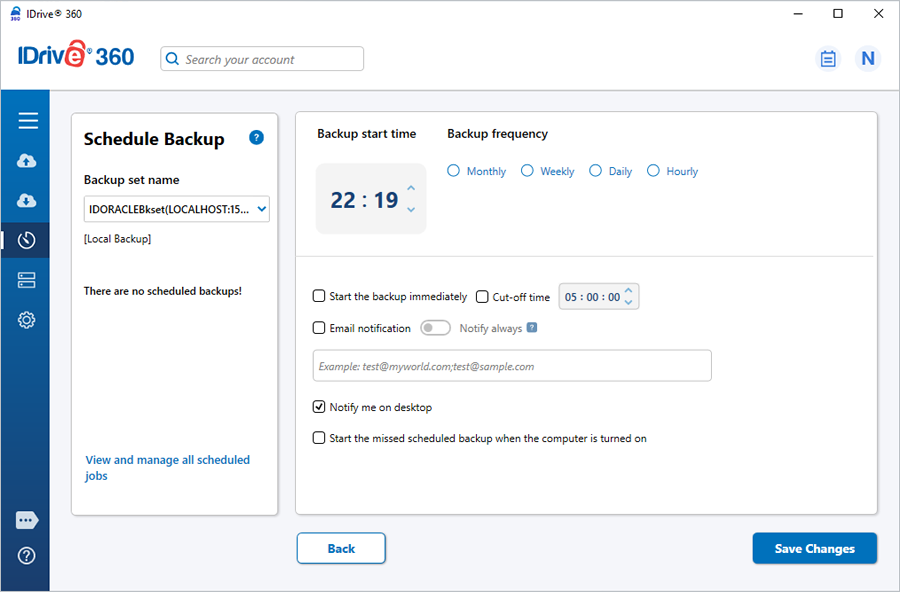
Note: For an easy identification of the Oracle backup set, the name of the backup set will begin with 'IDORACLEBkset' followed by the Database Host String and backup type.
For e.g. if the host string is 192.168.1.235:1521, then the name of the backup job will be IDORACLEBkset(192.168.1.235:1521_DB)[Local].
You can coordinate with your Oracle DBA for guidance on specific environment or parameter configurations.