MS Exchange Brick-Level Mailbox Backup
Perform fast and secure backups of individual mailboxes, restore selected mail data, and optionally schedule these operations for a later time.
The Exchange Brick-Level Mailbox Backup feature in IDrive® 360 allows you to back up and restore individual mailboxes from the Exchange Server Store directly to your IDrive 360 account. The application backs up each selected mailbox into a Personal Folder (.PST) file, which can later be restored to the corresponding mailbox using the brick-level restore option.
This feature is intended only for mailbox-level operations on chosen mailbox stores. It does not function as a complete mailbox database backup. For full Exchange database protection and recovery, use the Exchange Server backup/restore feature.
Note: Ensure that the required mailbox permissions are assigned before performing brick-level backup for any mailbox.
Features
- Back up individual mailboxes from selected stores while Exchange services continue running.
- Schedule backups for a future date and time using flexible scheduling options.
- Data is encrypted with 256-bit AES during transfer and storage, secured with a user-defined private key.
- Receive backup completion updates through desktop alerts or email notifications.
- Access session-wise logs for each mailbox backup operation.
Performing a Brick-Level Backup
- Sign in to the IDrive 360 desktop application and click 'Server Backup'.
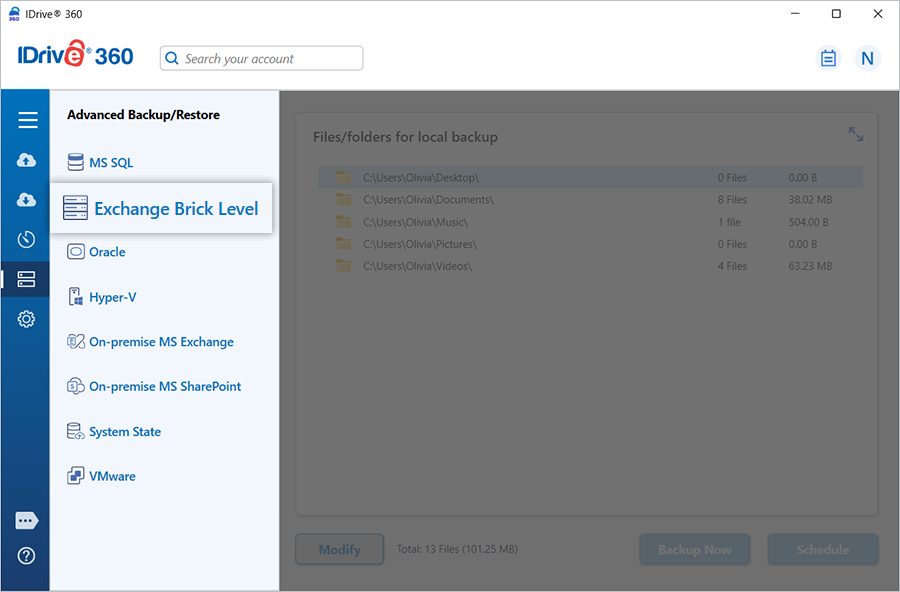
- Click 'Exchange Brick Level' to access the brick-level backup/restore console. The 'Exchange brick-level backup' is selected by default.
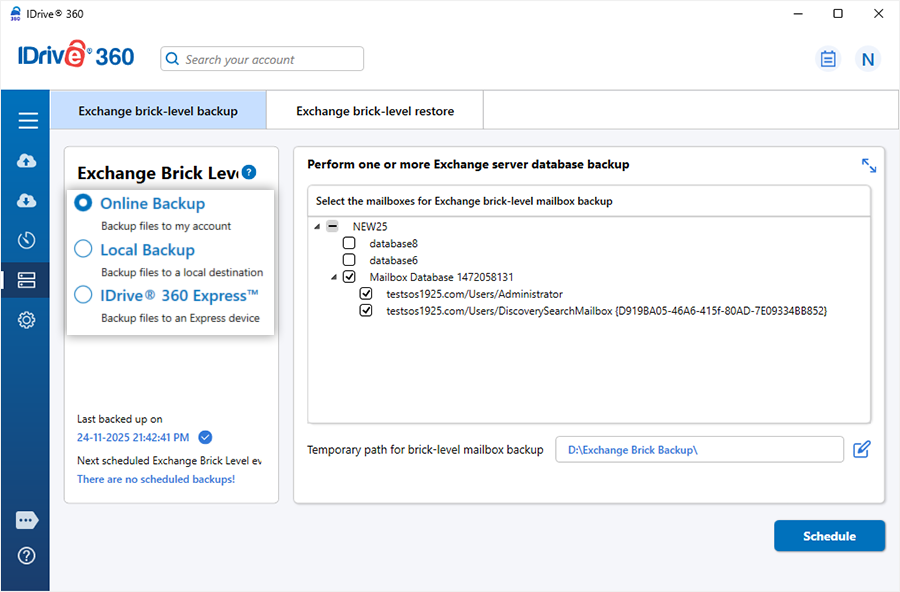
- Choose the backup type: 'Online Backup', 'Local Backup', or 'IDrive® 360 Express™'.
Note:
- Online Backup sends mailbox data to the IDrive 360 cloud storage.
- Local Backup and IDrive 360 Express store mailbox backups on a local drive.
- Select the mailboxes you want to include in the backup from the Exchange Server.
- Select the mailbox databases displayed and specify the temporary location for storing mailbox data.
Note:
- Mailboxes from multiple Exchange servers within the same cluster can also be backed up.
- The temporary folder must have sufficient free disk space. Remote or network locations cannot be used.
- When a local backup begins, the application automatically creates a '.ServerBackup' folder.
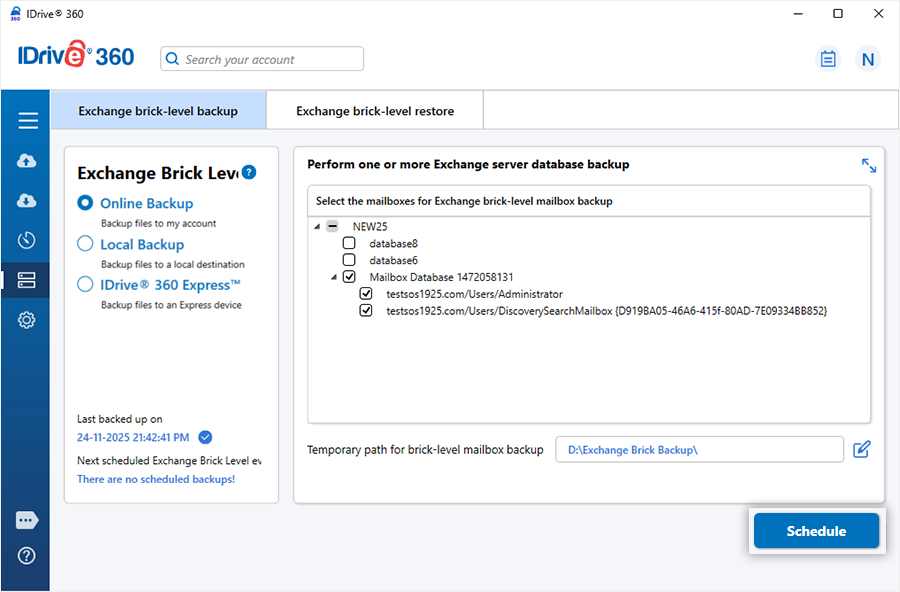
- Click 'Schedule Now' to open the Scheduler, where you can configure a one-time or recurring backup, or run it immediately.

System Requirements
Exchange Server 2019
- 64-bit system using Intel 64 (EM64T) or AMD64 architecture
- Windows Server 2019
- Minimum 128 GB RAM and adequate local storage for mailbox backup files
Exchange Server 2016
- 64-bit Intel 64 (EM64T) or AMD64 processor (Itanium IA64 not supported)
- Windows Server 2012 / 2012 R2 / 2016
- Minimum 8 GB RAM and sufficient disk space for mailbox backup data
Exchange Server 2013
- 64-bit Intel 64 (EM64T) or AMD64 architecture
- Windows Server 2012 Standard or Windows Server 2008 R2 (Standard/Enterprise/Datacenter) with SP1 or later
- Minimum 8 GB RAM and adequate hard disk space for mailbox backup files
Exchange Server 2010
- 64-bit Intel EM64T or AMD64 system
- Windows Server 2008 SP2 or later, or Windows Server 2008 R2
- Minimum 2 GB RAM and sufficient storage space for mailbox backups