Restore On-premise MS SharePoint Server
Restore your complete on-premise SharePoint Server environment or recover selected site components, document libraries, or lists as needed.
To restore your on-premise MS SharePoint Server:
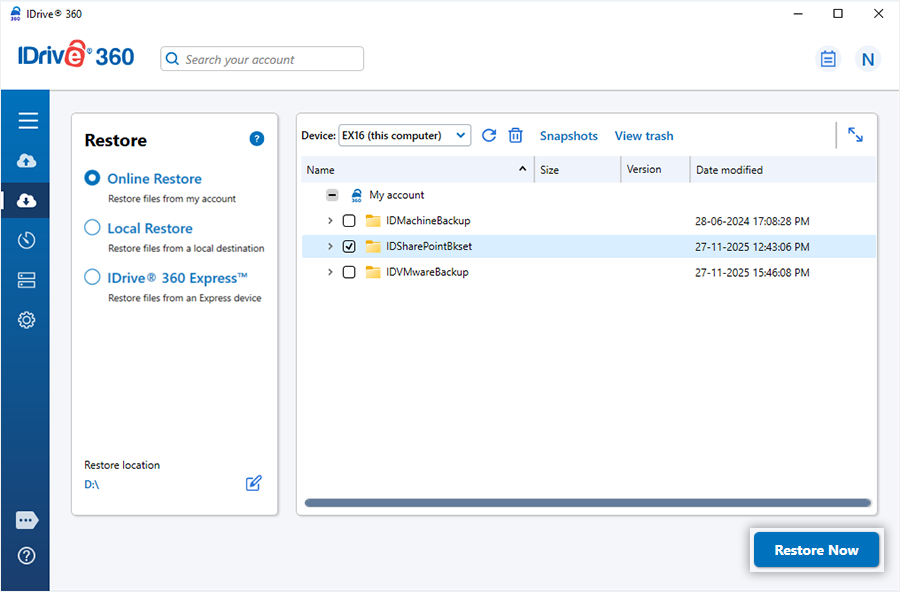
- Click 'Restore' in the IDrive 360 desktop application.
- Choose a restore type: 'Online Restore', 'Local Restore', or 'IDrive® 360 Express™'.
- Locate and select the 'IDSharePointBkset' folder from your IDrive 360 cloud account or from a local storage path.
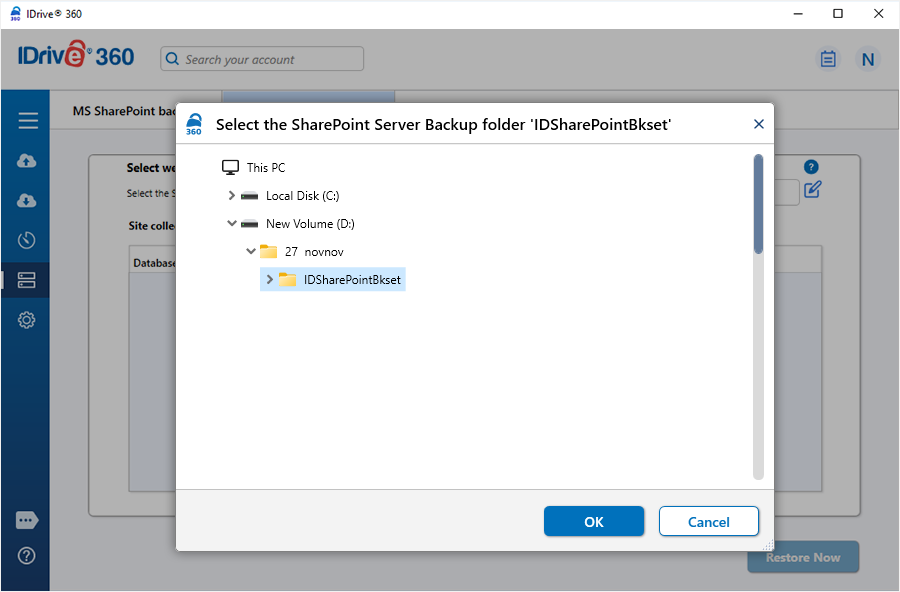
Note: When using Local Restore, you can pick the required backup version from the 'Version' list.
- Click 'Restore Now' to restore the selected 'IDSharePointBkset' folder to your local system.
- After the restore completes, go to 'Server Backup'. A slider panel will open.
- Select 'On-premise MS SharePoint' to access the SharePoint backup/restore console.
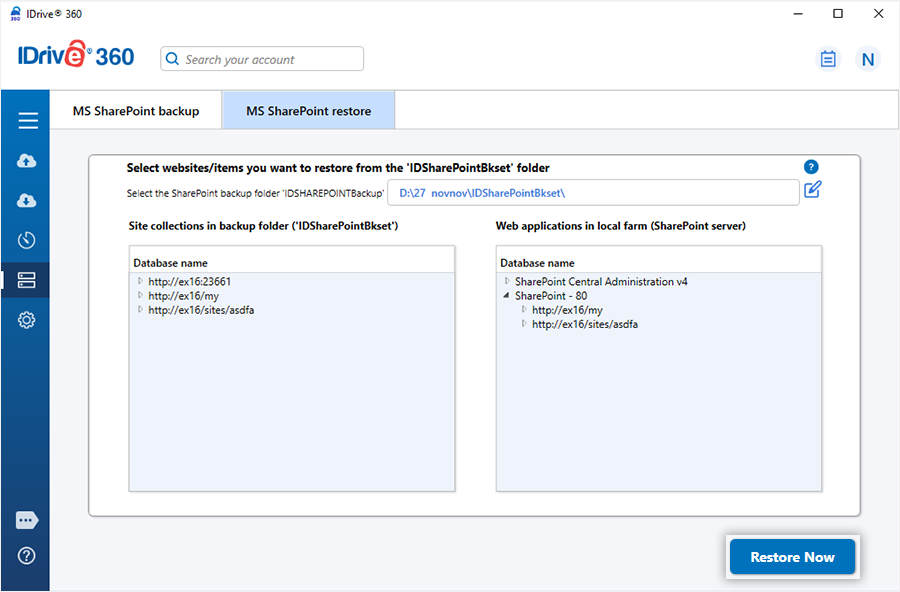
- Click 'MS SharePoint Restore'.
- Browse to the 'IDSharePointBkset' folder restored to your system and select it.
- Choose the websites or SharePoint components you want to recover, then click 'Restore Now' to start the operation.
Refer to the steps for backing up your on-premise MS SharePoint Server for a complete workflow overview