Grok with IDrive® MCP
Grok with IDrive MCP
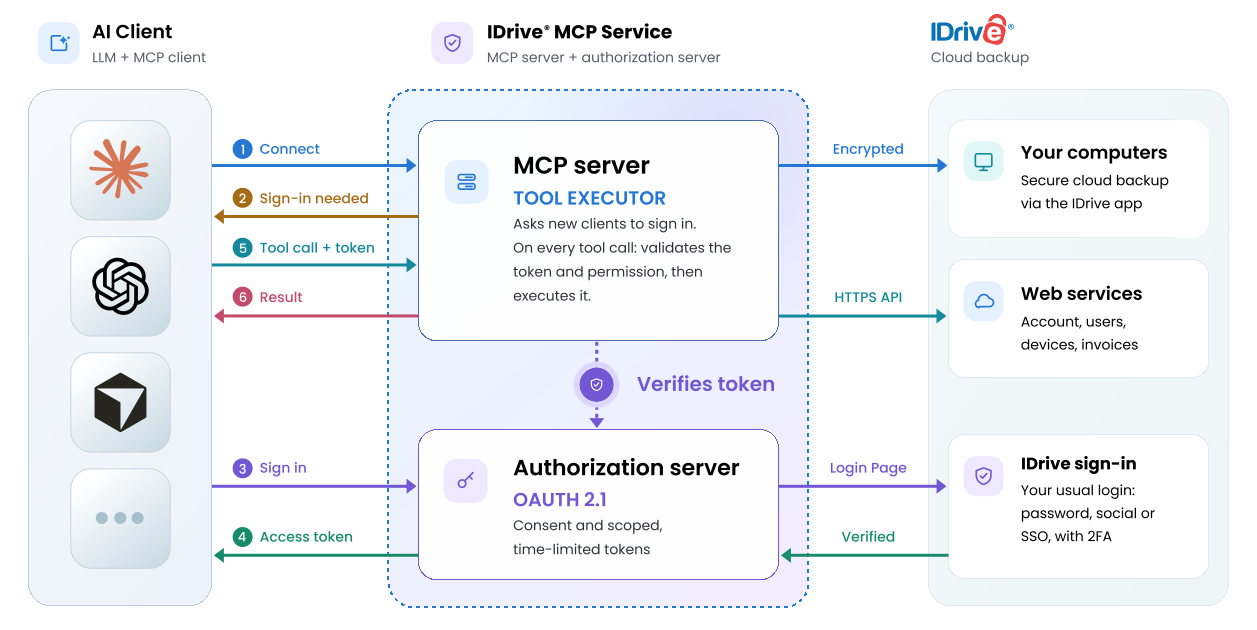
IDrive MCP connects your IDrive account with Grok using the open Model Context Protocol (MCP) standard, enabling Grok to access supported IDrive backup capabilities through standardized tools. This integration lets you manage supported backup tasks using natural language, without requiring custom integrations or scripts. This guide explains how to connect Grok with IDrive MCP and use it to perform supported backup operations.
Prerequisites
- An active IDrive account.
- Access to a Grok account.
Reference Architecture
Configure Grok for IDrive MCP
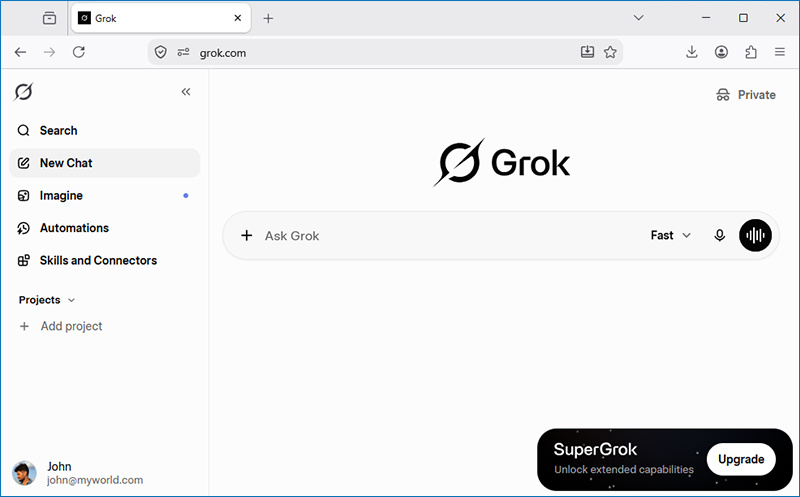
- Sign in to Grok and start a chat.
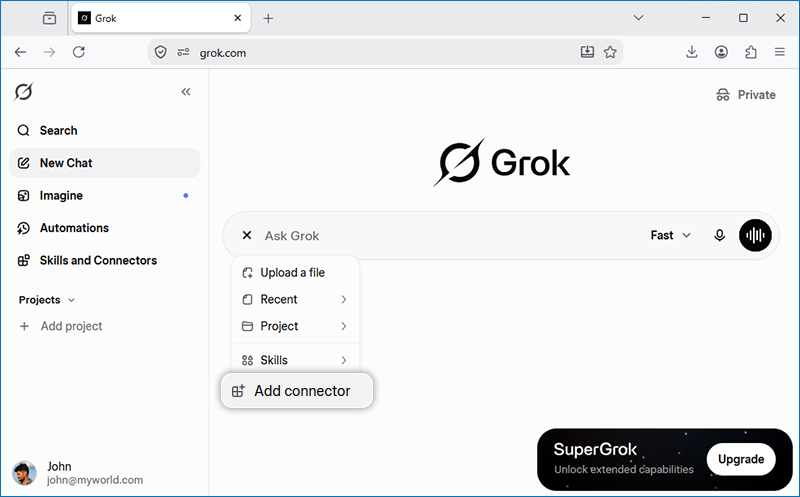
- Click + and select Add connector from the dropdown.
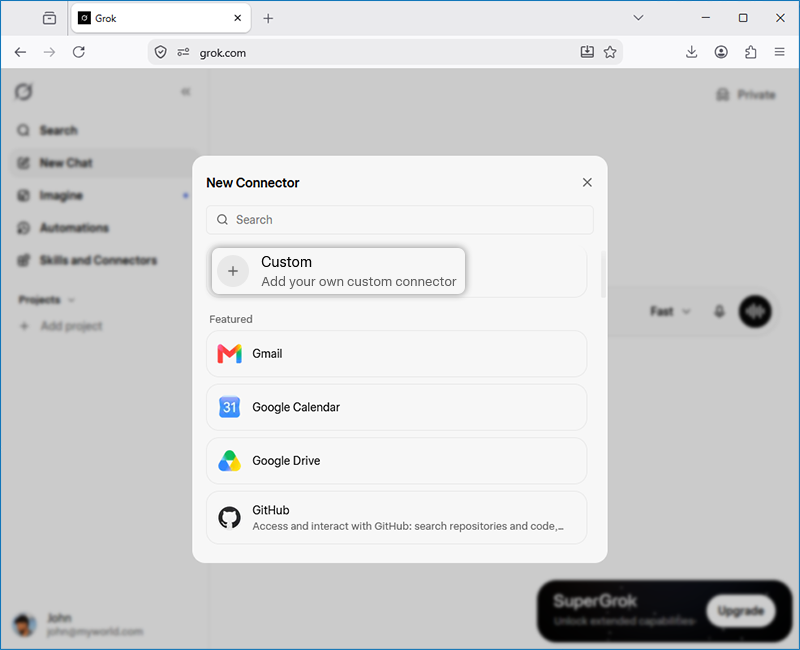
- In the New Connector popup, click Custom.
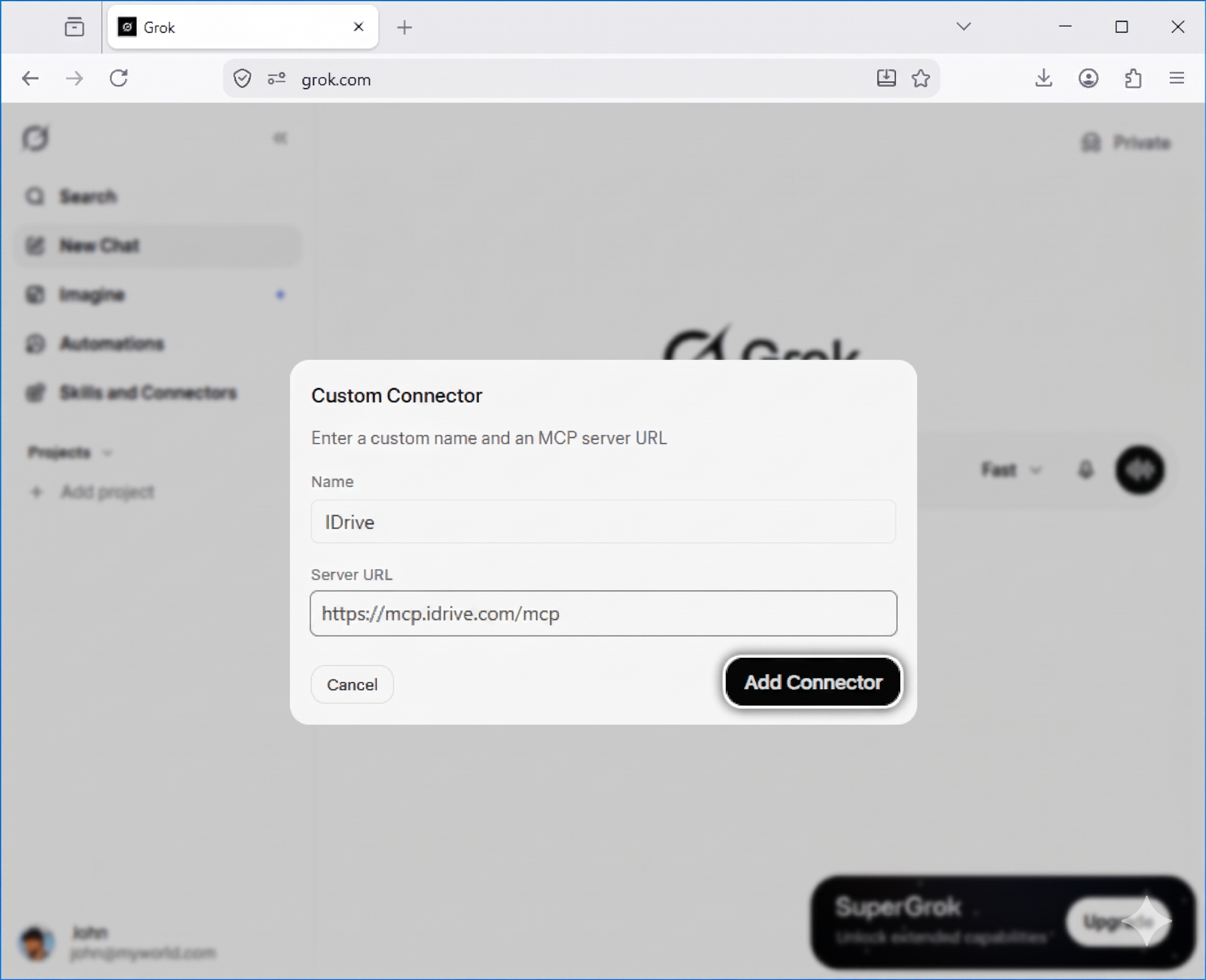
- In the Custom Connector popup, provide the following details and click Add connector.
- Name for the connector: IDrive
- URL of the MCP server: https://mcp.idrive.com/mcp
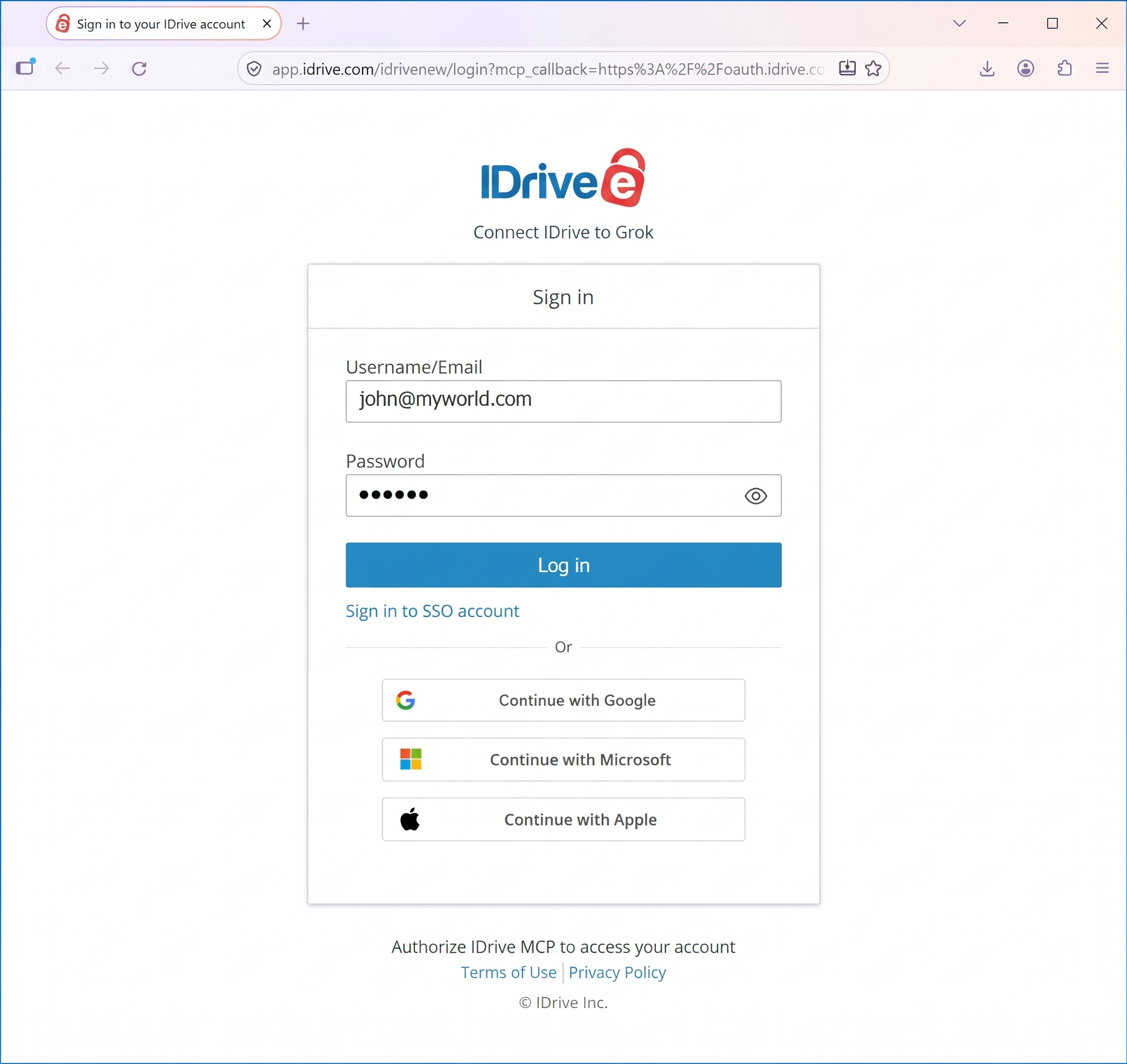
You will be redirected to the IDrive authorization page. Sign in to your IDrive account.
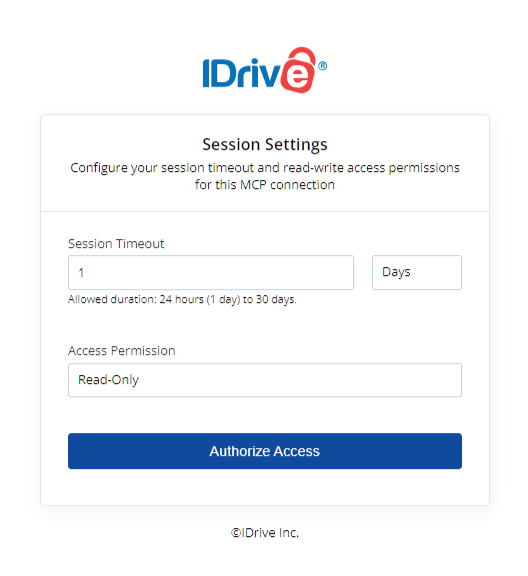
- On the Session Settings page, configure the following:
- Session timeout: Set how long the authorization remains valid. The timeout can be specified in hours or days.
- Permission: Select Read-Only or Read-Write access.
- Click Authorize Access.
- After successful authorization, you will be redirected back to Grok.
IDrive MCP is now connected to Grok. You can start using the supported IDrive MCP tools through Grok.