Claude with IDrive® MCP
Claude with IDrive MCP
IDrive MCP connects your IDrive account with Claude using the open Model Context Protocol (MCP) standard, enabling Claude to access supported IDrive backup capabilities through standardized tools. This integration lets you manage supported backup tasks using natural language, without requiring custom integrations or scripts. This guide explains how to connect Claude with IDrive MCP and use it to perform supported backup operations.
Prerequisites
- An active IDrive account.
- Access to Claude Web and permission to add custom MCP servers/connectors, where required.
Reference Architecture
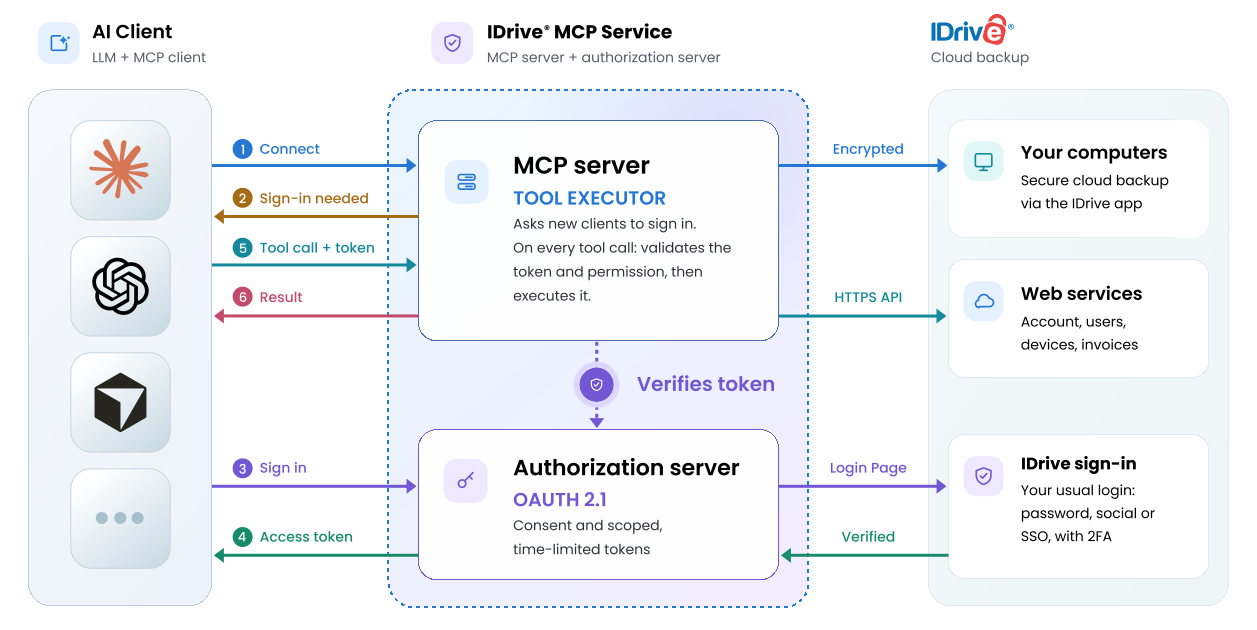
Configure Claude with IDrive MCP
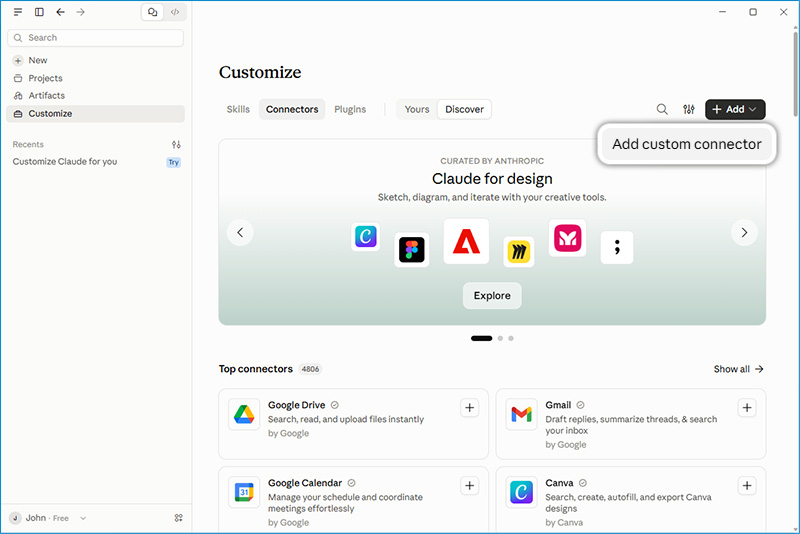
- Sign in to Claude.
- Click Customize.
- Select Connectors.
- Click + Add and select Add custom connector.
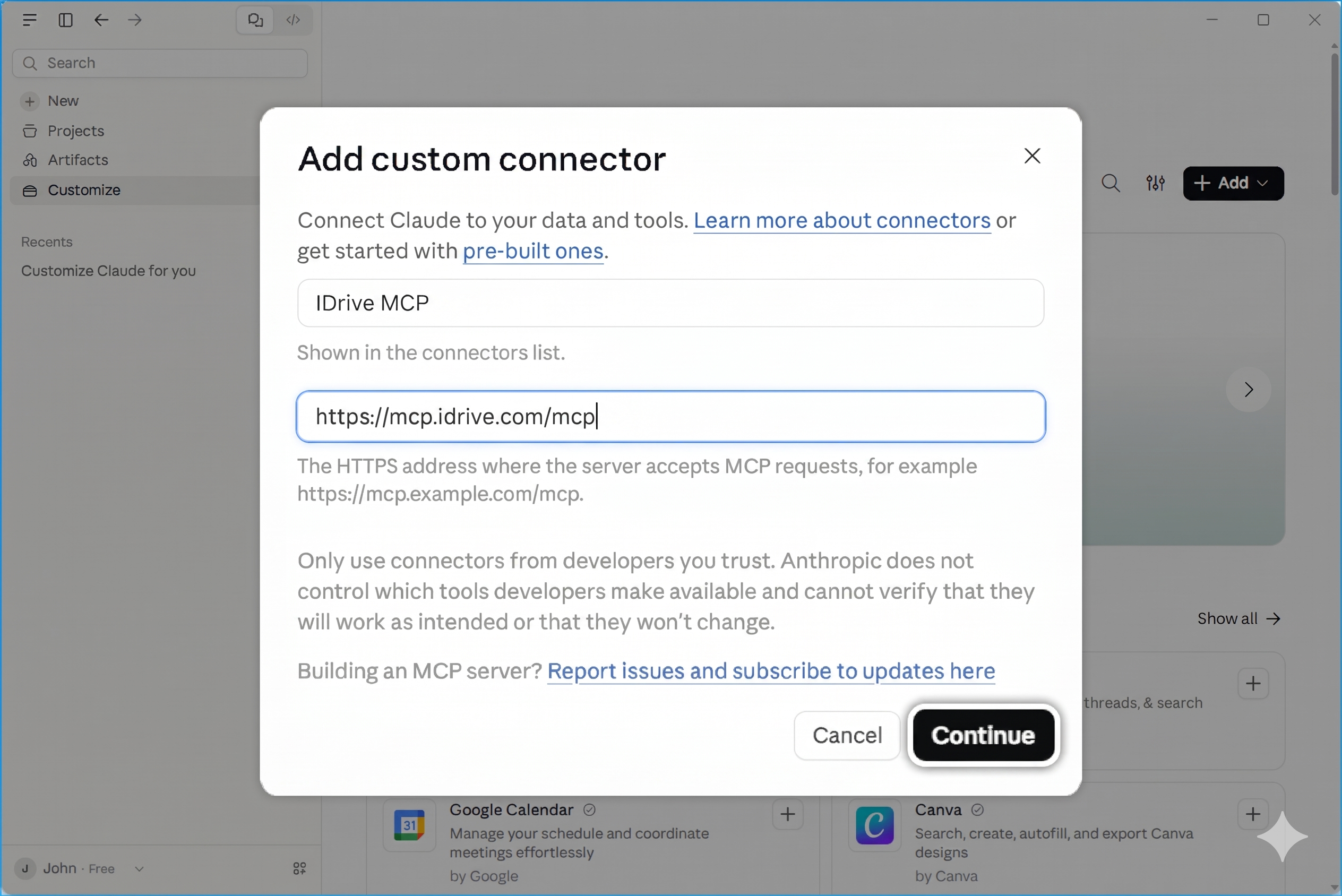
- In the Add Custom Connector dialog box, provide the following details and click Continue.
- Name: IDrive MCP
- URL: https://mcp.idrive.com/mcp
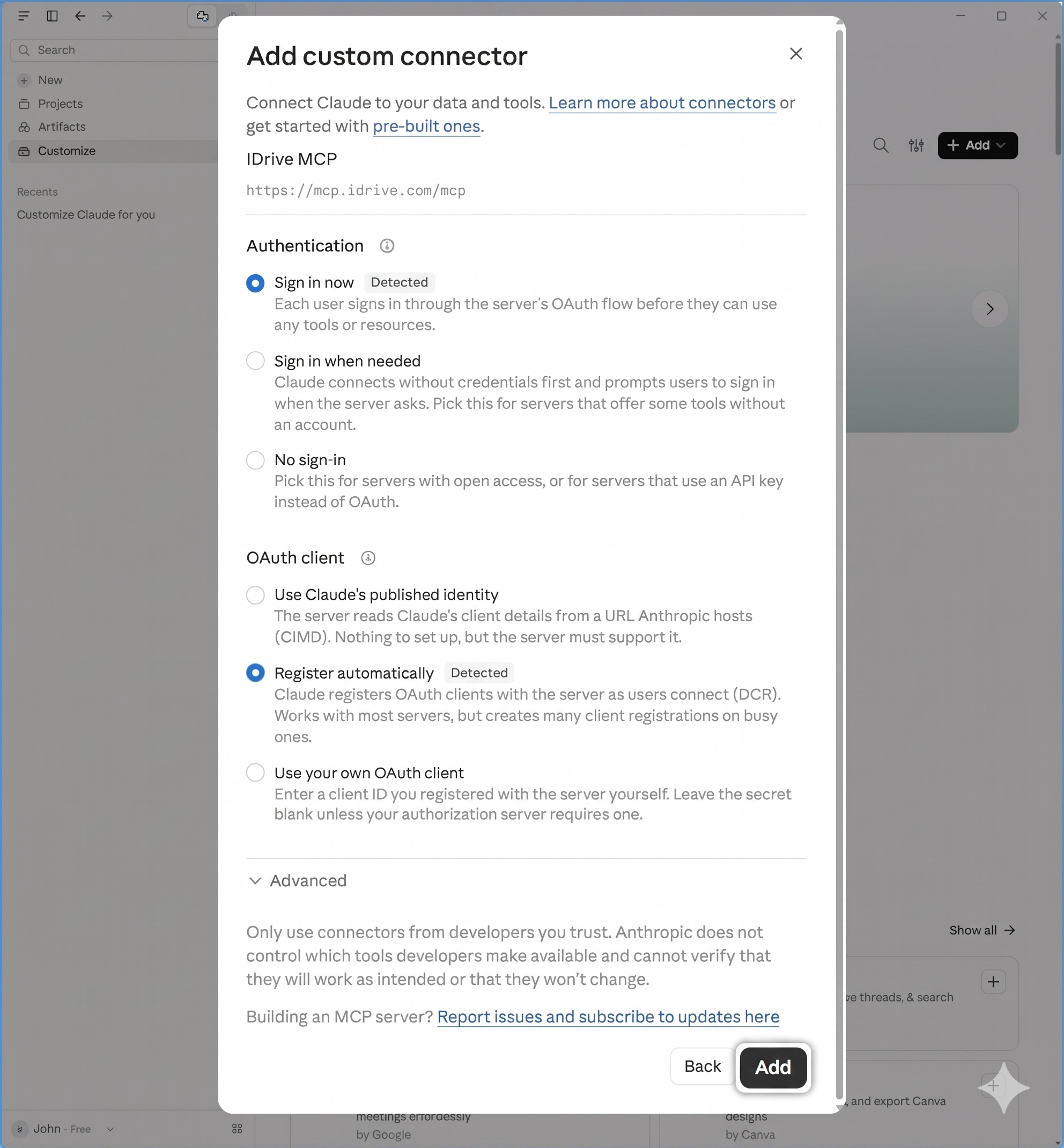
- On the next screen, select the following options and click Add:
- Authentication: Sign in Now
- OAuth client: Register automatically
- Click Connect to start the authorization process.
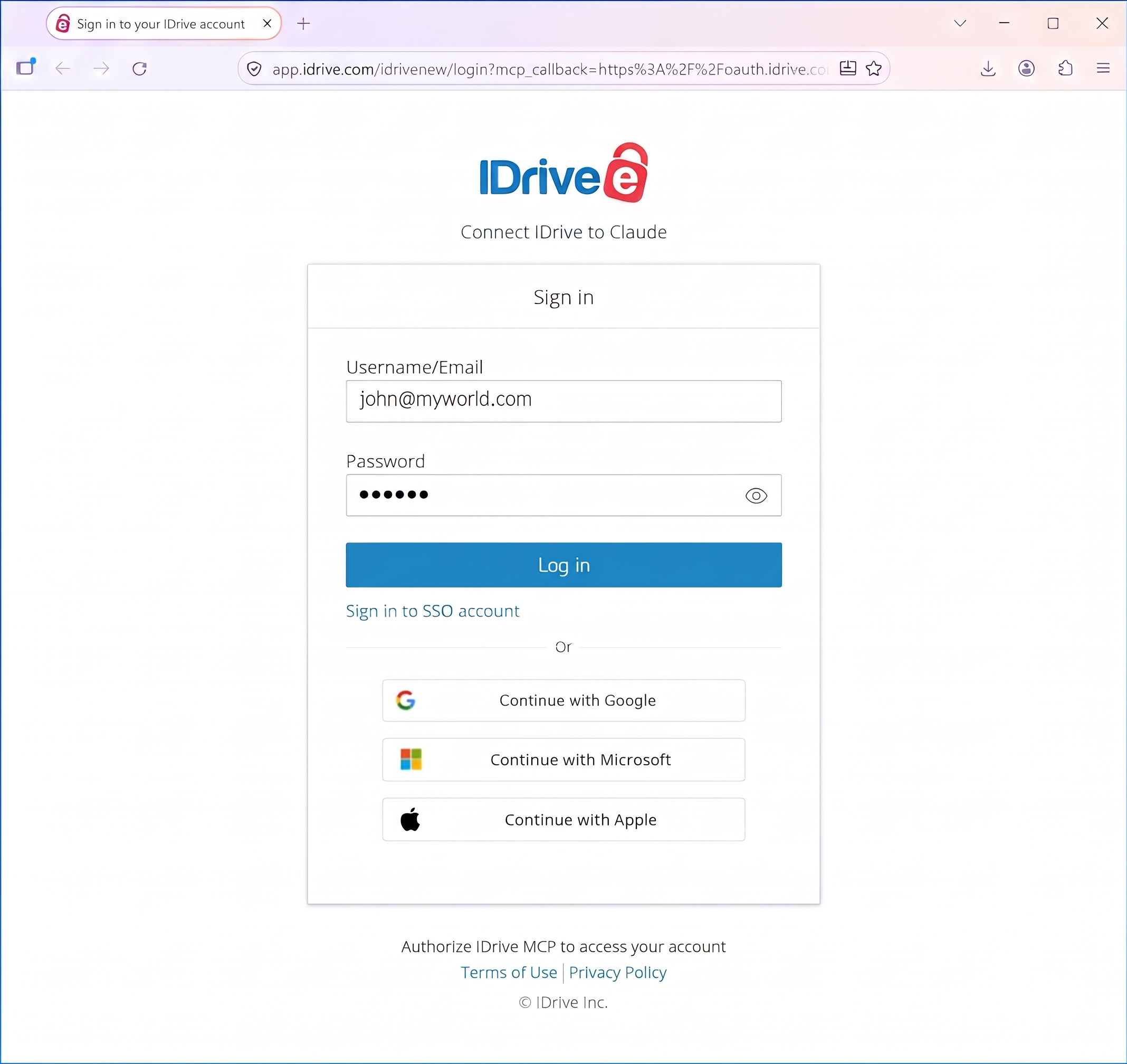
- You will be redirected to the IDrive console. Sign in to your IDrive account.
- On the Session Settings page, configure the following:
- Session timeout: Set how long the MCP session remains active. The timeout can be specified in hours or days.
- Permission: Select Read-Only or Read-Write access.
- Click Authorize Access.
After authorization is complete, you will be redirected back to Claude.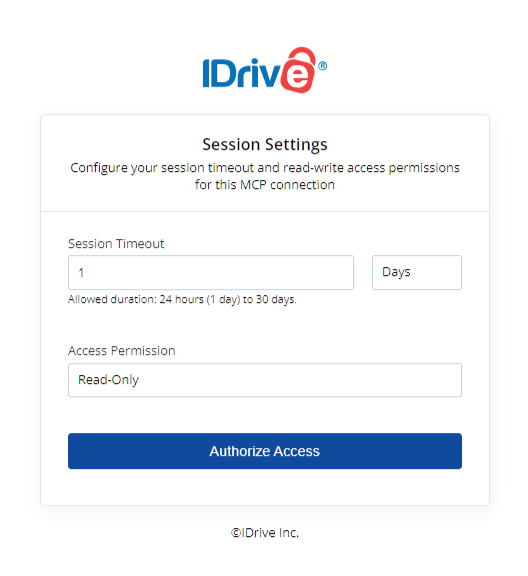
IDrive MCP is now connected to Claude. You can start using the supported IDrive tools through Claude.
Configure Claude with IDrive MCP using the CLI
You can also configure Claude to connect to IDrive MCP using the Claude CLI.
- Add the MCP server
{

    "mcpServers": {

         "IDrive MCP": {

            "url": "https://mcp.idrive.com/mcp"

         }

     }

} - Sign in to IDrive
claude mcp login IDrive
A browser window opens to the IDrive authorization page. - Authorize the connection
Sign in to your IDrive account and configure the session timeout and access permission. - Complete authentication
After authorization, you will be redirected back to the Claude CLI automatically. If the redirect does not complete, follow the instructions displayed by the Claude CLI to complete the authentication. - Start using IDrive MCP
Once authentication is complete, the IDrive MCP tools are available in Claude. You can use Claude to access supported IDrive account, device, and connectivity capabilities.