Cloud Drive
Your Files, Everywhere You Need Them
Cloud Drive works like a personal folder in the cloud—no flash drive required. Store your files securely in your IDrive account and access them just like they’re on your local drive.
When you make changes, updates sync instantly across all linked devices, the cloud, and the IDrive mobile app. Whether you’re at your desk or on the go, you’ll always have the latest version of your files.
Cloud Drive storage does not impact your backup storage. It matches your backup storage limits.
Note: IDrive® Cloud Drive storage does not reduce your backup space. It matches your backup plan’s storage limit. Simultaneous editing and renaming of the same file from multiple devices is not supported.
Keep Files in Sync Across All Devices
Sync files and folders seamlessly across computers, mobile devices, and the web. Choose which devices you want to link, so your files stay updated exactly where you need them.
You may also be interested in
Create and Edit Office Files Online
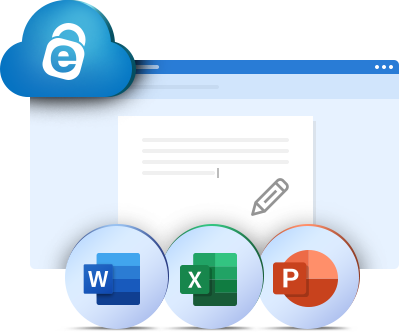
Work directly on Word, Excel, and PowerPoint files stored in Cloud Drive. Create new documents, edit existing ones, and share them with view-only or edit permissions.
Import Files from Google Drive/Dropbox
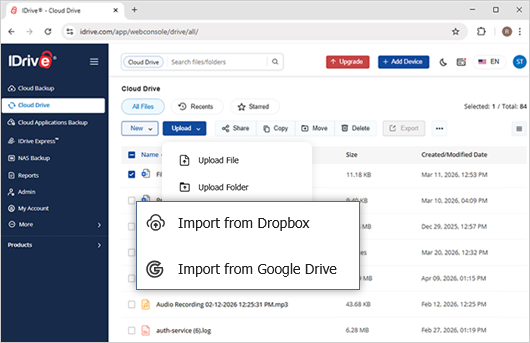
Transfer documents, photos, and other important files from Google Drive or Dropbox, and keep everything organized in Cloud Drive for real-time sync, easy sharing, and access.
Sync via Desktop App
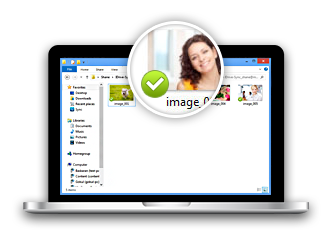
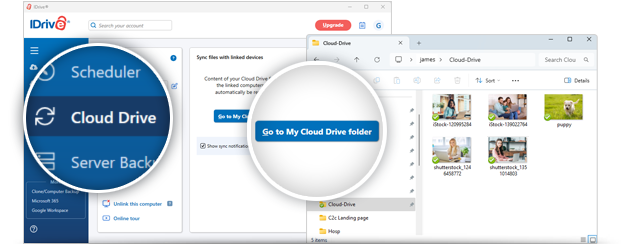
From the Cloud Drive tab in the IDrive desktop app, click Open My Cloud Drive folder to link your computer. A unique local folder is created—add files here, and they’ll sync in real time across all devices and your cloud account.
Sync via Mobile App
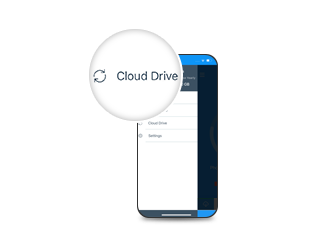
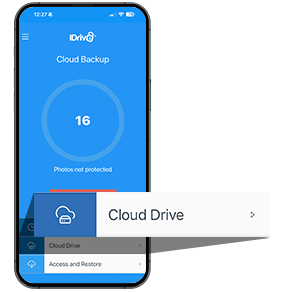
In the IDrive mobile app, tap Cloud Drive from the menu. Upload new files, download synced files from your computer or web account, or mark certain files for offline access.
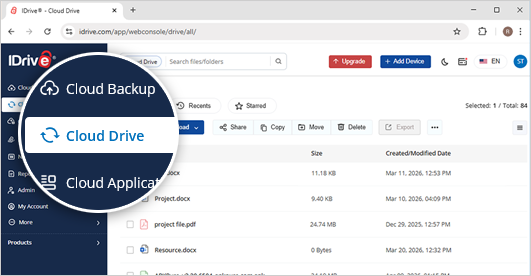
Sync via Web Browser
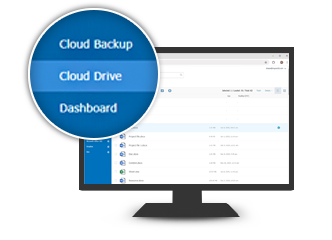
Sign in to IDrive.com and go to the Cloud Drive tab, and drag-and-drop files to upload. You can view, download, share, or recover recently deleted files from the Trash.
Share Synced Files
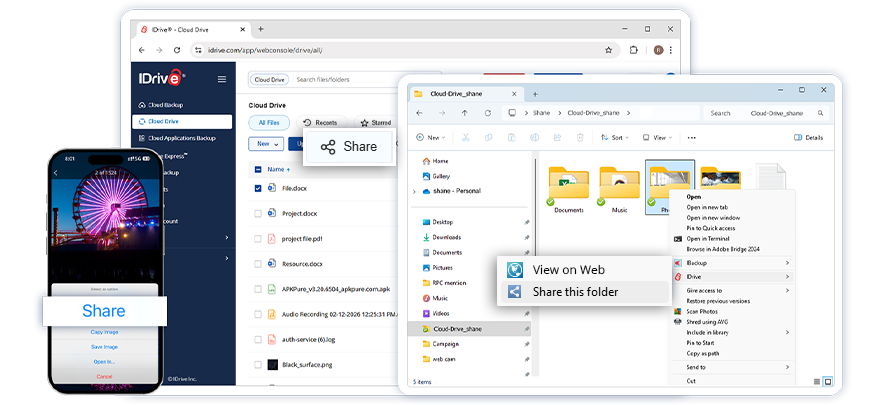
Easily share any number of synced files with anyone you wish via email.
You can share synced files from your computer, mobile device, or via the web with your friends or associates for collaborative access. Once you sign in to IDrive.com, you will find that all the share links are listed in the 'Shared' tab. You can edit the access rights, and even discontinue sharing them.