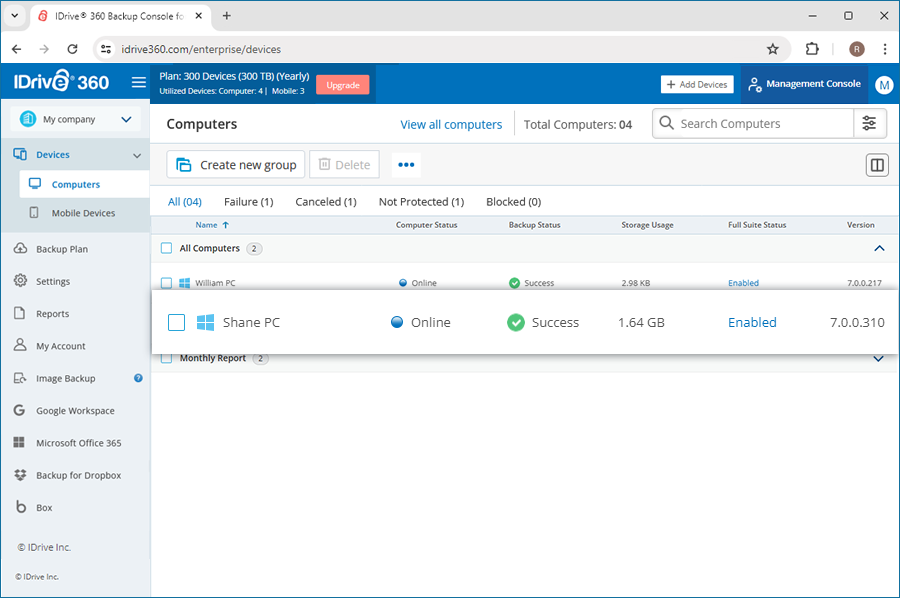
MSI Deployment with MST via Command Line
Use the Command Prompt to deploy an MSI package with an MST file and apply customized installation settings during setup. Create the MST file to define required configuration parameters without modifying the original MSI. Place the MSI and MST in the same directory, then run the msiexec command with the TRANSFORMS parameter to ensure a silent, consistent, and automated installation across target systems.
Steps to deploy MSI with MST using Command-Line
- Open the Command Prompt with elevated (administrator) privileges.
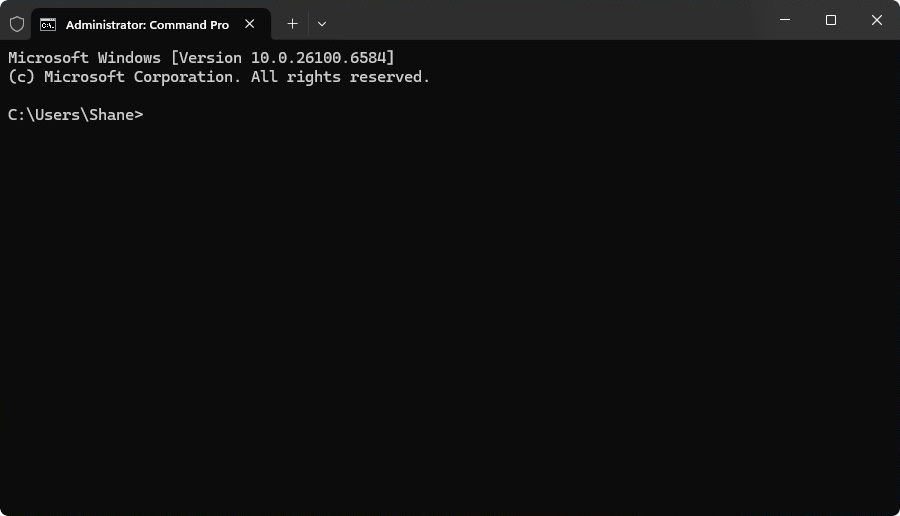
- Use the cd command in the Command Prompt to navigate to the folder containing the MSI, MST, and any additional required files.
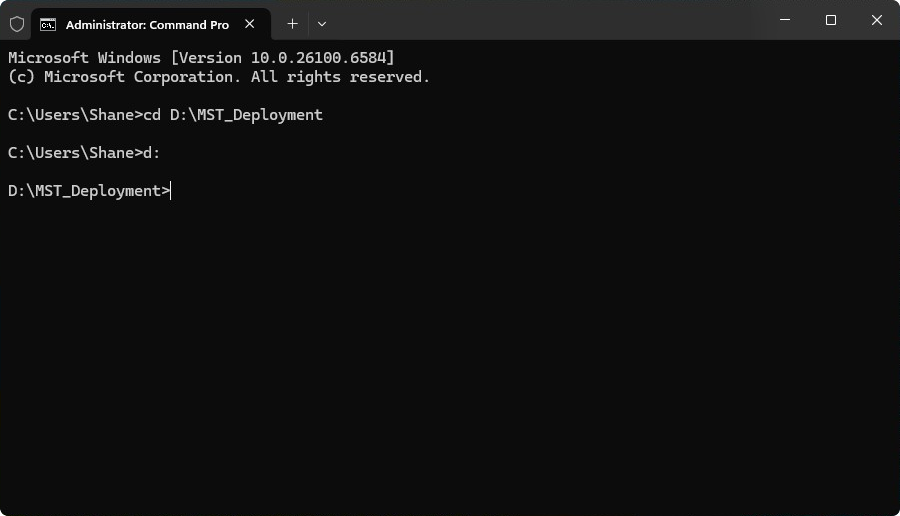
- Run the following command to perform the installation:
msiexec /i "IDrive360.msi" TRANSFORMS="IDrive360.mst" /qn /L*v c:\IDrive360.log
Where:- IDrive360.msi – MSI installer file
- IDrive360.MST – Configuration file containing the wrapped arguments
- IDrive360.log – Log file capturing the detailed installation process
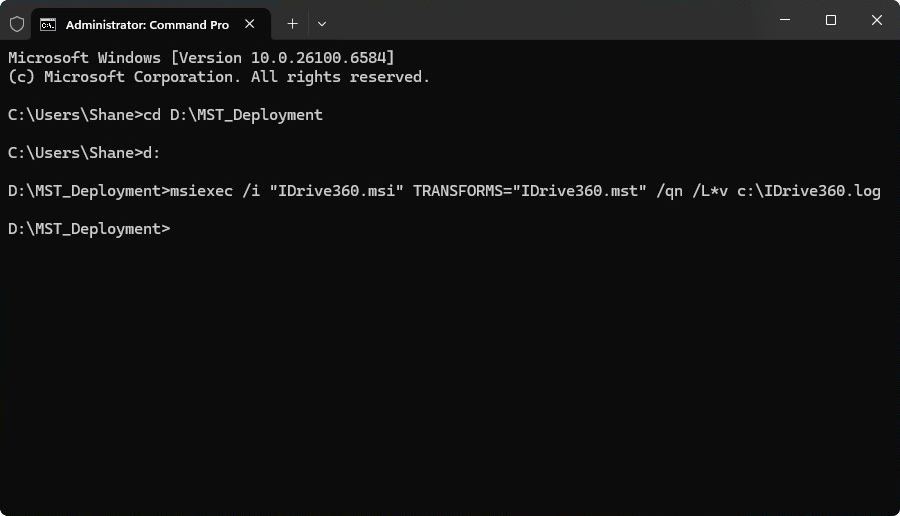
- After the installation completes successfully, the device will automatically register with the IDrive360 dashboard and be ready for use.