Deploy IDrive® 360 via IRU
Use IRU (formerly Kandji) to remotely deploy the IDrive® 360 application to multiple Mac devices or device groups.
Prerequisites:
- Sign in to your IDrive® 360 account and download the mass deployment package.
- Alternatively, click the 'Copy Link' button to copy the direct installation URL.
- Ensure access to the IRU admin console with required permissions.
Configure Privacy Settings
Before deployment, create a configuration profile to grant required system permissions such as Full Disk Access.
- Navigate to 'Library' > 'Add Library Item'.
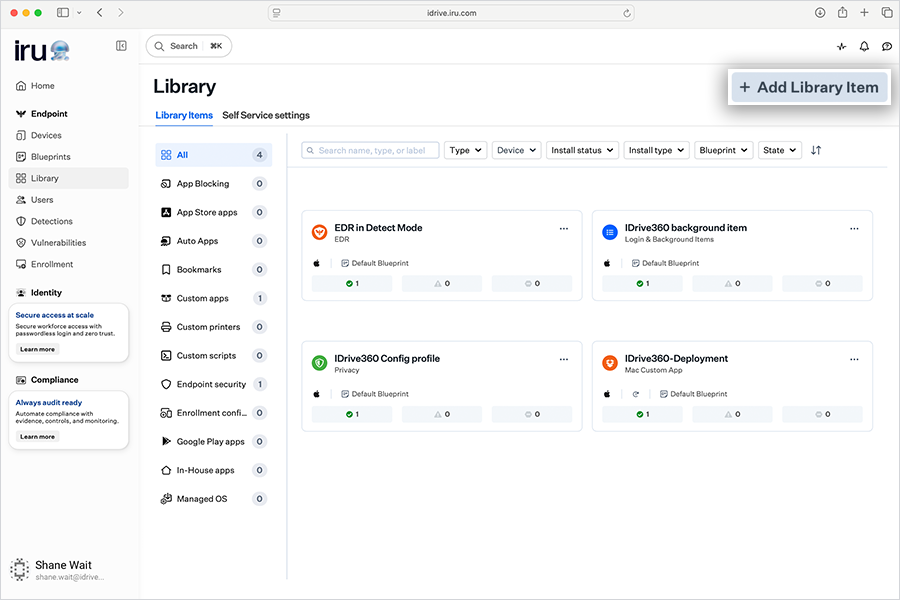
- Search for and select 'Privacy'.
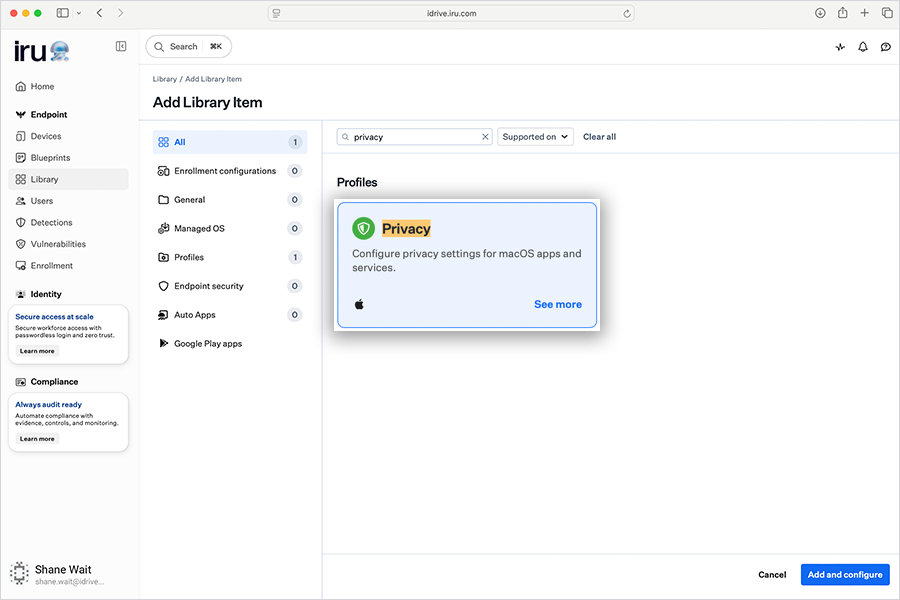
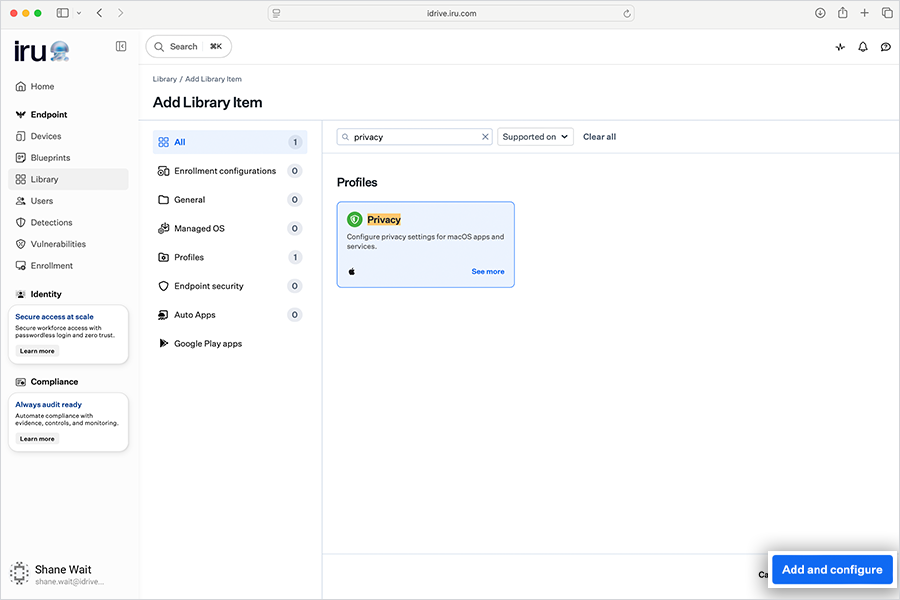
- Click 'Add and configure'.
General Details
- Title: IDrive360-Configuration
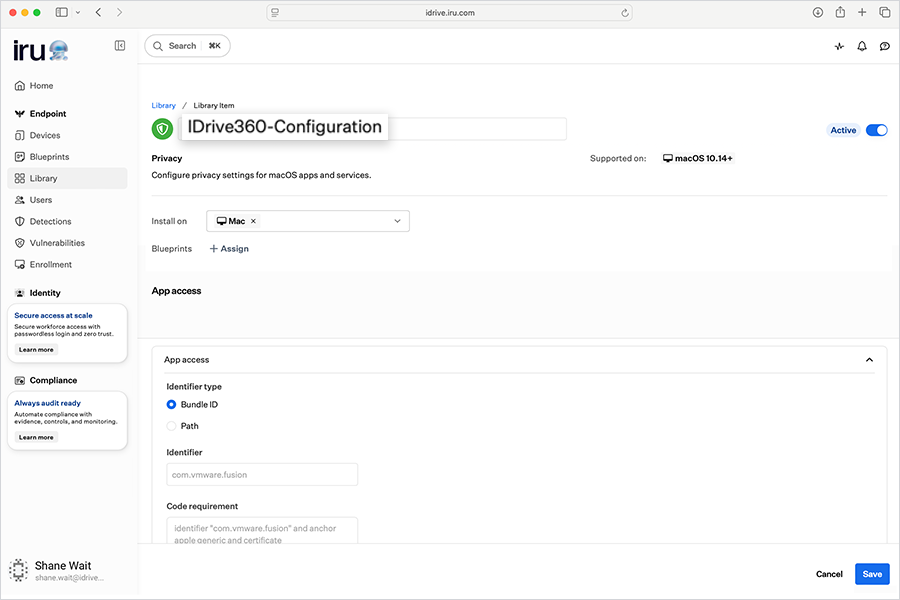
- Assignment: Assign to the required Blueprint
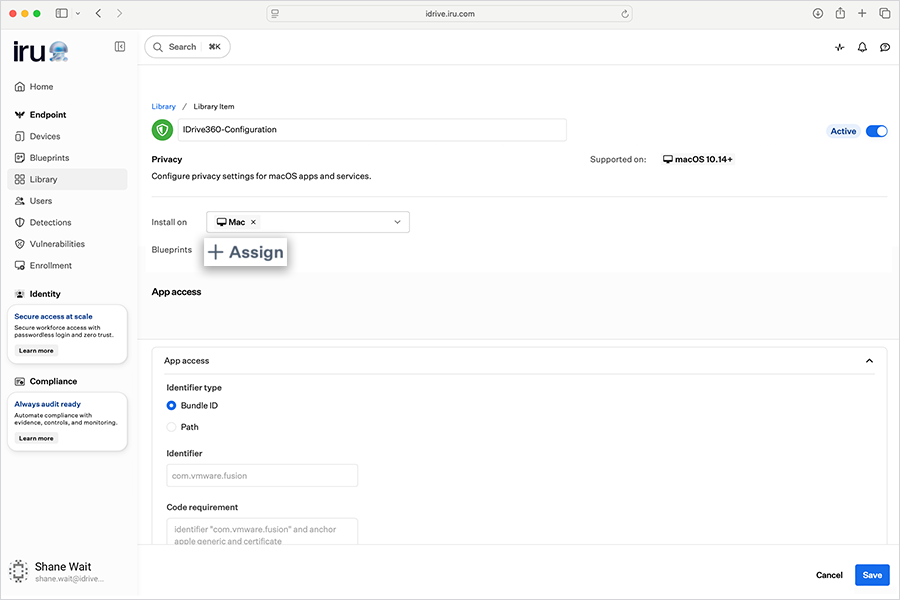
App Access (Full Disk Access)
Add the following entries:
Entry 1:
- Identifier Type: Bundle ID
- Identifier: com.prosoftnet.IDriveDaemon
- Code Requirement:
identifier "com.prosoftnet.IDriveDaemon" and anchor apple generic and certificate 1[field.1.2.840.113635.100.6.2.6] /* exists */ and certificate leaf[field.1.2.840.113635.100.6.1.13] /* exists */ and certificate leaf[subject.OU] = JW0CNY2922
- App or Service: SystemPolicyAllFiles
- Access: Allow
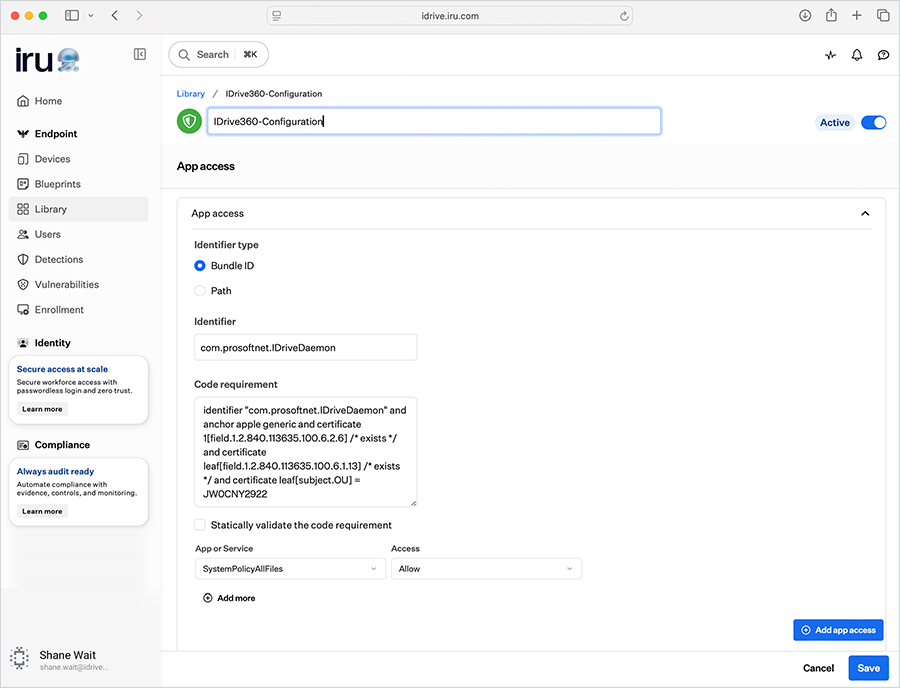
Entry 2:
Click 'Add app access' again and configure:
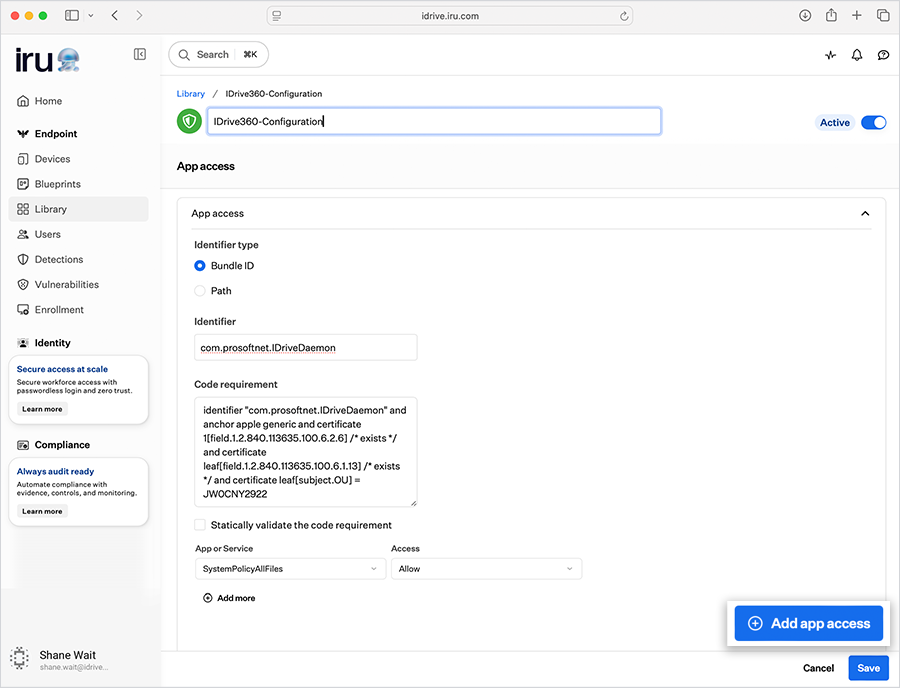
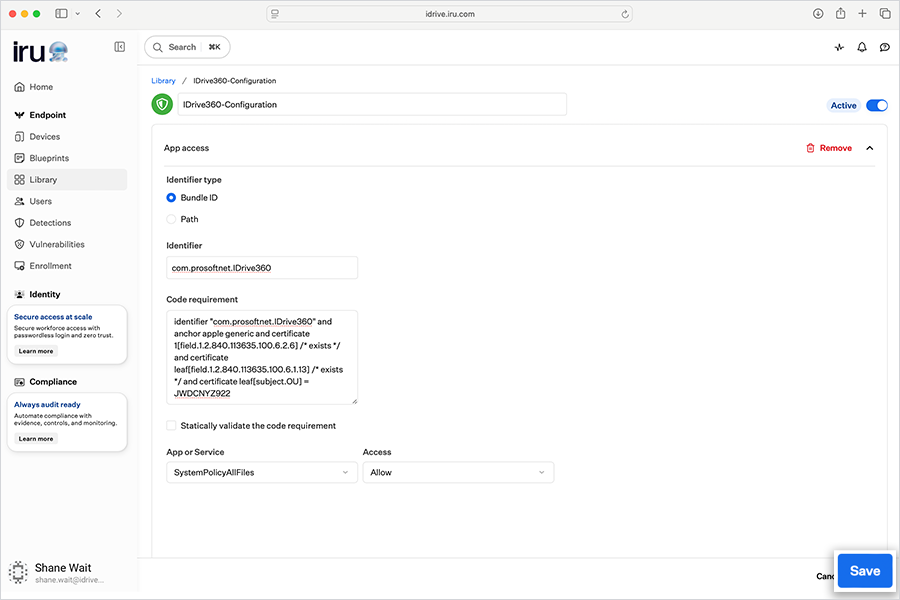
- Identifier Type: Bundle ID
- Identifier: com.prosoftnet.IDrive360
- Code Requirement:
identifier "com.prosoftnet.IDrive360" and anchor apple generic and certificate 1[field.1.2.840.113635.100.6.2.6] /* exists */ and certificate leaf[field.1.2.840.113635.100.6.1.13] /* exists */ and certificate leaf[subject.OU] = JW0CNY2922
- App or Service: SystemPolicyAllFiles
- Access: Allow
Click 'Save'.
Configure Login and Background Items
- Navigate to 'Library' > 'Add Library Item'.
- Select 'Login & Background Items'.
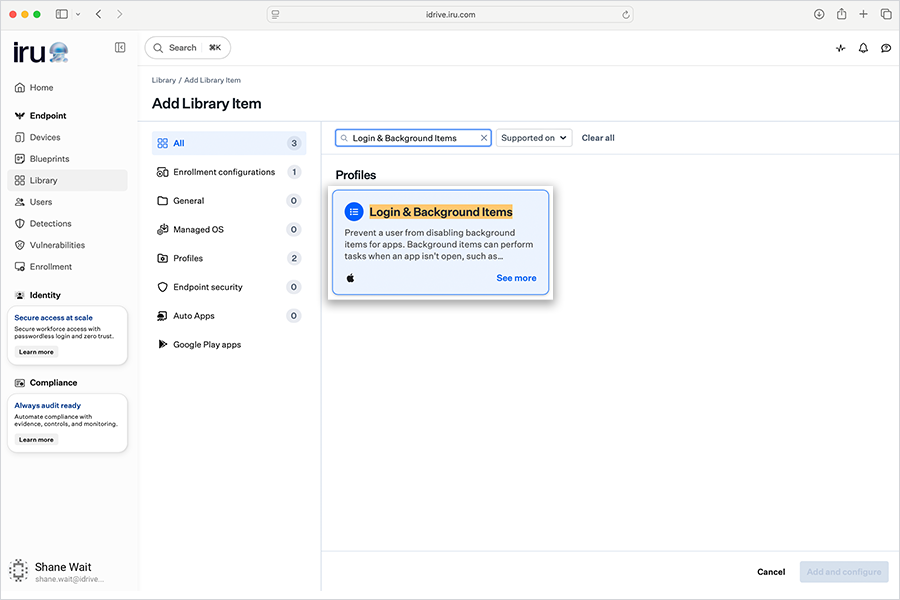
- Click 'Add and configure'.
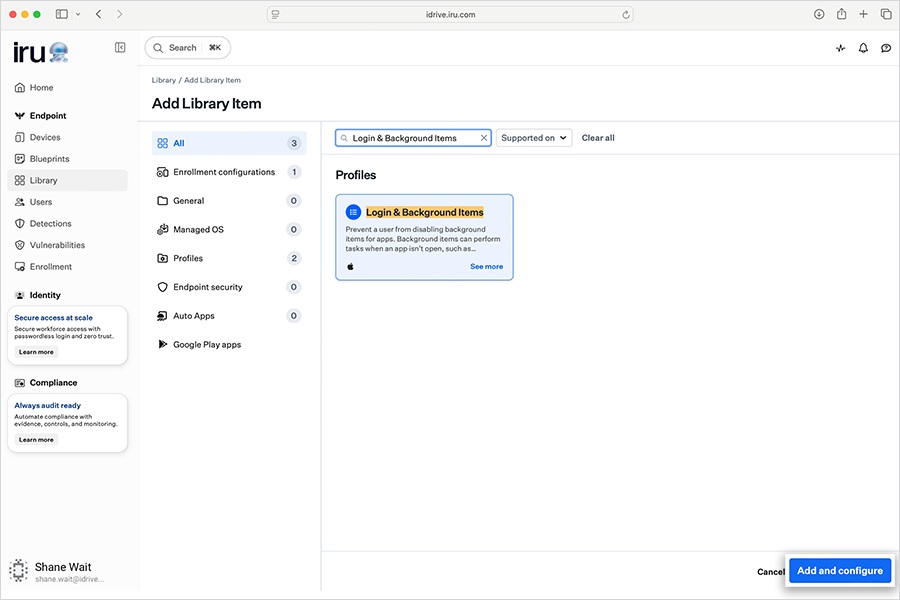
General Details
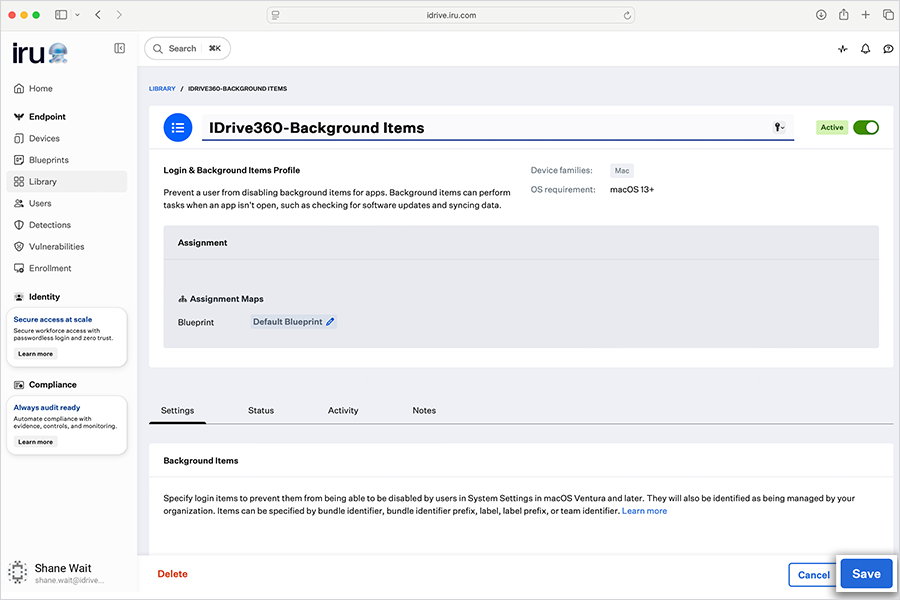
- Title: IDrive360-Background Items
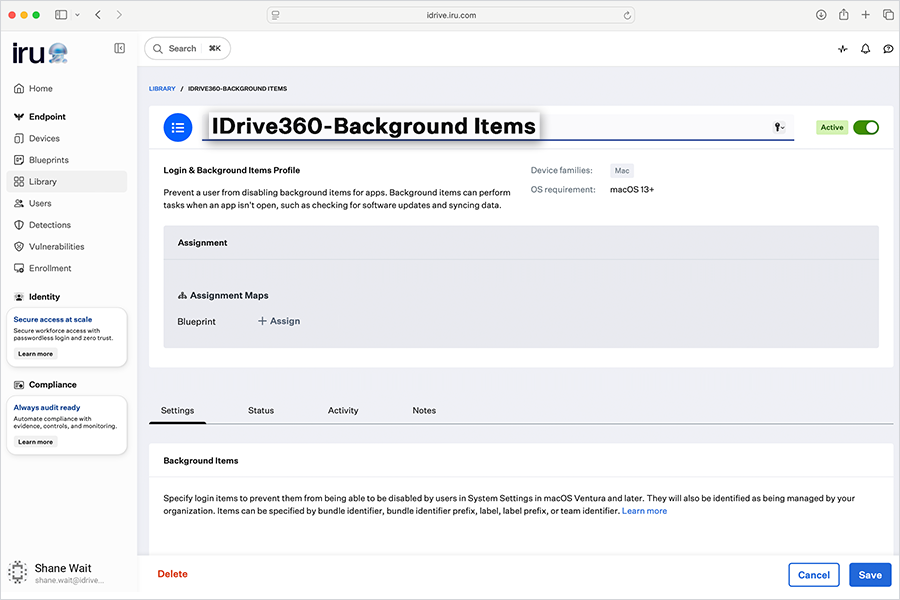
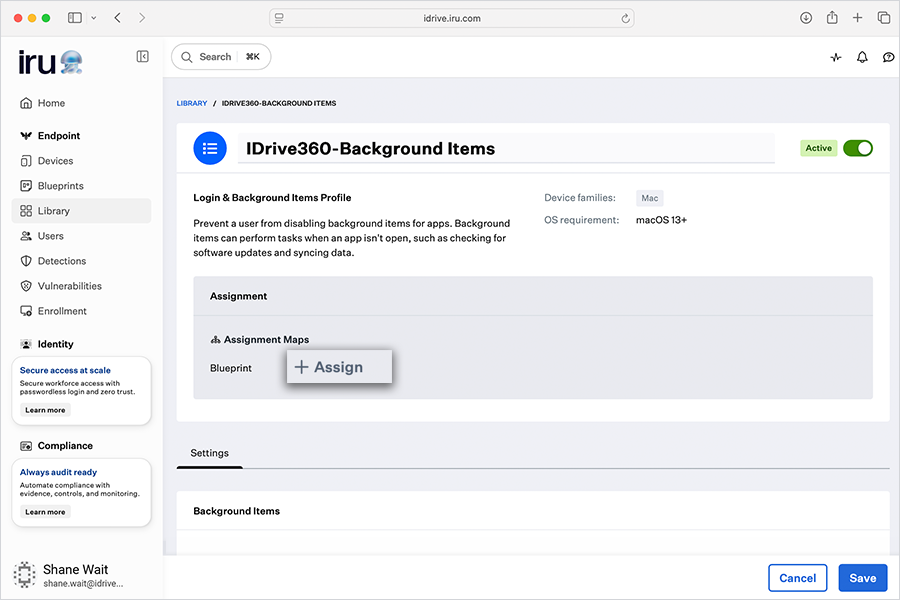
- Assignment: Assign to the required Blueprint
Settings
- Click 'Add Background Item'
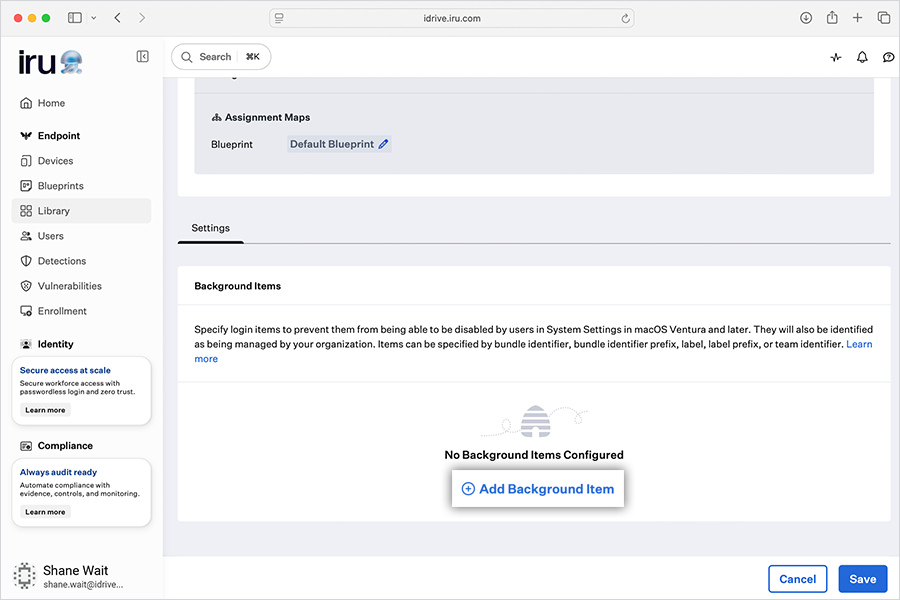
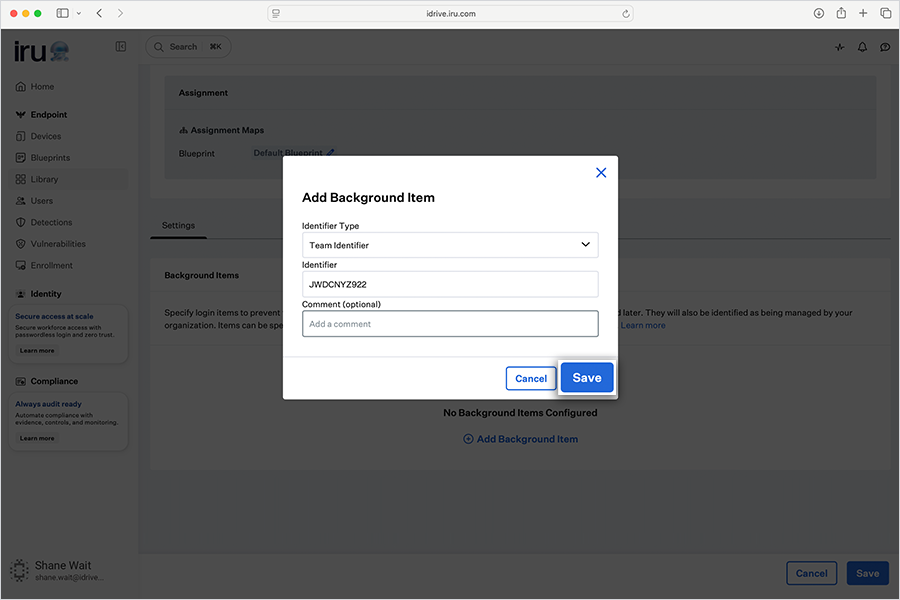
- Identifier Type: Team Identifier
- Identifier: JWDCNYZ922
Click 'Save' in the popup.
Click 'Save' to apply the configuration.
Register Computers Using Custom Parameters
To automatically register deployed devices in the IDrive® 360 console, include custom parameters in the pre-install script.
Download the sample package installer script.
Update the script with the required parameter values and save the file.
0 - Unhide the tray and allow users to access tray options
Deploy IDrive® 360
Once permissions are configured, proceed with application deployment.
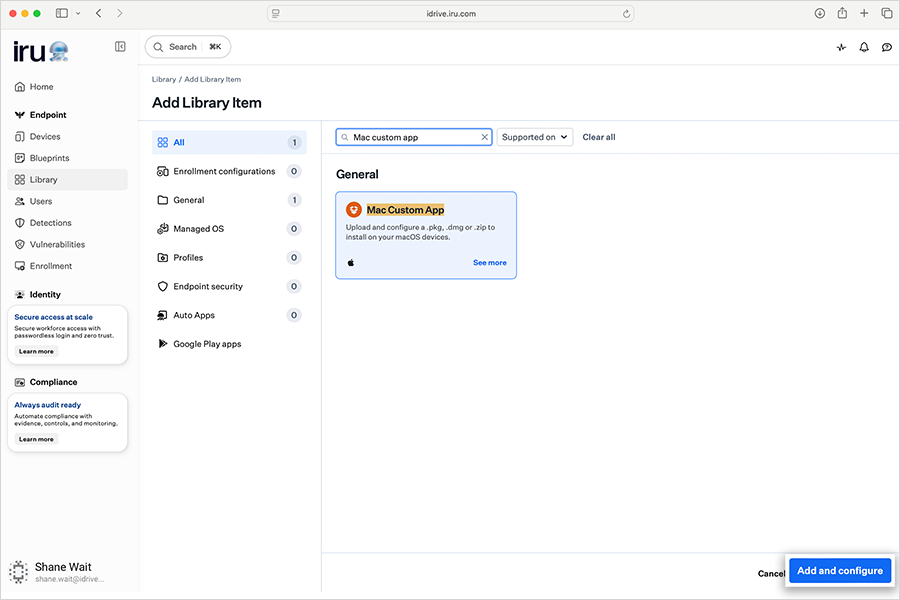
- Navigate to 'Library' > 'Add Library Item'.
- Select 'Mac Custom App'.
- Click 'Add and configure'.
General Details
- Title: IDrive360-Deployment
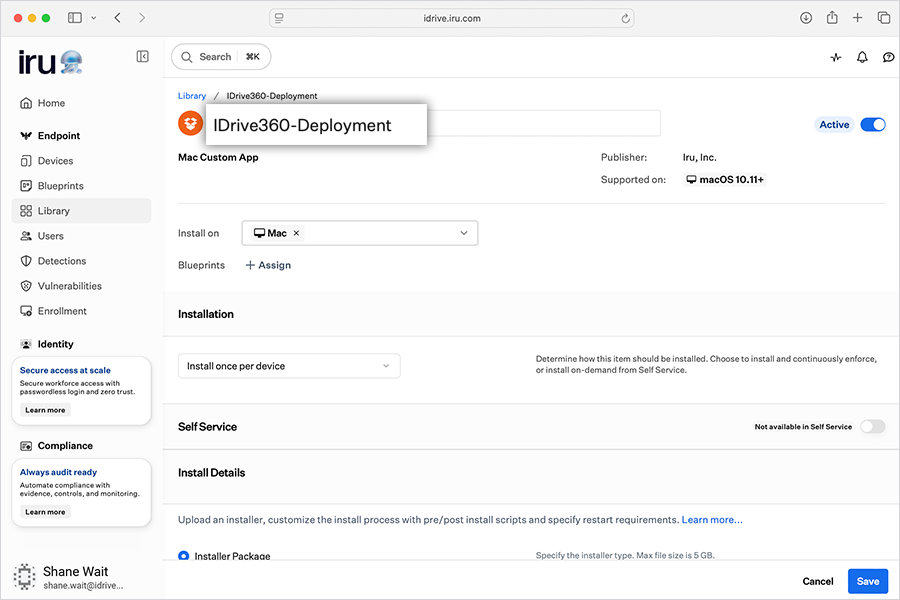
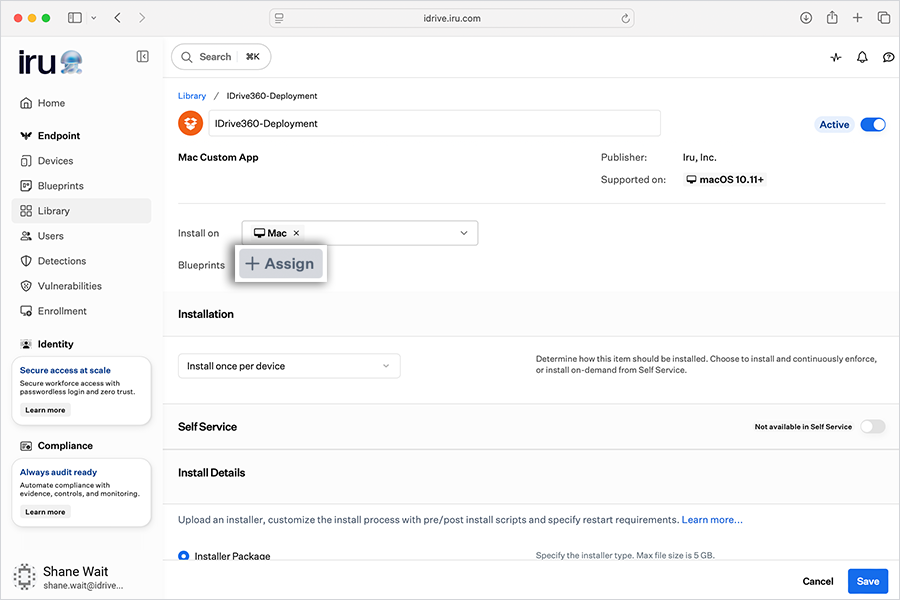
- Assignment: Assign to the required Blueprint
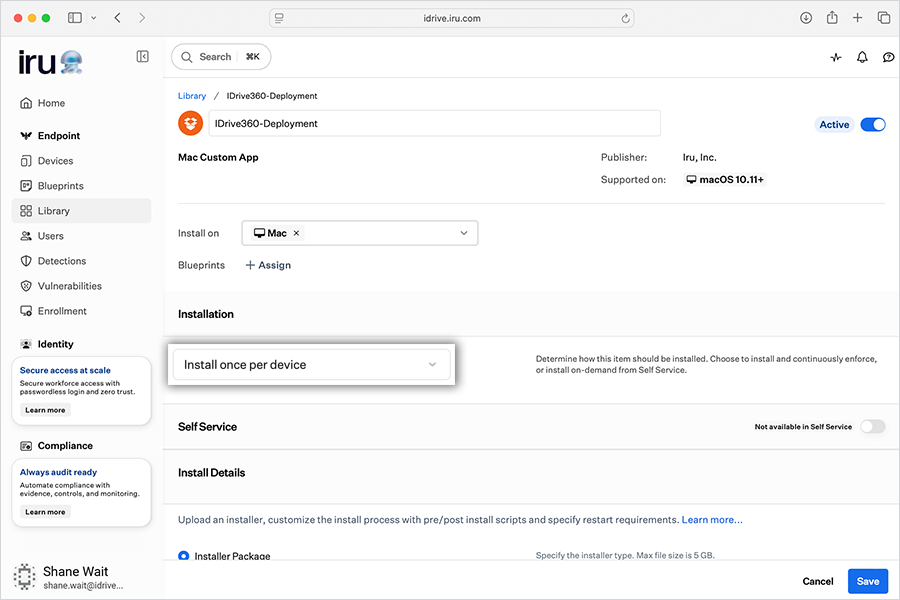
- Installation: Install once per device
Install Details
- Select 'Installer Package (.pkg)'.
- Click 'Add Preinstall Script'.
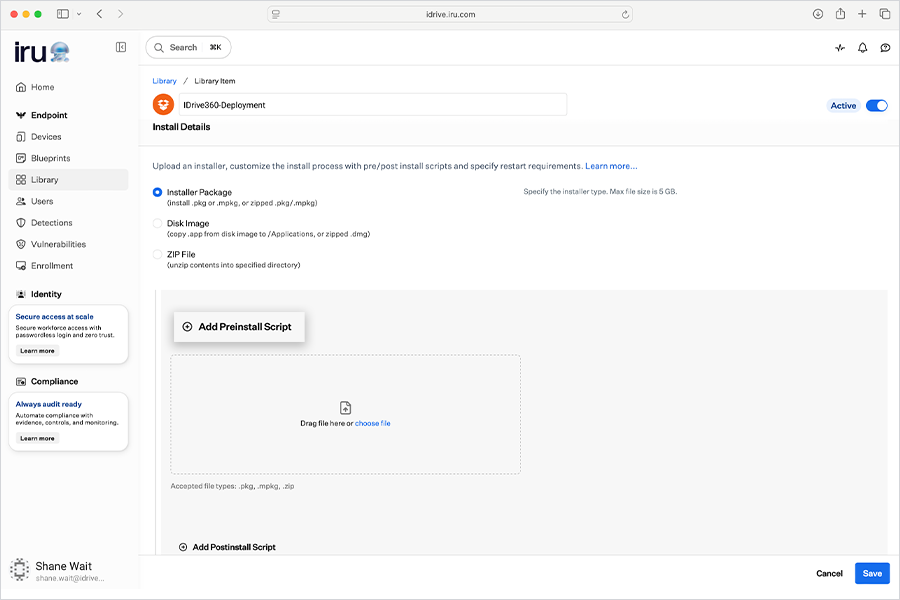
- Copy and paste the script downloaded and updated in the earlier section (with required parameters).
- Upload the IDrive® 360 package downloaded from your account.
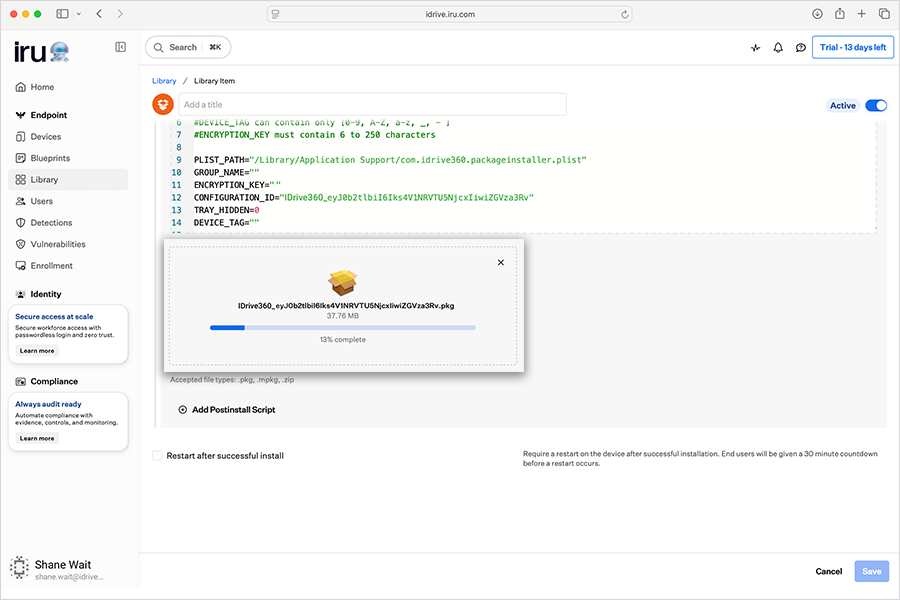
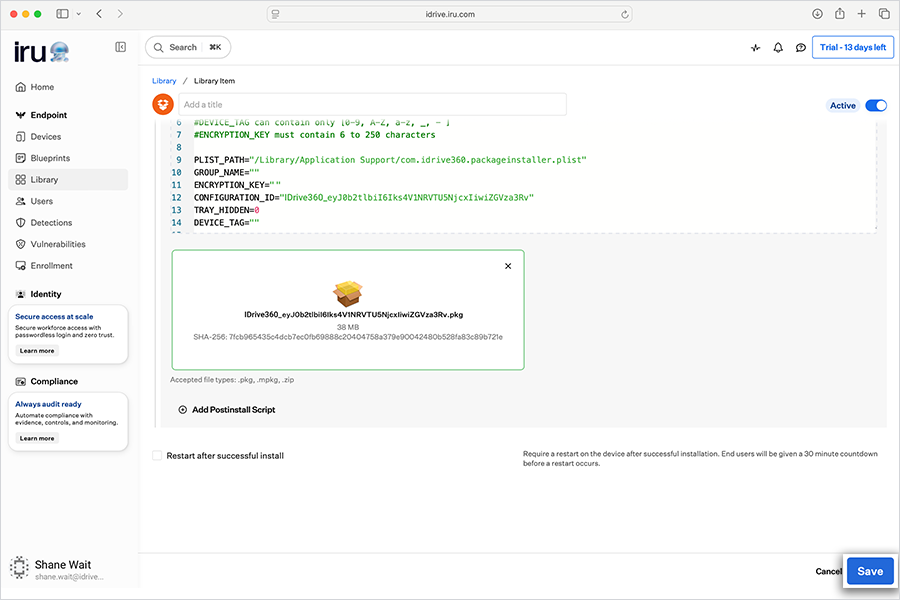
- Wait for SHA-256 verification to complete.
Click 'Save'.
Verification and Deployment Status
After saving, IRU deploys the configuration profile and application to all assigned devices
Status Check
- Open 'IDrive360-Deployment' and navigate to the 'Status' tab.
- Review installation status across devices.
Device-Level Verification
- Navigate to 'Devices' > [Device Name] > 'Status'
- Verify the following:
- IDrive360-Configuration: Success
- IDrive360-Deployment: Pass
- IDrive360-Background Items: Applied / Success
Note
- Deployment may take some time to reach all devices.
- To expedite the process, manually sync the Mac devices.