Creating an MST File
Use MSI deployment with an MST file to customize and control application installations in enterprise environments. Create an MST (Microsoft Transform) file to modify the original MSI package without altering the base installer. Configure installation paths, features, shortcuts, and licensing options as required. Apply the transform during deployment to ensure consistent, automated, and silent installations across multiple systems.
To create an MST file:
- Download the Orca tool from:
https://learn.microsoft.com/en-us/windows/win32/msi/orca-exe. - Install and launch ORCA tool from the Start menu (All programs).
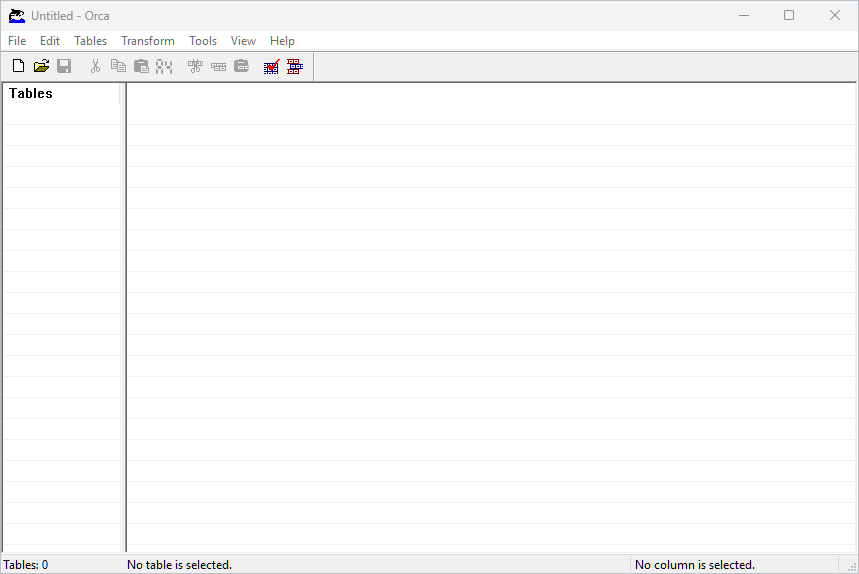
- The ORCA user interface will launch, as shown below.
- In the Orca console, click File > Open and select the MSI package.
- Ensure the Tables pane is displayed on the left side of the console.
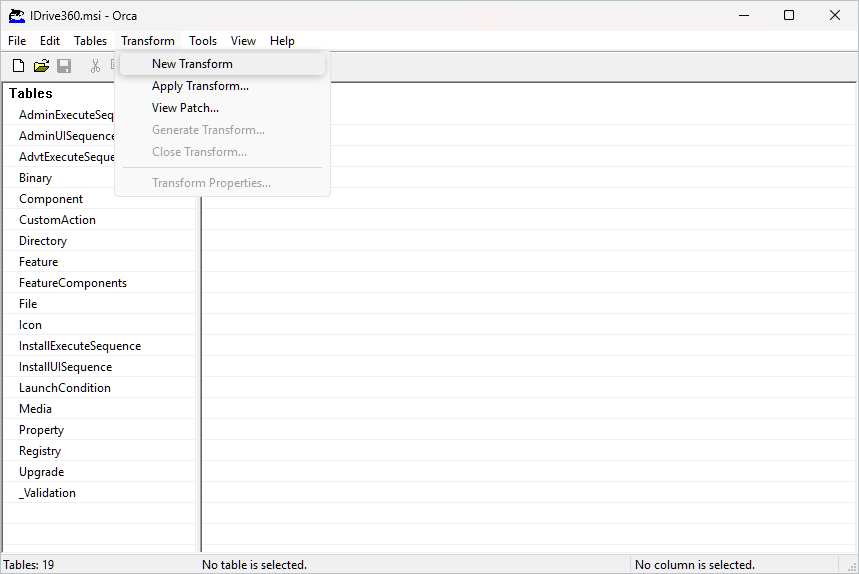
- Click Transform > New Transform to begin creating the MST file.
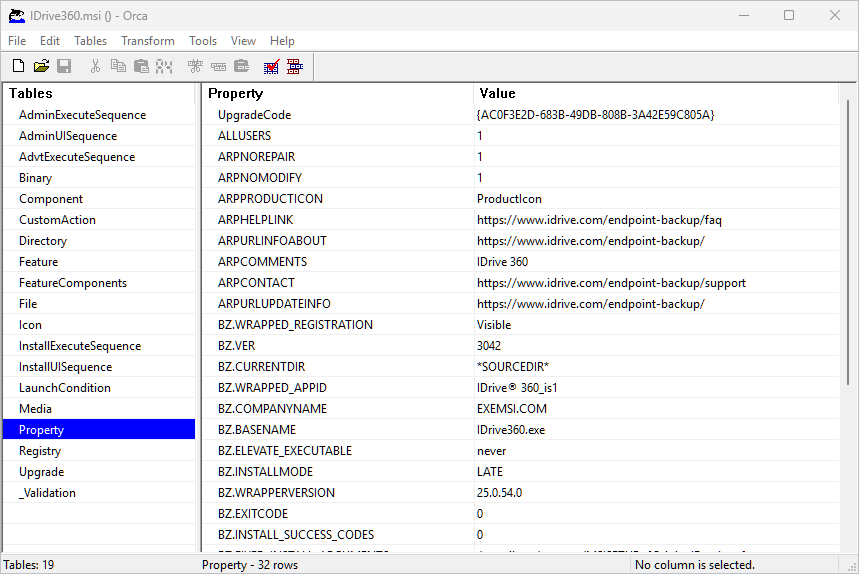
- After creating the new transform, scroll through the Tables pane and select Property. The Property and Value fields will be displayed.
- In the Property table, right-click and select Add Row.
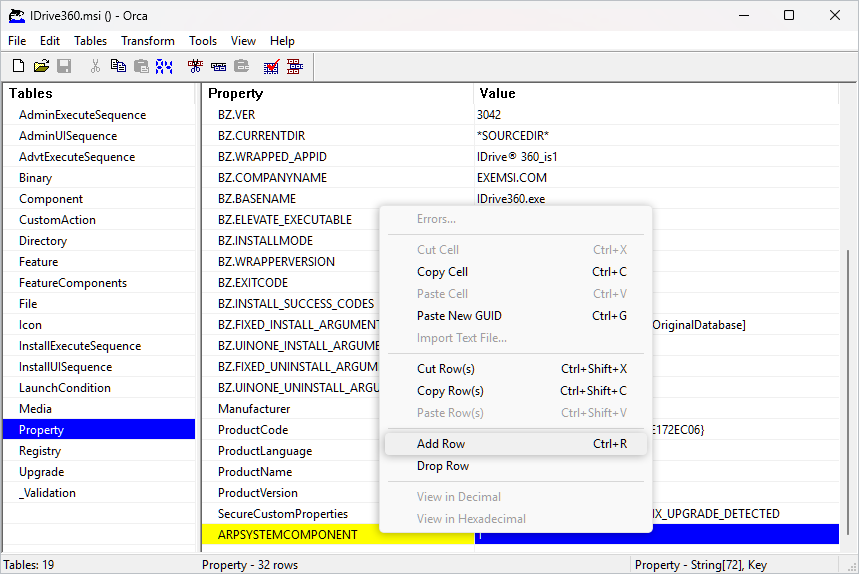
- Add the deployment arguments in the Property table.
- In the Property field, enter:
WRAPPED_ARGUMENTS - In the corresponding Value field, enter the required deployment parameters.
Sample Command:
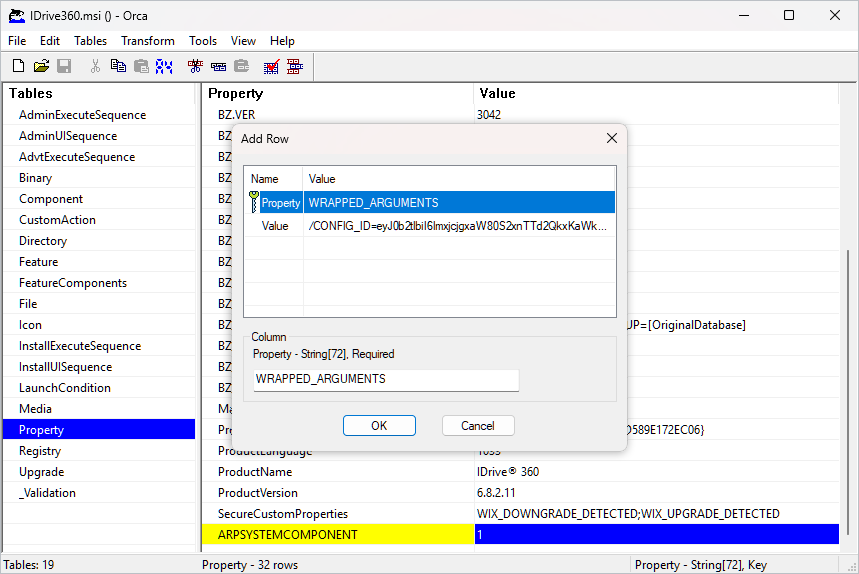
/CONFIG_ID=eyJ0b2tlgxaW80S2xnTTdzMTg1NyIsImRlc2t0b3BBcOnRydWUsImVuY3RpSZXF1aXJlZCI6ZmFsc2V9 /GROUP_NAME=ManagersDefault /DEVICE_TAG=Development_DefaultThe parameters and their descriptions are given below:
Parameters DescriptionWRAPPED_ARGUMENTS This is an argument used to define command line parameters. Command line arguments should always start with a wrapped argument within double quotes.CONFIG_ID This is the unique configuration ID copied from the 'Add Computers' section in the Backup Console./nodesktopicon Prevents creation of the IDrive® 360 desktop shortcut. By default, the desktop icon is created.GROUP_NAME *Name of the group to which the computer will be assigned. Here the group name used in the example is 'Managers'.PVT_KEY If the installation is configured with a private encryption key, then this parameter should also be passed with the encryption key.DEVICE_TAG If the installation is configured with a device tag, the corresponding tag name must be passed for it to appear under the 'Email Address/Tag Name' column in the IDrive® 360 dashboard.
- In the Property field, enter:
- Now, generate the transform file. Click Transform > Generate Transform. When prompted, select the destination folder to save the file. Save the MST file in the same folder where the MSI package is located. Ensure the MST file name matches the MSI file name.
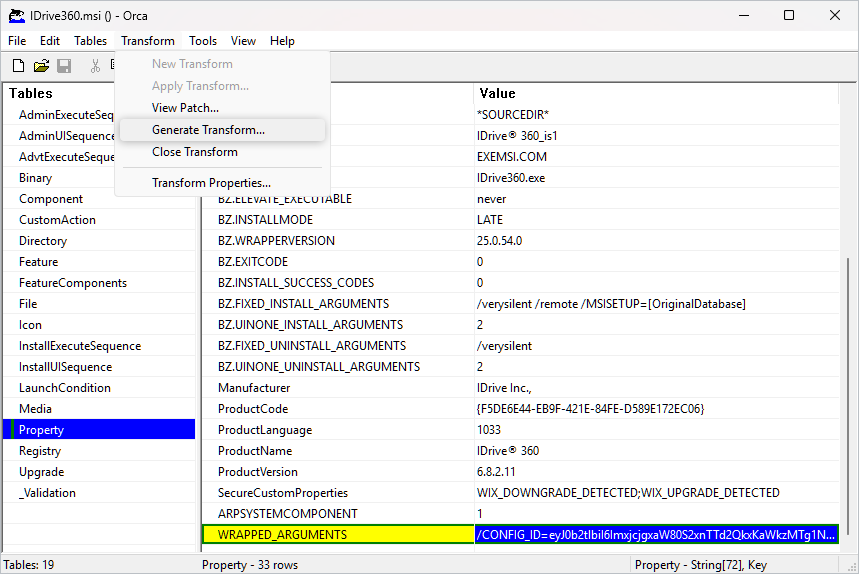
Example: If the MSI name is: IDrive360.msi, save the transform file as: IDrive360.mst - After successfully generating the MST file, close the Orca application to complete the transform creation process.
Learn more about MSI deployment using MST file via Intune, GPO, and Command Line.