IDrive® Spaces
IDrive® Spaces
What is IDrive® Spaces?IDrive® Spaces offers immediate cloud-based access to files so users can work on them easily without needing to sync or download content. Built for fast and remote work environments, this file-sharing solution is well-suited for large media, design, and creative workloads. With straightforward file organization and access permissions, teams can access, collaborate, and work on files from any location. |
How do I get started with IDrive® Spaces via the web?To get started, sign in to your IDrive® account from any supported web browser and click 'IDrive® Spaces' from the left navigation menu. Click 'Enable' to activate IDrive® Spaces. Once enabled, click 'IDrive Spaces' to open the dashboard. You can then create and manage shared workspaces and filespaces to upload and access files for different projects, assign access permissions, and seamlessly work with your team on files from the web console. 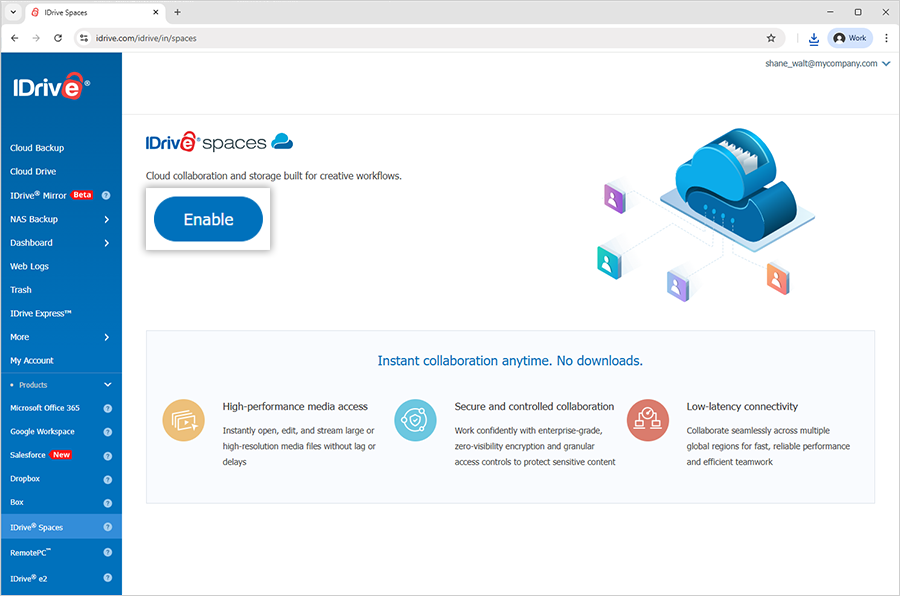 |
How does IDrive® Spaces keep my sensitive data protected?IDrive® Spaces protects your data with end-to-end AES-256 encryption both in transit and at rest. Your encryption keys are never stored or accessed by us, ensuring complete privacy. Granular access controls let administrators set permissions for specific files and folders, ensuring secure file sharing, while direct cloud access allows users to open files without downloads, reducing data exposure. |
What is a workspace?A workspace is a collaborative space where your distributed teams can coordinate projects by working on files in real time from the cloud. It functions as a central location for creating filespaces to store and organize project files, with admin controls to manage user access. |
How do I create a workspace?To create a workspace,
Once your first workspace is created, click |
How many workspaces can I create?You can create multiple workspaces. Each workspace functions as an independent shared cloud environment. You can set up workspaces for different projects or teams and manage the member access and permissions, as needed. |
Is it allowed to exit a workspace?You cannot exit a workspace that you have created. However, you can exit a shared workspace whenever you want. Once you exit, you can no longer access the shared files and folders. To exit a workspace,
|
Can I rename a workspace?Yes, you can rename a workspace only if it contains no filespaces. To rename a workspace,
|
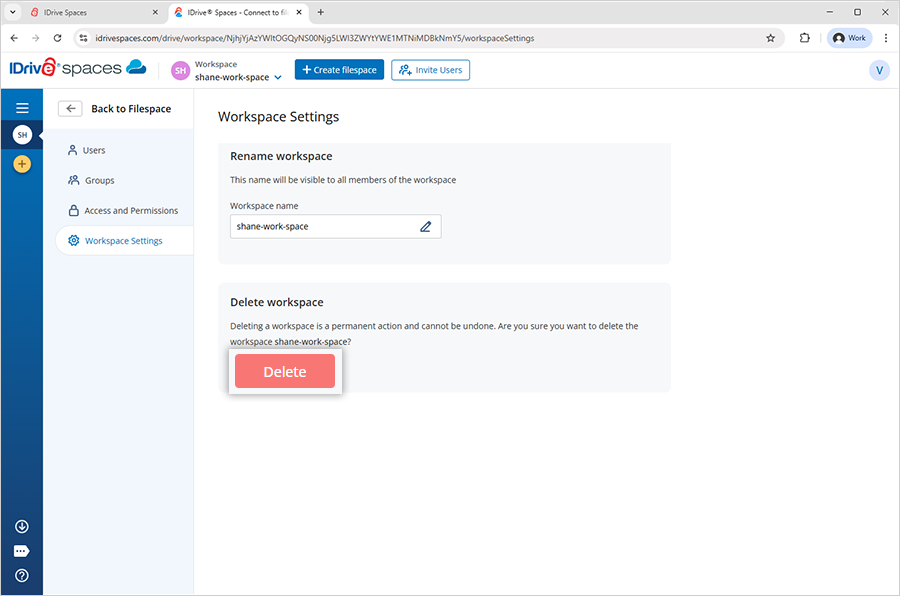
How do I delete a workspace?To delete a workspace,
Note: Only the owner of a workspace can delete it. A workspace can be deleted when there are no filespaces in it. |
What is a filespace?A filespace provides a shared cloud space where users can store, access, and work on files from anywhere. It functions like a local drive, allowing users to open and edit files directly from the cloud without needing to download or sync them. Multiple filespaces can be created within a workspace, with permissions for user access and collaboration. |
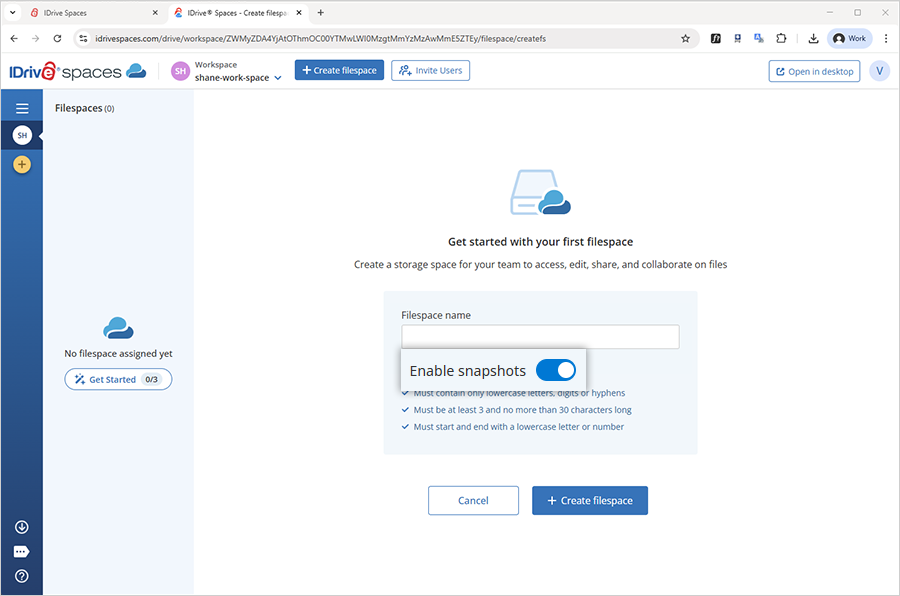
How do I create a filespace?To create a filespace,
After the first filespace is created, click Create filespace to create additional filespaces. |
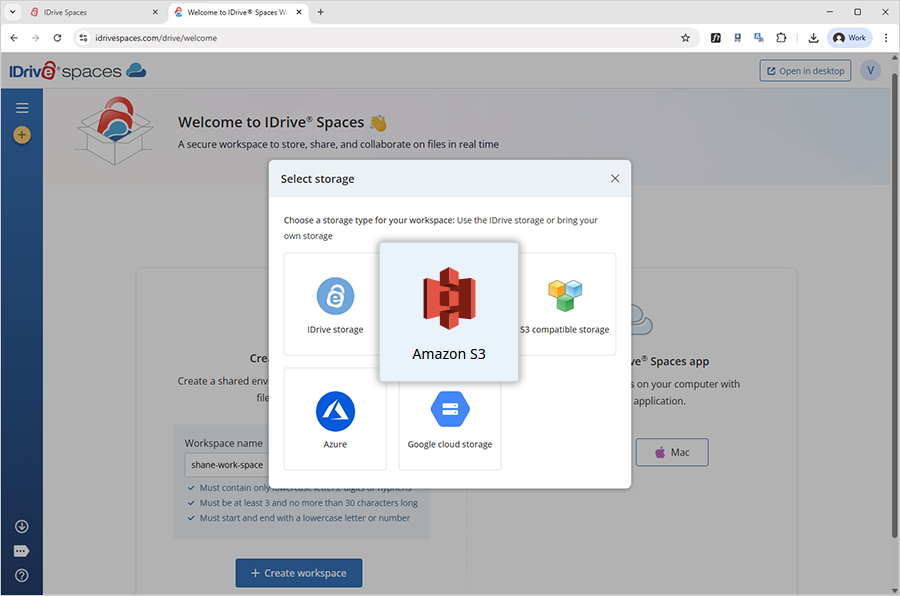
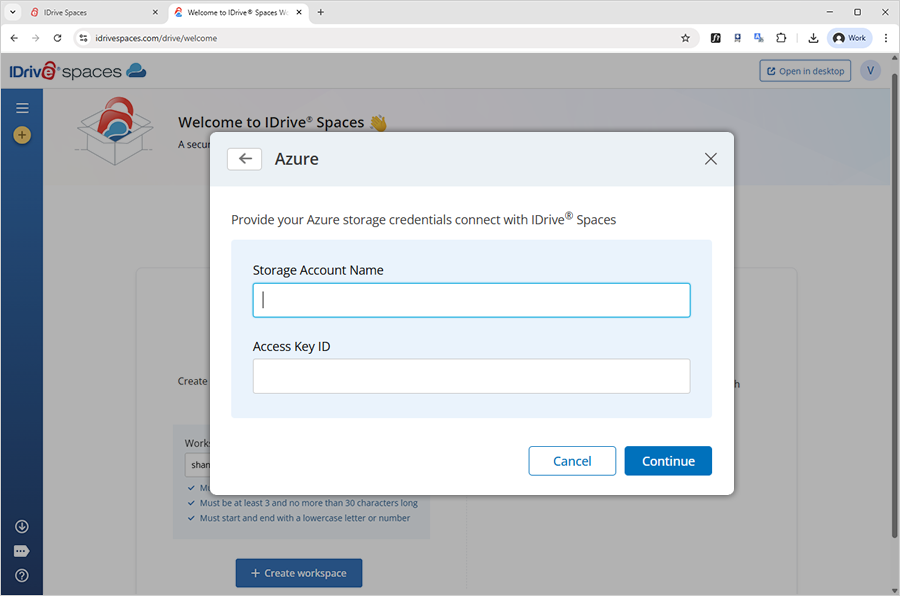
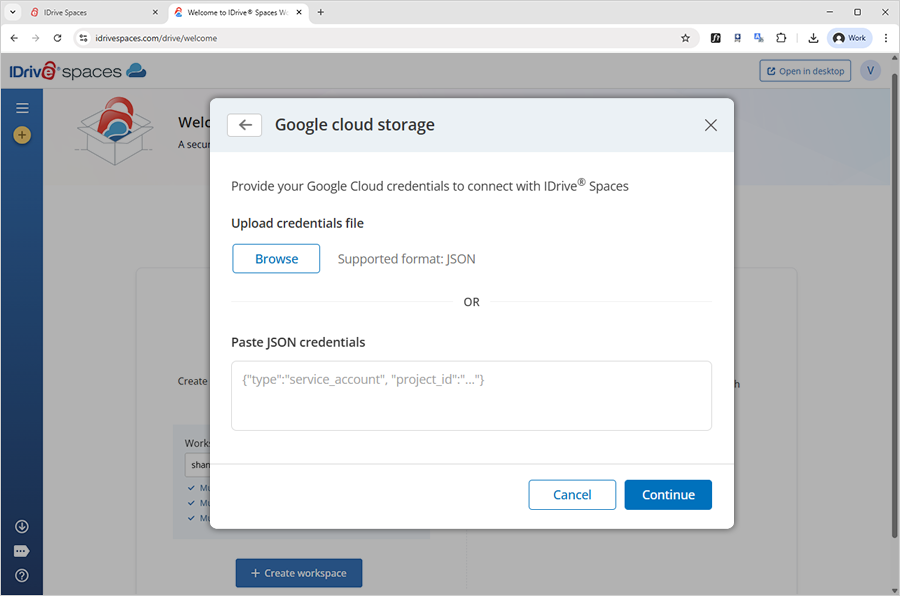
Can I link my own storage to a filespace?Yes, you can bring your own storage and link it to a filespace. It allows you to integrate your existing Amazon S3, other S3-compatible storage, Microsoft Azure, and Google Cloud Storage directly with IDrive® Spaces. This offers greater control and flexibility by enabling you to use the storage that you already own. To link your storage,
Your filespace will be connected to the selected storage, allowing you full control and flexibility over where your data resides. |
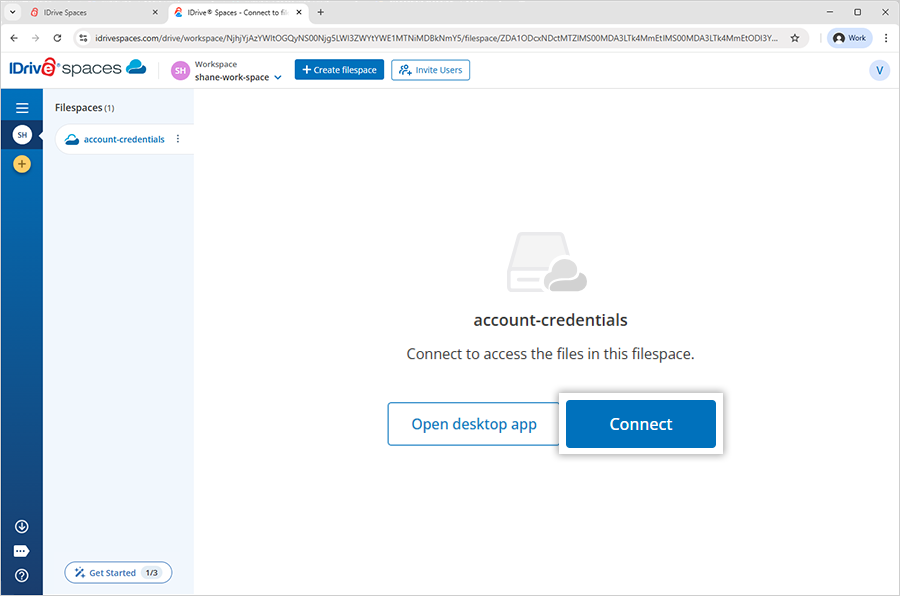
How do I connect to a filespace?To connect to a filespace,
Alternatively, click Open desktop app to connect to the filespace via the IDrive® Spaces Desktop application. Explore the Desktop FAQs to know more. The filespace will open as a drive, enabling you to create folders, upload files, and access data. You can also connect to multiple filespaces, with each appearing as a separate drive. |
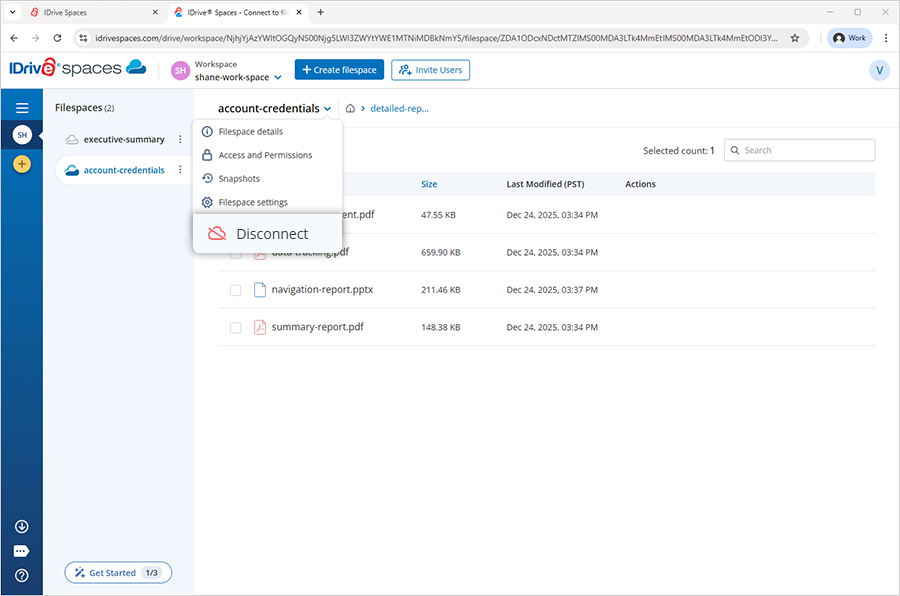
How do I disconnect a filespace?To disconnect a filespace,
|
How do I create new folders in a filespace?To create a folder,
Alternatively, click  |
How do I delete a folder?To delete a folder,
|
What is a filespace snapshot?A snapshot is a point-in-time image of a filespace that preserves the current state of all the files and folders existing in the filespace. It allows you to save and restore your entire filespace, or any deleted or modified files, to a specific moment by retaining the exact version of each file. You can access and restore files by mounting the snapshot. Default snapshots can be enabled for a filespace during its creation. You can also take an immediate snapshot manually or schedule snapshots to be created automatically. |
How do I capture a quick snapshot of a filespace?To capture an immediate snapshot,
A list of all the quick snapshots will be displayed on the Snapshots page. |
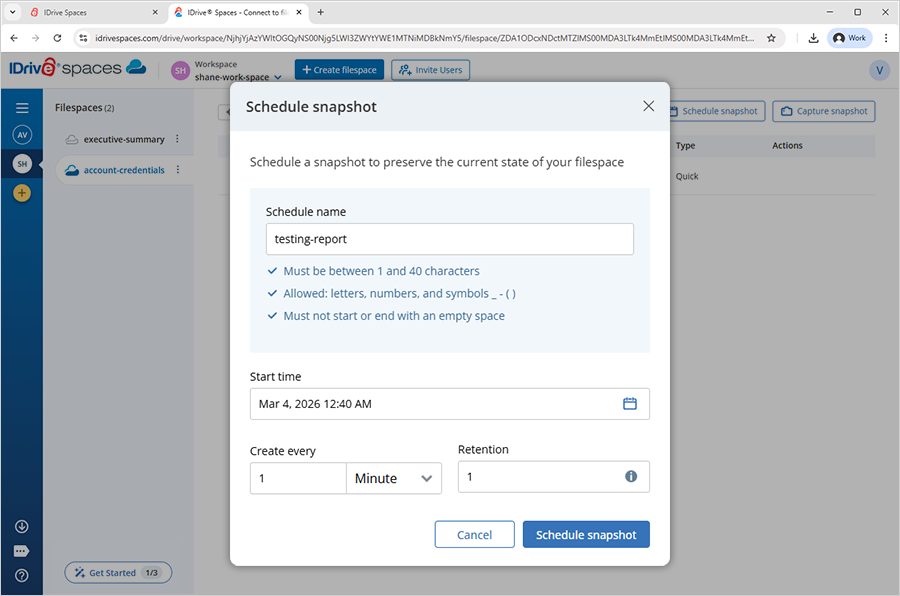
Can I schedule a snapshot for a filespace?Yes, you can schedule snapshots to be created automatically at set intervals (minute, hour, or day). To schedule a snapshot,
A list of all the scheduled snapshots will be displayed on the Snapshots page. |
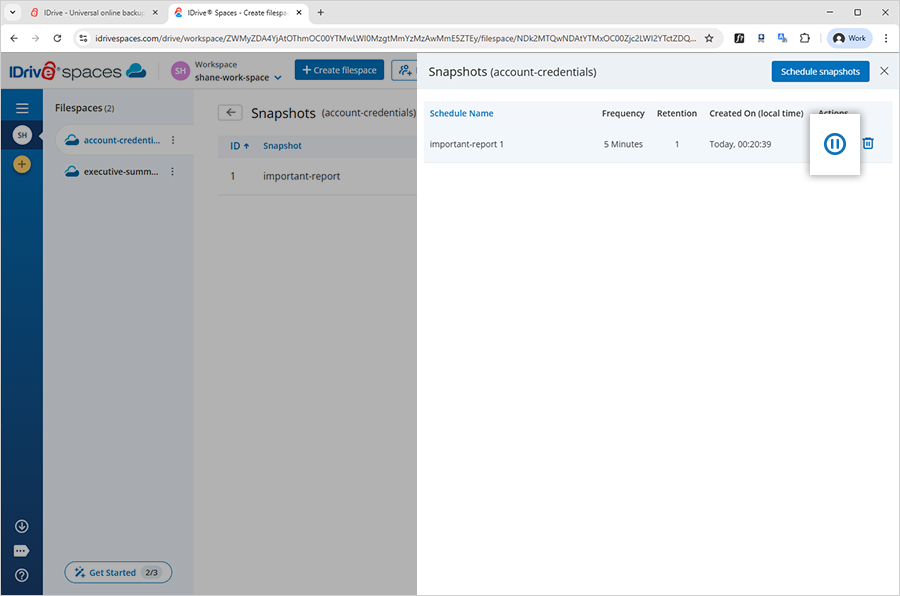
How do I stop a filespace snapshot schedule?To stop a snapshot schedule,
The snapshot schedule will be disabled and no future snapshots will be created by it. |
Can I delete a filespace snapshot schedule?Yes, you can delete snapshot schedules associated with a filespace. To delete a snapshot schedule,
The snapshot schedule will be removed permanently from your account. |
Is it possible to filter snapshots of a filespace?Yes, you can filter the snapshots of a filespace. To filter the snapshots,
|
How to recover files or folders from a filespace snapshot?To recover a file or folder,
Alternatively, you can click Restored files or folders will be placed in a separate folder within the filespace, preserving existing data. This ensures users can access both versions and compare them as needed. |
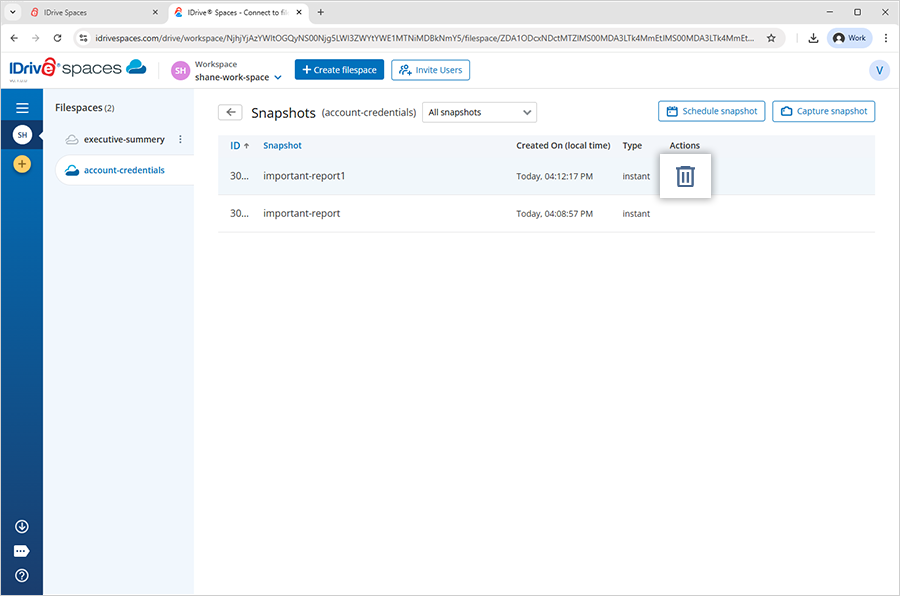
How do I delete a snapshot?To delete a snapshot,
Once deleted, the snapshot will no longer be accessible to the owner or users. |
What is file pinning?File pinning lets you mark specific files or folders in your IDrive® Spaces account to keep local copies on your device. Once pinned, the files are downloaded and stored locally so they remain available at all times. Any changes made to the pinned files are automatically synced to the cloud, so everyone with access always has the latest version. To pin files or folders,
Note: To pin files, the size must be within the download cache limit set under Filespace settings |
Can I view the details of a filespace?Yes, you can view the details of a filespace. To view filespace details,
The cloud provider and utilized storage space for the filespace will be displayed. From this screen, you can click Disconnect to end the filespace connection, Open in App to access the filespace via the IDrive® Spaces Desktop application, or go to Access and Permissions or Settings to manage access permissions and filespace settings. |
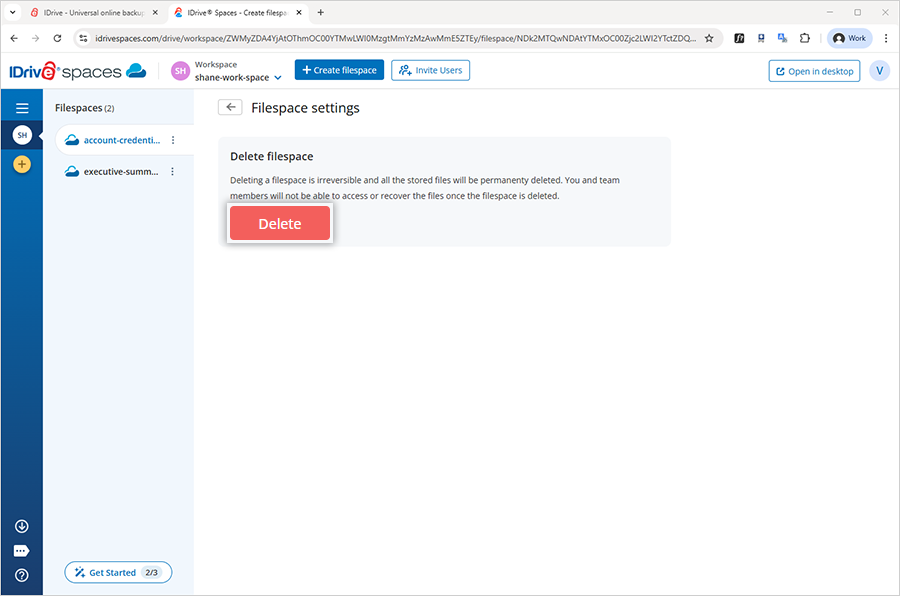
How do I delete a filespace?To delete a filespace,
Upon verification, the filespace and all associated files will be permanently deleted from your account. |
How do I add users to a workspace?To invite users to a workspace,
When the recipient accepts the invitation, they will be added to the workspace. Once the users join the workspace, you need to grant them permissions to access the files and folders in the filespaces within the workspace. You can assign them view or edit access to an entire filespace or specific folders. |
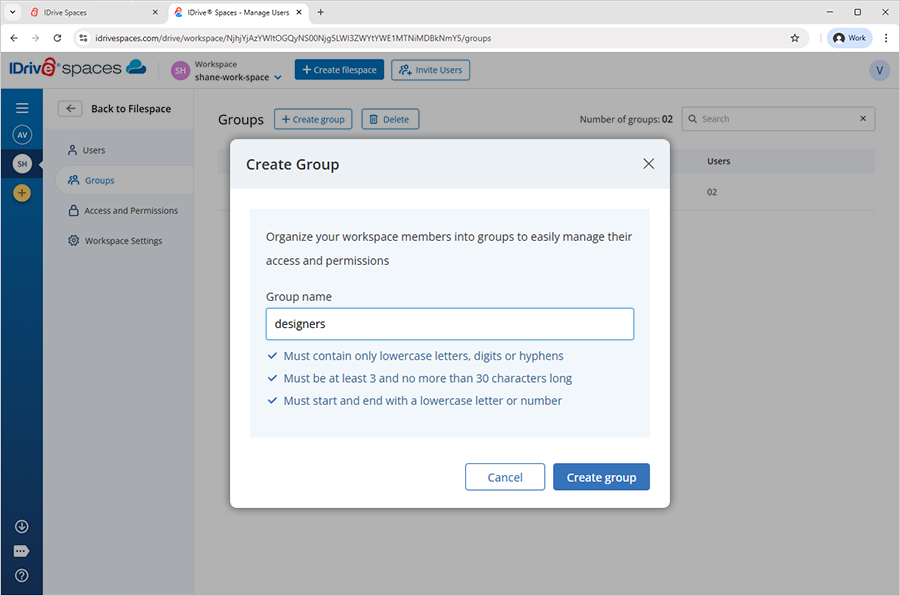
Can I create a group in my workspace?To create a group of users,
|
How do I add users to a group?To add users,
|
Can I delete users from a group?Yes, you can delete any user from a group whenever you want. To delete a user,
|
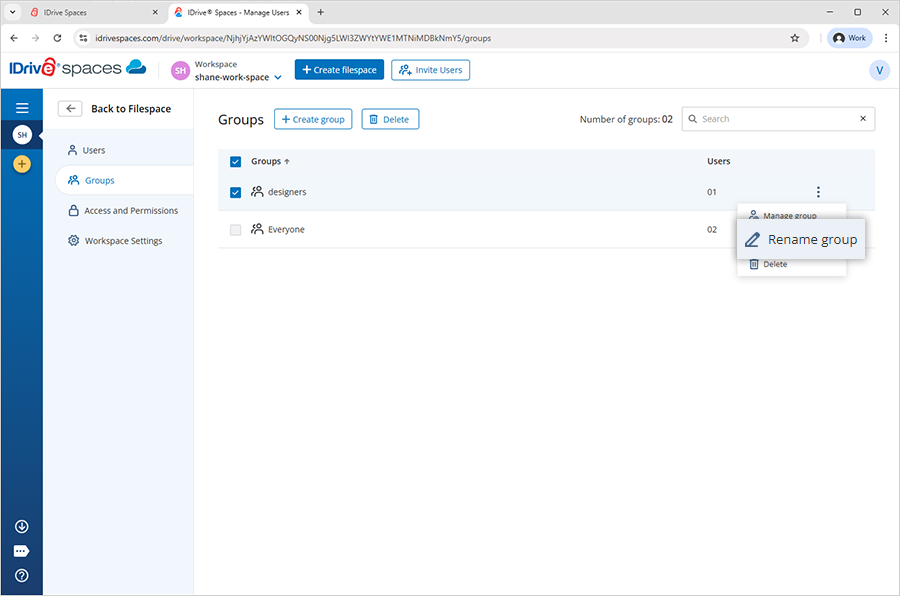
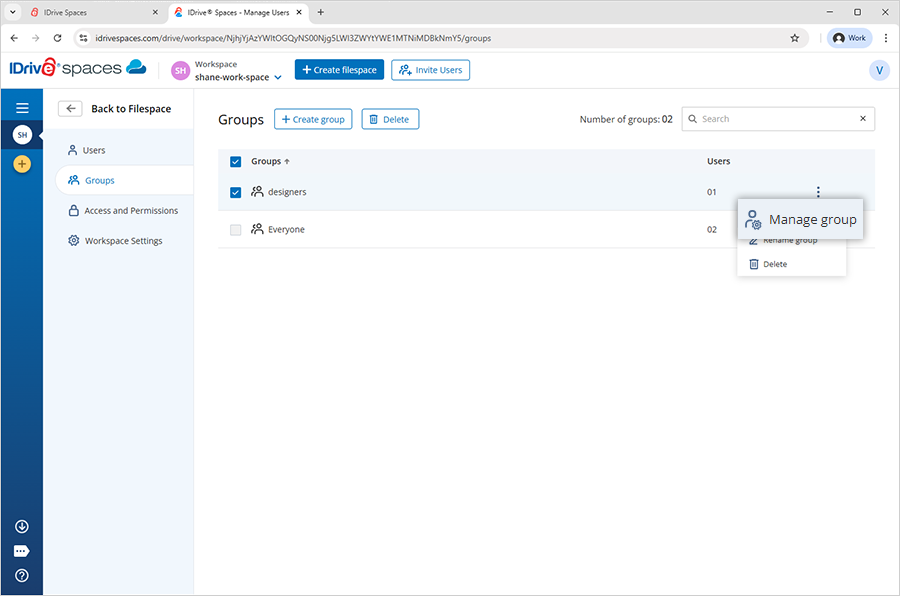
How do I rename a group?To rename a group,
|
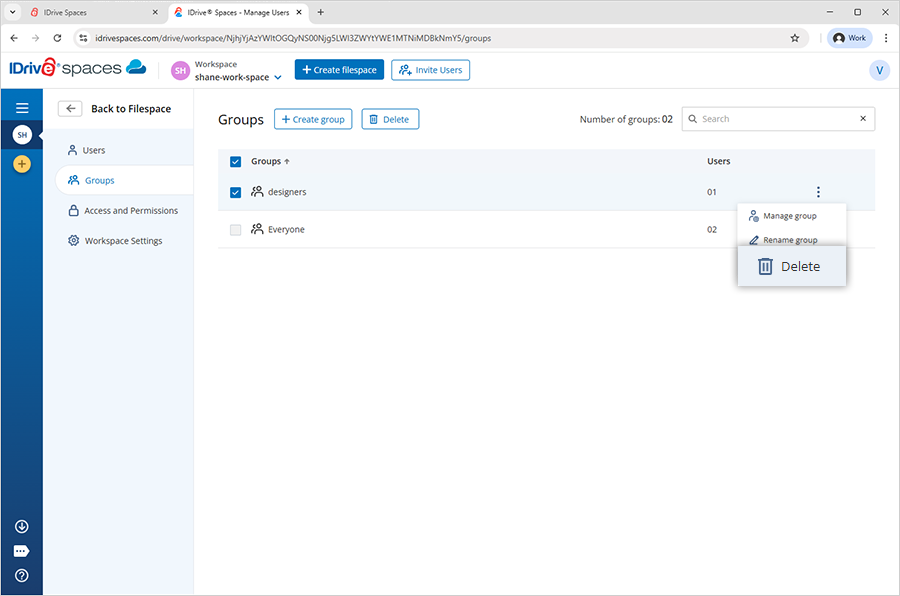
How do I delete a group?To delete a group,
|
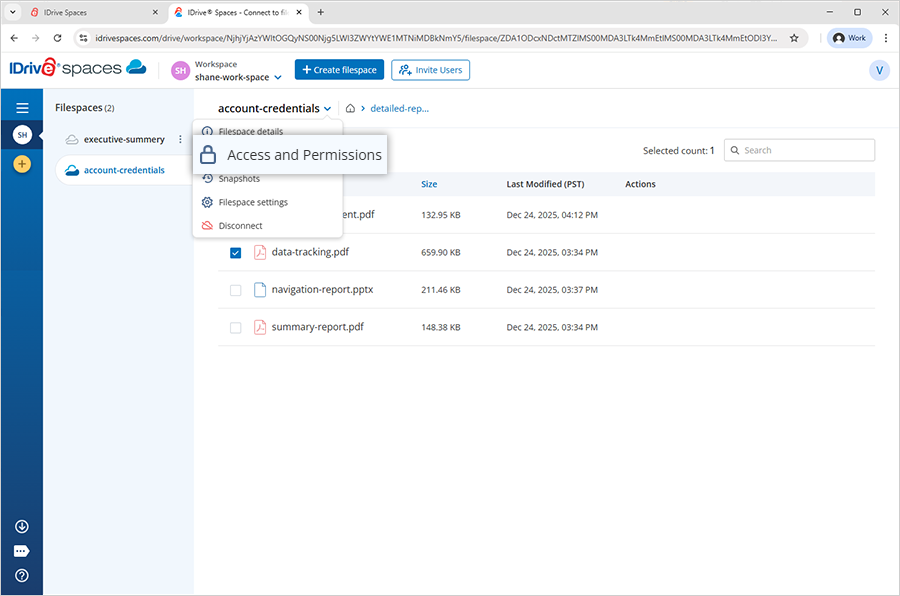
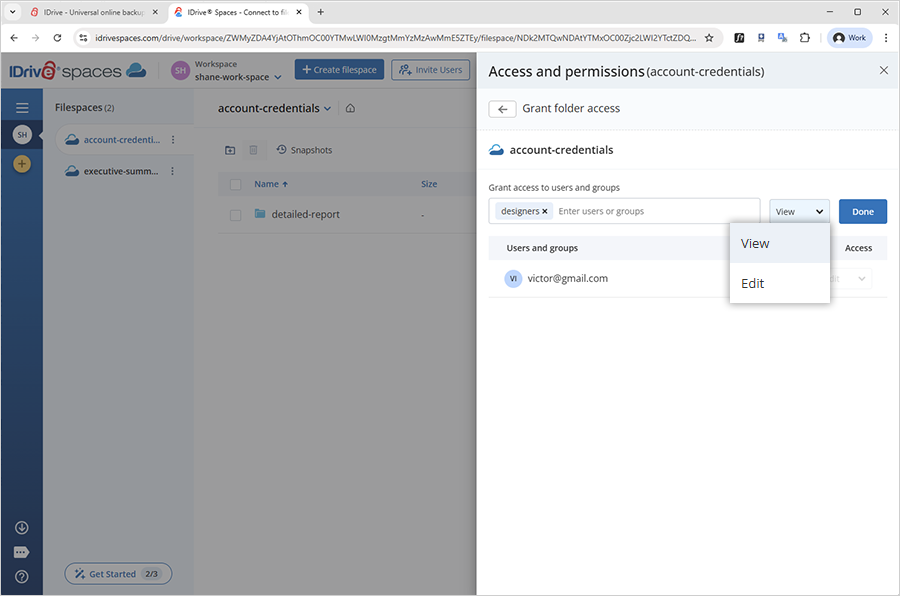
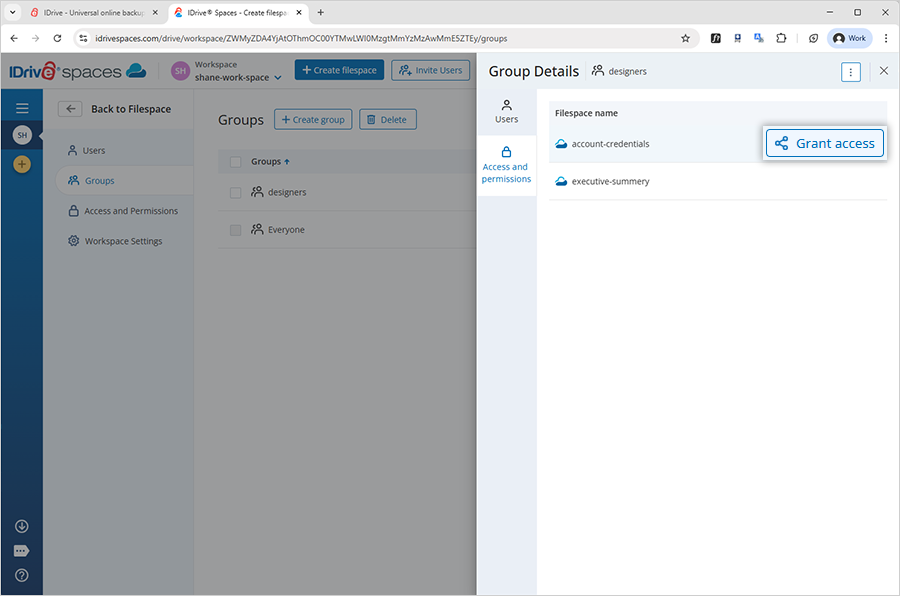
How do I grant access permission to an entire filespace?To grant access for multiple users and groups,
Alternatively, you can click To grant access for a specific user or group,
Alternatively, you can click |
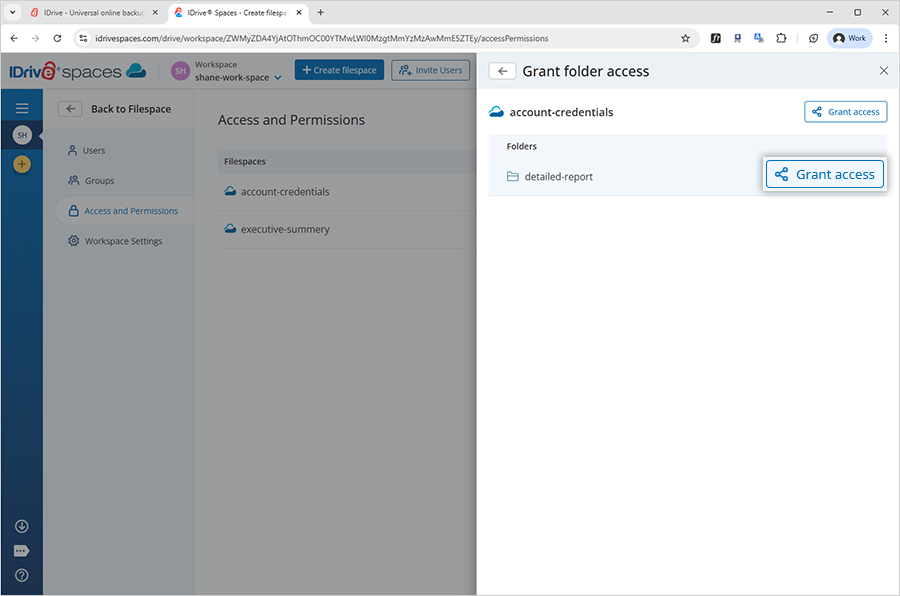
How do I grant access permission to a specific folder?To grant access for multiple users and groups,
Alternatively, you can click To grant access for a specific user or group,
Alternatively, you can click |
Can I modify the existing permissions for a filespace or specific folders?Yes, you can modify the access permissions for an entire filespace or specific folders within the filespace. To modify permissions for all the users and groups,
Alternatively, you can click To modify permissions for a specific user or group,
Alternatively, you can click |
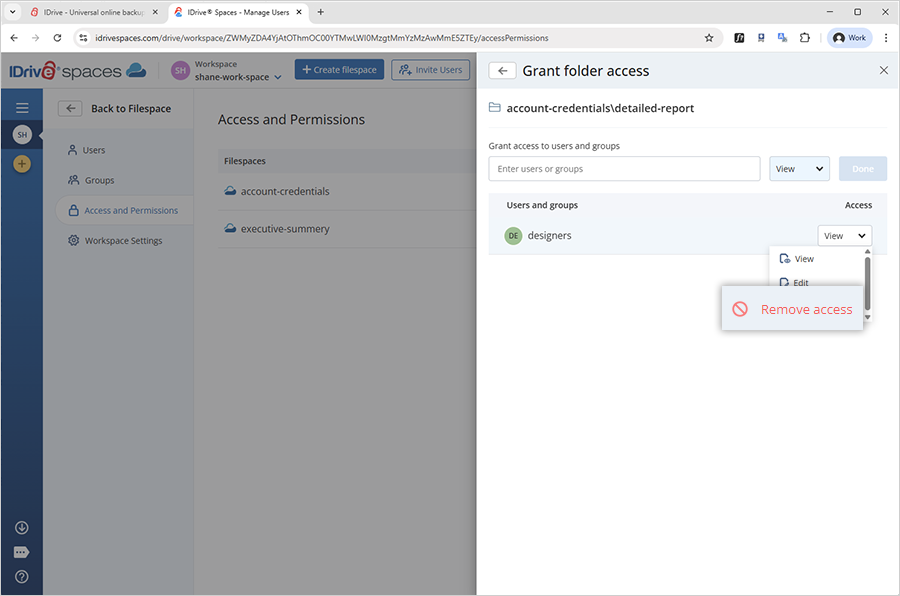
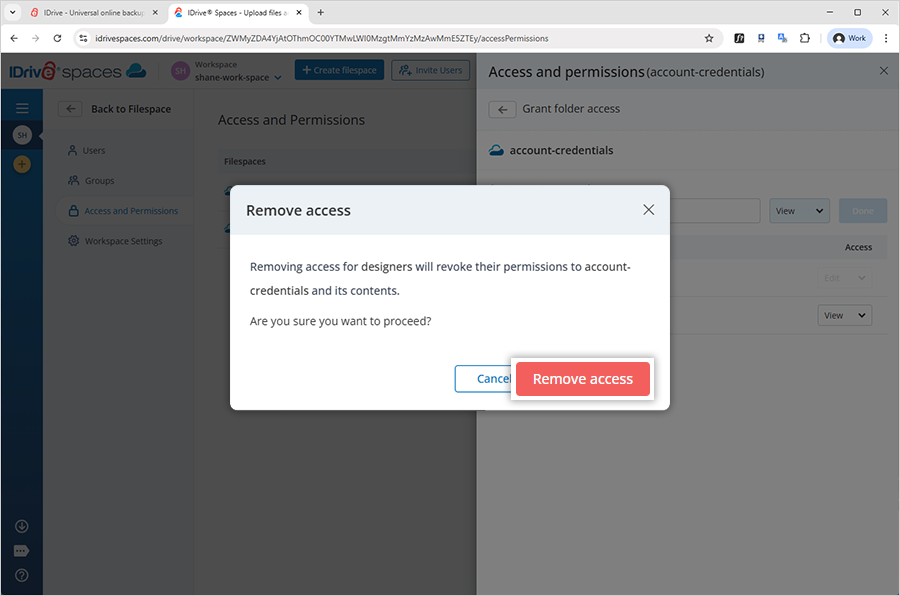
How do I remove the existing permissions for a filespace or specific folders?To remove permissions for multiple users and groups,
Alternatively, you can click To remove permissions for a specific user or group,
Alternatively, you can click |
 to create a workspace.
 next to its name.
 next to the workspace name.



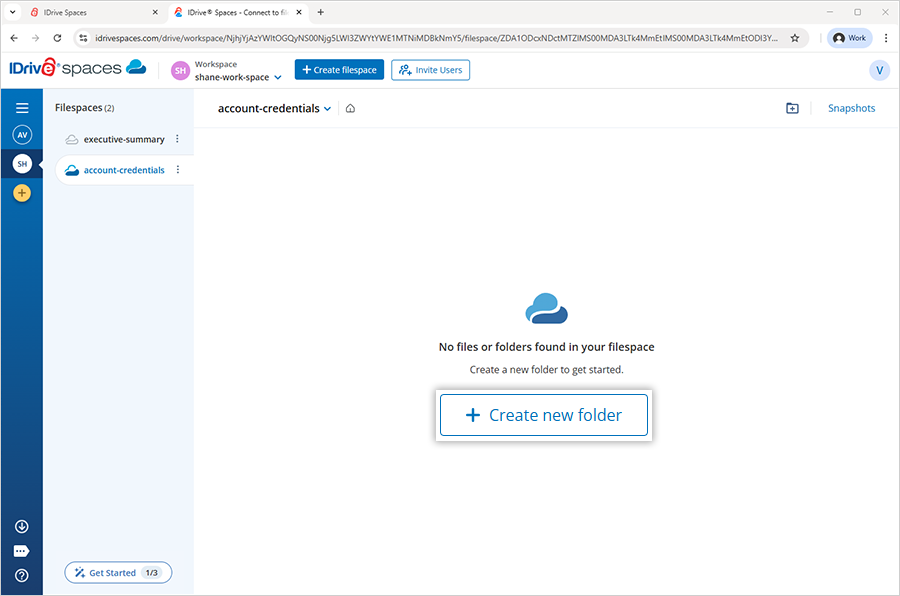

 to create a new folder in a filespace.
 .
. 
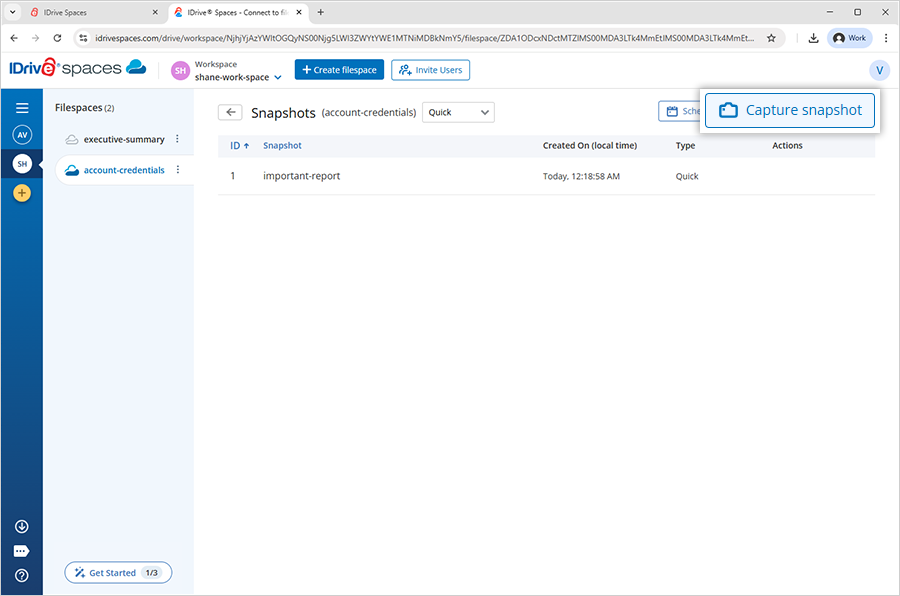


 .
. 


 next to the filespace name and select Snapshots from the dropdown menu.