Single Sign-On provisioning setup - Okta (SCIM)
Administrators of IDrive® e2 can now set up provisioning for their users and groups from the identity provider. IDrive® e2 supports the SCIM (System for Cross-domain Identity Management) provisioning method for this purpose.
To setup Single Sign-On (SSO) provisioning with Okta, the admin needs to:
- Generate SCIM provisioning token with IDrive® e2 account
- Configure SCIM provisioning
- Assign users / groups to the provisioned app
Generate SCIM provisioning token with IDrive® e2 account
Admin needs to generate and use the SCIM (System for Cross-domain Identity Management) provisioning token to sync all the users linked with their IdP to the IDrive® e2 account.
To generate a token,
- Sign in to IDrive® e2 via web browser.
- Navigate to the 'Dashboard' > 'Settings' > 'Single Sign-On (SSO)'.
- In the SSO section, click the 'Generate Token' button under 'Sync users from your identity provider' to generate a token.
- Click the 'Copy Token' button to copy and save the token for future reference.
The token will be required to sync all the users linked with your IdP to your IDrive® e2 account.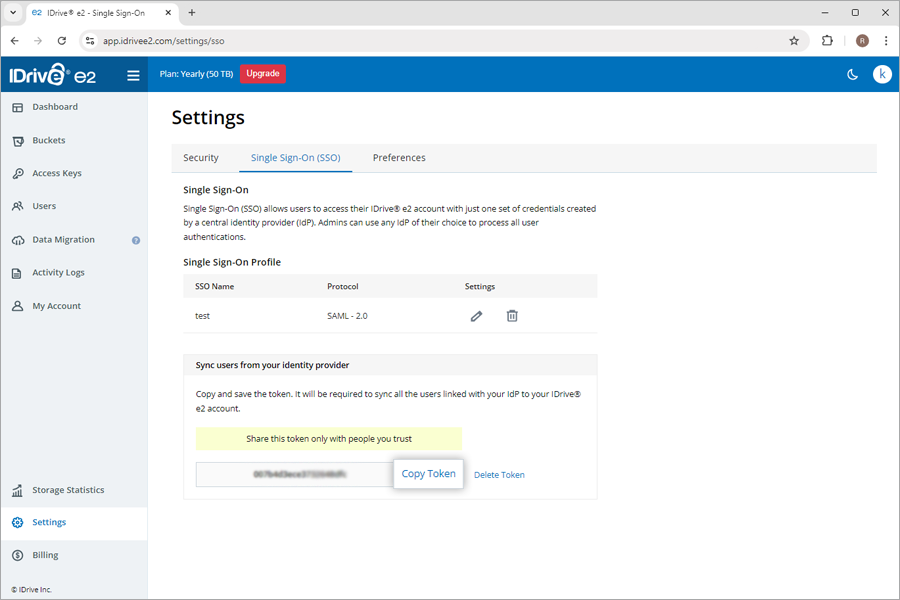
- Configure the following SCIM User provisioning URL in your IdP:
https://api.idrivee2.com/api/sso/user_provisioning
Configure SCIM provisioning
Once the app is created, admin can configure their account for SCIM provisioning.
To configure SCIM provisioning,
- Log in to the Okta console using your Okta account credentials.
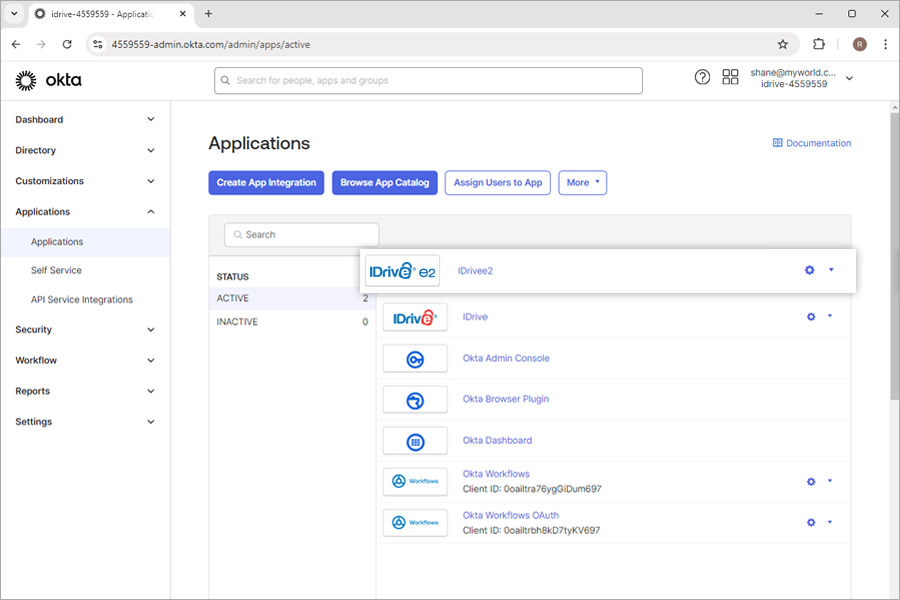
- In the 'Applications', click on the newly created app.
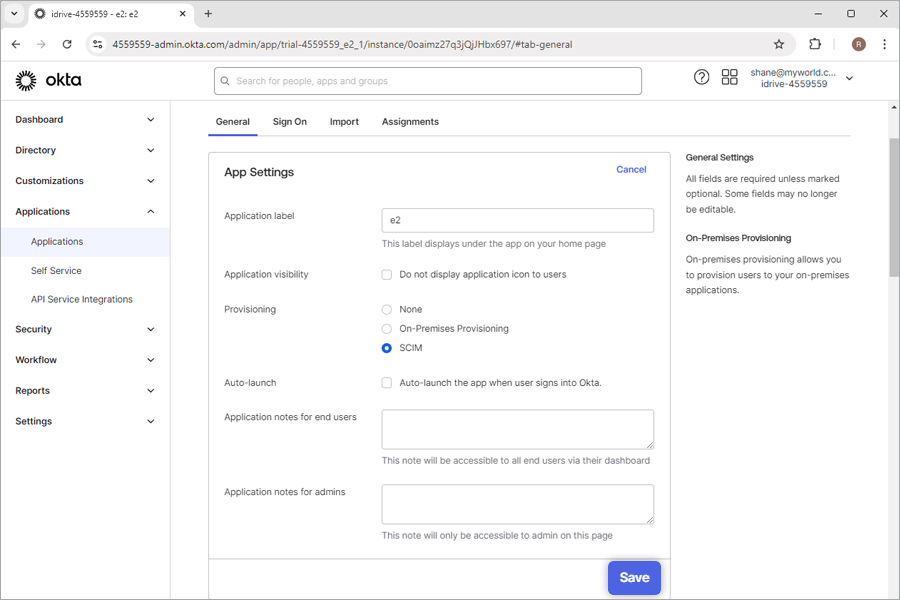
- Navigate to 'General', click 'Edit' corresponding to the 'App Settings', and select 'SCIM'. Click 'Save'.
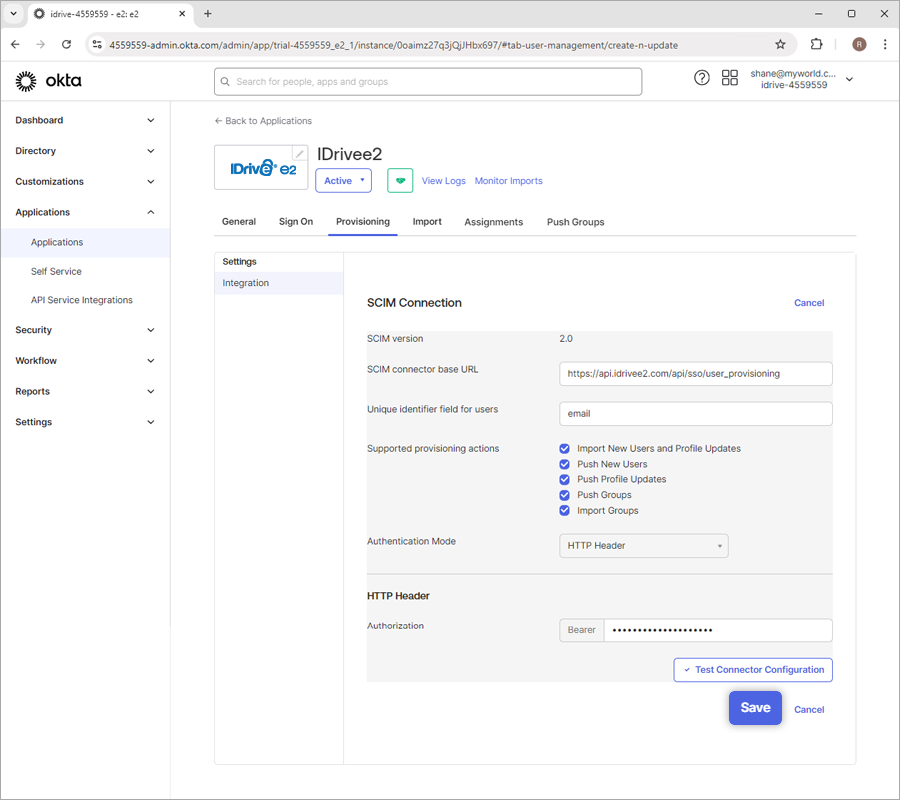
- Go to the 'Provisioning', click 'Edit' against the 'SCIM Connection' and modify the required changes as below:
- SCIM connector base URL:
https://api.idrivee2.com/api/sso/user_provisioning - Unique identifier field for users: email
- Supported provisioning actions: Click and enable the below options:
- Push New Users
- Push Profile Updates
- Push Groups
- Authentication Mode: HTTP Header
- Authorization: Enter the SCIM provisioning token generated on your IDrive® e2 account
- SCIM connector base URL:
- Click 'Save'.
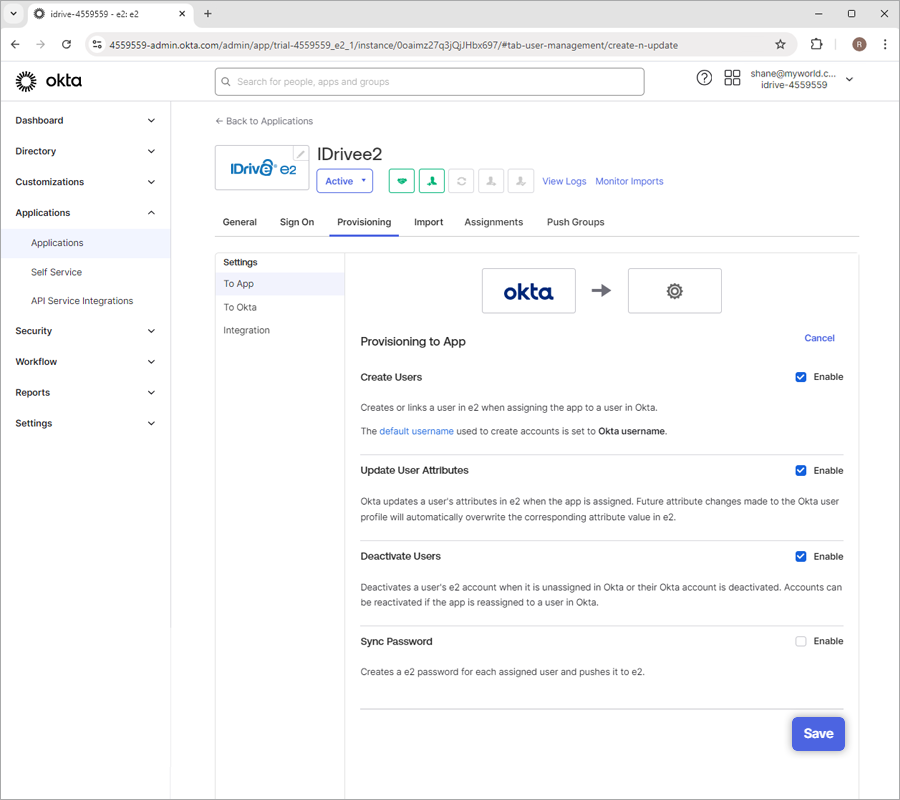
- Under the 'To App' tab, click 'Edit' against the 'Provisioning to App' option.
- Click the 'Enable' to enable the below options:
- Create Users
- Update User Attributes
- Deactivate Users
- Click 'Save'.
Assign users / groups to the provisioned app
To start provisioning, an admin needs to assign users/groups to the application and push groups.
To assign users,
- Launch the new app in Okta console.
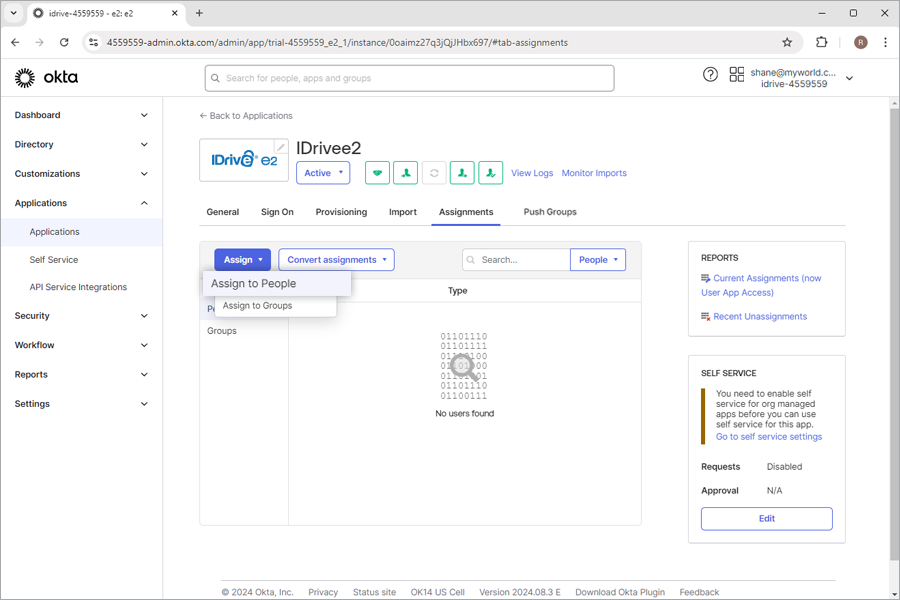
- Go to the 'Assignments', click 'Assign', and select 'Assign to People' or 'Assign to Groups' to provision users or users in the group, respectively.
This will provision users and users in the group.
Note: If you want to add new users, go to 'Directory' > 'People' and click 'add person'.
To assign groups,
- Launch the new app in Okta console.
- Navigate to the 'Assignments'.
- Click 'Assign' and select 'Assign to Groups'.
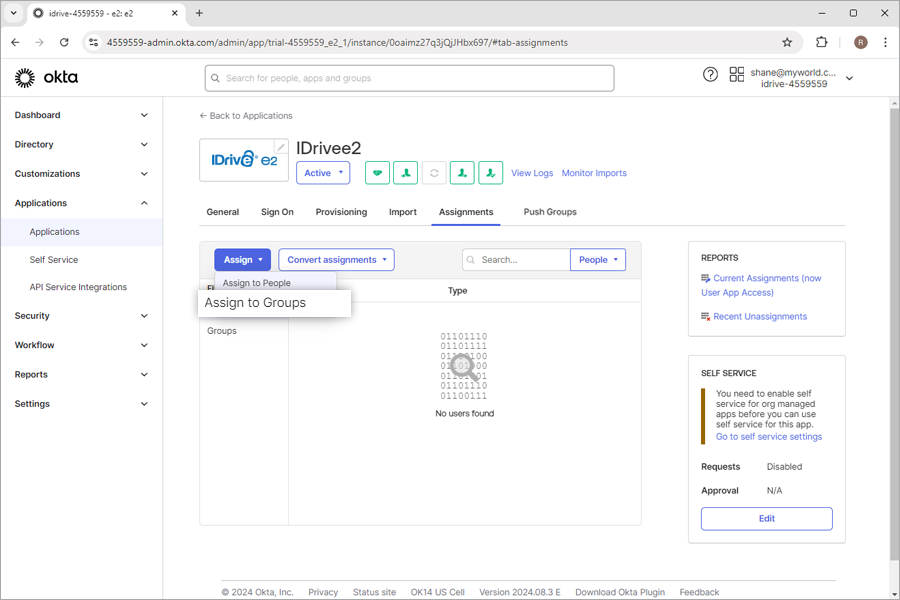
- Assign the groups you would like to push. To add a new group and assign, click 'Directory' > 'Groups' > 'Add Groups' and enter the desired group name, and click 'Add group'.
- Navigate to the 'Push Groups' and click the '+ Push Groups' button to add the group you want to provision.
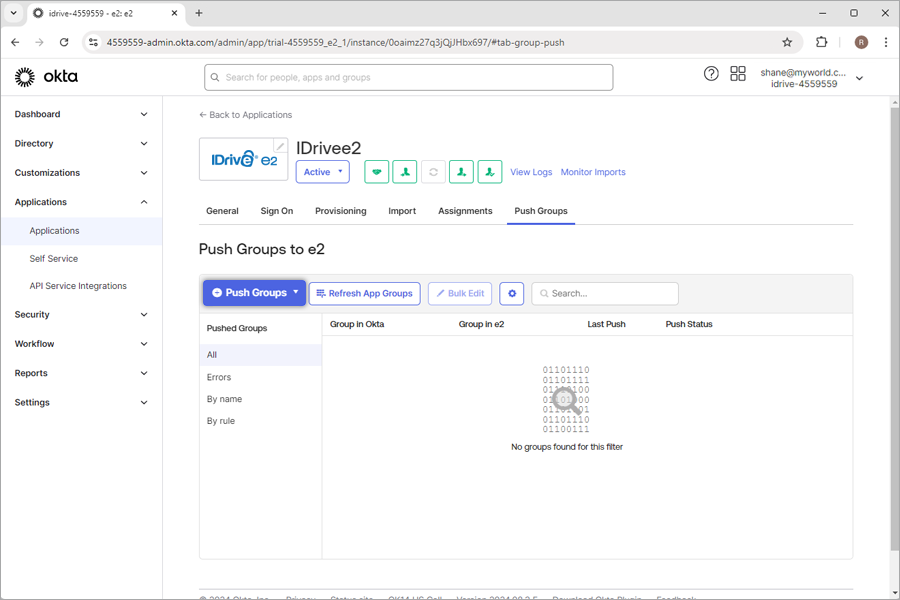
- Click 'Save' to save the changes.
Once done, the groups will be provisioned.