Instructions pour effectuer la restauration complète de la machine en 2 étapes
Restaurez votre ordinateur — y compris le système d'exploitation — en utilisant le dossier de sauvegarde complète de la machine créé via l'application de bureau IDrive® 360. Le processus Restauration complète de la machine en 2 étapes récupère votre système complet sur un ordinateur local ou un périphérique externe. Cette méthode restaure le système d'exploitation à son état précédent avec le même schéma de partitionnement que la machine d'origine, et prend en charge la récupération sur du matériel différent, similaire ou non.
Follow the two-step process for entire machine restore:
- Download the IDMachineBackup folder from the cloud to an external drive.
- If you used local or Express backup and the entire machine backup on the device is encrypted, restore the encrypted IDMachineBackup folder to an external device first to decrypt it.
- Use a WinRE bootable disk to restore the backup to the same system or to a different computer with similar or dissimilar hardware.
- A bootable USB hard drive created using WinRE. Follow the steps in the corresponding FAQ to generate WinRE media with Wi-Fi support.
- The IDMachineBackup folder downloaded from your IDrive® 360 Cloud, Local, or Express backup to an external drive using the desktop application.
- If you performed a local backup, ensure the IDMachineBackup folder is restored to an external drive.
- A target hard drive with enough space to complete the restore.
- Connect the WinRE boot disk (USB bootable flash drive) to the computer.
- Boot the computer from the USB device to access the Windows Recovery Environment. The Entire Machine Restore wizard will appear.
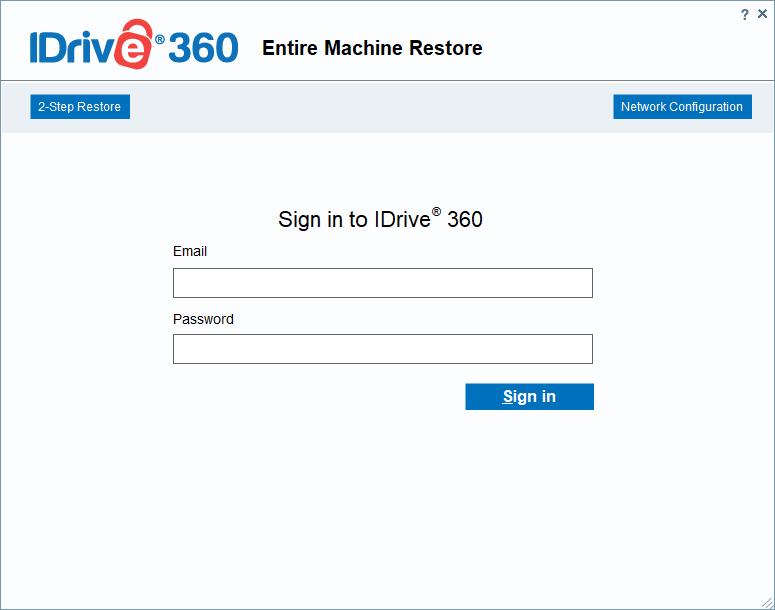
- Click 2-step restore.
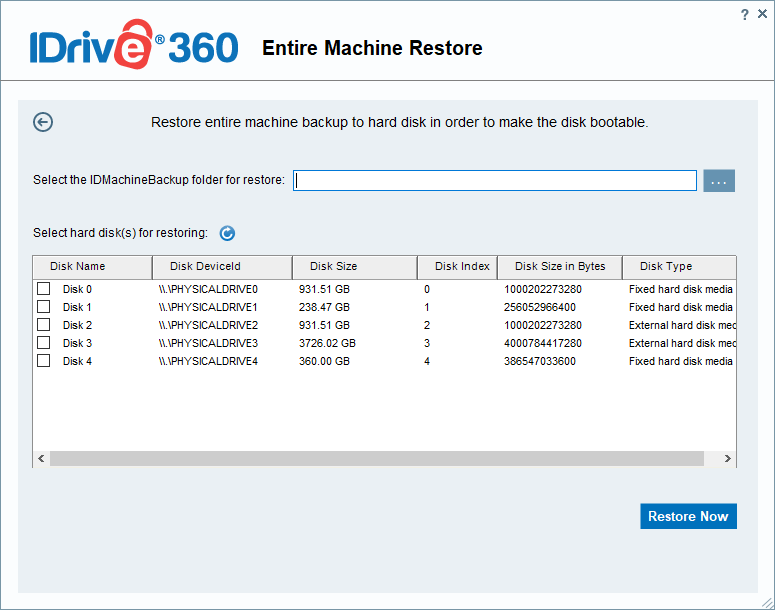
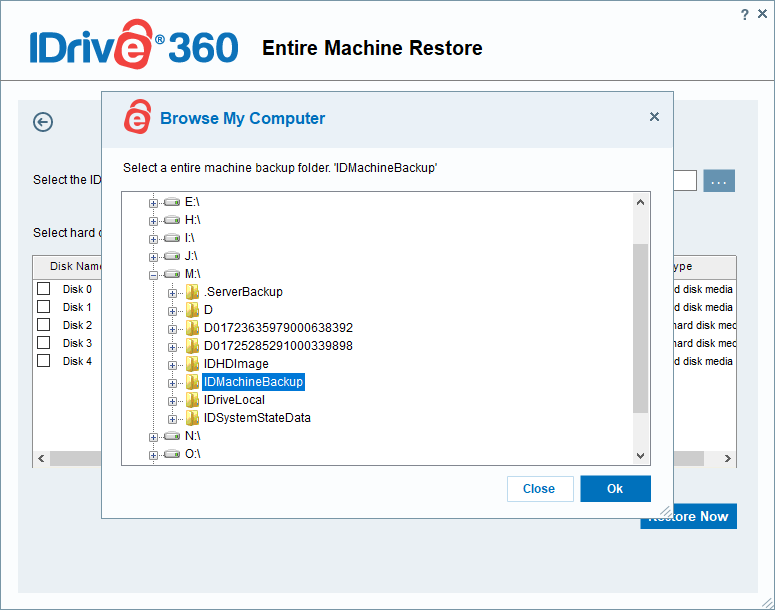
- Click
 . the browse option and select the IDMachineBackup folder previously downloaded from your IDrive® 360 cloud account, local backup, or Express device.
- Choose the target hard disk where you want to restore the backup.
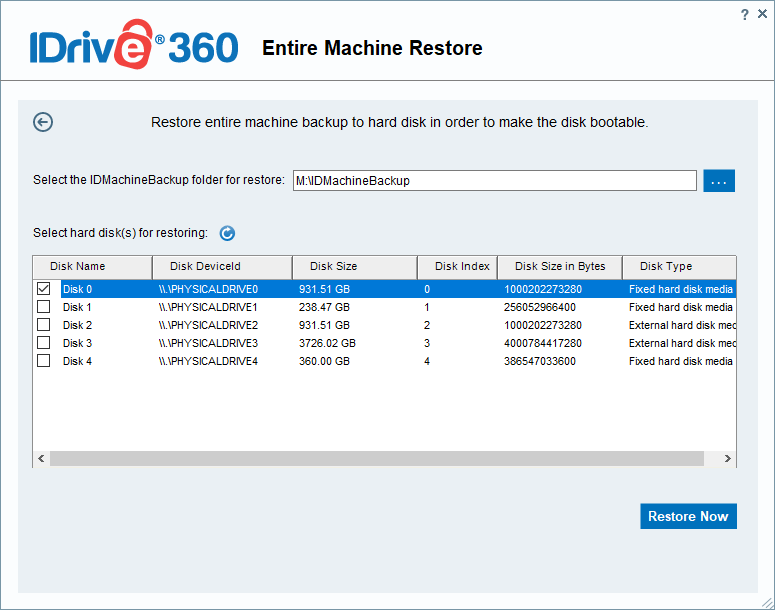
- Click Restore Now.
Prerequisites for restoring an entire machine backup to another computer (similar or dissimilar hardware):
Steps to recover your entire machine backup, including the OS, to similar or dissimilar hardware
A confirmation popup will warn that restoring the machine will overwrite all data on the selected drive. Click Yes to continue.
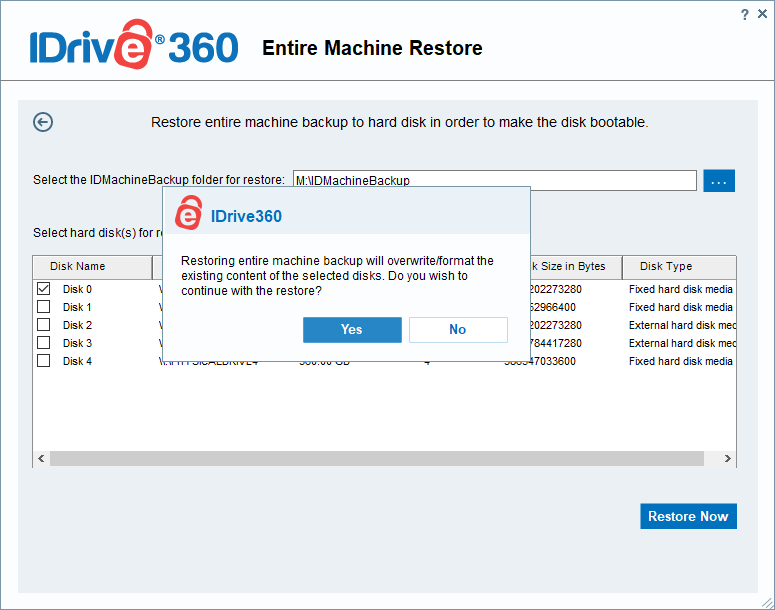
Once the restore begins, you can monitor the progress in the Entire Machine Restore window. After the process completes, select the restored disk in BIOS and boot the machine to load the operating system.