Integrate Ross Primestream Asset Management with IDrive® e2
Ross Primestream is a media asset management and workflow platform that streamlines the capture, production, management, and distribution of media across live and file-based environments. It supports HD, 4K, and VR workflows, enabling efficient editing, metadata handling, and content delivery within integrated production systems. Integrating Ross Primestream with IDrive® e2 adds a capable and scalable cloud object storage solution that facilitates systematic integration for secure, efficient, and high-performance media management.
Prerequisites
Before you begin, ensure the following:
- An active IDrive® e2 account. Sign up here if you do not have one.
- A bucket in IDrive® e2. Learn how to create a bucket.
- Valid Access Key ID and Secret Access Key. Learn how to create an access key.
- Xchange Suite 2020 version 8.0.
- Xchange Suite software installed and configured.
Configure Ross Primestream Asset Management with IDrive e2
- Log in to the Primestream Xchange Portal.

- To configure IDrive e2 as an Archive option in the dropdown menu, the following script is needed. Please reach out to your Primestream administrator to configure this archive option.
"Archive-IDrive-e2": {
    "retryTimes": "1",
    "commandType": "1",
    "archiveType": "AWS",
    "awsBucket": "pambkt-1",
    "endpoint": "https://<e2-s3-endpoint>/",
    "accessKey": "key",
    "secret": "secret",
    "threads": "4",
    "chunkSize": "5242880",
    "source": "[source]",
    "destination": "[destination]",
    "filepathIsUnix": "0",
    "replacePath": "0",
    "replaceFrom": "X:",
    "replaceTo": "",
    "xmliIp": "127.0.0.1:8053",
    "key": "[recid]",
    "xmliCallbackFieldStatus": "archive_result",
    "xmliProgressField": "archive_progress"
}
"Restore-IDrive-e2": {
"retryTimes": "1",
"commandType": "2",
"archiveType": "AWS",
"awsBucket": "pambkt-2",
"endpoint": "https://<e2-s3-endpoint>/",
"accessKey": "key",
"secret": "secret",
"threads": "4",
"chunkSize": "5242880",
"source": "[source]",
"destination": "[destination]",
"filepathIsUnix": "0",
"replacePath": "0",
"replaceFrom": "X:",
"replaceTo": "",
"xmliIp": "127.0.0.1:8053",
"key": "[recid]",
"xmliCallbackFieldStatus": "restore_result",
"xmliProgressField": "restore_progress"
}
To Archive Project Under IDrive e2
- Select the project under the COLLECTIONS tab, then click Archive in the bottom right corner.

- Select Archive-IDrive-e2 from the dropdown menu.
The video clips are now archived to IDrive e2.
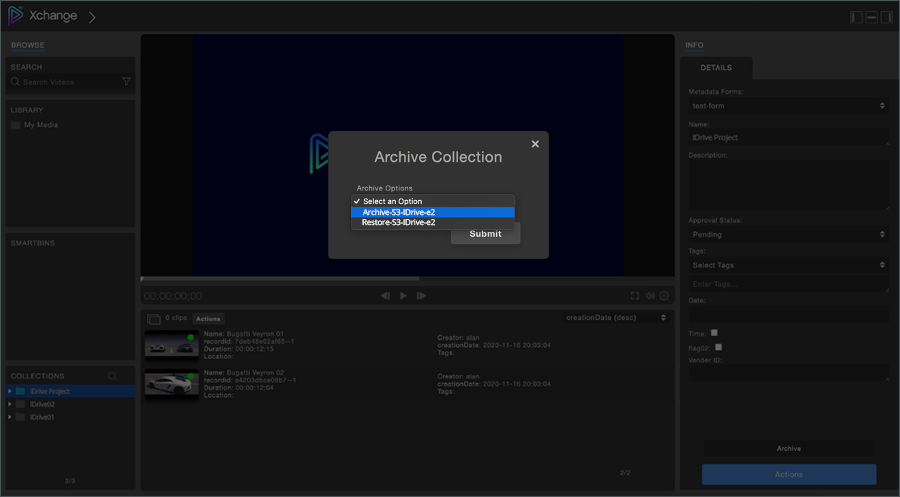
- To restore a project, click Archive. Select Restore-IDrive-e2 from the dropdown menu.

Note: Data restoration is handled by your specific backup solution provider and is affected by multiple variables that are unique to your environment. For application-related enquiries/support, it is strongly recommended you seek guidance from the technical team of your backup solution provider.