Integrate S3Express Command Line Utility with IDrive® e2
The S3Express Command Line Utility is a Windows tool that enables scripting, automation, and management of files across Amazon S3 and S3-compatible storage, utilizing fast, multithreaded operations. It supports incremental backup, metadata control, ACL updates, and conditional file processing for precise automation. Integrating S3Express Command Line Utility with IDrive® e2 provides a capable and scalable cloud object storage solution that supports systematic integration for high-speed, secure, and reliable command-line workflows.
Prerequisites
Before you begin, ensure the following:
- An active IDrive® e2 account. Sign up here if you do not have one.
- A bucket in IDrive® e2. Learn how to create a bucket.
- Valid Access Key ID and Secret Access Key. Learn how to create an access key.
- S3Express Command Line Utility.
Configure Command Line Utility with IDrive® e2
- Install and launch the S3Express application as CLI.
- Setup IDrive® e2 storage environment using IDrive® e2 S3 endpoint,
/> setopt -endpoint:v1e8.da.idrivee2-17.com -useV4sign:offNote: The program defaults to using signature version 4. Therefore, you also need to change this, as well as the endpoint URL. Use the setopt -endpoint command with your region's endpoint, followed by -useV4sign to toggle V4 off:
Result:
Endpoint [default:s3.amazonaws.com] (-endpoint) : v1e8.da.idrivee2-17.com Use V4 signatures (-useV4sign) : off - Add e2 Credentials as auth using the saveauth command,
/> saveauth <Access Key> <Secret Key> <Nameforauth>
(Ex: /> saveauth bNg4Cnp97NUMvXM8OuzN
49lk0Owql2mFY80HgTxib2iOWeFEeg*************  e2)
Result:S3 Authorization Saved. Name: e2 Access Key ID: bNg4Cnp97NUMvXM***** Secret Access Key: 49lk0Owql2mFY80HgTxib2iOWe**************** - List your IDrive® e2 bucket,
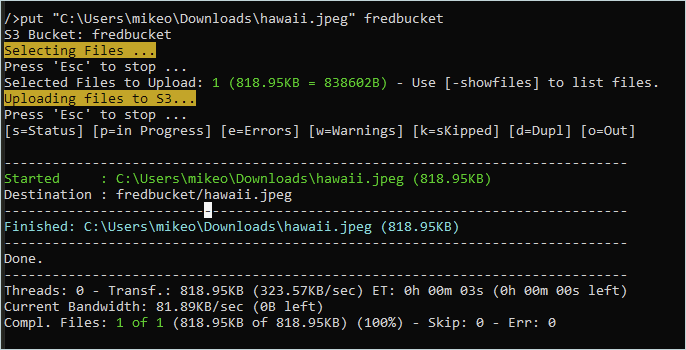
/> ls Press 'Esc' to stop ... Bucket: test-east-1 Bucket: backup-mac Bucket: arq-surface-backup Bucket: fredbucket Bucket: arq-bucket-west Bucket: aws-walkthrough-bucket1 Bucket: backup Bucket: backup-lenovoT470 ... - To test an upload, use the put command followed by a file path and bucket name: put "C:\path\filename.ext"