Integrate QenCode with IDrive® e2
Qencode is a cloud-based video platform that enables transcoding, live streaming, and media delivery through powerful APIs. It supports high-quality conversions, scalable workflows, and global content distribution. Integrating Qencode with IDrive® e2 adds a capable and scalable cloud object storage solution that facilitates systematic integration for secure and efficient video management.
Prerequisites
Before you begin, ensure the following:
- An active IDrive® e2 account. Sign up here if you do not have one.
- A bucket in IDrive® e2. Learn how to create a bucket.
- Valid Access Key ID and Secret Access Key. Learn how to create an access key.
- A valid QenCode account.
Configure QenCode with IDrive® e2
- Launch the QenCode web console.
- Click Transcoding under Dashboard in the left-side menu bar.
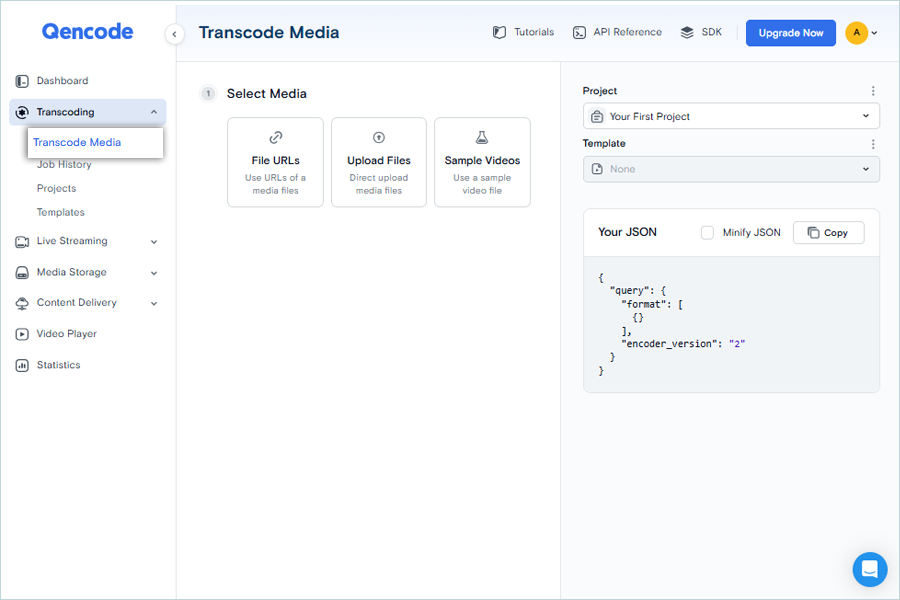
- Click Transcode Media and configure transcoding.
- Under Select Media, upload files by clicking Upload Files or File URLs.
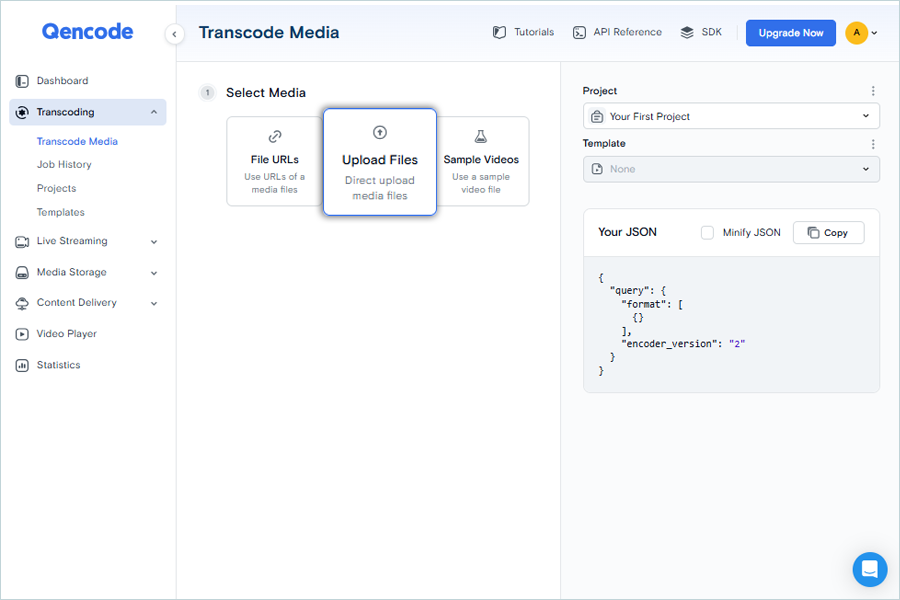
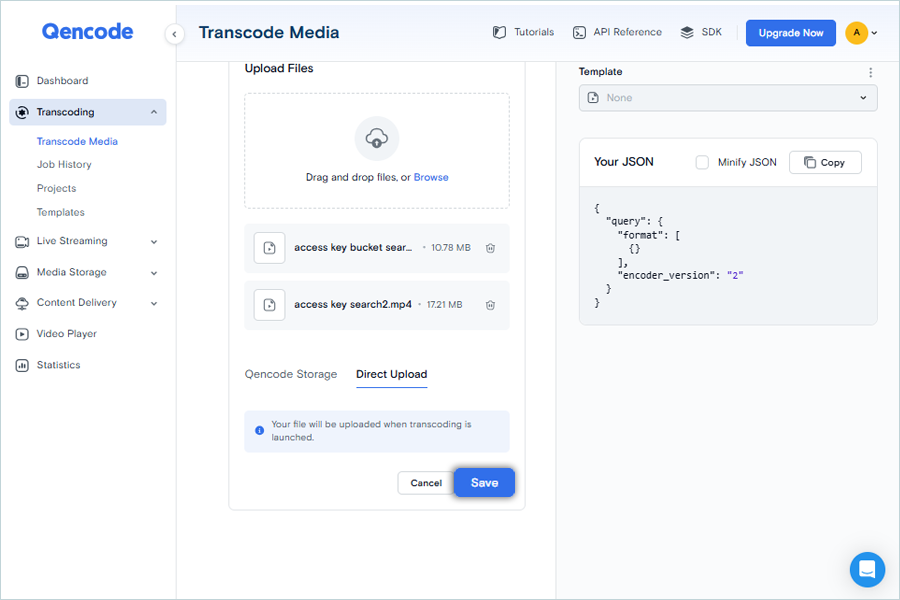
- Select a file from the local storage and upload it.
- Click Save.
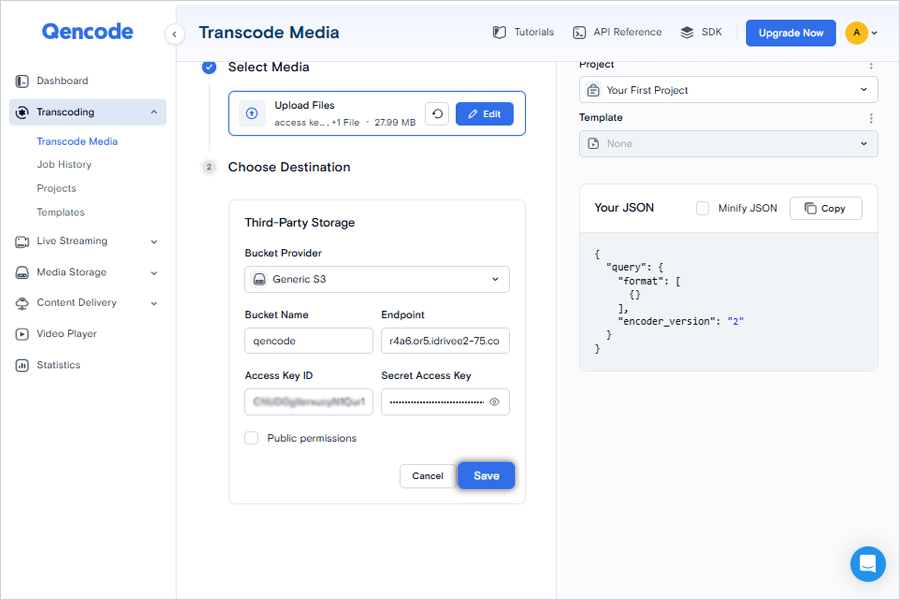
- Under Choose Destination, select Third-Party Storage.
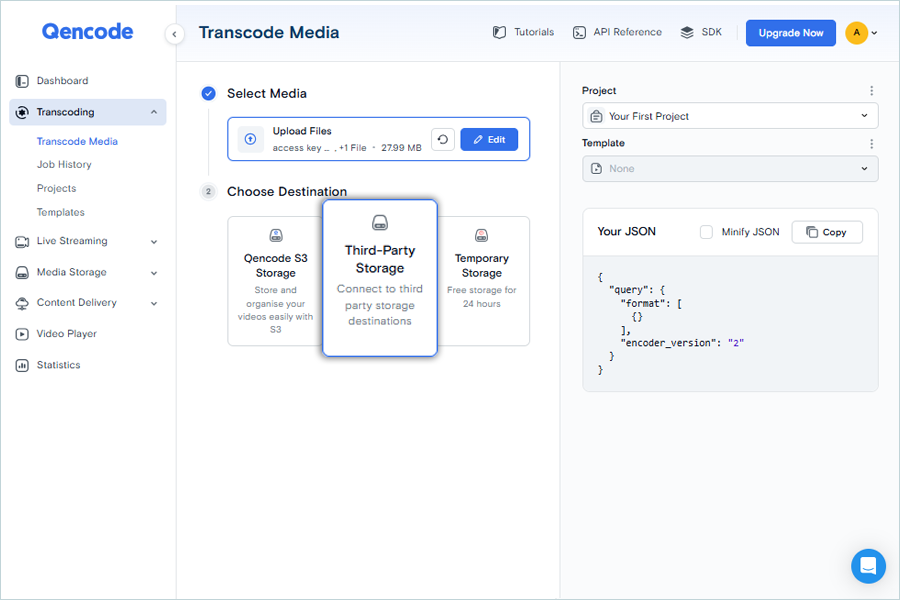
- In Third-Party Storage, enter the details mentioned below.
- Select Generic S3 as Bucket Provider.
- Enter your IDrive® e2 bucket as Bucket Name.
- Enter your IDrive® e2 S3 endpoint as Endpoint.
- Enter your IDrive® e2 Access Key as Access Key ID.
- Enter your IDrive® e2 Secret Key as Secret Access Key.
- Click Save
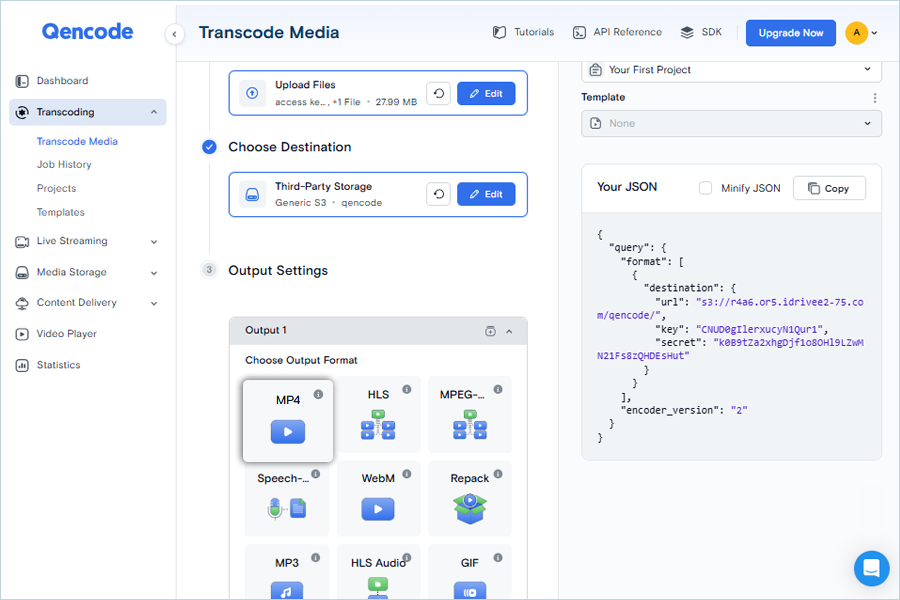
- Under Output Settings, select Output Format (e.g., MP4).
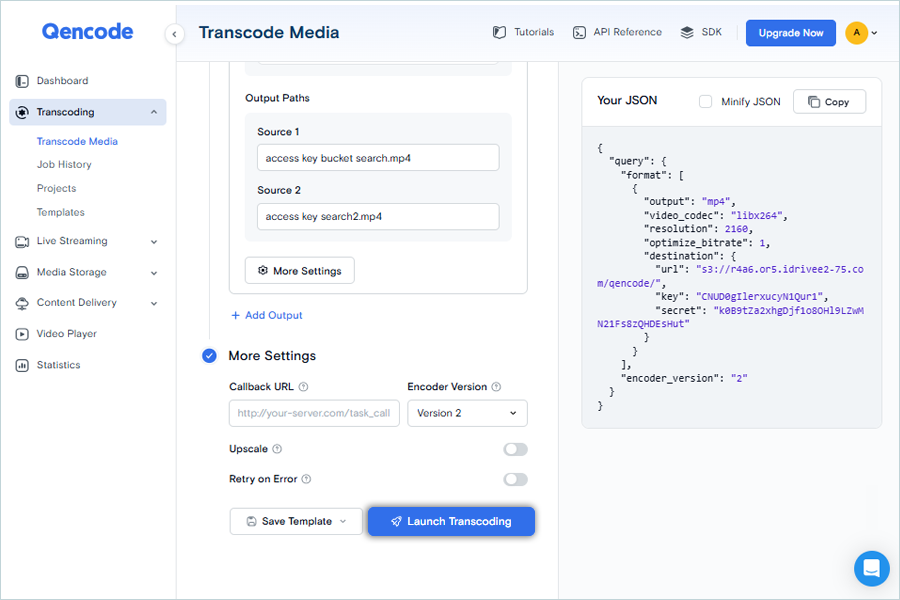
- Update the details under More Settings as per the requirements.
- Click Launch Transcoding.
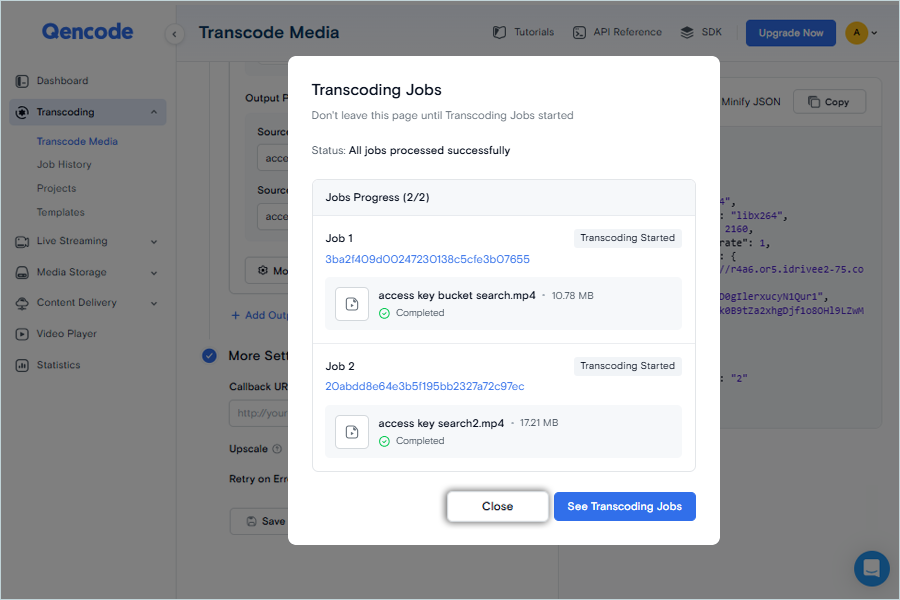
- You can now view the status and progress of Transcoding Jobs. Click Close.
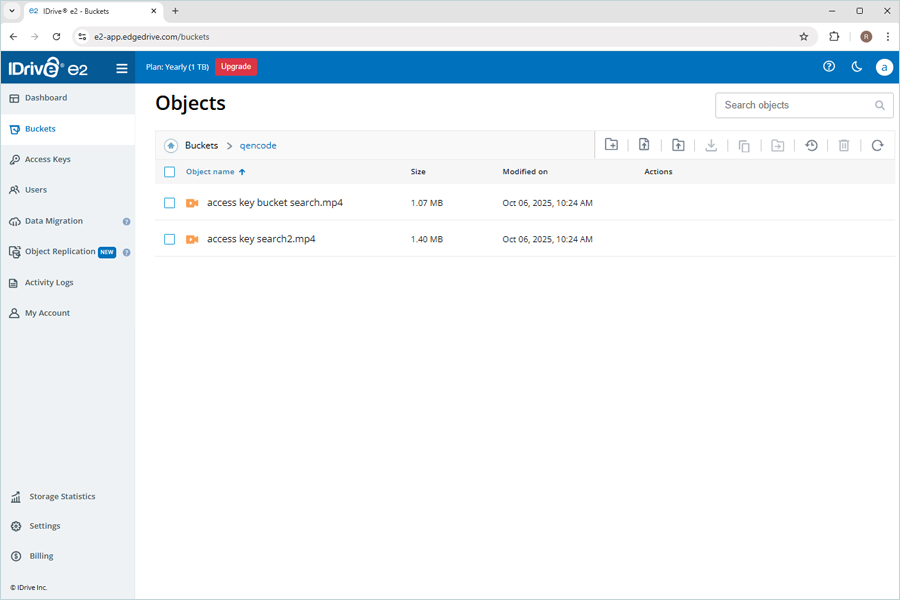
Once Transcoding is done, you can observe objects in your e2 bucket with the selected output format.
Note: The data restoration process is managed by your backup software, which helps recover lost or compromised data. Each computing environment is unique, and factors such as data type, software settings, and system performance can impact the restoration process. If you encounter issues or have application-specific questions, please contact the technical support team for your backup software for expert assistance.