NVIDIA AIStore with IDrive® e2
Use NVIDIA AIStore as a high-performance data layer in front of an IDrive® e2 S3-compatible bucket.
Why Use AIStore with IDrive® e2
IDrive® e2 provides S3-compatible object storage for datasets, model files, checkpoints, and other application data. AIStore sits close to the compute layer and can cache frequently accessed objects locally while IDrive® e2 remains the backing object store.
When an object is not cached, AIStore retrieves it from IDrive® e2. Subsequent reads can be served from local storage.
| Component | Role |
|---|---|
| Application / training job | Reads and writes data through AIStore |
| NVIDIA AIStore | Provides the data path, local caching, and parallel object operations |
| IDrive® e2 | Stores objects through an S3-compatible regional endpoint |
Requirements
- An active IDrive® e2 account. Sign up here if you do not have one.
- A bucket in IDrive® e2. Learn how to create a bucket.
- Valid Access Key ID and Secret Access Key. Learn how to create an access key.
- The IDrive® e2 service endpoint for that region.
- A Kubernetes cluster with at least two worker nodes, each with one or more dedicated local disks for AIStore data (Kubernetes v1.31)
- kubectl v1.31
- Helm v3.22
- Helmfile v1.7
- cert-manager (latest release) required by the AIStore Operator
- NVIDIA AIStore Operator v4.0, deployed from the ais-k8s repository
- AIStore (aisnode) v5.0
- Ubuntu 24.04.5 LTS server
- AWS CLI (optional, but useful for verifying data directly in IDrive® e2 outside of AIStore)
Configure IDrive® e2
Create a Bucket
- Create a bucket in the region where you want the backing data to live. Keep the bucket name, region, and regional endpoint available for the AIStore configuration.
- If you enable versioning, Object Lock, or retention, account for those settings when testing overwrite and delete behavior.
Create an Access Key
In the IDrive® e2 console, create a dedicated access key for the AIStore connection. Select the same region as the bucket and scope the key to the bucket and the operations the workload needs.
- Read and write: use for PUT, GET, list, and cleanup workflows.
- Read only: use when AIStore only needs to retrieve existing data.
- Upload only: use when the workload only writes data.
- Allow Listing: enable when the selected access mode needs to enumerate objects or prefixes.
- Deletion preferences: enable only when the workflow needs to delete objects or buckets.
IDrive® e2 access-key rights and bucket assignments are set when the key is created. If the scope needs to change, create a replacement key.
Record the Connection Values
   IDRIVE_E2_BUCKET=<bucket-name>

   IDRIVE_E2_REGION=<region-code>

   IDRIVE_E2_ENDPOINT=<regional endpoint>

   IDRIVE_E2_ACCESS_KEY=<access-key-id>

   IDRIVE_E2_SECRET_KEY=<secret-access-key>
Check the Bucket Directly
   aws configure --profile idrive-e2


   aws s3api head-bucket \

     --bucket YOUR_E2_BUCKET \

     --endpoint-url YOUR_E2_ENDPOINT \

     --profile idrive-e2
Configure AIStore (Kubernetes)
For production Kubernetes deployments, NVIDIA recommends the dedicated ais-k8s Operator/Helm path. Use the current ais-k8s prerequisites for Kubernetes versions, filesystems, storage provisioning, TLS, and operator installation.
Get the Kubernetes Deployment Files
git clone https://github.com/NVIDIA/ais-k8s.git

cd ais-k8s
Prepare Target Storage
AIStore targets use local storage for cached and AIStore-native data. Prepare the volumes required by your cluster and use the filesystem and mount layout supported by your ais-k8s deployment.
For example, your cluster may use local disks, persistent volumes, or another storage layout supported by ais-k8s.
lsblk

findmnt
Create the mount paths referenced by the AIStore values file. If the mounts must survive a reboot, add them to your normal persistent-mount configuration.
Label the AIStore Nodes
cd helm/ais

./scripts/label-nodes.sh ais --all
Install Kubernetes Components
kubectl apply -f https://github.com/cert-manager/cert-manager/releases/latest/download/cert-manager.yaml


AIS_OPERATOR_VERSION=$(curl -s https://api.github.com/repos/NVIDIA/ais-k8s/releases/latest \

  | grep '"tag_name"' | cut -d'"' -f4)

kubectl apply -f
https://github.com/NVIDIA/ais-k8s/releases/download/$AIS_OPERATOR_VERSION/ais-operator.yaml
If cert-manager is already installed in the cluster, keep the existing installation and continue with the AIStore Operator.
kubectl get pods -n cert-manager

kubectl get pods -n ais-operator-system
Prepare the IDrive® e2 Credentials
Create an AWS-style profile for the IDrive® e2 access key and secret key. AIStore uses this profile to connect to the S3-compatible backend.
mkdir -p ~/.aws

touch ~/.aws/config ~/.aws/credentials

chmod 600 ~/.aws/credentials


# ~/.aws/config

[profile idrive-e2]

region = YOUR_E2_REGION


# ~/.aws/credentials

[idrive-e2]

aws_access_key_id = YOUR_E2_ACCESS_KEY

aws_secret_access_key = YOUR_E2_SECRET_KEY
Configure the AIStore Cluster
Create a values file for the proxy, targets, local mount paths, node image, and the Kubernetes secret that carries the IDrive® e2 credentials.
cat > config/ais/production.yaml << 'EOF'

cluster: ais

protocol: http

size: 1

proxySpec:

  size: 1

targetSpec:

  size: <TARGET_NODE_COUNT>

mpathInfo:

  storageClass: "ais-local-storage"

  size: <MOUNT_CAPACITY>

  mounts:

    - path: <TARGET_MOUNT_PATH>

nodeImage:

  tag: <AIS_NODE_IMAGE_TAG>

initImage:

  tag: <AIS_NODE_IMAGE_TAG>

cloud:

  awsSecretName: idrive-e2-creds

stateStorage:

  hostPath:

    prefix: /etc/ais

adminClient:

  enabled: true

stateStorageClass: ""

EOF
Set targetSpec.size to the number of target nodes in your cluster and use the mount path or paths prepared for those nodes.
Add the Cloud-Credentials Values
mkdir -p config/cloud

cat > config/cloud/production.yaml.gotmpl << 'EOF'

aws_config: |-

{{ readFile (printf "%s/.aws/config" (env "HOME")) | indent 2 }}


aws_credentials: |-

{{ readFile (printf "%s/.aws/credentials" (env "HOME")) | indent 2 }}


cloud:

  awsSecretName: idrive-e2-creds

EOF
Set the Helmfile Environment
Add a production environment to helm/ais/helmfile.yaml and point it to the AIStore values and cloud-secret files.
production:

 values:

  - valuesPath: ./config/ais/production.yaml

    https:

      enabled: false

    cloudSecrets:

      enabled: true

      valuesPath: ./config/cloud/production.yaml.gotmpl

    createTargetPV:

      enabled: true

    localStaticProvisioner:

      enabled: false
Deploy AIStore
kubectl create namespace ais

helmfile --environment production sync

kubectl get pods -n ais
Check the Cluster and Backend
kubectl exec -n ais deployment/ais-client -- ais show cluster
| Proxy Status | Mem Used (%) | Mem Avail | Sys CPU (%) | Uptime | K8s POD |
|---|---|---|---|---|---|
| p[w0vuk4e05ejpy][P] | 0.40% | 14.55GiB | 2% | 6m30s | ais-proxy-0 online |
| Target | Mem Used (%) | Mem Avail | Cap Used (%) | Cap Avail | Sys CPU (%) | Uptime | K8s POD | Status |
|---|---|---|---|---|---|---|---|---|
| t[ELhDAXIb] | 0.41% | 14.56GiB | 1% | 78.375GiB | 3% | 6m30s | ais-target-0 | online |
| t[MWoSbjtq] | 0.44% | 14.55GiB | 1% | 78.375GiB | 2% | 6m30s | ais-target-1 | online |
Cluster
| CLI Endpoint | http://ais-proxy.ais.svc.cluster.local:51080 |
| Proxies | 1 |
| Targets | 2 (total disks: 2) |
| Capacity | used 3.12GiB (1%), available 156.75GiB |
| Cluster Map | version 5, UUID iT0t8MWpC, primary p[w0vuk4e05ejpy] |
| Software | 5.0.6b7de24419919d00fb2d3466bde6a7bc300e94d7 (build: 2026-08-21T20:05:11+0000) |
| Backend | AWS |
| Deployment | K8s |
| Status | 3 online |
| Rebalance | - |
| Authentication | Disabled |
Attach the IDrive® e2 Bucket
Register the IDrive® e2 bucket with the profile, regional endpoint, and region from your IDrive® e2 account.
kubectl exec -n ais deployment/ais-client -- ais create s3://YOUR_E2_BUCKET \

 --props='{"extra": {"aws": {"profile": "idrive-e2", "endpoint": "YOUR_E2_ENDPOINT", "cloud_region": "YOUR_E2_REGION"}}}'

kubectl exec -n ais deployment/ais-client -- ais show bucket s3://YOUR_E2_BUCKET
Security Considerations
The Kubernetes example above uses HTTP inside the AIStore deployment and stores the IDrive® e2 credentials in the cluster secret generated by the deployment configuration. Before using the setup in a shared or production environment, secure both the backing credentials and the AIStore endpoints.
- Use a dedicated IDrive® e2 access key and restrict it to the required bucket and operations.
- Restrict network access to the AIStore proxy and target ports with private networking, firewall rules, or Kubernetes NetworkPolicy.
- Enable AIStore authentication/token validation for environments where the proxy is reachable by multiple users or services.
- Configure HTTPS for AIStore client traffic so credentials or authentication tokens are not sent over plain HTTP.
- Do not expose the IDrive® e2 Secret Access Key in manifests, logs, shell history, screenshots, or published examples.
The IDrive® e2 key protects the backing bucket. It does not protect an AIStore endpoint that is reachable without authentication.
Uploading and Downloading Data
Applications access the bucket through AIStore while the objects remain stored in IDrive® e2.
Uploading Data (PUT)
kubectl exec -n ais deployment/ais-client -- sh -c 'echo "hello from AIStore and IDrive e2" > /tmp/e2-aistore-test.txt'


kubectl exec -n ais deployment/ais-client -- ais put \

 /tmp/e2-aistore-test.txt \

 s3://YOUR_E2_BUCKET/aistore-demo/e2-aistore-test.txt
Downloading Data (GET)
kubectl exec -n ais deployment/ais-client -- ais get \

 s3://YOUR_E2_BUCKET/aistore-demo/e2-aistore-test.txt -
Evicting an Object From the Local Cache
kubectl exec -n ais deployment/ais-client -- ais evict \

 s3://YOUR_E2_BUCKET/aistore-demo/e2-aistore-test.txt
Cold GET versus Warm GET
A cold GET occurs when AIStore does not have a local copy of the object. AIStore retrieves it from IDrive® e2, returns it to the requester, and can keep a local copy. A warm GET occurs when the object is already cached and can be served from AIStore local storage.
Prefetching Data
Use prefetch when you already know which remote prefix a job will need.
kubectl exec -n ais deployment/ais-client -- ais prefetch \

  s3://YOUR_E2_BUCKET \

  --prefix aistore-demo/ \

  --num-workers N

kubectl exec -n ais deployment/ais-client -- ais ls \

  s3://YOUR_E2_BUCKET/aistore-demo \

  --cached --count-only
Listing Bucket Contents and Cache Status
# Include remote objects

kubectl exec -n ais deployment/ais-client -- ais ls s3://YOUR_E2_BUCKET --all


# Show only cached objects

kubectl exec -n ais deployment/ais-client -- ais ls s3://YOUR_E2_BUCKET --cached


# Show only the immediate level

kubectl exec -n ais deployment/ais-client -- ais ls s3://YOUR_E2_BUCKET --nr
Verify Data in IDrive® e2
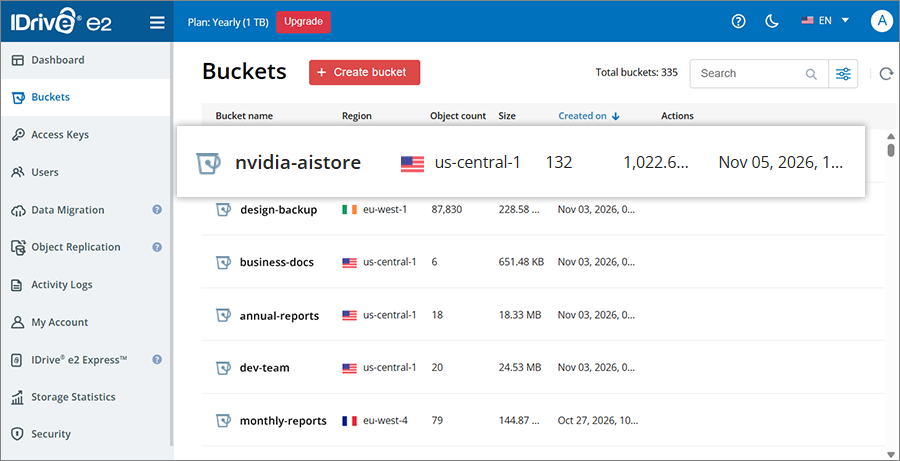
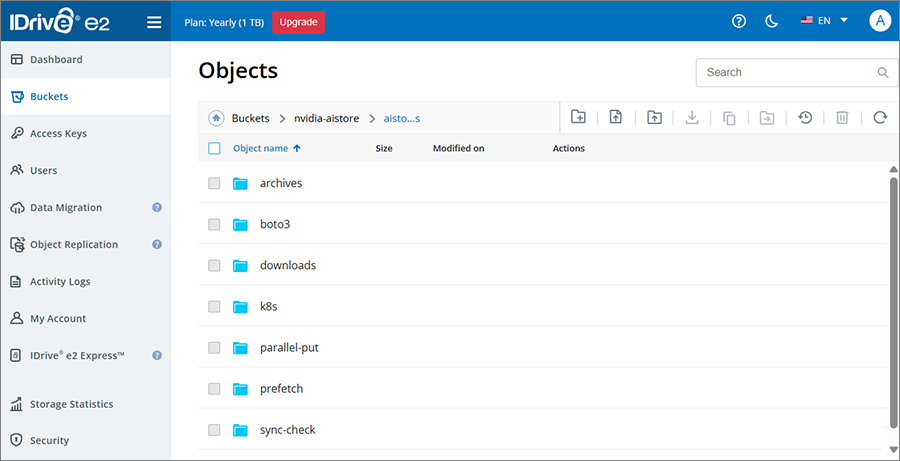
Open the bucket in the IDrive® e2 console, or use the AWS CLI with the e2 endpoint to inspect the objects written through AIStore.
aws s3 ls s3://YOUR_E2_BUCKET/aistore-demo/ \

 --endpoint-url YOUR_E2_ENDPOINT \

 --profile idrive-e2
Optional AIStore Workflows
Copy an Entire Remote Bucket into an AIStore-native Bucket
kubectl exec -n ais deployment/ais-client -- ais cp \

 s3://YOUR_E2_BUCKET ais://local-copy --all --progress
Synchronize the Local Copy
kubectl exec -n ais deployment/ais-client -- ais cp \

 s3://YOUR_E2_BUCKET ais://local-copy --all --sync --progress
Archive Objects into a Single Shard
AIStore can combine a group of objects into a .tar or .tgz archive and write the archive to the remote bucket or an AIStore-native bucket.
kubectl exec -n ais deployment/ais-client -- ais archive bucket \

  s3://YOUR_E2_BUCKET \

  s3://YOUR_E2_BUCKET/aistore-demo/archive.tar \

  --template "aistore-demo/sample-{001..100}.bin" \

  --wait
List Archive Contents
kubectl exec -n ais deployment/ais-client -- ais ls \

 s3://YOUR_E2_BUCKET/aistore-demo/archive.tar --archive
Read One File From an Archive
kubectl exec -n ais deployment/ais-client -- ais get \

 s3://YOUR_E2_BUCKET/aistore-demo/archive.tar /dev/null \

 --archpath aistore-demo/sample-010.bin
S3 API and Boto3 Compatibility
Boto3 can use the AIStore S3-compatible endpoint for list, GET, and PUT operations. The client must be able to reach the proxy and any target endpoints used for redirects.
pip install boto3 wrapt aistore

import wrapt

from aistore.botocore_patch import botocore

import boto3


client = boto3.client(

    "s3",

    endpoint_url="http://YOUR_AIS_PROXY:51080/s3",

    aws_access_key_id="dummy",

    aws_secret_access_key="dummy",

)


resp = client.list_objects_v2(Bucket="YOUR_E2_BUCKET")

for obj in resp.get("Contents", []):

    print(obj["Key"], obj["Size"])


resp = client.get_object(Bucket="YOUR_E2_BUCKET", Key="aistore-demo/e2-aistore-test.txt")

print(resp["Body"].read())


client.put_object(

    Bucket="YOUR_E2_BUCKET",

    Key="aistore-demo/boto3-test.txt",

    Body=b"hello from boto3"

)
When AIStore authentication is disabled, the credentials shown in Boto3 examples are placeholders used only for the AIStore S3 endpoint. The actual IDrive® e2 access key and secret key are stored in the Kubernetes secret used by AIStore. Do not include real IDrive® e2 credentials in code samples, screenshots, or published examples.
If AIStore authentication is enabled, use the authentication method configured for your deployment.
Download External URLs Directly into IDrive® e2
kubectl exec -n ais deployment/ais-client -- ais download \

  https://example.com/path/to/file \

  s3://YOUR_E2_BUCKET/downloaded/file

kubectl exec -n ais deployment/ais-client -- ais download \

  "https://example.com/data/{001..100}.bin" \

  s3://YOUR_E2_BUCKET/downloaded/
Concurrent Uploads and Downloads
kubectl exec -n ais deployment/ais-client -- ais put \

  /tmp/aistore-batch/ \

  s3://YOUR_E2_BUCKET/aistore-demo/batch/ \

  --num-workers N -y

kubectl exec -n ais deployment/ais-client -- mkdir -p /tmp/get-test


kubectl exec -n ais deployment/ais-client -- ais get \

  s3://YOUR_E2_BUCKET /tmp/get-test \

  --prefix aistore-demo/batch/ \

  --progress -y
-y skips the interactive confirmation prompt, which is useful when running the command through kubectl exec.
Large Objects and Multipart Uploads
IDrive® e2 supports the standard S3 multipart workflow. Non-final parts must be at least 5 MB. Keep the upload ID and part ETags when troubleshooting large-object transfers.
| Stage | Useful Evidence |
|---|---|
| Create multipart upload | Upload ID |
| Upload parts | Part numbers and ETags |
| List parts | Parts visible before completion |
| Complete upload | Final object size and metadata |
| Abort test upload | Upload no longer active |
Troubleshooting
| Symptom | What to check |
|---|---|
| AIStore cannot attach the bucket | Bucket name, region, IDrive® e2 endpoint, credential profile, and access-key scope |
| 403 / AccessDenied | Access-key permission, bucket assignment, listing permission, and deletion settings |
| Bucket or key not found | Use the bucket, key, and endpoint from the same IDrive® e2 region |
| PUT succeeds in AIStore, but the object is not visible in IDrive® e2 | Review AIStore logs and the backend response for the PUT |
| Listing works, but GET/PUT fails through the AIStore S3 frontend | Client reachability to AIStore targets and redirect handling |
| Large object fails | Multipart part sizes, upload ID, ETags, and direct IDrive® e2 multipart behavior |
| Pods do not start | Node labels, mount paths, persistent-volume setup, Operator status, and image tags |
| The backend is missing from the AIS show cluster | Cloud secret configuration and AIStore build/backend configuration |