VMware Restore
Restore VMware
Restore the virtual machines from the IDrive account to your VMware environment in a fast, secure, and reliable way.
To restore a virtual machine using Online Restore,
- Sign in to the IDrive application.
- Go to 'Server Backup' > 'VMware' > 'VMware restore'> 'Online Restore'.
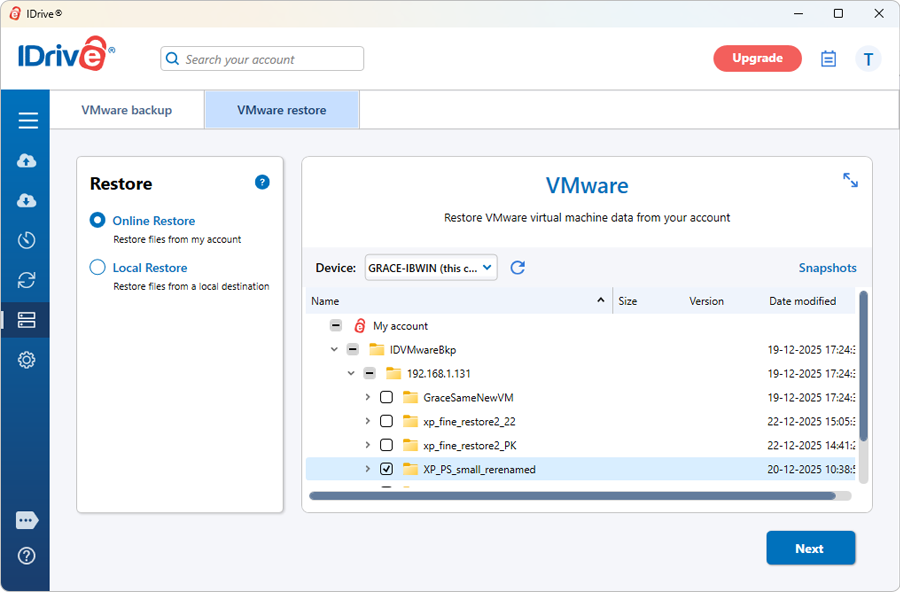
- Select the VM from 'IDVMwareBkp' backup set folder and click 'Next'.
- In the 'Restore VMware virtual machine data' popup, choose one of the following restore options:
- Restore to VMware vSphere, or
- Restore as virtual disk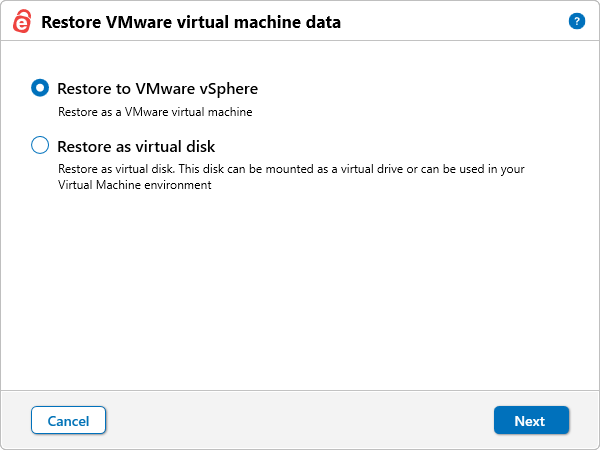
- Choose the required virtual disk format (Raw image, VHD, or VHDX).
- Select the destination folder where the virtual disk should be restored.

- Click 'Finish' to start the restore.
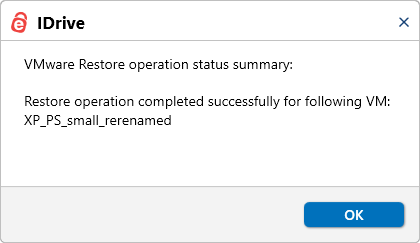
On successful completion, the restore summary is displayed. - Click 'Next'
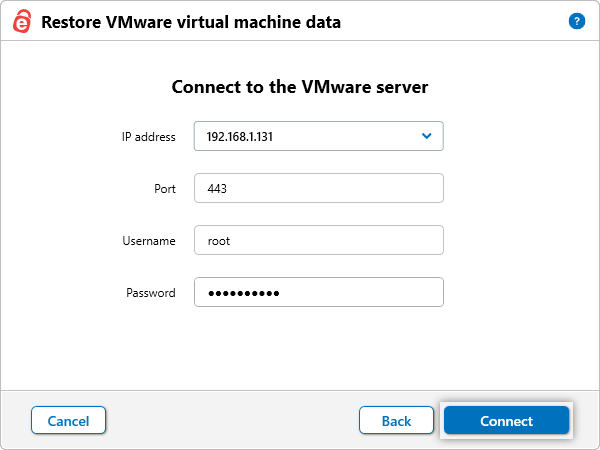
- Enter valid VMware server credentials and click 'Connect'.
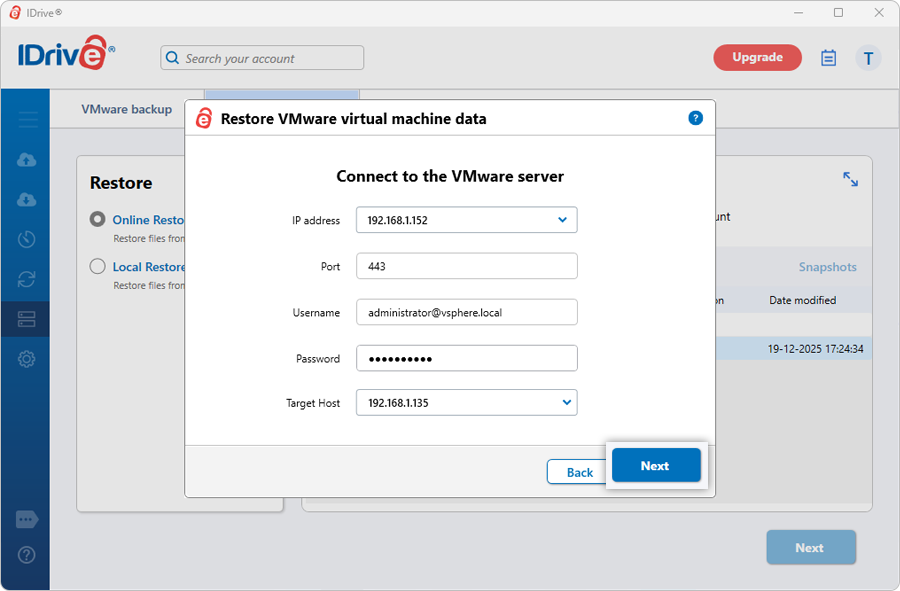
- If the credentials are for vCenter, clicking 'Connect' displays the 'Target Host' dropdown. Select the required ESXi host and click 'Next'.
- If the credentials are for ESXi, clicking 'Connect' will open the Restore VMware virtual machine data' popup.
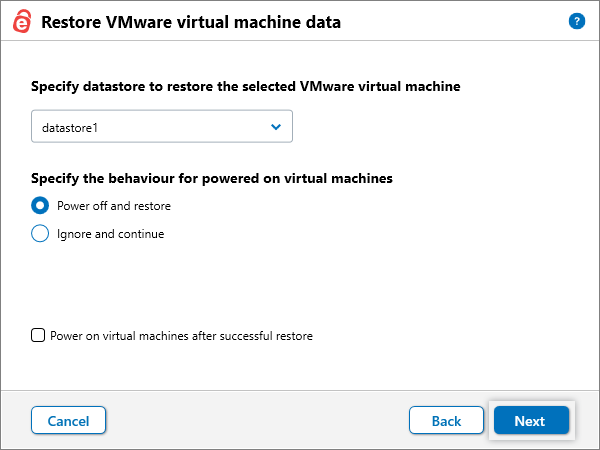
- Select the datastore where the virtual machine should be restored.
- Choose a power state option:
- Power off the VM before restore
- Ignore and continue (restore fails if the VM is powered on)
- Power on the VM after successful restore - Click 'Next'.
- By default, 'Existing machine' is selected.
- To overwrite an existing VM, select 'Overwrite the existing virtual machines'.
- To restore as a new VM, modify the VM name under 'Restore as' and enter a valid name.
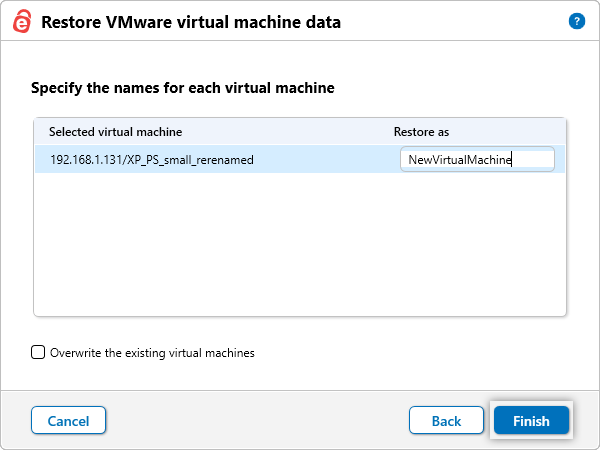
- Click 'Finish' to start the restore. On successful completion, the restore summary is displayed.
If 'Restore as virtual disk' is selected:
If 'Restore to VMware vSphere' is selected:
The 'Restore VMware virtual machine data' popup appears.
To restore a virtual machine using Local Restore,
- Sign in to the IDrive application.
- Go to 'Server Backup' > 'VMware' > 'VMware restore'> 'Local Restore'.
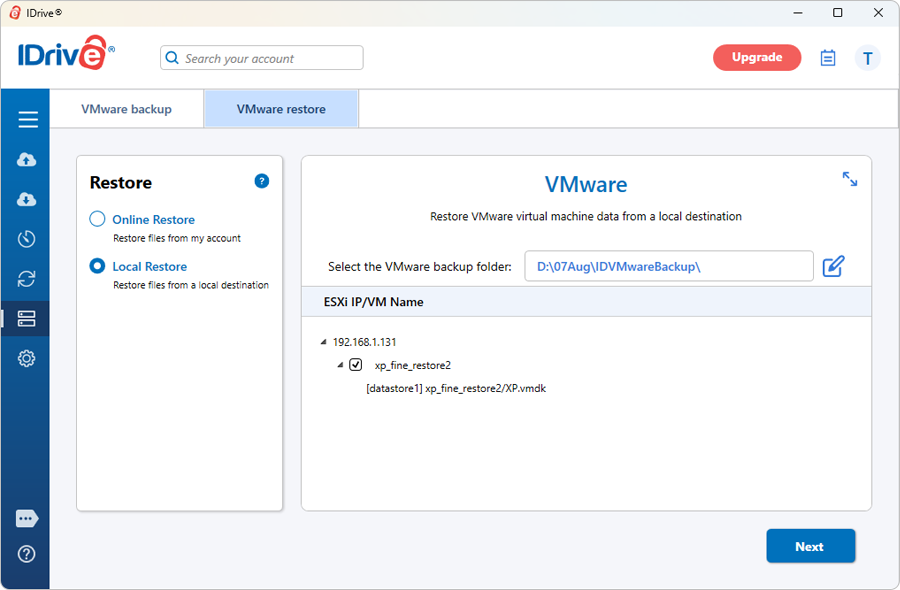
- Locate and select the 'IDVMwareBackup' or 'IDVMwareBkp' backup set folder from your local drive.
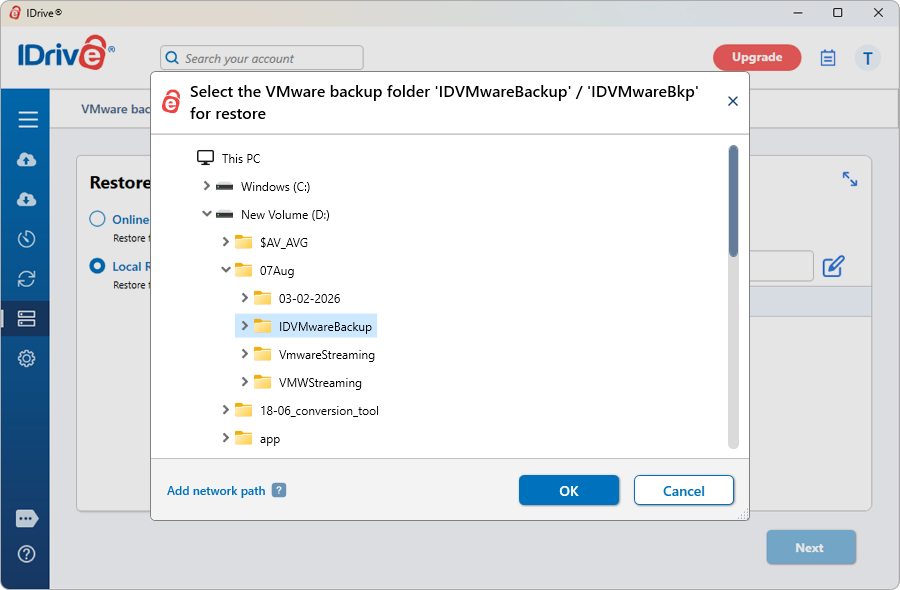
- Select the required VM from the backup set and click 'Next'.
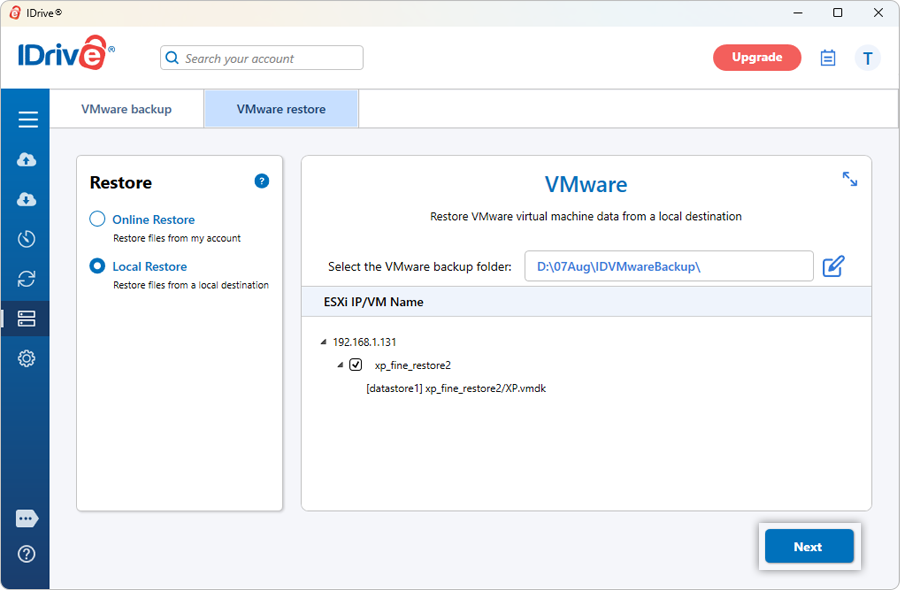
- Enter valid VMware server credentials and click 'Connect'.
- If the credentials are for vCenter, clicking 'Connect' displays the 'Target Host' dropdown. Select the required ESXi host and click 'Next'.
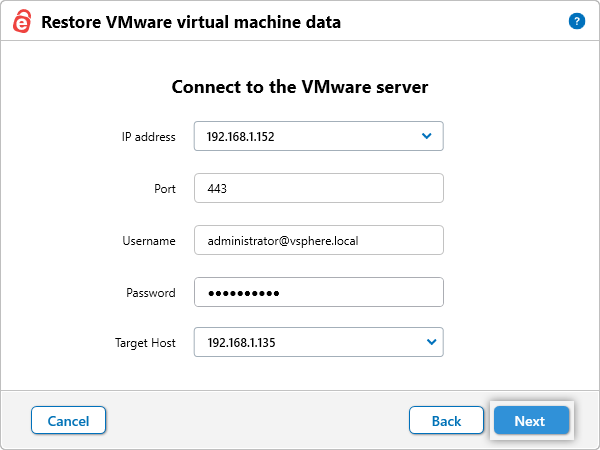
- If the credentials are for ESXi, clicking 'Connect' takes you directly to the 'Restore VMware virtual machine data' popup.
By default, 'Existing machine' is selected. - To overwrite an existing VM, select 'Overwrite the existing virtual machines'.
- To restore as a new VM, modify the VM name under 'Restore as' and enter a valid name.
- Click 'Finish' to start the restore.
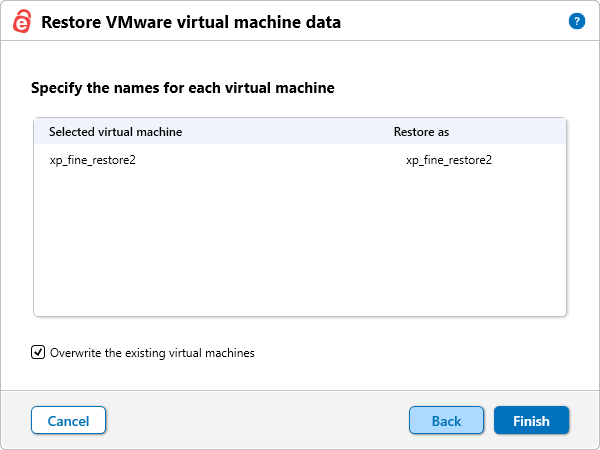
On successful completion, the restore summary is displayed.
View the steps to backup VMWare.
Protect your organization's data with secure online server backups
SIGN UP NOW!