System State Restore
System State Restore
Securely restore critical components of your domain controller in the event of a system crash or configuration failure using IDrive® System State Restore. This feature enables complete recovery of essential system data, ensuring system integrity and business continuity.
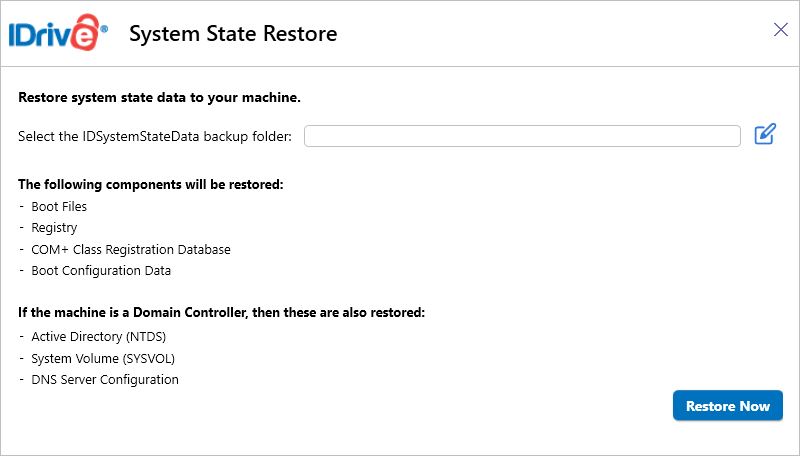
With IDrive System State Restore, you can recover the following components:
- The Boot file
- The COM+ Class Registration Database
- The Registry
- Boot Configuration Data
If the system is a Domain Controller, the following are also restored:
- Active Directory (NTDS)
- System Volume (SYSVOL)
- DNS Server Configuration
Restore Prerequisites
- Run the restore on the same machine and OS version where the backup was created.
- Ensure the system state backup is stored on a directly accessible local or removable drive (mapped network drives are not supported).
- Launch the restore tool with administrator privileges.
- Complete all pending Windows updates and reboots before starting.
- Ensure sufficient free space is available on the OS drive.
Important Considerations
- Restore must be performed on the same system where the backup was created. Cross-machine restores are not supported. Ensure that the restore is not performed on a different domain name or forest.
- Once initiated, the restore process cannot be paused or canceled to prevent potential system corruption.
- The backup should not be older than half the tombstone lifetime (typically 30 days). Learn more
- Domain Controller restores require booting into Directory Services Restore Mode (DSRM).
Restore Instructions
- Boot the system into Directory Services Restore Mode (DSRM).
- Log in using the DSRM administrator account.
- Launch the restore tool as an administrator.
- Browse and select the 'IDSystemStateData' backup folder.
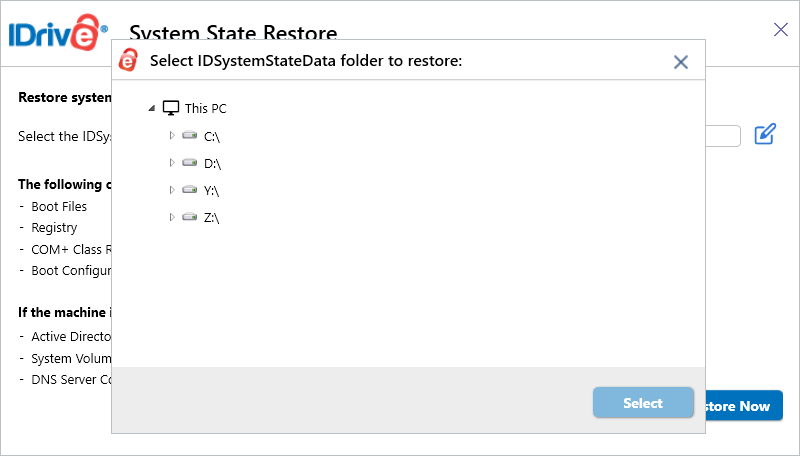
- Click 'Restore Now' and confirm the action.
- Once completed, reboot into normal mode.
Boot Instructions - Directory Services Restore Mode (DSRM)
Method 1: Using msconfig (Windows GUI)
- Press Win + R, type msconfig, and press Enter.
- Go to the ‘Boot’ tab.
- Check ‘Safe Boot’, then select ‘Active Directory Repair’.
- Click ‘OK’, and select ‘Restart’.
The system restarts in DSRM (Safe Mode with Active Directory repair).
Method 2: Using Advanced Boot Options
- Restart the machine and access the ‘Advanced Boot menu’.
- Navigate to ‘Troubleshoot’ > ‘Advanced Options’ > ‘Startup Settings’ > ‘Restart’.
- From the menu, select ‘Directory Services Repair Mode (DSRM)’.
Login
- Log in using the DSRM administrator account:
Username: .\Administrator
Password: The DSRM password configured during Domain Controller promotion (or updated later using ntdsutil).
After login, navigate to the System State Restore tool and launch the application.
Disclaimer
- Restore may fail due to dissimilar hardware, boot errors, or system-specific issues.
- A successful backup does not guarantee a successful restore under all conditions.
View the steps to backup system state.
Protect your organization's data with secure online server backups
SIGN UP NOW!