System State Backup
System State Backup
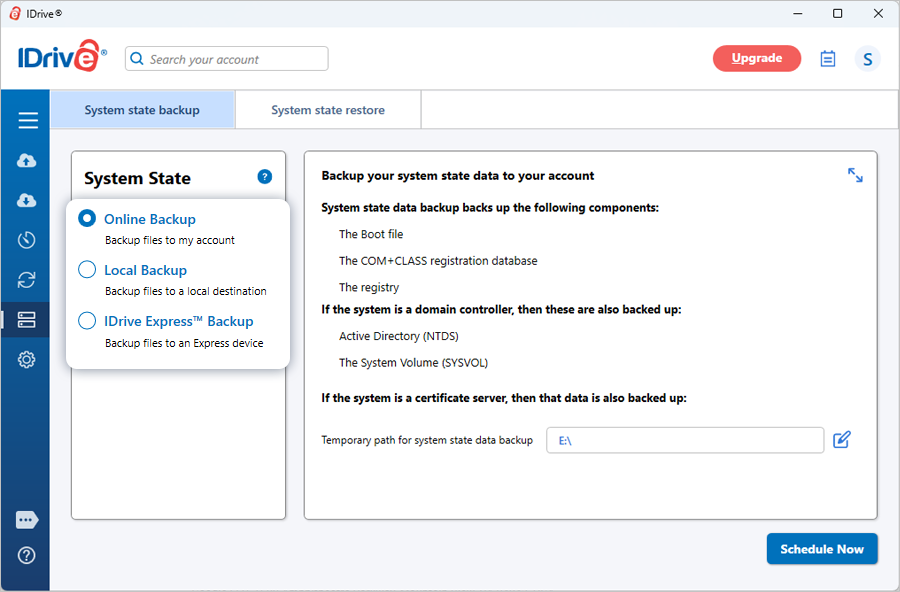
Backup critical System State components like boot file, COM+CLASS registration database, registry, active directory, system volume etc.
To perform a System State Backup,
- Sign in to the IDrive application and click 'Server Backup'. A slider menu will appear.
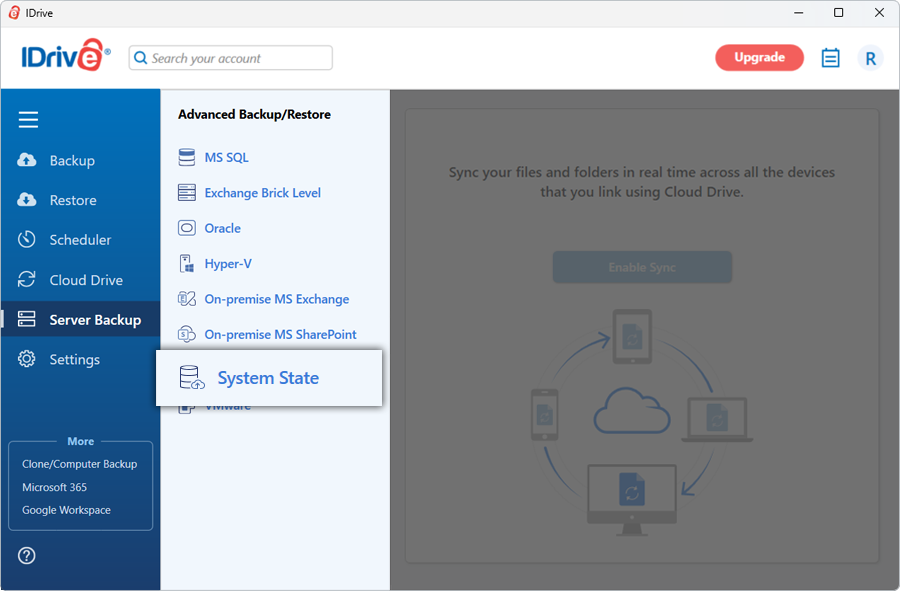
- Select 'System State'. The System state backup/restore console appears. By default, 'System state backup' is selected.
- Select 'Online Backup', or 'Local Backup', or 'Express™ Backup'.
Note:
- On selecting the 'Local Backup' or 'Express™ Backup', specify the local backup location.
- On selecting 'Online Backup', the data will be stored on the IDrive cloud whereas on selecting 'Local Backup' or 'Express Backup' the data will be stored in the local drive.
- Specify a temporary path for the local backup of the system-related components.
Note: Once the local backup is initiated, '.ServerBackup' folder is auto-created.
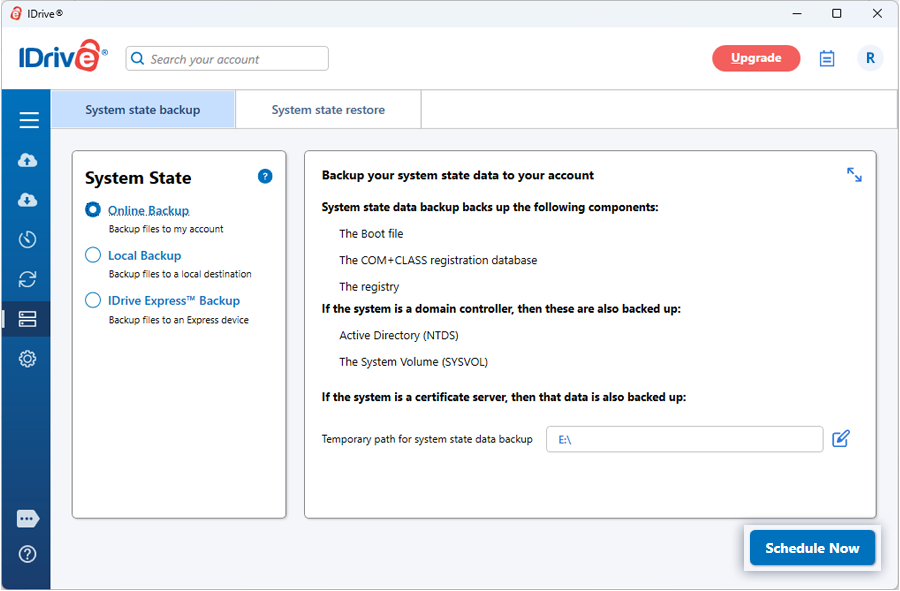
- Click 'Schedule Now'.
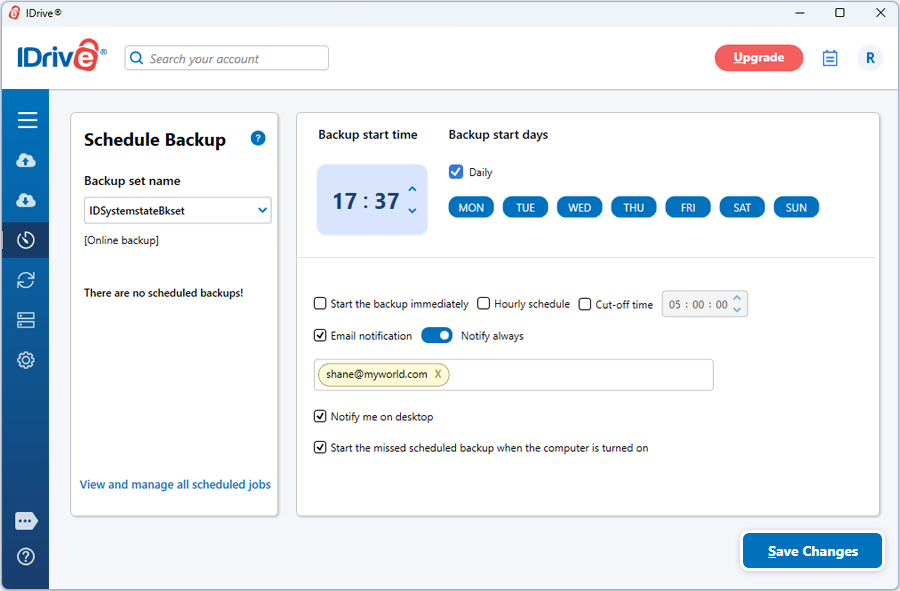
- The 'Scheduler' appears where you can schedule the backup for any future day and time or perform an immediate backup of the system state data.
View steps to restore system state.
Protect your organization's data with secure online server backups
SIGN UP NOW!