Restore Hyper-V
Restore Hyper-V
Restore your virtual machines in case of any system failure or disaster.
To restore your Hyper-V virtual machines,
- Sign in to the IDrive application and click 'Restore'.
- Select 'Online Restore', or 'Local Restore', or 'IDrive Express™ Restore'.
- Locate and select the 'IDHyperVData' folder in your IDrive® account or local drive.
Note: If 'Local Restore' is selected, you can choose the required version from the 'Version' list.
- Click 'Restore Now' to restore the 'IDHyperVData' folder to the local computer.
- Click 'Server Backup' after the 'IDHyperVData' folder has been successfully restored. A slider menu will appear.
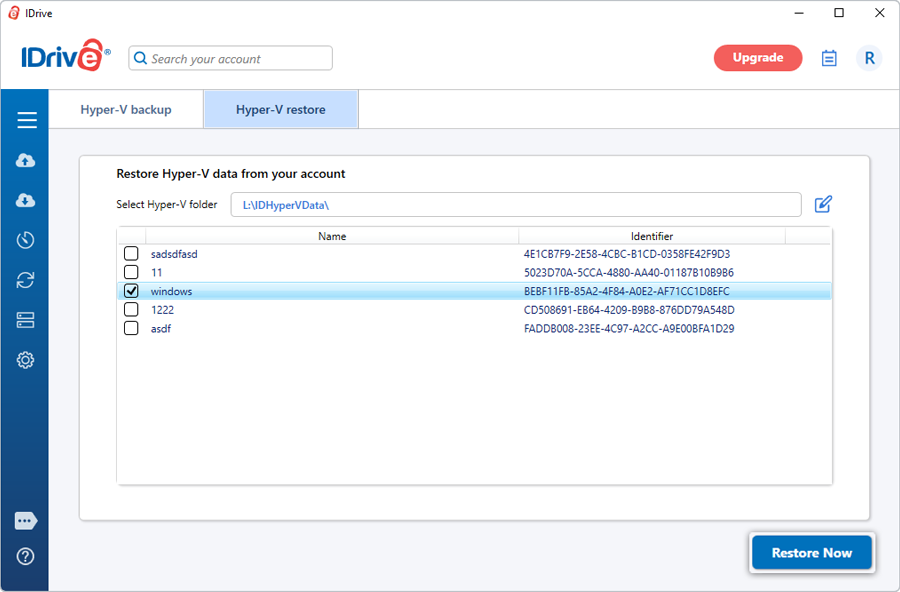
- Click 'Hyper-V'. The Hyper-V backup/restore console appears.
- Click 'Hyper-V restore'.
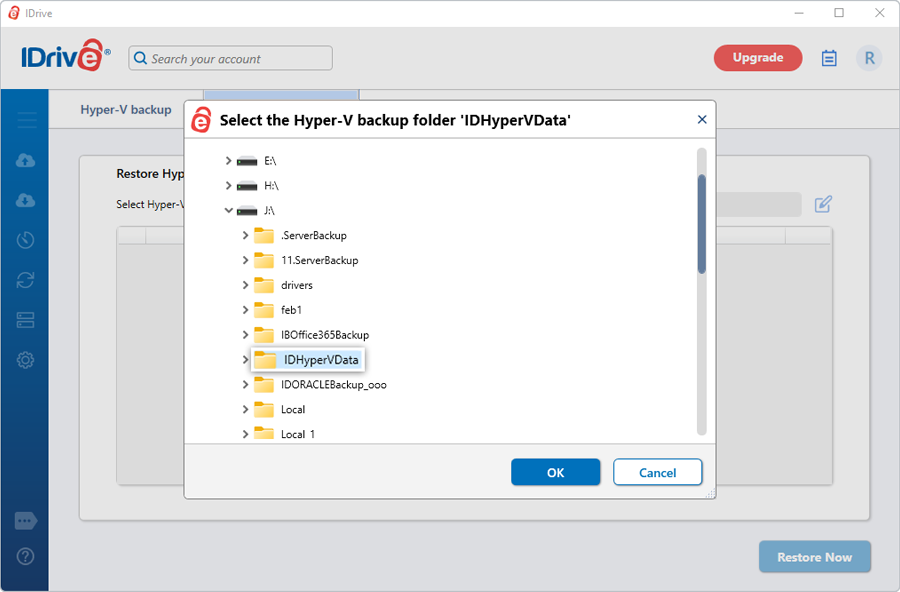
- Browse and select the 'IDHyperVData' folder (restored earlier from your IDrive account or local drive).
- Select the virtual machine(s) you want to restore to your Hyper-V server.
- Click 'Restore Now'.
View the steps to backup Hyper-V.
Protect your organization's data with secure online server backups
SIGN UP NOW!