Frequently Asked Questions

Cloud Drive

Cloud Drive

If your question is not addressed below, please contact us through our support form and we'll get back to you shortly.

General

What is Cloud Drive and how does it work?
Can I preview my Word, Excel, PowerPoint, and PDF files from Cloud Drive storage directly?
Can I create Word, Excel, and PowerPoint files and edit them directly from Cloud Drive?
Can I share my Word, Excel, PowerPoint, and PDF files from Cloud Drive storage directly?
How much data can I sync to my Sync folder?
How do I know the status of file sync?
Will my files still sync if my computer is turned off?
What happens when I run out of space in my Sync folder?
Can I sync the files in a mapped/USB/external drive?
Can I retrieve previous versions of my synced file?
How does IDrive Cloud Drive handle case conflict during sync?
Why does a conflicted copy appear?
How do I resolve a conflicted copy?
Does Cloud Drive support real-time collaborative editing?

Windows

How do I sync files using my IDrive account?
If I enable Cloud Drive for a computer, will it be enabled for all computers added to the account?
How do I know where my Cloud Drive folder is located? Can I change its default location?
How do I access my synced files and folders?
What are the blue and green icons over my files in my Sync folder?
How do I pause Sync when it is in progress and resume it?
Can I check the recently modified files in my Sync folder?
What is Selective Sync and how is it useful?
How do I select the folders that I do not want to sync to my computer?
I can see duplicate files / folders in the sync section. Why is that?
How do I share a file?
Can I use Cloud Drive to synchronize my Outlook data files or QuickBooks files?
How do I unlink my computer from Cloud Drive?

Linux

How do I sync files using my IDrive account?
If I enable Cloud Drive for a computer, will it be enabled for all computers added to the account?
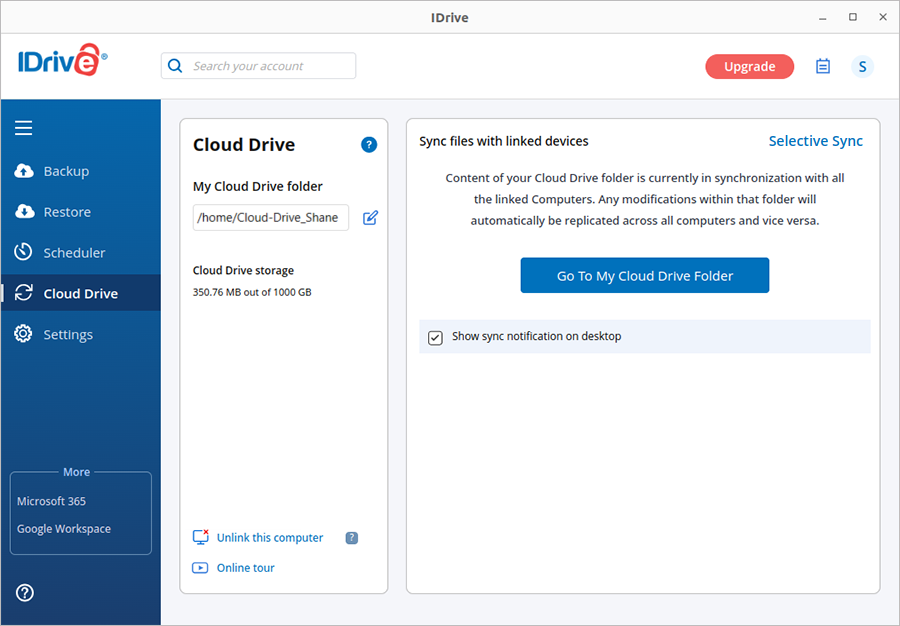
How do I know where my Cloud Drive folder is located? Can I change its default location?
How do I access my synced files and folders?
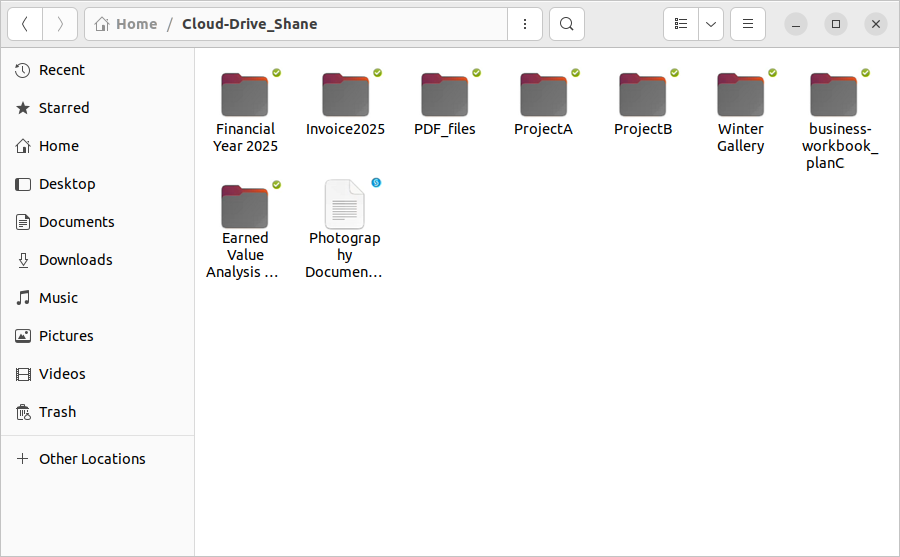
What are the blue and green icons over my files in my Sync folder?
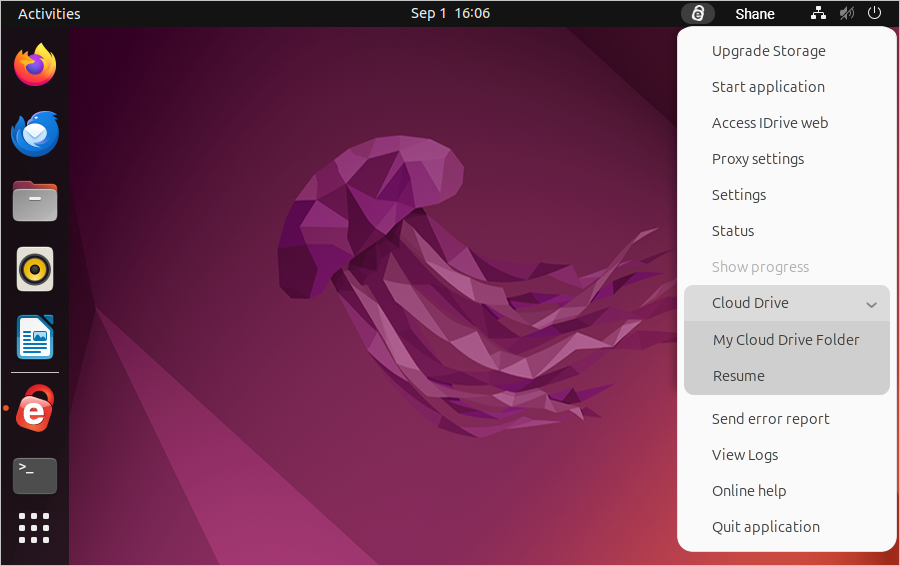
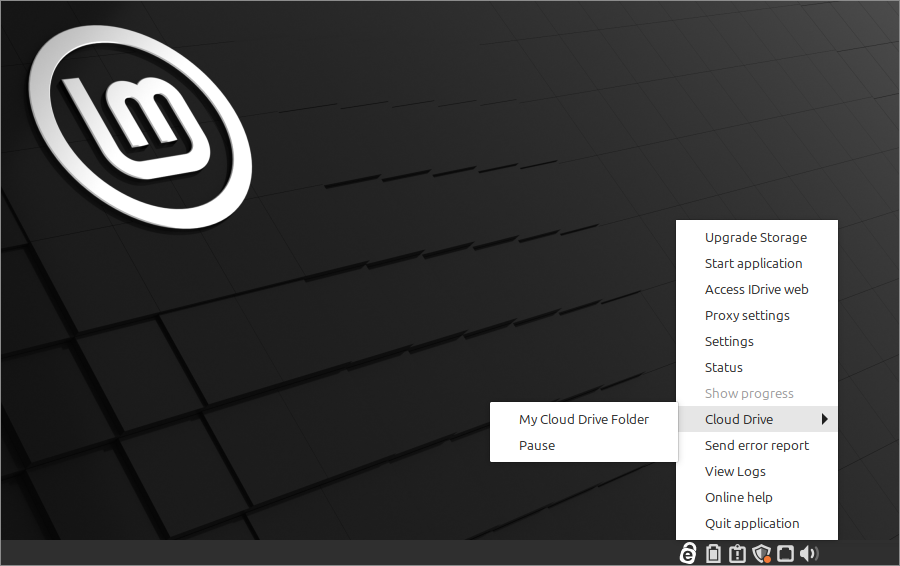
How do I pause Sync when it is in progress and resume it?
What is Selective Sync and how is it useful?
How do I select the folders that I do not want to sync to my computer?
Are there any dependencies for Cloud Drive to work on Linux machines?
What is a watcher limit, and how do I check my current watcher limit?
How do I update the watcher limit, and how can I revert it if needed?
Does increasing the watcher limit affect performance or memory?

Mac

How do I sync files using my IDrive account?
If I enable Cloud Drive for a computer, will it be enabled for all computers added to the account?
How do I know where my Cloud Drive folder is located? Can I change its default location?
What are the blue and green icons over my files in my Sync folder?
I cannot see the icon overlays over my files in my sync folder. What should I do?
How do I pause Sync when it is in progress and resume it?
How much data can I sync to my Cloud Drive folder?
Can I check the recently modified files in my Sync folder?
What is Selective Sync and how is it useful?
How do I select the folders that I do not want to sync to my computer?
How do I share a file?
What happens when I run out of space in my Cloud Drive folder?
Can I use Cloud Drive to synchronize my Outlook data files, QuickBooks files, project development software like Xcode or audio software like Ableton Live?

Web

How do I sync files/folders to my web account?
Can I import files from Google or Dropbox storage?
How do I access my synced files and folders?
How do I share my synced files?
How do I retrieve an earlier version of a synced file?
How do I retrieve a deleted synced file?

What is Cloud Drive and how does it work?

Cloud Drive links all of your devices such that whenever a file is updated, it is available on all linked devices. For syncing files, Cloud Drive creates a unique folder for every linked computer and provides separate cloud storage. You can sync files using the Cloud Drive folder on linked desktops, or directly via IDrive.com and download them on the mobile apps.

Can I preview my Word, Excel, PowerPoint, and PDF files from Cloud Drive storage directly?

Yes, you can preview your Word, Excel, PowerPoint, and PDF files available in your Cloud Drive storage. The following file formats are supported:

.csv, .ods .xls, .xlsb, .xlsm, .xlsx, .odp, .pot, .potm, .pps, .ppsm, .ppsx, .ppt, .pptm, .pptx, .doc, .docm, .docx, .dot, .dotm, .dotx, .odt, .rtf.

View Word, Excel, and PowerPoint files

To preview a Word, Excel, and PowerPoint file, click on the required file to directly open it in your browser.

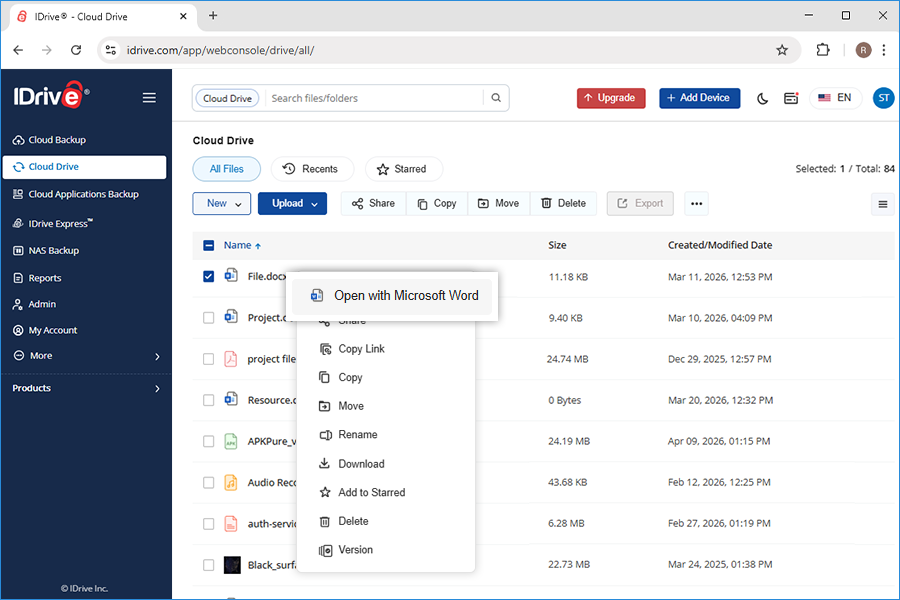
Alternatively, right-click on the file you want to preview and select Microsoft Word, or Microsoft Excel or Microsoft PowerPoint from the dropdown list to open it in the browser.

Right-click context menu to select file type for preview screenshot


View PDF files

To preview a PDF file, click the PDF file to view it in your browser.
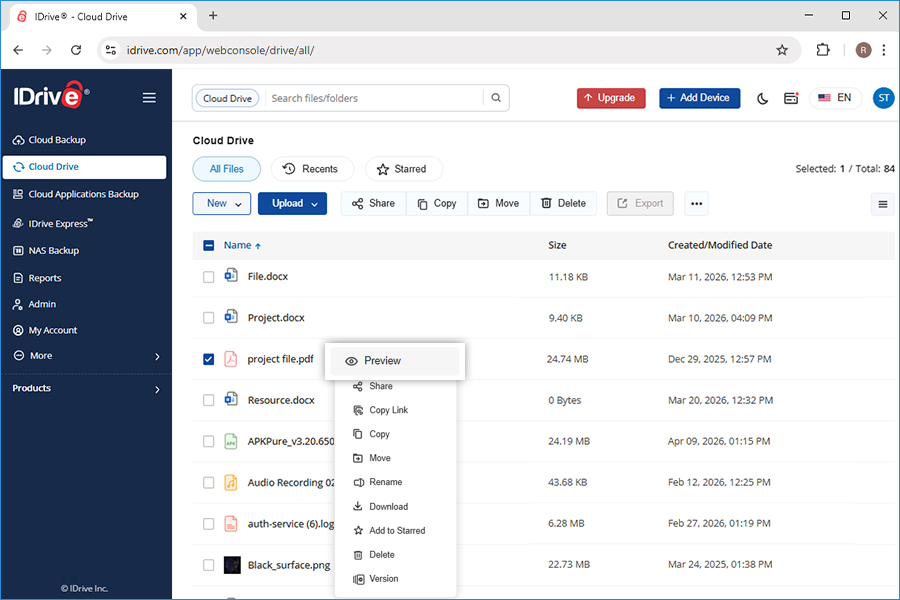
Alternatively, right-click on the file you want to preview or hover on the file and select Preview to open it in the browser.

Note: All other file types need to be downloaded to view.

Right-click context menu to select PDF file preview screenshot


For files under Cloud Backup section

You can also preview the Word, Excel, PowerPoint, and PDF files in your IDrive account under Cloud Backup. However, IDrive does not support editing to ensure integrity of the backed up files.

Can I create Word, Excel, and PowerPoint files and edit them directly from Cloud Drive?

Yes, you can create new Microsoft Office files directly in your Cloud Drive storage.

You can also view and edit the existing Office files in your browser. Any changes made are automatically saved to your Cloud Drive storage. The following file formats are supported for editing:

.docm, .docx, .odt, .ods, .xlsb, .xlsm, .xlsx, .odp, .ppsx, .pptx

To create new MS Office files,

  1. Sign in to your IDrive account, and go to Cloud Drive.
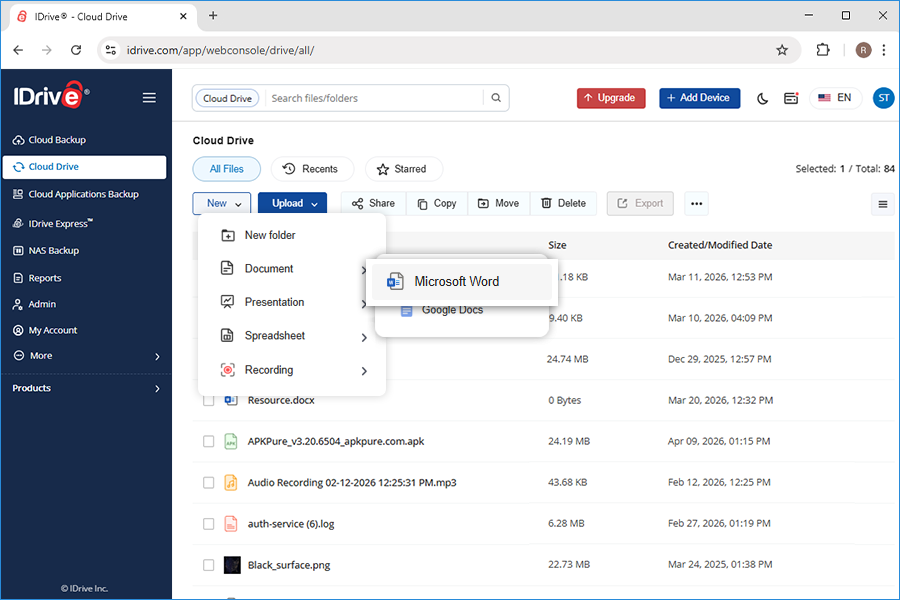
  2. Click the New dropdown and select the required file format - Microsoft Word, Microsoft Excel, or Microsoft Powerpoint.
    Select file format for new Microsoft Office file screenshot
  3. The newly created file will open in a new tab.

To view and edit your existing MS Office files,

  1. Sign in to your IDrive account, and go to Cloud Drive.
  2. Click on a MS Office file to open it in your browser and make the required edits. The changes will be saved automatically.

Note:

  • You can upload, open, and view the PDF files directly to and from your Cloud Drive Storage. However, you cannot edit the PDF files stored in your Cloud Drive.
  • Edits are automatically saved and synced back to Cloud Drive.
  • Collaborators will access the files anonymously, with no user-specific information tracked.
  • Some features may differ between Microsoft Office’s online platform and the locally installed Microsoft Office software.

Can I share my Word, Excel, PowerPoint, and PDF files from Cloud Drive storage directly?

You can easily share your Word, Excel, and PowerPoint documents and collaborate on them directly from your Cloud Drive storage.

You can also share the PDF files in your Cloud Drive. However, currently IDrive does not support online collaboration for PDF files.

To share your files,

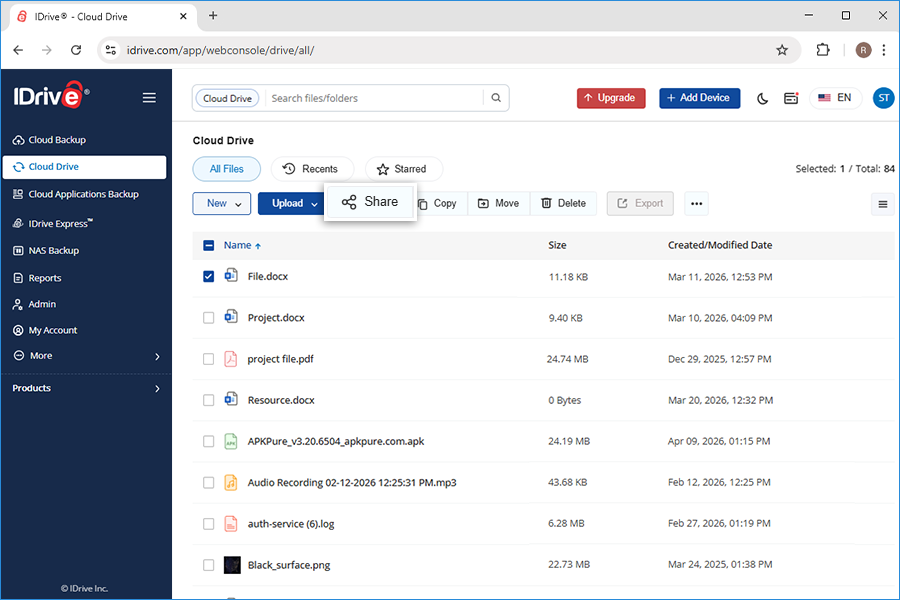
  1. Select the required file you want to share and click Share icon The Share popup appears.
    Share file from Cloud Drive screenshot
  2. Either copy the link for view only purpose or define the following parameters before copying the link.

    1. Expiration - Set an expiry date for the share link.
    2. Password protect - You can set a password for accessing the link.
    3. Disable downloads - Restrict download for the shared items via link.
  3. Click Save.
    Create share link in share popup screenshot
  4. Click Copy link to copy the link to clipboard. Share the link with the intended recipients.
    Copy share link to clipboard screenshot

A share link will be created and you can access it from the Shared tab.

Note: Share feature is limited to IDrive accounts with default encryption key.

How much data can I sync to my Sync folder?

Your Cloud Drive folder's storage space is the same as the IDrive plan that you choose. The size is independent of the IDrive account storage. Hence, as long as there is enough space in your Cloud Drive folder, you can continue syncing data to it, even if your IDrive account space gets used up.

How do I know the status of file sync?

Sign in to your IDrive account with your username and password and mouse hover the IDrive status item IDrive sync status icon on the menu bar. A tooltip appears displaying the number of files to be synced, the percentage completed, and the speed of the transfer.
Alternatively, you can also right-click IDrive status item IDrive sync status icon 'Status' to see the sync status within the menu. When syncing is complete, a brief notification is displayed on your screen.

Note: The first line in the tooltip displays the IDrive files status followed by the status of the Sync in progress.

Will my files still sync if my computer is turned off?

Cloud Drive will not be able to sync or access your data from computers or other devices unless they are turned on and connected to the Internet. If a computer is turned off when a file is updated from another device, Cloud Drive will update that file, once the computer is on and connected to the Internet.

What happens when I run out of space in my Sync folder?

Upgrade your IDrive account to a higher plan once you run out of space in your Cloud Drive Sync folder. In order to make room for new files, you may even remove the old data that you no longer need.

Can I sync the files in a mapped/USB/external drive?

No, you cannot sync files or folders that are stored in your mapped/USB/external drives.

Can I retrieve previous versions of my synced file?

Yes. The Sync folder maintains up to 30 previous versions of all the files.

Steps to restore previous versions of a file:

  1. Sign in to your IDrive account with your username and password.
  2. Right-click IDrive sync status icon on the system tray.
  3. Click Cloud Drive > My Cloud Drive folder from the available options.
  4. Right-click a file and choose IDrive > Versions. All available file versions will be displayed. Download the desired file by clicking.

How does IDrive Cloud Drive handle case conflict during sync?

A case conflict occurs when files or folders in the same location have names that differ only in uppercase and lowercase letters. For example, having both pictures and Pictures in the same folder can lead to syncing issues due to case sensitivity.

To avoid conflicts, we recommend using unique and distinct names for your files and folders. This ensures smooth syncing and prevents unpredictable behavior during synchronization.

Why does a conflicted copy appear?

A conflicted copy is created when multiple edits happen simultaneously on the same file. The last version saved will always appear as the conflicted copy.

How do I resolve a conflicted copy?

If a file is marked as a conflicted copy, you have two options:

  • Keep both files – Let one file retain the Conflicted copy tag while continuing to use the other.
  • Rename one of the files or folders – Give each file a unique name to prevent further conflicts.

By following these steps, you can manage file conflicts efficiently and maintain a seamless syncing experience with Cloud Drive.

Does Cloud Drive support real-time collaborative editing?

No, IDrive Cloud Drive does not support collaborative editing and renaming the same file simultaneously from multiple devices.

How do I sync files using my IDrive account?

To sync files from your IDrive account,

  1. Sign in to the IDrive application with your username and password.
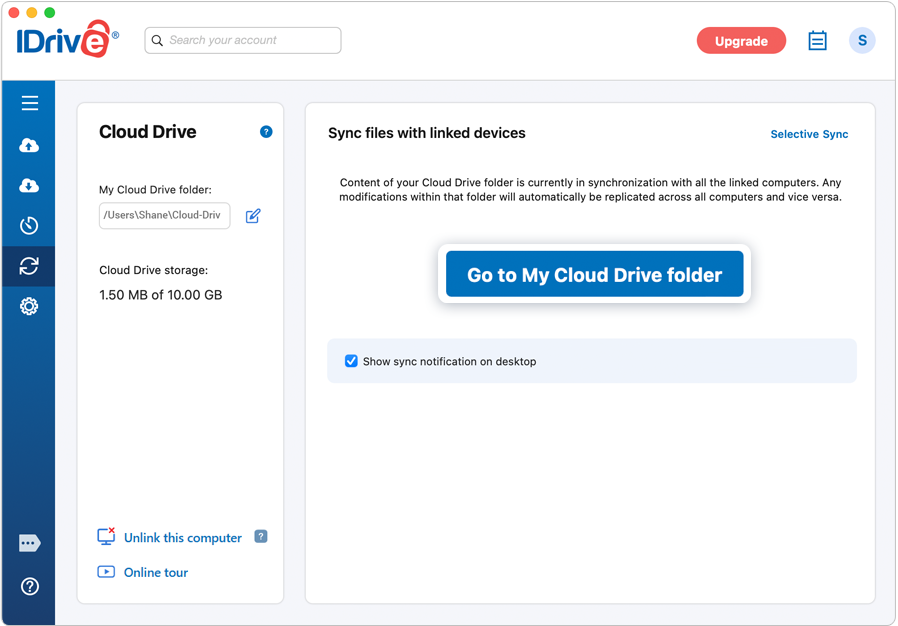
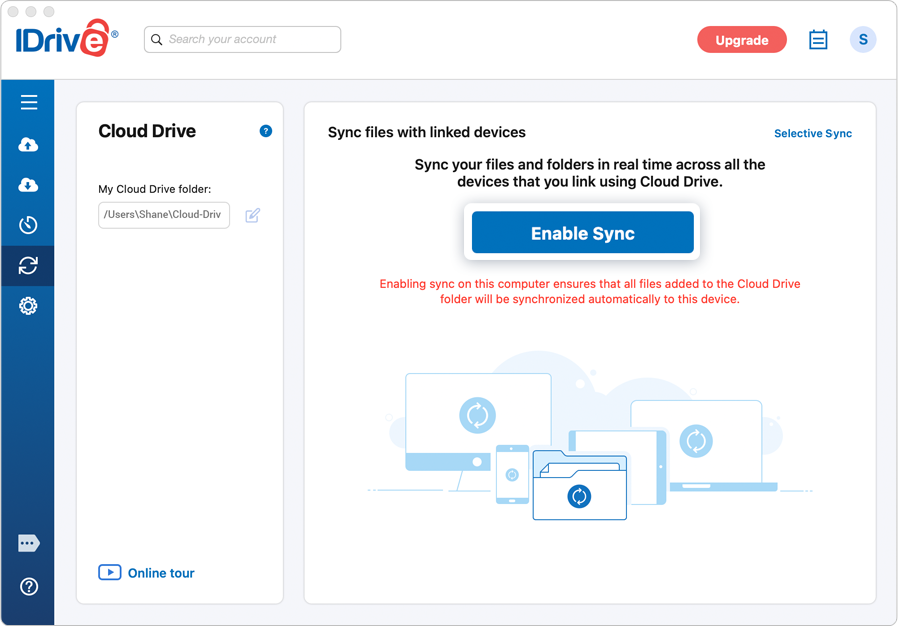
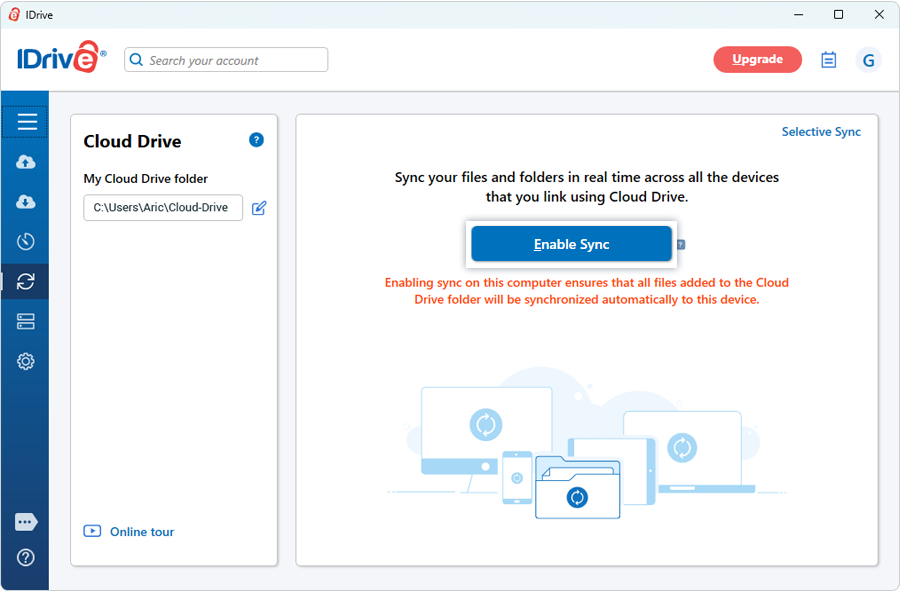
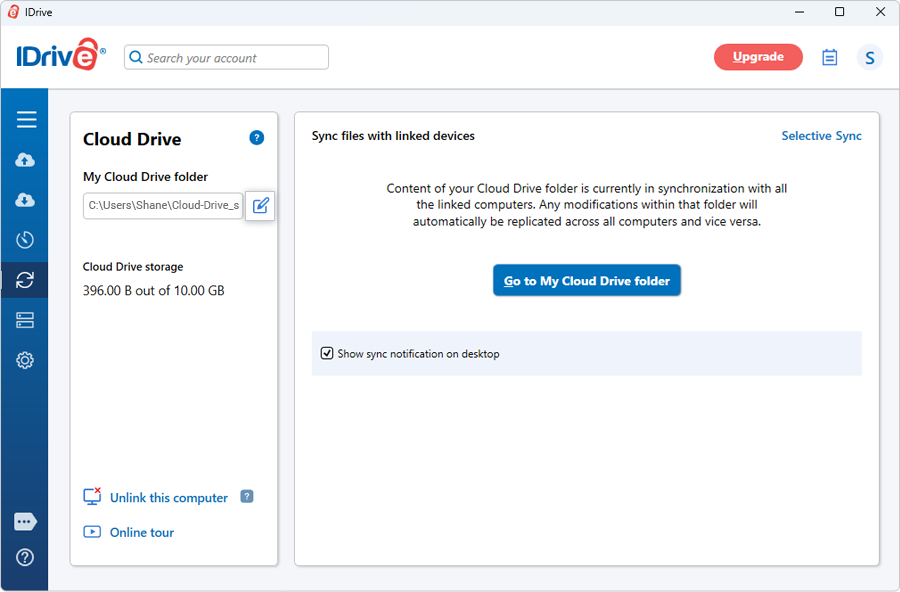
  2. Go to the 'Cloud Drive' tab and click 'Enable Sync'. This will initiate sync and open the Cloud Drive folder on your computer. When sync is enabled, you can click 'Go to My Cloud Drive folder' to open the Cloud Drive folder on your computer.
    Enable Sync button in Cloud Drive tab on Windows IDrive application screenshot
  3. Drag and drop files to the Cloud Drive folder from your computer. Files added to the Cloud Drive folder will be synced to your cloud account and all your linked devices.
  4. Note: To link a new computer to your IDrive account via Cloud Drive, sign in to the account via the IDrive desktop application on this computer and enable sync.

If I enable Cloud Drive for a computer, will it be enabled for all computers added to the account?

No, only the computers on which Cloud Drive is enabled will be linked to the account.

To link a computer to your IDrive account via Cloud Drive,

  1. Sign in to the IDrive application with your username and password on the new computer.
  2. Go to the 'Cloud Drive' tab.
  3. Click 'Enable Sync'. This will initiate sync and open the Cloud Drive folder on your computer.
    Cloud Drive tab with Enable Sync on Windows IDrive application screenshot
  4. Your computer is now synced to your cloud account and all your linked devices. All the files in your Cloud Drive folder will now be downloaded to your local computer.

How do I know where my Cloud Drive folder is located? Can I change its default location?

Sign in to the IDrive desktop app and go to the 'Cloud Drive' tab. You can find your Cloud Drive folder's location under 'My Cloud Drive folder'. Click 'Change' to move the contents of the Cloud Drive folder to a new location.

Cloud Drive folder location with Change option in IDrive application screenshot

Alternatively, you can also right-click IDrive sync status icon on the system tray and select 'Cloud Drive' > 'My Cloud Drive folder'.
How do I access my synced files and folders?

To access your synced files and folders,

  1. Sign in to IDrive with your user credentials.
  2. Go to the 'Cloud Drive' tab.
  3. Click 'My Cloud Drive folder'.

Alternatively, right-click IDrive sync status icon and go to 'Cloud Drive' > 'My Cloud Drive folder'.
What are the blue and green icons over my files in my Sync folder?

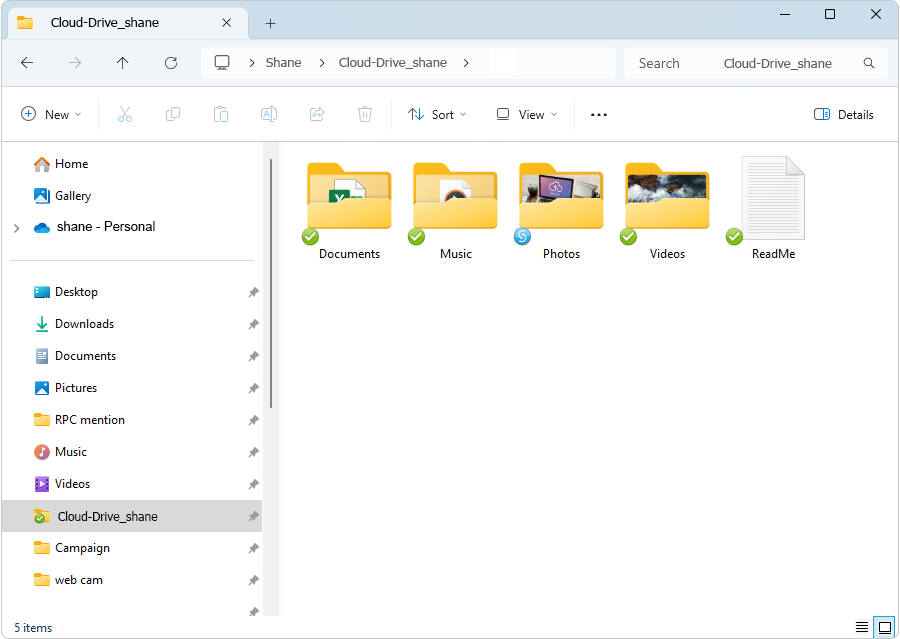
The blue icon refers to files that are still syncing. Whereas, the green icons indicates files that have already been synced.

Blue and green sync status icons on files in Sync folder screenshot

How do I pause Sync when it is in progress and resume it?

  1. Sign in to your IDrive account with your username and password.
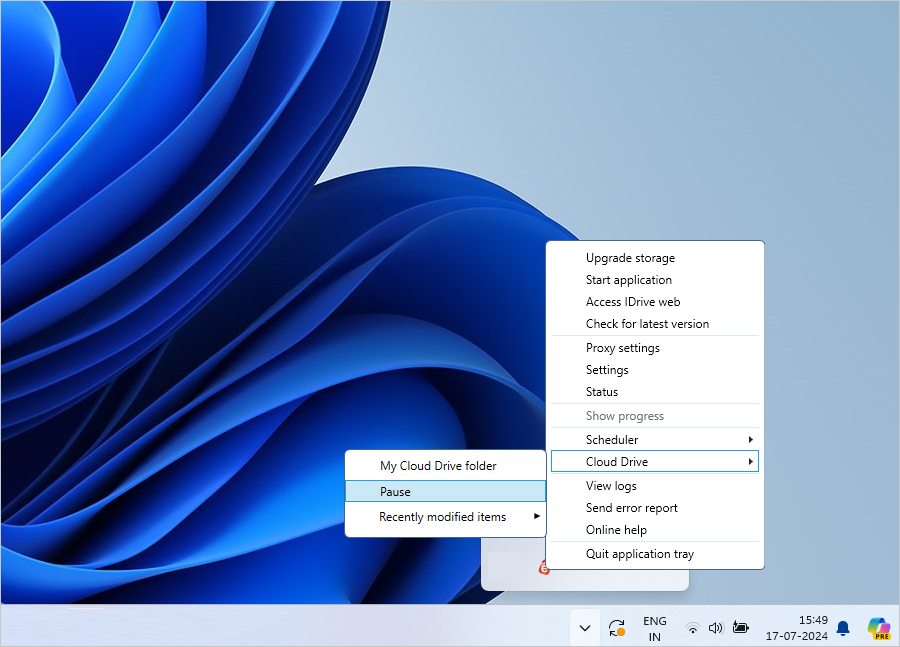
  2. Right-click IDrive sync status icon on the system tray.
  3. Click 'Cloud Drive' > 'Pause' / 'Resume' from the available options.
IDrive system tray menu with Cloud Drive Pause and Resume options screenshot

Can I check the recently modified files in my Sync folder?

Yes, you can view the recently modified files in your Sync folder.

To look up the recently modified files in your Sync folder,

  1. Sign in to your IDrive account with your username and password.
  2. Right-click IDrive sync status icon on the system tray.
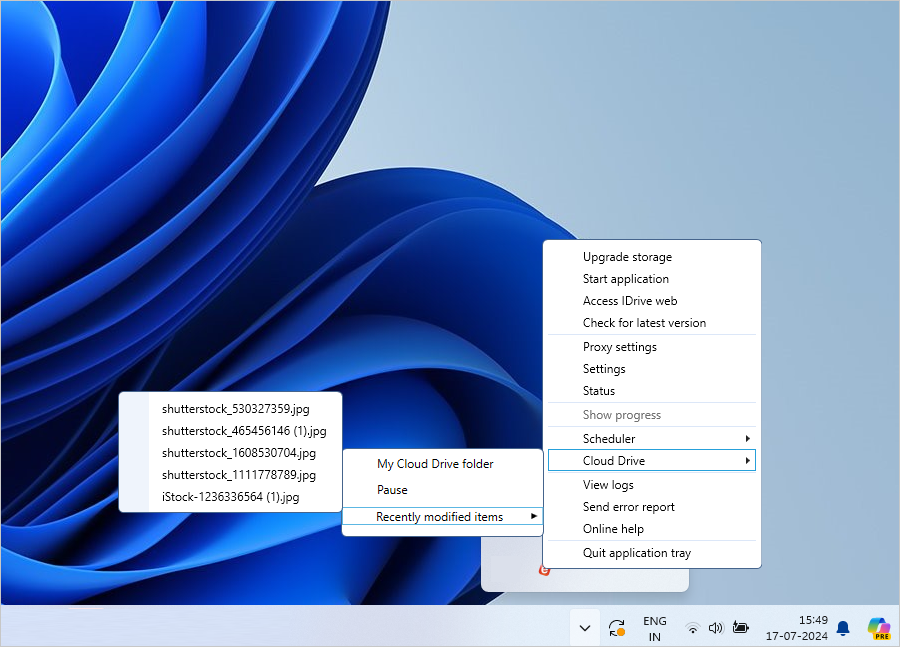
  3. Click 'Cloud Drive' > 'Recently modified items'.
IDrive system tray menu showing recently modified items in Sync folder screenshot

What is Selective Sync and how is it useful?

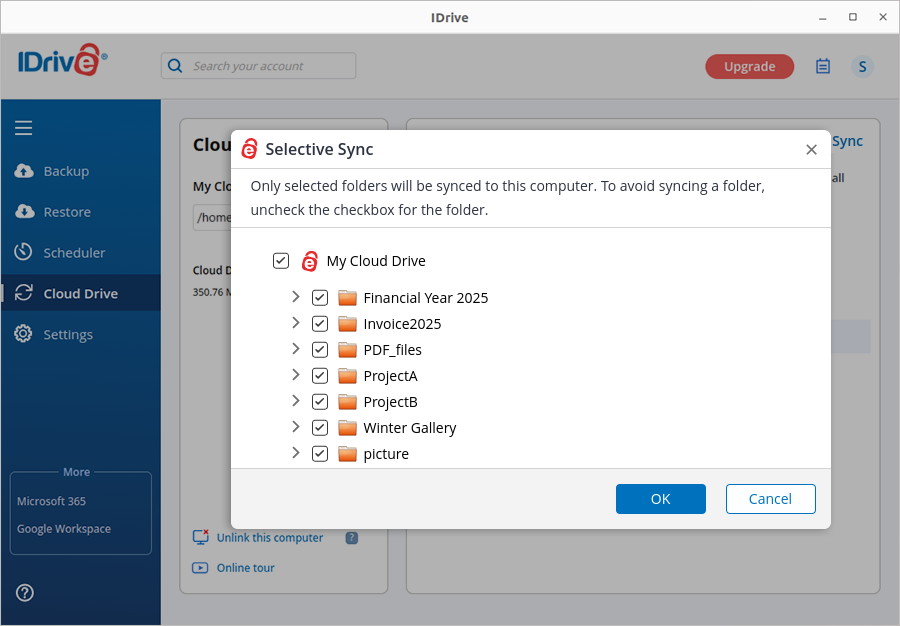
Selective Sync is a feature that allows you to choose only the folders you want to sync to your computer. It helps ensure that only the files you need are available on a particular computer. This feature is useful for saving space on computers with limited hard disk capacity.

Selective Sync folder selection feature in IDrive Cloud Drive screenshot

How do I select the folders that I do not want to sync to my computer?

By default all folders will be selected for sync.
To prevent specific folders from syncing to your computer,

  1. Sign in to your IDrive application on the computer and select 'Cloud Drive'.
  2. Click 'Selective Sync'.
    The list of folders available in your Cloud Drive storage appears.
  3. Deselect the checkbox for the folders that you do not want to sync and click 'OK'.
    Selective Sync deselect folders to exclude from sync screenshot
  4. Click 'OK' to confirm.

The deselected folders will be removed from the Cloud Drive folder on your computer. However, they will remain available and can be accessed from the web or other linked devices.

Note:

  • When an item is removed from sync, it is moved to the cache folder located at /Cloud-Drive/.idsync.cache. This action does not free up storage space on your local computer. To free up space, manually delete the items from the Cloud Drive cache folder.
  • To free up additional space, clear the Cloud Drive cache by deleting the contents of the /Cloud-Drive/.idsync.cache folder. This removes temporary files that occupy space.
  • Deleting a folder from the cache folder does not remove it from the Cloud Drive. Your data will remain safe.

I can see duplicate files / folders in the sync section. Why is that?

While renaming a folder, there may be some situations where IDrive might be unable to rename all the items (files / folders) in the folder. This leads to creation of duplicate data as the items which could not be renamed are retained in the old folder and the same are copied to the new renamed folder.

Duplicate files / folders are created when:

  • File / folder rename operation fails due to inadequate permissions. In order to avoid data loss, a copy of the file / folder is created.
  • File path is more than 255 character length. This limit varies based on OS, application used on Windows etc.
  • File / folder is locked by others or is in use.

By default, IDrive retains old files / folders in such cases, to prevent data loss.

How do I share a file?

  1. Sign in to your IDrive account with your username and password.
  2. Right-click IDrive sync status icon on the system tray.
  3. Click 'Cloud Drive' > 'My Cloud Drive folder' from the available options.
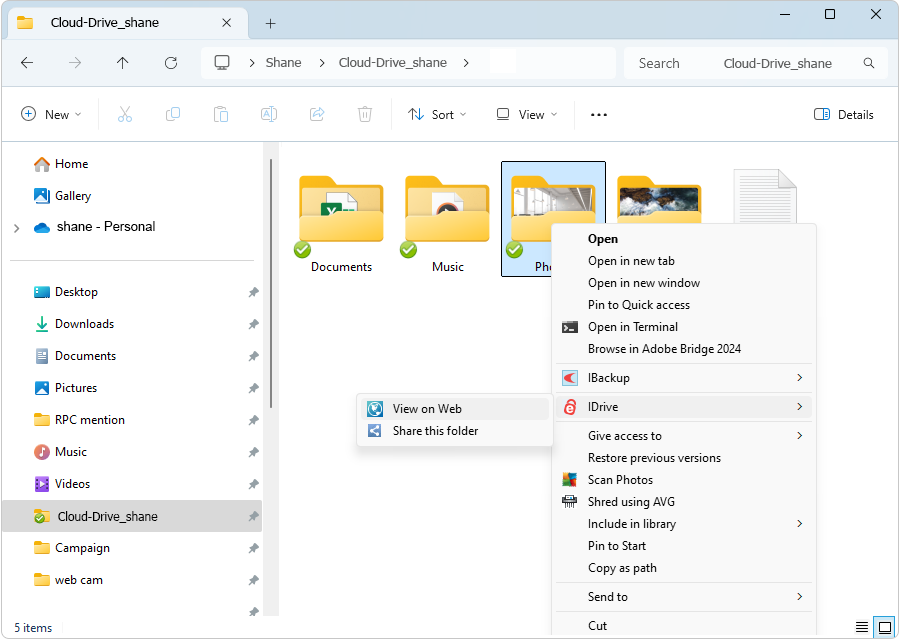
  4. Right-click the file you wish to share and choose 'IDrive' > 'Share This file/folder'. You will be directed to IDrive web account to share your files.
IDrive share file context menu in Sync folder screenshot

Note:

  • The shared files will no longer be accessible by your friends, once you delete them or move them to another location.
  • The sharing option is available only for IDrive accounts with default encryption.

Can I use Cloud Drive to synchronize my Outlook data files or QuickBooks files?

Currently, Cloud Drive cannot sync Outlook (.pst /.ost) or QuickBooks (.qbw) files as these files are continuously being accessed, when Outlook or QuickBooks applications are open. However, you can include these files in the backup set of the desktop application and then back them up to your account.

How do I unlink my computer from Cloud Drive?

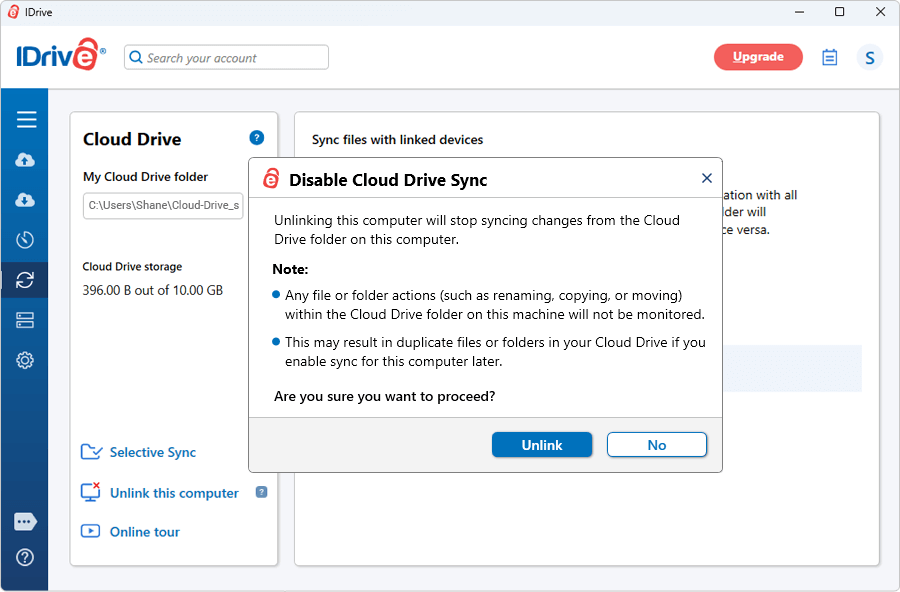
Unlinking a computer stops Cloud Drive from syncing changes from the Cloud Drive folder on that computer.

To unlink your computer,

  1. Sign in to your IDrive application on the computer and select 'Cloud Drive'.
  2. Click 'Unlink this computer'.
  3. Click 'Unlink' to confirm.
    Unlink computer from Cloud Drive confirmation dialog screenshot

How do I sync files using my IDrive account?

To sync files from your IDrive account,

  1. Sign in to the IDrive application with your username and password.
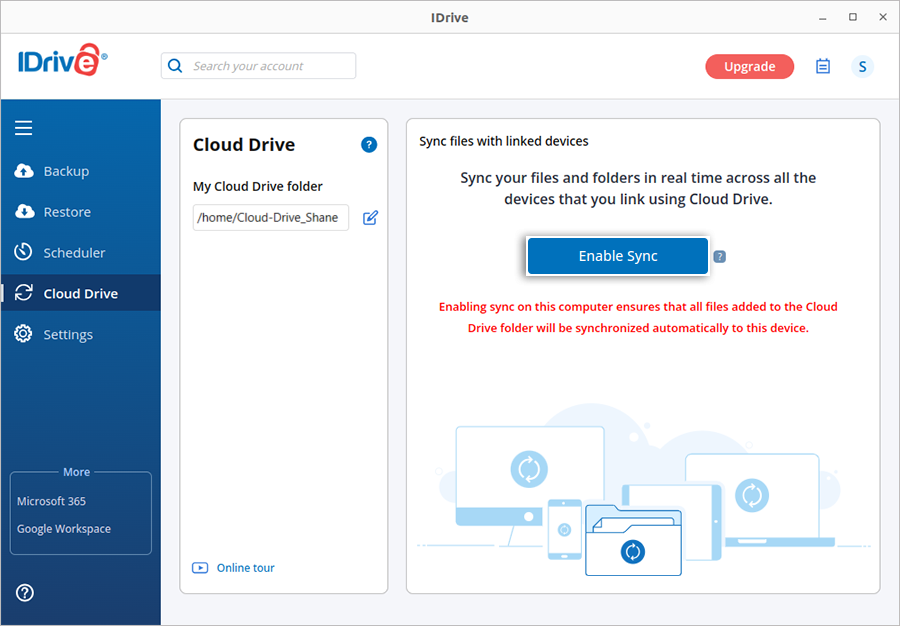
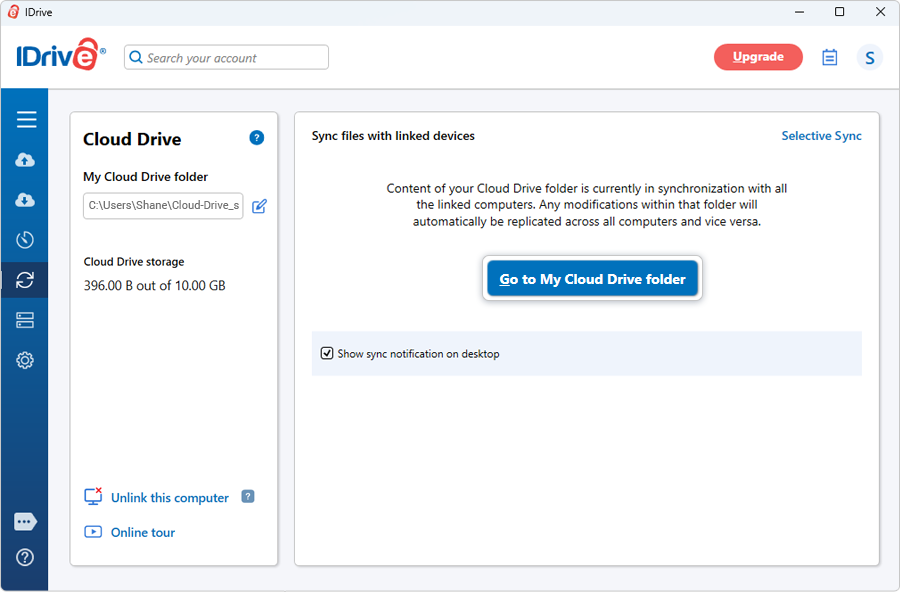
  2. Go to the 'Cloud Drive' tab and click 'Enable Sync'. This will initiate sync and open the Cloud Drive folder on your computer. When sync is enabled, you can click 'Go to My Cloud Drive folder' to open the Cloud Drive folder on your computer.
    Enable Sync button in Cloud Drive tab screenshot
  3. Drag and drop files to the Cloud Drive folder from your computer. Files added to the Cloud Drive folder will be synced to your cloud account and all your linked devices.

Note: To link a new computer to your IDrive account via Cloud Drive, sign in to the account via the IDrive desktop application on this computer and enable sync.

If I enable Cloud Drive for a computer, will it be enabled for all computers added to the account?

No, only the computers on which Cloud Drive is enabled will be linked to the account.

To link a computer to your IDrive account via Cloud Drive,

  1. Sign in to the IDrive application with your username and password on the new computer.
  2. Go to the 'Cloud Drive' tab.
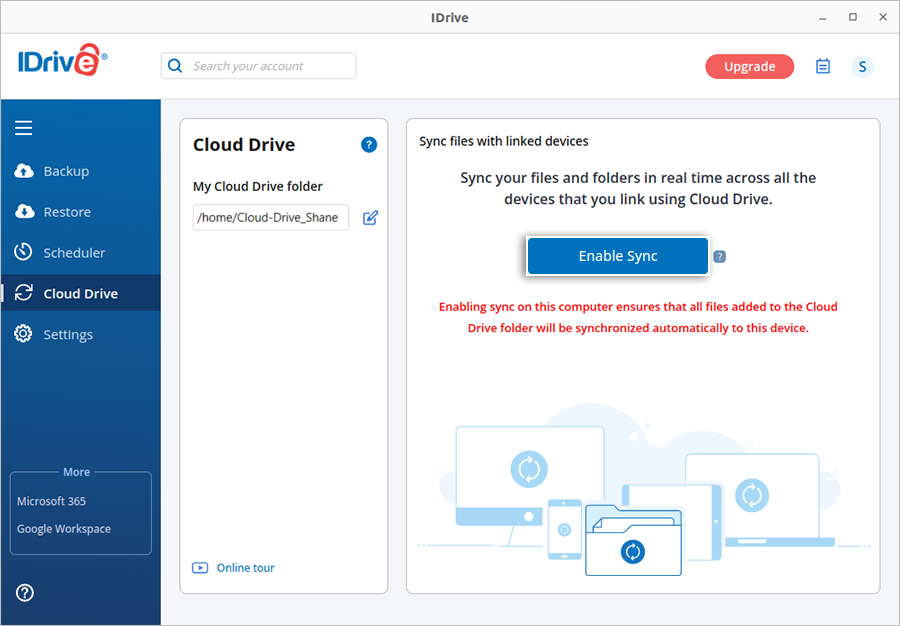
  3. Click 'Enable Sync'. This will initiate sync and open the Cloud Drive folder on your computer.
    Enable Sync button in Cloud Drive tab screenshot

Your computer is now synced to your cloud account and all your linked devices. All the files in your Cloud Drive folder will now be downloaded to your local computer.

How do I know where my Cloud Drive folder is located? Can I change its default location?

Sign in to the IDrive desktop app and go to the 'Cloud Drive' tab. You can find your Cloud Drive folder's location under 'Go To My Cloud Drive Folder'. Click Change Cloud Drive folder location icon to move the contents of the Cloud Drive folder to a new location.

Alternatively, you can also right-click IDrive sync status icon on the system tray and go to 'Cloud Drive' > 'My Cloud Drive Folder'.

IDrive system tray showing Cloud Drive folder menu options screenshot

How do I access my synced files and folders?

To access your synced files and folders,

  1. Sign in to the IDrive with your user credentials.
  2. Click 'Go To My Cloud Drive Folder'.
    Go to My Cloud Drive Folder option in IDrive application screenshot

Alternatively, right-click IDrive sync status icon and go to 'Cloud Drive' > 'My Cloud Drive Folder'.

What are the blue and green icons over my files in my Sync folder?

The blue icon refers to files that are still syncing. Whereas, the green icons indicate files that have already been synced.

Blue and green sync status icons on files in Cloud Drive folder screenshot

How do I pause Sync when it is in progress and resume it?

  1. Sign in to your IDrive account with your username and password.
  2. Right-click IDrive sync status icon in the system tray.
  3. Select 'Cloud Drive' > 'Pause' or 'Resume' as needed.
    IDrive system tray menu with Cloud Drive Pause and Resume options screenshot

What is Selective Sync and how is it useful?

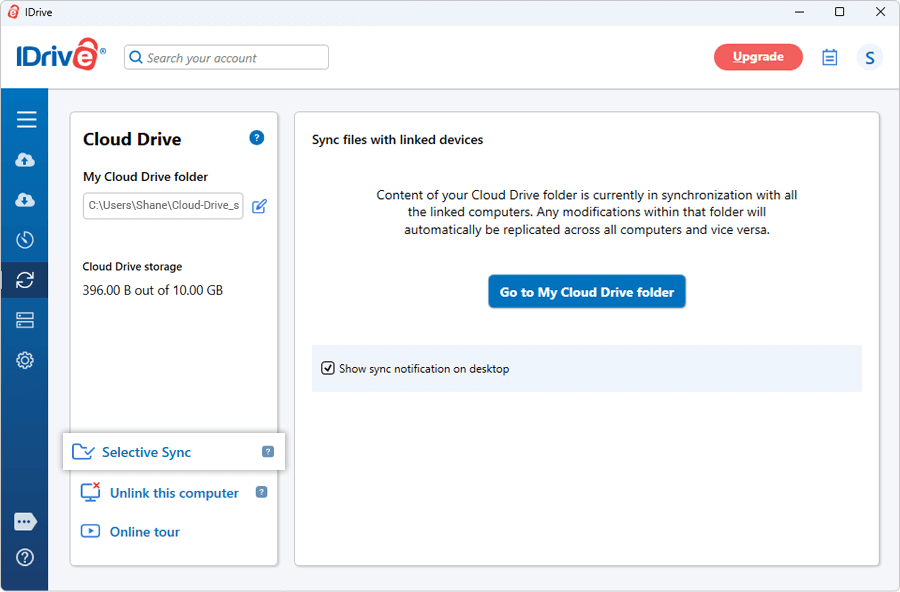
Selective Sync is a feature that allows you to select only the folders you want to sync to your computer. It gives you the control to ensure that you have only the files you need on a particular computer. It is helpful if you want to save space on your computers with limited hard disk space.

Selective Sync feature in IDrive Cloud Drive application screenshot

How do I select the folders that I do not want to sync to my computer?

By default all the folders will be selected for sync. If you wish to avoid syncing particular folders,

  1. Sign in to the IDrive application on the computer and select 'Cloud Drive'.
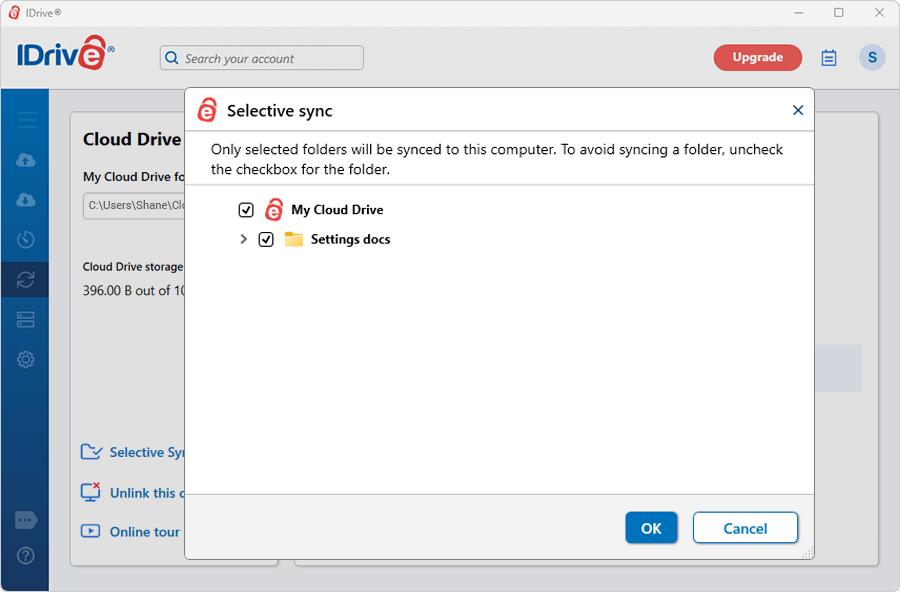
  2. Click 'Selective sync'. The list of all the folders in your Cloud Drive storage appears.
  3. Clear the checkbox of the folders that you do not want to sync and click 'OK'.
    Selective Sync folder deselection dialog screenshot

The folders will be removed from the Cloud Drive folder on your computer. You can still access the unselected folders from the web or other linked devices.

Are there any dependencies for Cloud Drive to work on Linux machines?

Cloud Drive requires certain system packages to operate on Linux. The required dependencies vary based on the Linux distribution and desktop environment and are automatically detected and installed during setup.

RPM-based distributions
attr
python3-psutil
nautilus-python | nemo-python | python3-caja (based on the file manager in use)
redis-server | valkey-server

Debian-based distributions
attr
python3-psutil
python3-nautilus | nemo-python | python3-caja (based on the file manager in use)
redis-server | valkey-server

Note: The installer automatically handles dependency detection and installation. No additional steps are required from the user.

What is a watcher limit, and how do I check my current watcher limit?

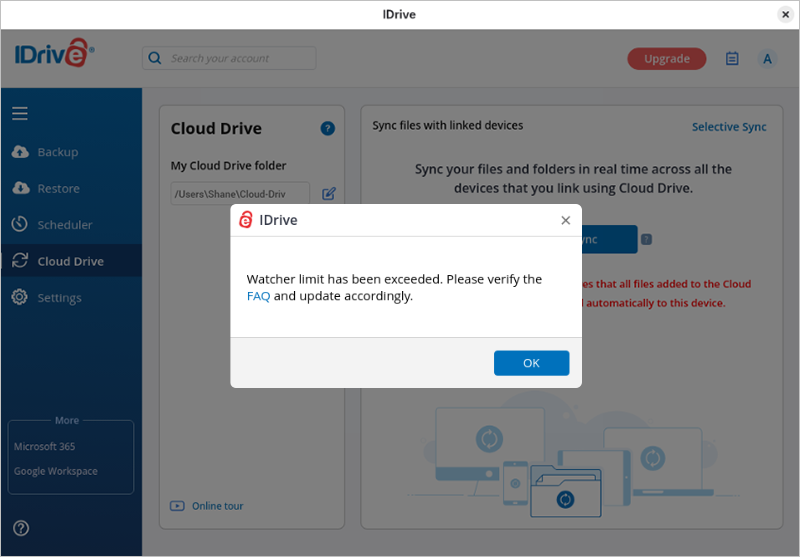
The watcher limit is a Linux system setting that defines how many files or directories can be monitored simultaneously for real-time changes. Cloud Drive and similar sync tools use these watchers to detect file updates instantly.

Watcher limit notification in IDrive Cloud Drive on Linux screenshot

To check the current watcher limit:

  1. Log in to the Linux machine using SSH.
  2. Run the following command in the terminal:
cat /proc/sys/fs/inotify/max_user_watches

The returned number indicates the maximum files or directories that can be monitored.
For example, a value of 8192 means Linux can watch up to 8,192 items. Exceeding this limit may result in a watcher limit exceeded error and prevent real-time sync.

How do I update the watcher limit, and how can I revert it if needed?

To temporarily increase the watcher limit (effective until reboot):

  1. Log in to the Linux machine using SSH.
  2. Run the following command in the terminal (for example, to set the limit to 200000):
sudo sysctl -w fs.inotify.max_user_watches=200000

The change takes effect immediately. Some applications may require a restart to recognize the new limit.

To verify the updated value:

cat /proc/sys/fs/inotify/max_user_watches

To revert the watcher limit to its previous value (for example, 8192):

sudo sysctl -w fs.inotify.max_user_watches=8192

The revert also takes effect immediately.

Does increasing the watcher limit affect performance or memory?

Increasing the watcher limit is generally safe. The limit itself does not consume memory; memory is used only when watchers are actively created.
Each watcher uses a small amount of kernel memory. In most cases, the performance impact is negligible. In rare scenarios involving very large and highly active directories, there may be slightly increased CPU usage or event-processing overhead, particularly on systems with limited resources.

How do I sync files using my IDrive account?

To sync files from your IDrive account, you need to activate sync on your computer.

  1. Sign in to IDrive account with your username and password.
  2. Go to the 'Cloud Drive' tab and click 'Enable Sync'. This will initiate sync and open the Cloud Drive folder on your computer.
    Enable Sync button in Cloud Drive tab on Mac IDrive application screenshot
  3. Drag and drop files to the Cloud Drive folder from your computer. Files added to the Cloud Drive folder will be synced to all your linked devices.
  4. Note: To link a new computer to your IDrive account via Cloud Drive, sign in to the account via the IDrive desktop application on this computer and enable sync.

If I enable Cloud Drive for a computer, will it be enabled for all computers added to the account?

No, only the computers on which Cloud Drive is enabled will be linked to the account.

To link a computer to your IDrive account via Cloud Drive,

  1. Sign in to the IDrive application with your username and password on the new computer.
  2. Go to the 'Cloud Drive' tab.
  3. Click 'Enable Sync'. This will initiate sync and open the Cloud Drive folder on your computer.
    Your computer is now synced to your cloud account and all your linked devices. All the files in your Cloud Drive folder will now be downloaded to your local computer.
    Cloud Drive folder synced to all linked devices on Mac screenshot

How do I know where my Cloud Drive folder is located? Can I change its default location?

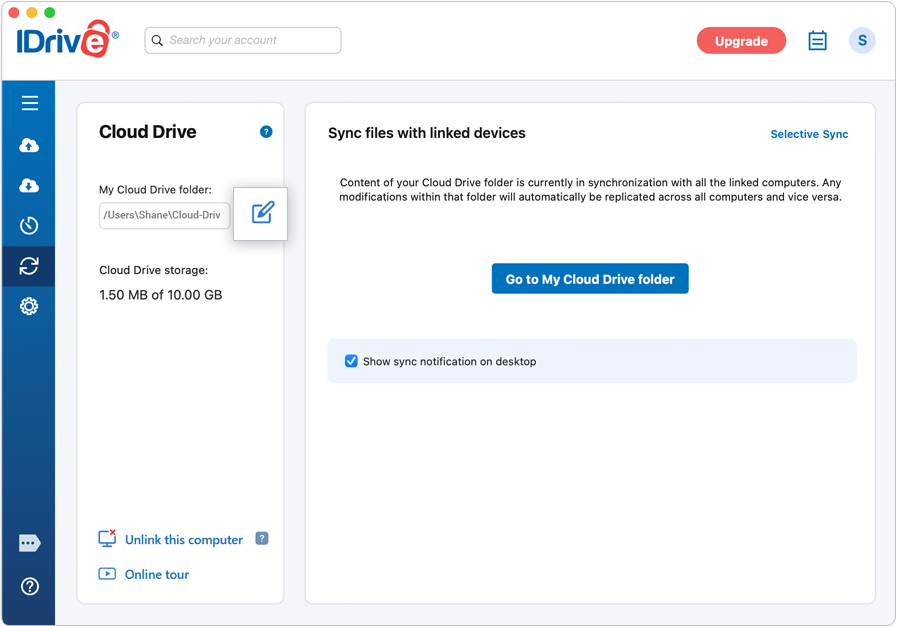
Sign in to the IDrive desktop app and go to the 'Cloud Drive' tab. You can find your Cloud Drive folder's location under 'My Cloud Drive folder'. Click 'Change' to move the contents of the Cloud Drive folder to a new location.

Cloud Drive folder location with Change option on Mac IDrive application screenshot

Alternatively, you can also click the IDrive status item IDrive status item icon in Mac menu bar on the menu bar and select 'Cloud Drive' > 'My Cloud Drive folder'.
What are the blue and green icons over my files in my Sync folder?

The blue icon refers to files that are still syncing. Whereas, the green icons indicates files that have already been synced.
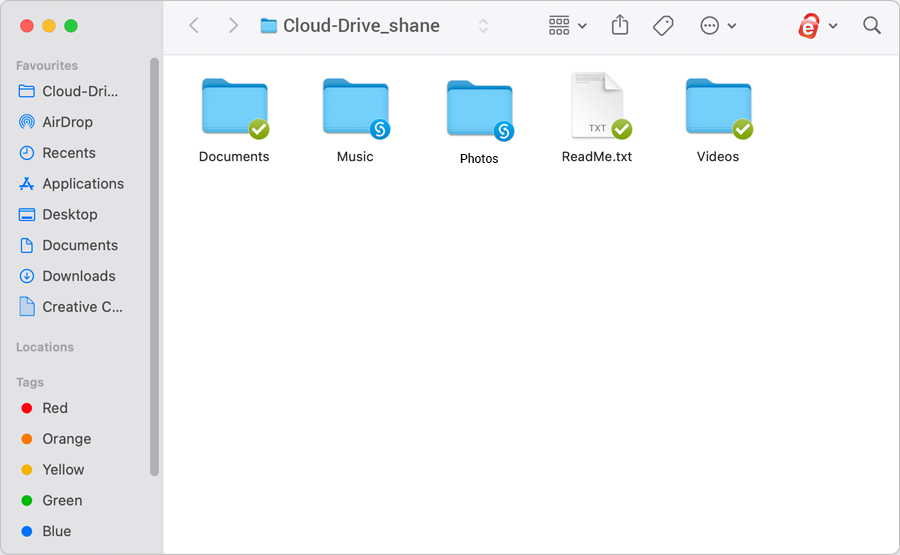
Blue and green sync status icons on files in Mac Sync folder screenshot

I cannot see the icon overlays over my files in my sync folder. What should I do?

If the blue and green icon overlays are not visible over the files in your sync folder, perform the following steps:
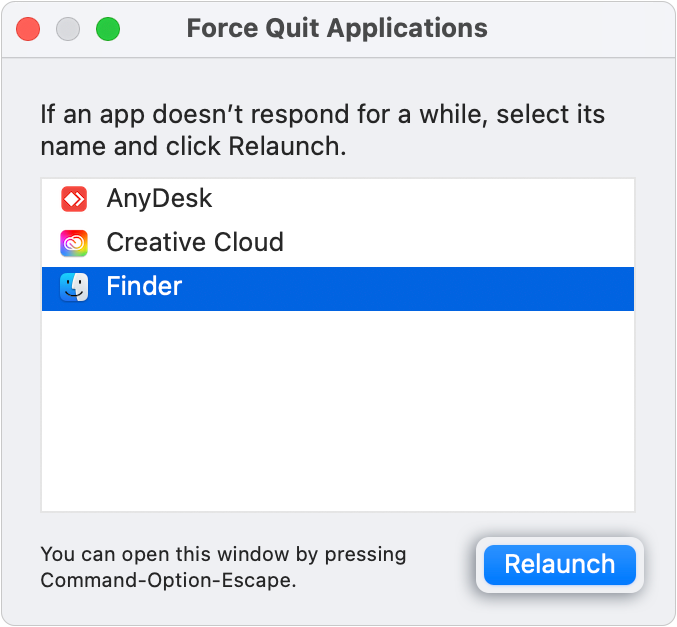
  1. Use the 'Command+Option+Escape' key combination to launch the 'Force Quit Applications' on your Mac computer.
  2. From the drop-down, select the 'Finder' app.
  3. Click the 'Relaunch' button.
  4. Force Quit Applications dialog with Finder selected on Mac screenshot

Alternatively,

  1. Navigate to 'System Preferences' > 'Extensions'.
  2. Under the 'FinderPluginApp', select the 'Finder Extensions' check-box.

Note: If the 'Finder Extensions' option is already enabled, deselect and select again.
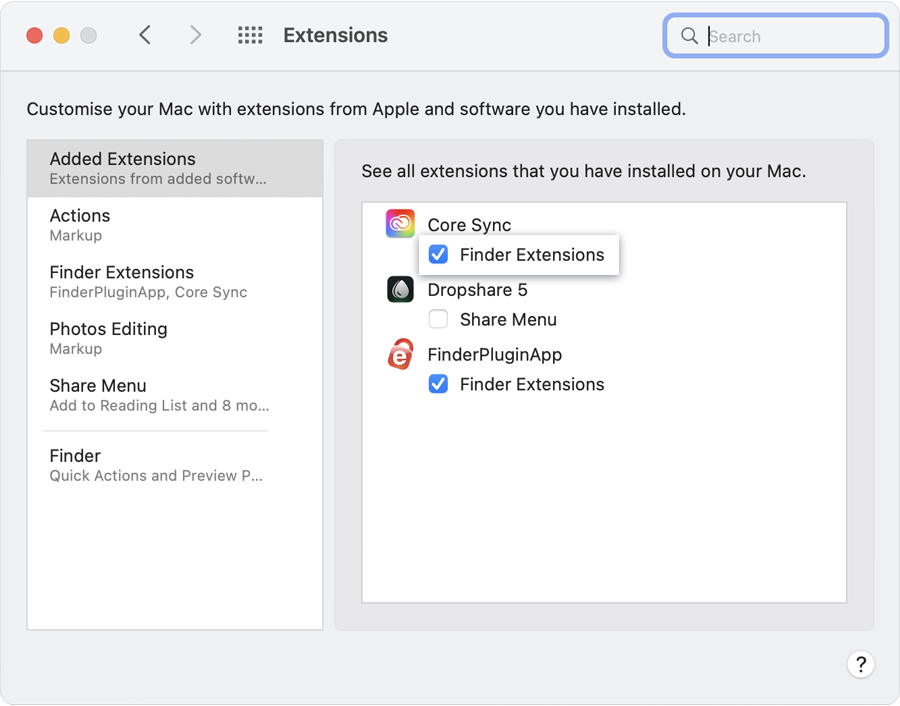

Finder Extensions checkbox in System Preferences on Mac screenshot

How do I pause Sync when it is in progress and resume it?
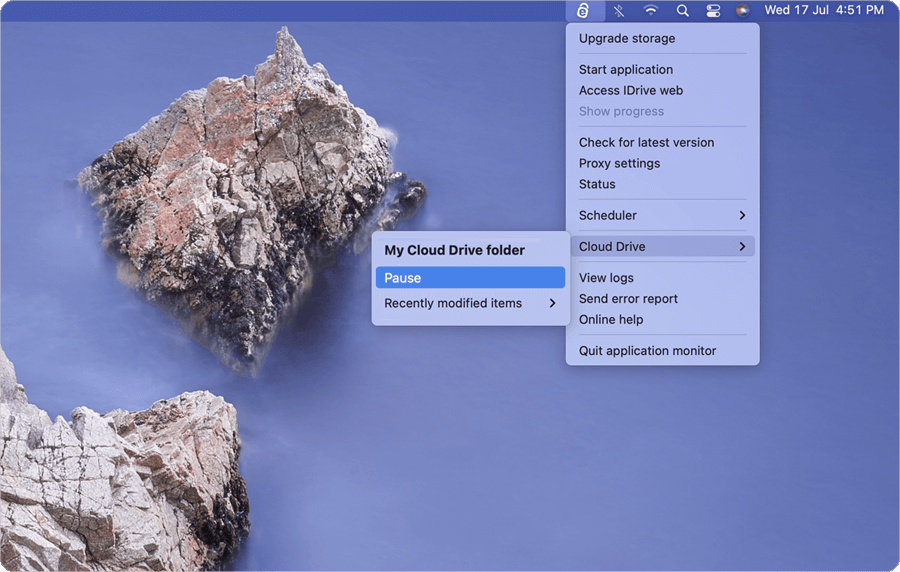
  1. Sign in to your IDrive account with your username and password.
  2. Click the IDrive status item IDrive status item icon in Mac menu bar on the menu bar.
  3. Click 'Cloud Drive' > 'Pause' / 'Resume' from the available options.


IDrive Cloud Drive menu with Pause and Resume options on Mac screenshot

How much data can I sync to my Cloud Drive folder?

Your Cloud Drive folder's storage space is the same as the IDrive plan that you choose. The size is independent of the IDrive account storage. Hence, as long as there is enough space in your Cloud Drive folder, you can continue syncing data to it, even if your IDrive account space gets used up.

Can I check the recently modified files in my Sync folder?
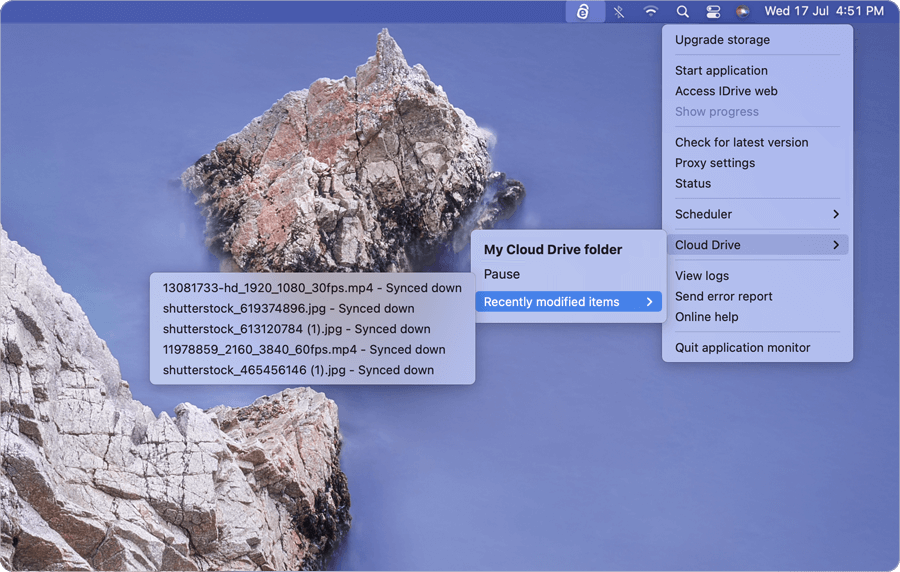
  1. Sign in to your IDrive account with your username and password.
  2. Click the IDrive status item IDrive status item icon in Mac menu bar on the menu bar.
  3. Click 'Cloud Drive' > 'Recently modified items' from the available options.


IDrive Cloud Drive menu showing recently modified items on Mac screenshot

What is Selective Sync and how is it useful?

Selective Sync is a feature that allows you to select only the folders you want to sync to your Mac. It gives you the control to ensure that you have only the files you need on a particular computer. It is helpful if you want to save space on your computers with limited hard disk space.
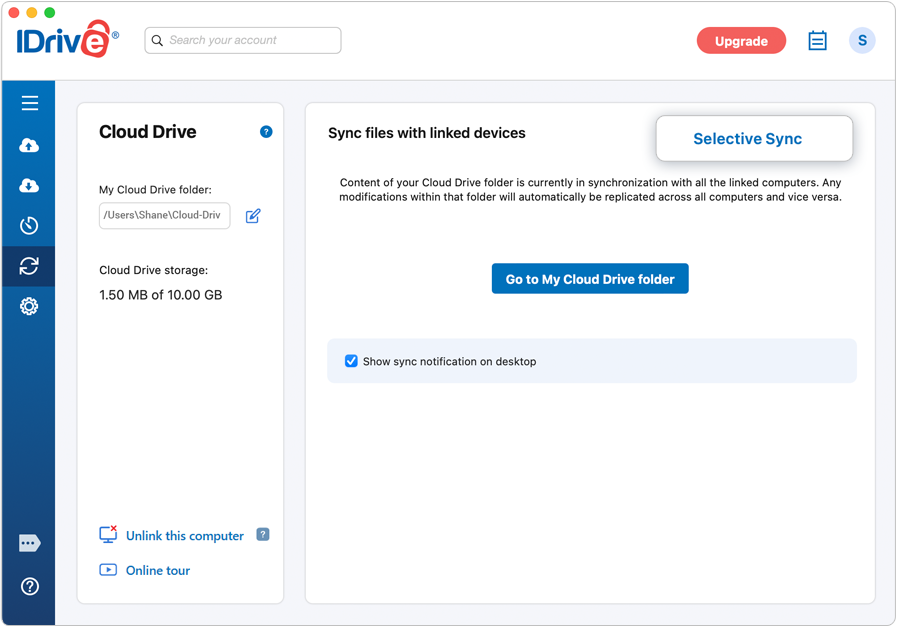

Selective Sync feature in IDrive Cloud Drive on Mac screenshot

How do I select the folders that I do not want to sync to my computer?

By default all the folders will be selected for sync. If you wish to avoid syncing particular folders,

  1. Sign in to your IDrive application and go to 'Cloud Drive'.
  2. Click 'Selective sync'. The list of all the folders in your Cloud Drive storage appears.
  3. Clear the checkbox of the folders that you do not want to sync and click 'OK'.

The folders will be removed from the Cloud Drive folder on your Mac.

How do I share a file?

  1. Sign in to your IDrive account with your username and password.
  2. Click the IDrive status item IDrive status item icon in Mac menu bar on the menu bar.
  3. Click 'Cloud Drive' > 'My Sync folder' from the available options.
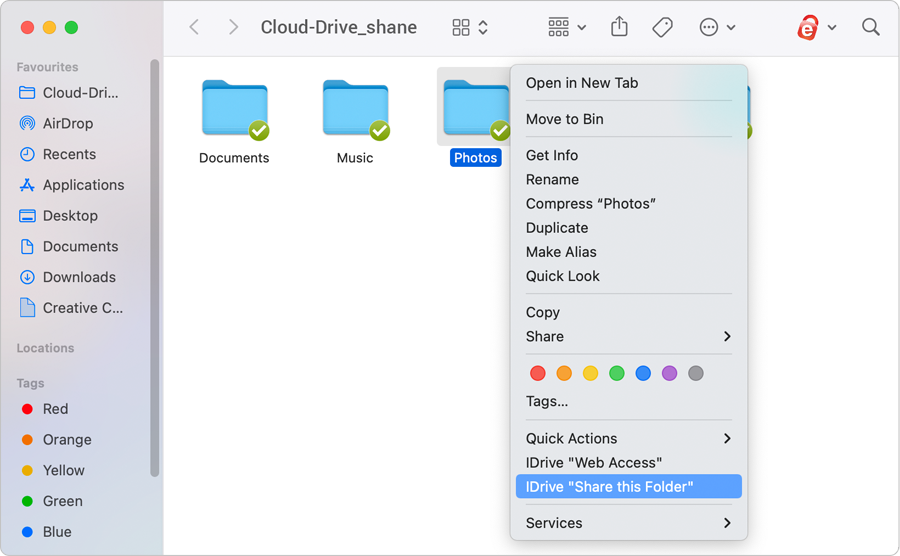
  4. Right-click the file you wish to share and choose 'IDrive' > 'Share this file/folder'. You will be directed to IDrive web account to share your files.


IDrive share file context menu in Sync folder on Mac screenshot

Note:
  • The shared files will no longer be accessible by your friends, once you delete them or move them to another location.
  • The sharing option is available only for IDrive accounts with default encryption.

What happens when I run out of space in my Cloud Drive folder?

Upgrade your IDrive account to a higher plan once you run out of space in your Cloud Drive folder. In order to make room for new files, you may even remove the old data that you no longer need.

Can I use Cloud Drive to synchronize my Outlook data files, QuickBooks files, project development software like Xcode or audio software like Ableton Live?

Currently, Cloud Drive cannot sync Outlook, QuickBooks, Xcode, Ableton Live, any other project development software or audio software files as these files are continuously being accessed, when the applications are open. However, you can include these files in the backup set of the desktop application and then back them up to your account.

How do I sync files/folders to my web account?

To sync files and folders,

  • Drag and drop files/folders from your computer to the Cloud Drive tab.
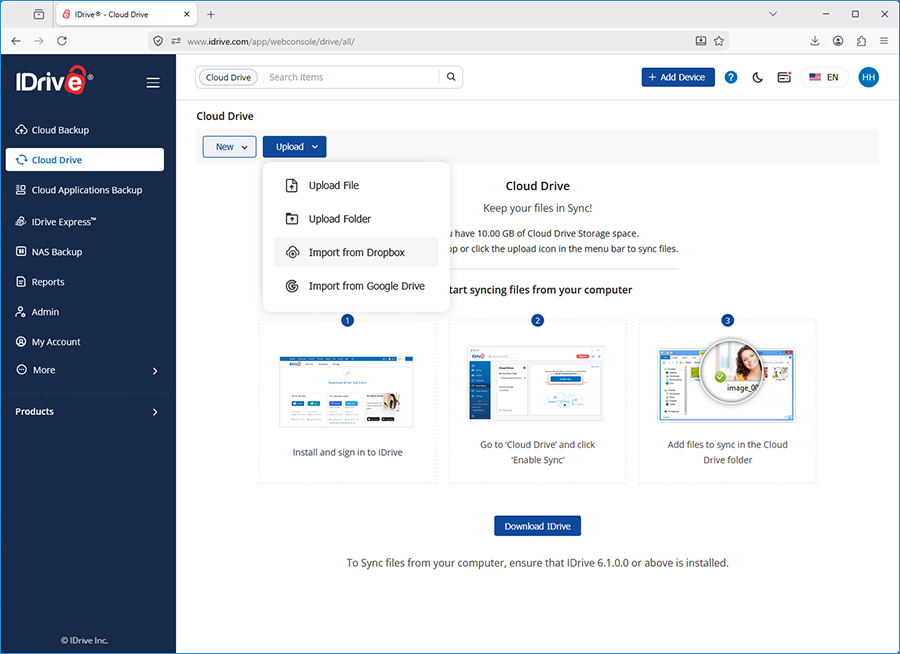
  • Select the Cloud Drive tab and click Upload. From the dropdown menu, click to Upload File, Upload Folder, Import from Dropbox or Import from Google Drive.

IDrive web Cloud Drive

Note:
  • Currently, you can upload folders only on Google Chrome, Microsoft Edge and Mozilla Firefox.
  • Drag and drop is supported only on Google Chrome, Apple Safari, Microsoft Edge and Mozilla Firefox.

Can I import files from Google or Dropbox storage?

Yes, you can import files from Google and Dropbox.

To import files,

  1. Sign in to IDrive.com with your credentials.
  2. Go to the Cloud Drive tab.
  3. Click Upload dropdown menu and select Import from Dropbox or Import from Google.
  4. IDrive web Cloud Drive
  5. On the authentication screen, grant the necessary permissions to connect your Dropbox or Google Drive account with IDrive.
  6. Select the files you want to import.
  7. Click Choose. A confirmation message will appear indicating that the import process has been initiated.
  8. A Dropbox or Google Drive folder will be created automatically and will contain the imported files.
Note: Imported files are saved in the root folder and cannot be added as a sub-folder within an existing folder.

How do I access my synced files and folders?

To access your synced files,

  1. Sign in to IDrive.com with your credentials.
  2. Go to the Cloud Drive tab.
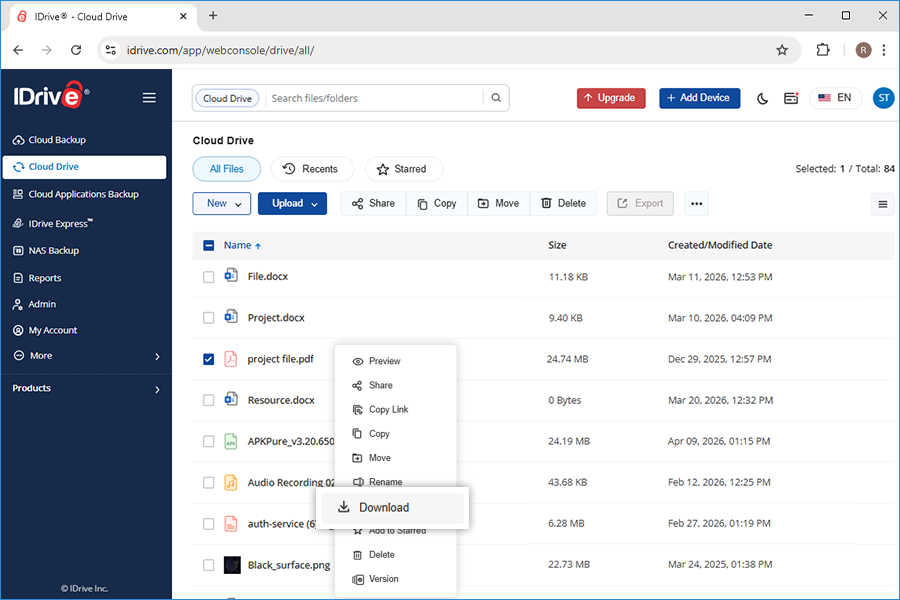
  3. Click the file you want to access and it will be downloaded.
    Alternatively, right-click the file you want to access and select Download.

Download files from Cloud Drive in IDrive web account screenshot

How do I share my synced files?

To share your synced files,

  1. Sign in to your IDrive account and to the Cloud Drive tab.
  2. Select the desired file(s) / folder(s) and click Download files from Cloud Drive in IDrive web account screenshot.
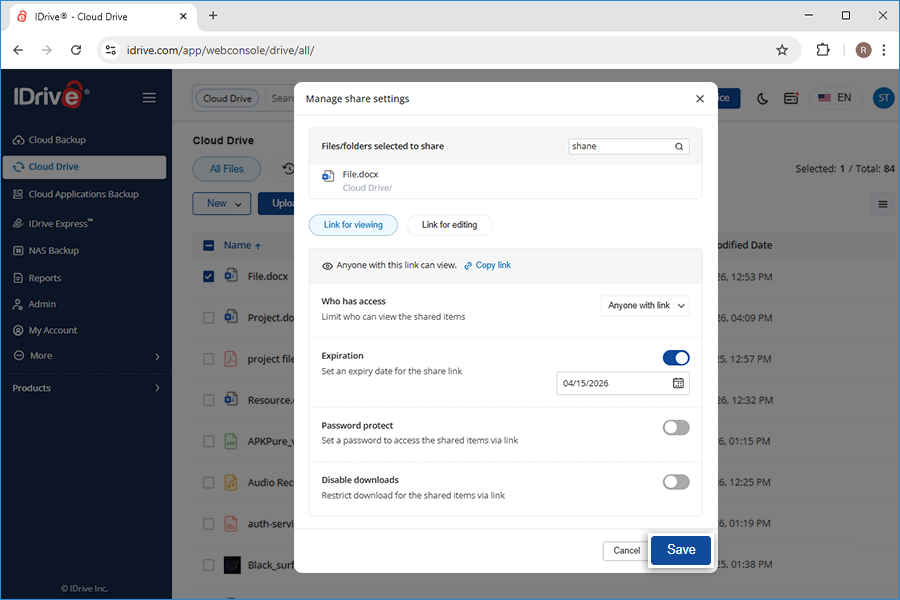
  3. Alternatively, right-click on the files/folders you wish to share and select Share from the dropdown.
  4. The Manage share settings popup appears.
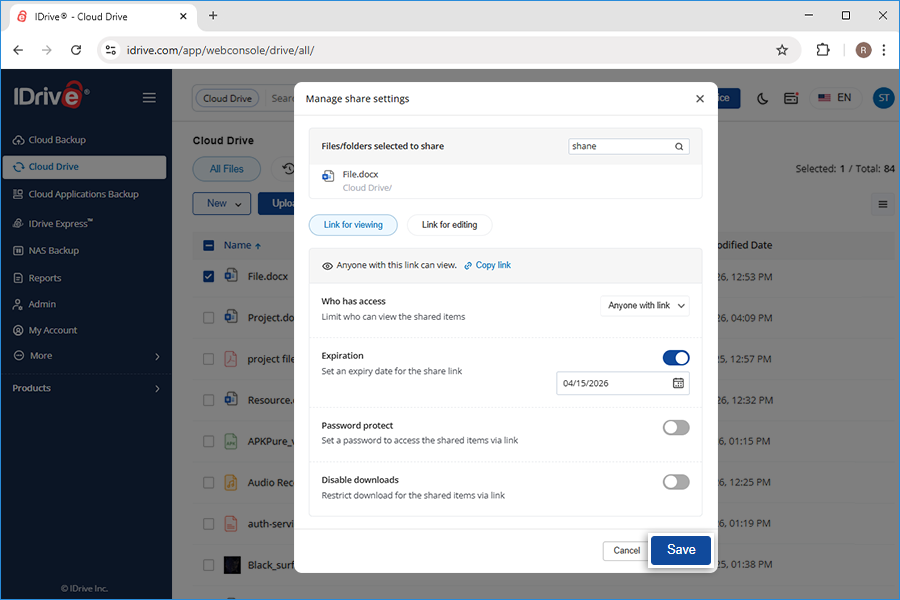
  5. Define the following parameters:
    • Expiration - Set an expiry date for the share link.
    • Password protect - You can set a password for accessing the link. Set a password to access the shared items via link.
    • Disable downloads - Restrict download for the shared items via link.
  6. Click Save.
    Sharescreen 05 0305
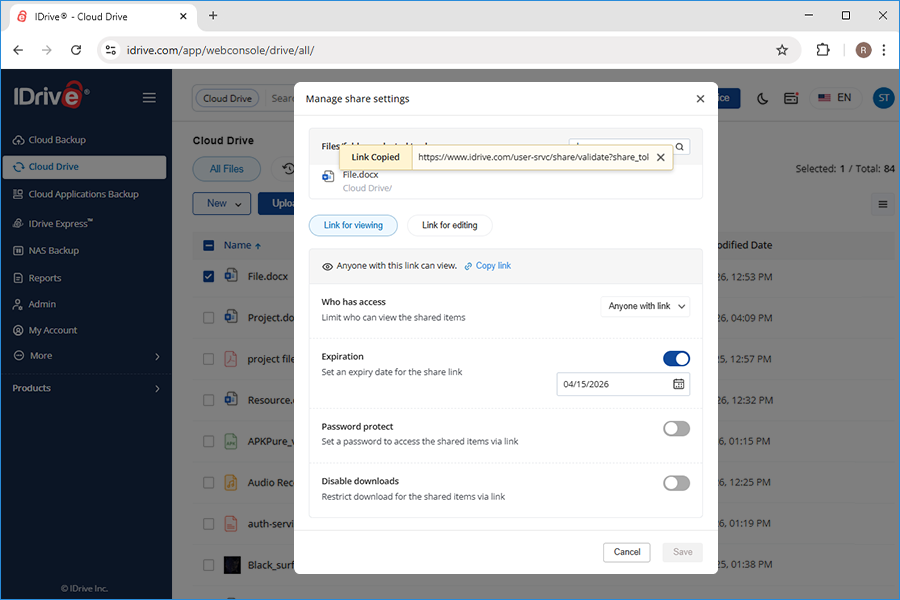
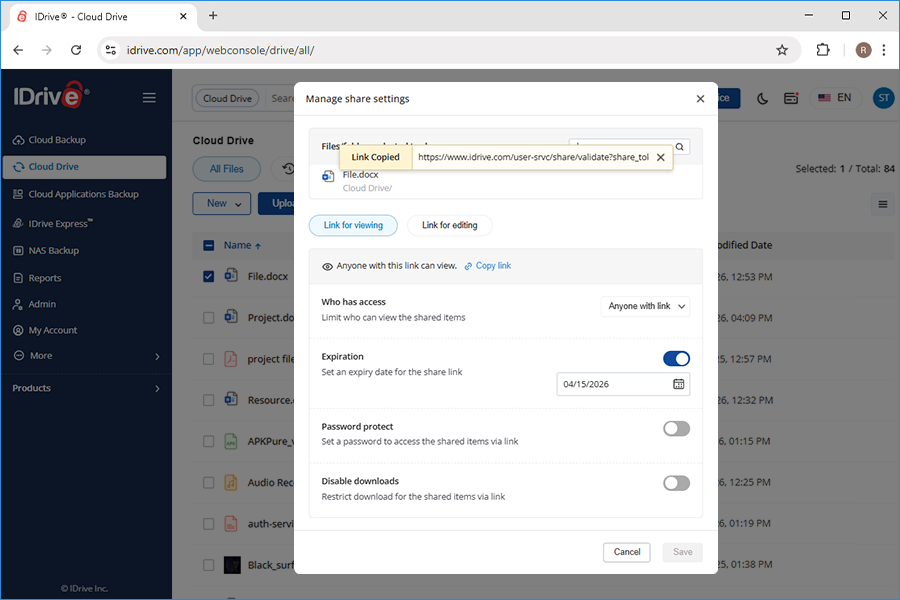
  7. Click Copy link to copy the link to clipboard. Share the link with the intended recipients.
    Share Screen 03 0305

A share link will be created and you can access it from the Shared tab.

Note: Share feature is limited to IDrive accounts with default encryption key.

How do I retrieve an earlier version of a synced file?

To retrieve an earlier version of a synced file,

  1. Sign in to your IDrive account.
  2. Click the Cloud Drive tab and hover on the desired file.
  3. Click version icon. The Versions screen is displayed.
  4. Hover on the desired version and either choose to make it the current version or download it.
  5. Choose the destination in your local computer to restore.

How do I retrieve a deleted synced file?

To retrieve a deleted synced file,

  1. Sign in to your IDrive account and click the Cloud Drive tab.
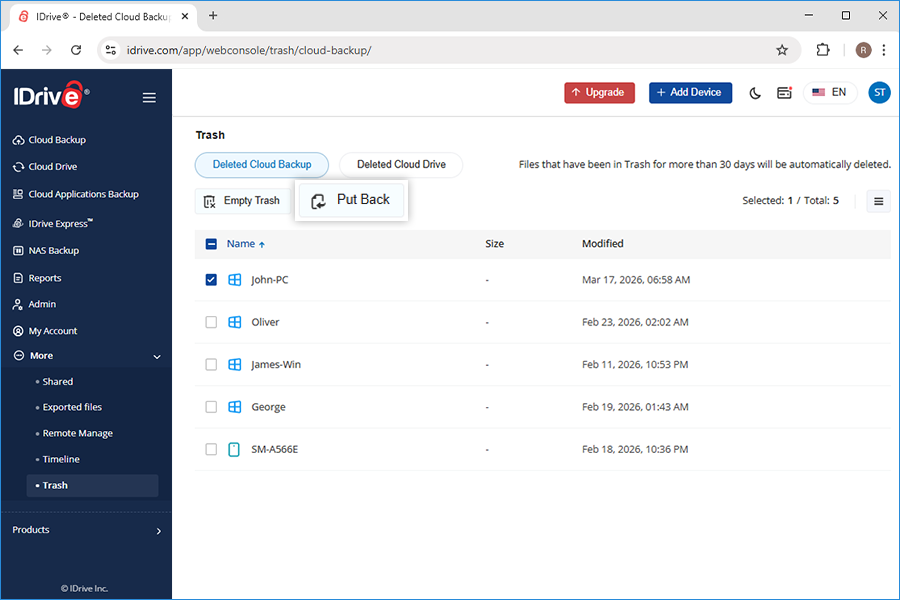
  2. Go to More > Trash. The files deleted in the last 30 days are listed.
  3. Select the files that you wish to retrieve and click Put Back.
  4. A confirmation message appears. Click Yes to restore the file to the original location.


Deleted files listed in Cloud Drive Trash section screenshot