MCP for IDrive
Connect AI agents with your IDrive Account
IDrive now offers an MCP server that allows AI agents to access and work with files in your Cloud Backup and Cloud Drive of your IDrive Account.
Get startedSee the tools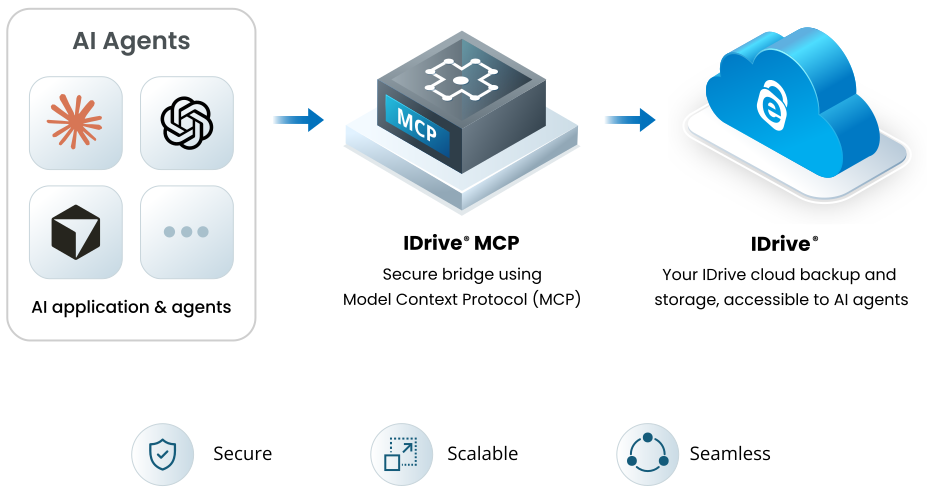
Why IDrive MCP matters for file and backup workflows?
Bring AI-powered tools to your backup workflows
AI agents need a way to access your files and storage services. MCP makes this possible through a standard protocol for connecting to tools.
IDrive MCP lets compatible AI agents access supported features in your Cloud Backup and Cloud Drive of your IDrive account. You can find files, check versions, generate download and share links, and organise content using simple prompts.
For example, ask your AI agent to find a backed-up document, confirm it exists, and generate a temporary download link.
Ask→Find→Act→Verify
One connection for two storage destinations
Work with supported tools for both IDrive Cloud Backup and Cloud Drive through the same MCP endpoint.
Find files across your backups
Search for files by name or file type, explore backed-up devices, retrieve recent items, and access starred files.
Manage your Cloud Drive content
Create folders, copy or move items, rename files, manage favourites, and work with supported file versions.
Get more from your AI agent
Use natural-language prompts to initiate supported operations and review the structured information returned by IDrive tools.
The toolset
Everything you need to work with IDrive through AI
IDrive MCP provides read tools for retrieving information and accessing files, along with write tools for supported changes to your Cloud Drive and favourites.
Cloud Backup
Find, review, and access your backed-up files
Explore files stored in your IDrive Cloud Backup account and retrieve information about connected devices, file versions, recent changes, and favourites.
Search backed-up files and folders
Find files and folders by name or file type across backed-up devices, or narrow the search to a specific device.
Tool: cloud_backup_search_items
Browse backed-up content
List files and folders on a specified device, including their names, sizes, types, and last modified times.
Tool: cloud_backup_get_items
View connected devices
Retrieve the devices associated with your Cloud Backup account, including device nicknames, operating systems, and last backup information.
Tool: cloud_backup_list_devices
Review recent changes
Retrieve recently modified files and folders within a specified backup location.
Tool: cloud_backup_get_recent_items
Retrieve file versions
Review the available versions of a backed-up file, including version numbers, sizes, and timestamps, to identify the version you need.
Tool: cloud_backup_get_item_versions
Download backed-up files
Generate a temporary download link for a verified file on a specific backed-up device.
Tool: cloud_backup_download_item
Inspect folder properties
Retrieve folder metadata, including size, file count, and last modified information.
Tool: cloud_backup_get_folder_properties
Access starred items
Retrieve files and folders you’ve marked as favourites for quick access.
Tool: cloud_backup_get_starred_items
Manage favourites
Star or unstar files and folders in your backed-up devices.
Tool: cloud_backup_star_item Write tool
Share backed-up files and folders
Generate shareable links with read-only or read-write access and a specified expiration date.
Tool: cloud_backup_share_item
Cloud Drive
Organise synced files and manage content with AI
Use supported IDrive MCP tools to search, retrieve, share, and organise your Cloud Drive content.
Search files and folders
Find synced items by file name, partial name, or file type within a specified path.
Tool: cloud_drive_search_items
Browse Cloud Drive content
List files and folders at a specified path, including their names, sizes, types, and last modified times.
Tool: cloud_drive_get_items
Review recent files
Retrieve recently modified items within a specified Cloud Drive folder.
Tool: cloud_drive_get_recent_items
Explore starred items
Retrieve the files and folders marked as favourites in your Cloud Drive.
Tool: cloud_drive_get_starred_items
Retrieve file versions
Review available versions of a Cloud Drive file, including version numbers, sizes, and timestamps.
Tool: cloud_drive_get_item_versions
Download Cloud Drive files
Generate a temporary download link for a verified file in your Cloud Drive.
Tool: cloud_drive_download_item
Inspect folder properties
Retrieve folder metadata, including size, file count, and last modified information.
Tool: cloud_drive_get_folder_properties
Create folders
Create a new folder at the specified path in your Cloud Drive.
Tool: cloud_drive_create_folder Write tool
Copy files and folders
Copy one or more items to a destination folder while keeping the originals in their existing locations.
Tool: cloud_drive_copy_item Write tool
Move files and folders
Move one or more items to a destination folder. The items are removed from their original locations.
Tool: cloud_drive_move_item Write tool
Rename files and folders
Rename an item while keeping it in the same parent folder.
Tool: cloud_drive_rename_item Write tool
Restore a previous file version
Set an available version of a Cloud Drive file as its current version.
Tool: cloud_drive_set_item_version Write tool
Manage favourites
Star or unstar files and folders in your Cloud Drive.
Tool: cloud_drive_star_item Write tool
Share files and folders
Generate shareable links with read-only or read-write access and a specified expiration date.
Tool: cloud_drive_share_item
Get started
Connect IDrive MCP to your AI agent in four simple steps
Add IDrive MCP to your AI client once. Sign in, choose your access level and session duration, and your configured computers are ready to use.
Add the IDrive MCP endpoint
Add the following endpoint to your MCP-compatible client.
https://mcp.idrive.com/mcpNo API key is required.
Sign in to IDrive
Sign in with the IDrive account linked to your computers.
Set permissions and session duration
Read-only: View or retrieve information.
Read-write: Perform actions and make changes.
Set the session duration between 12 hours and 30 days. Your selected permissions are enforced by the server.
Start using IDrive MCP
Reopen your AI client and ask it to list your configured computers or work with an available host.
When a session expires or access is revoked, tool calls stop working. The agent cannot renew access on its own.
Read and write capabilities
Information when you need it. Actions when you request them.
IDrive MCP provides two categories of tools to support different tasks.
Read tools
Retrieve information from Cloud Backup and Cloud Drive, search files and folders, inspect available versions, review recent items, and generate supported download links.
Write tools
Perform supported changes, including creating folders, copying or moving items, renaming files, managing favourites, and setting a Cloud Drive file’s current version.
Important: Moving files changes their original locations. Setting a file version changes which version is current. Sharing tools generate links that may be accessible to anyone who has them. Review the target and intended outcome before asking an AI agent to perform these operations.
In practice
Put your IDrive data to work with AI
Use natural-language prompts to find, access, and organise your files. Here are examples of tasks you can ask your client to perform.
Find a document in your backups
“Search my IDrive Cloud Backup for PDF files with ‘invoice’ in the name. Show me the matching files, their device names, and their paths.”
Find recently modified files
“Show me the recently modified files in my Cloud Drive folder named Projects. Display the results in a table.”
Retrieve a previous version
“Find the file named Proposal.docx in my Cloud Drive and list its available versions. Show me the version numbers and dates so I can choose the right one.”
Download a backed-up file
“Find the latest available version of my report in Cloud Backup. Verify the device, path, and version before generating a download link.”
Organise your Cloud Drive
“Create a folder named Quarterly Reports in my Cloud Drive and copy the selected reports into it. Keep the original files in their current locations.”
Move files to another folder
“Find the selected files in my Cloud Drive, confirm their current locations, and move them to the Archive folder.”
Review starred files
“List my starred files in Cloud Backup and Cloud Drive separately. Show their names, paths, sizes, and last modified times.”
Share a file
“Find the file named Project Summary.pdf in my Cloud Drive and generate a read-only sharing link that expires on the date I specify.”
Your AI agent can perform only the operations exposed through IDrive MCP. Some requests may require clarification, additional tool calls, or confirmation of the target file before an operation can proceed.
Secure and responsible access
Stay in control of your files and sharing
IDrive MCP enables AI-assisted interaction with your IDrive account through defined tools. Understanding what an operation does helps you use these capabilities responsibly.
Defined operations
The AI agent invokes tools made available through IDrive MCP rather than receiving unrestricted access to every IDrive feature.
Verify files before acting
File listings and search results can become outdated. Confirm the current location, name, device, or version immediately before performing an operation that depends on that information.
Understand sharing permissions
IDrive sharing tools can generate read-only or read-write links. These links are publicly accessible to anyone who has them, and password protection is not supported. Set an appropriate expiration date and share links carefully.
Review changes to your files
Copying preserves the source items, while moving removes them from their original locations. Renaming changes the item name, and setting a version makes the selected version current.
Use temporary download links carefully
Download links expire after a short period. Retrieve and use them promptly, and avoid sharing them with unintended recipients.
Who it's for
Built for anyone who works with files across multiple devices and storage locations
MSPs and IT service providers
Access and organise backed-up files, retrieve previous versions, and generate sharing links using AI-assisted workflows across supported IDrive Cloud Backup and Cloud Drive accounts.
Businesses and organisations
Use AI-assisted workflows to access and organise business files, share content, and work with data stored in Cloud Backup and Cloud Drive.
Individuals and families
Find personal files across backed-up devices, retrieve older versions, and access or share files using compatible AI assistants.
Developers and AI enthusiasts
Connect IDrive to compatible AI applications and use its MCP tools to incorporate file search, retrieval, and management into AI-assisted workflows.
Frequently asked questions
What is IDrive MCP?
IDrive MCP is an integration that connects compatible AI agents to supported IDrive Cloud Backup and Cloud Drive tools through the Model Context Protocol (MCP).
What is the Model Context Protocol?
MCP is a standard that allows compatible AI agents to discover and interact with external tools and services through structured requests and responses.
What is the IDrive MCP server URL?
Use the following endpoint to configure the production connection: https://mcp.idrive.com/mcp
Can I search my backed-up devices using an AI agent?
Yes. The available tools include device listing, file and folder browsing, file searches, recent items, starred items, folder properties, and file-version retrieval.
How can I share files using IDrive MCP?
The sharing tools generate read-only or read-write links with an expiration date. Password protection is not supported, and anyone with a generated link may be able to access the shared content according to its permissions.
Do I need to write code to connect IDrive MCP?
No custom integration or script is needed when using a compatible MCP client and the supported connection method. You must still configure the endpoint and complete any required authentication or authorisation steps.