Integrate HYCU with IDrive® e2
HYCU is an enterprise data protection platform offering backup, recovery, and monitoring across on-premises, cloud, and SaaS environments. It delivers application-aware backups, ransomware protection, rapid recovery, and seamless integration with major cloud and virtualization platforms. Integrating HYCU with IDrive® e2 extends these capabilities with a capable and scalable cloud object storage solution that facilitates systematic integration for secure and efficient data protection.
Prerequisites
Before you begin, ensure the following:
- An active IDrive® e2 account. Sign up here if you do not have one.
- A bucket in IDrive® e2. See how to create a bucket.
- Valid Access Key ID and Secret Access Key. Learn how to create an access key.
- HYCU version 4.9.0 or above.
The following steps can help you successfully integrate HYCU with IDrive® e2 cloud object storage.
Configure HYCU with IDrive® e2
- Launch the HYCU Backup Controller application.
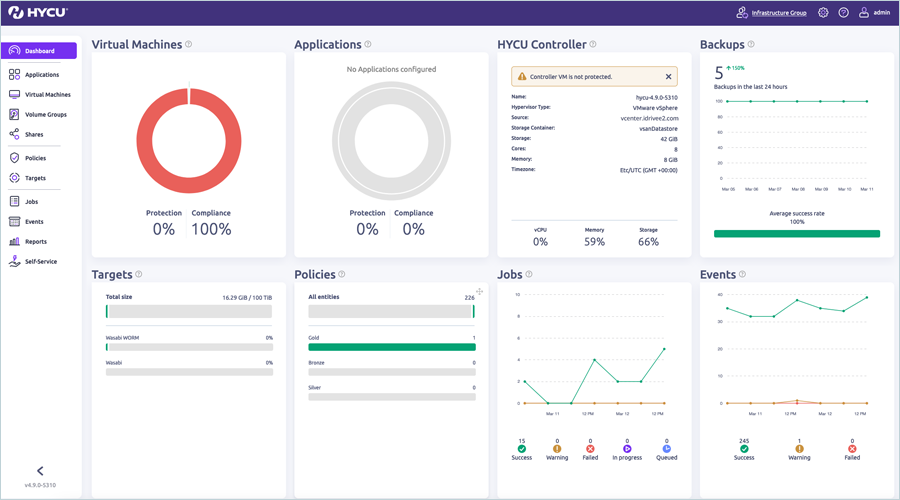
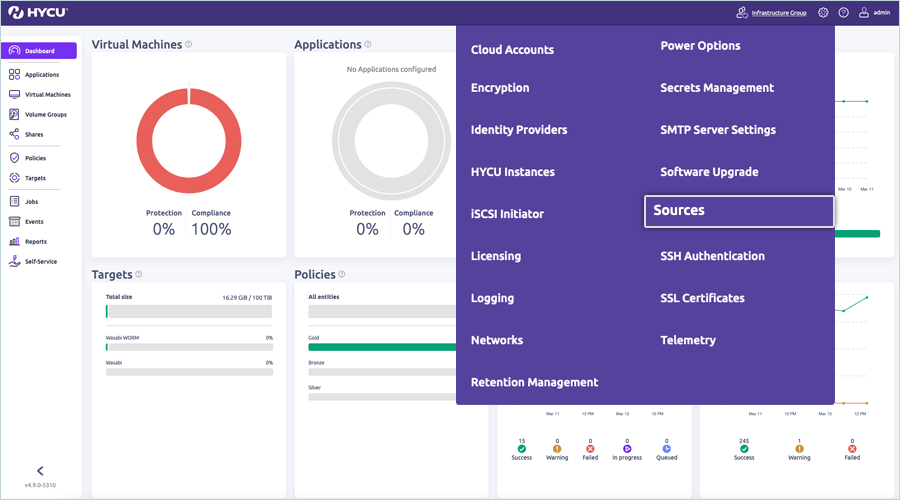
- Click Settings
 and select Sources to add the source for the protection environment.
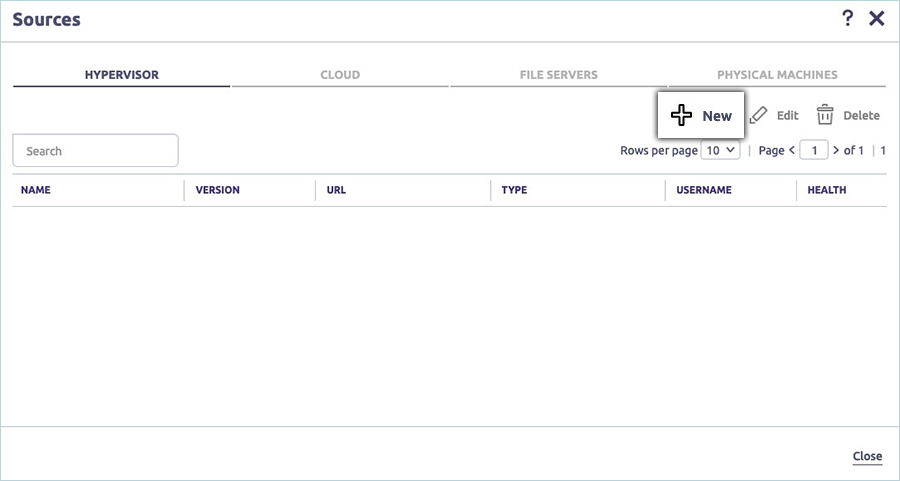
- Click + New in the Hypervisor tab under the Sources window (In this example, the source is a vCenter Server).
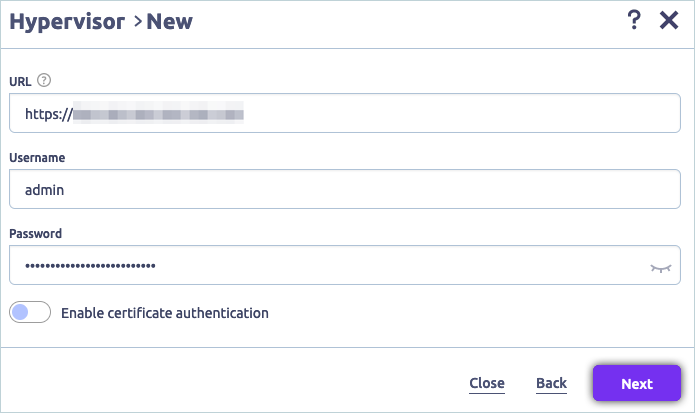
- In the New Hypervisor window, enter the following details.
- Enter the URL of vCenter Server.
- Enter the Username and Password of vCenter Server.
- Click Next.
- Click Save in the Summary window.
Adding IDrive® e2 Storage as Target
- Select Targets under Dashboard on the left-side menu bar, and click + Add.
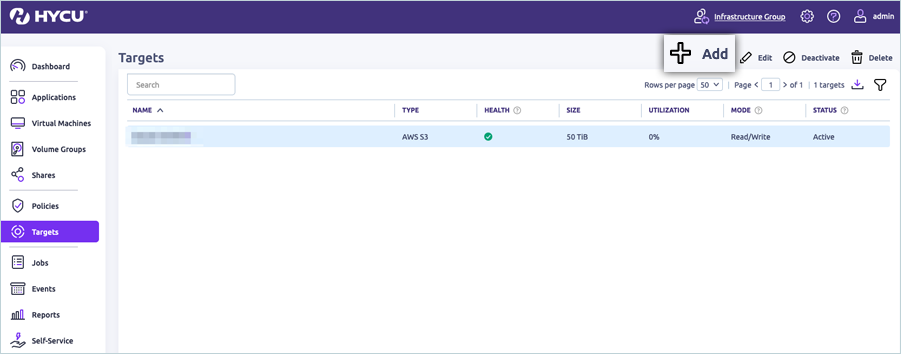
- Select AWS S3 as the target type and click Continue.
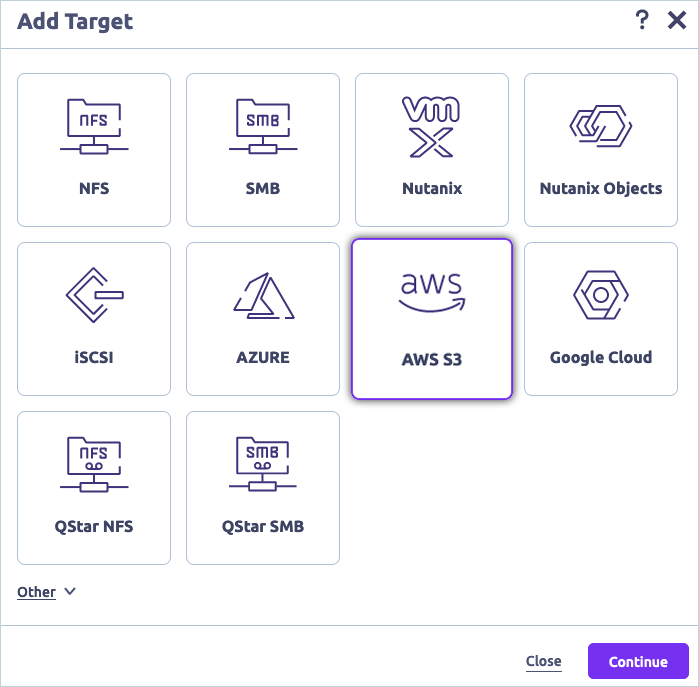
- Enter a name for the target and click Next.
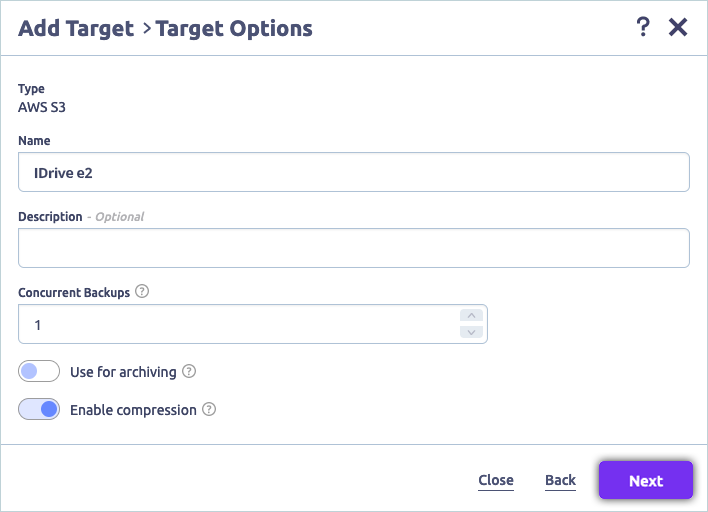
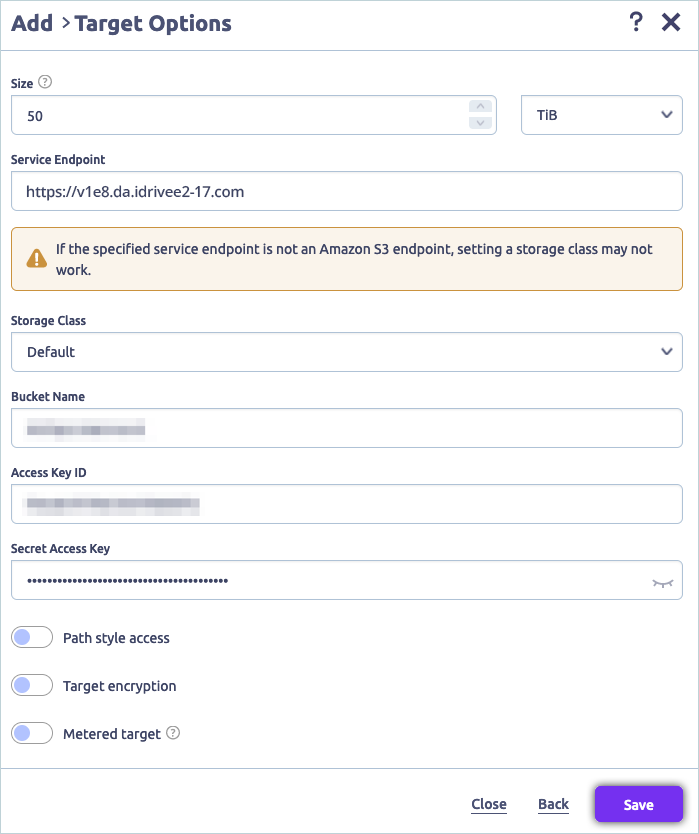
- Enter your IDrive® e2 S3 end-point as Service Endpoint (e.g.,: https://v1e8.da.idrivee2-17.com)
- Keep Storage Class as Default.
- Enter your IDrive® e2 bucket as Bucket Name.
- Enter your IDrive® e2 Access Key as Access Key.
- Enter your IDrive® e2 Secret Key as Secret Key.
- Click Save
The Targets tab will now display the newly added IDrive® e2 cloud storage
Create Policy to assign IDrive® e2 storage
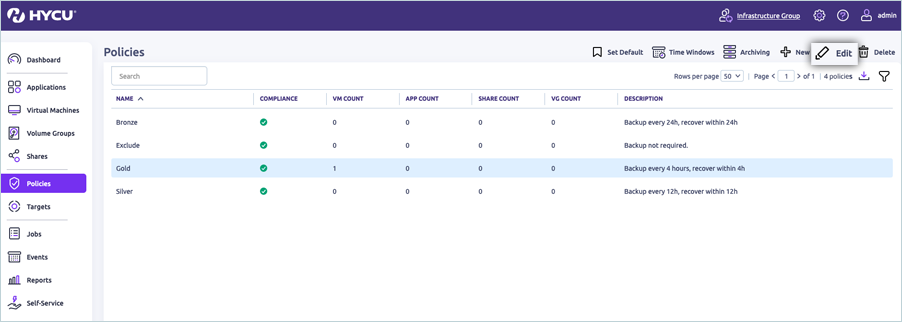
- Click Policies on the left-side menu bar in the Dashboard.
- Click Edit after selecting Existing policy (Optionally, to create a custom policy, click New).
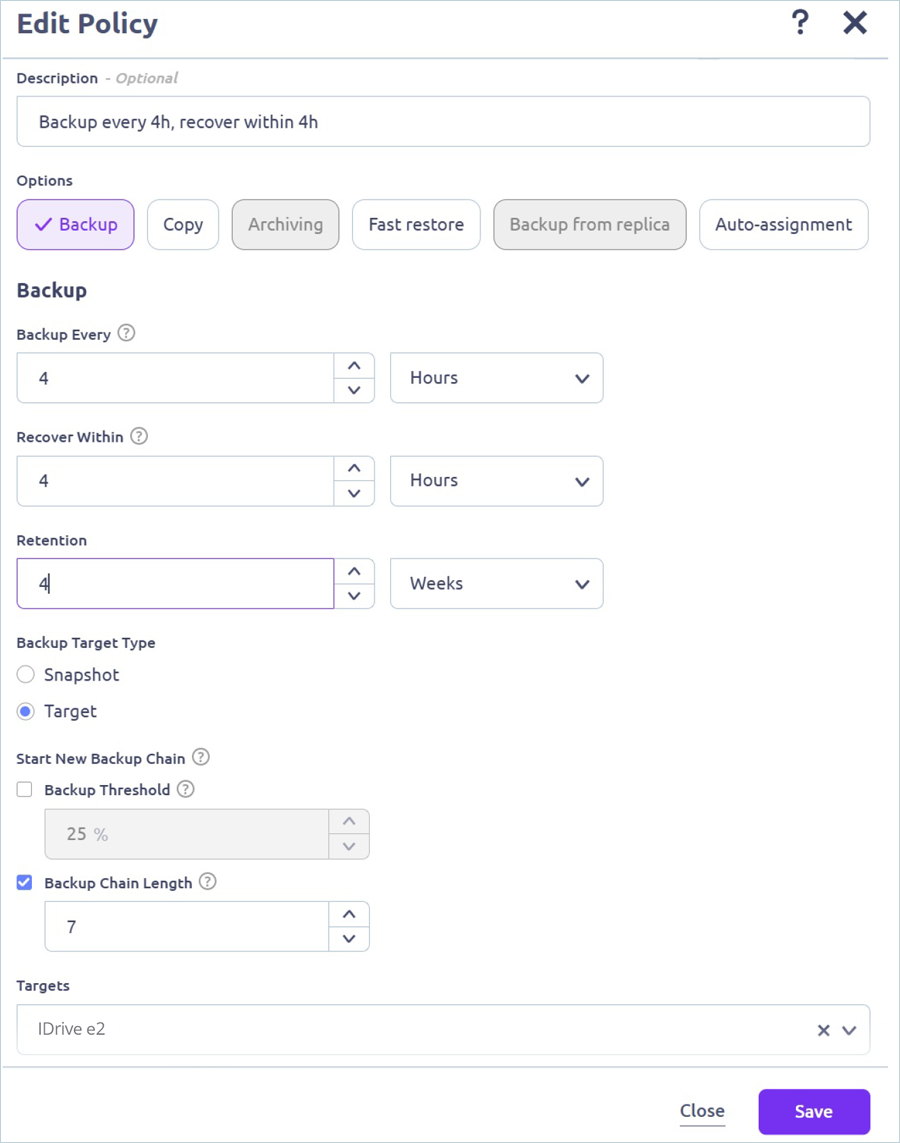
- Once in the Edit Policy Window, update or provide a description for the policy.
- Set the Backup options, as needed (such as how often, recovery window, and retention period).
- Set Backup Target Type as Target.
Start New Backup Chain Settings
- Select when you want a new Backup Chain to be started by selecting Threshold % or Chain Length. You can also select both, and whenever the first value is exceeded, a new chain will be started.
-
The following HYCU article discusses Backup Expirations.
- Backup Threshold — A new backup chain is started when the percentage of the data changed since the last full backup exceeds the specified value. The default value is 25%. This can lead to more Full backups during your specified retention period and increased storage.
- Backup Chain Length — A new backup chain is started when the number of full and subsequent incremental backups in a chain exceeds the specified value. The default value is 7. To keep the backup storage size to a minimum, ensure that the Backup Chain length is set to the same value as the Retention.
- The ideal Backup Chain Threshold or Chain Length setting can depend on several factors, including Retention Policy, RTO, Storage Capacity, and Data Change Rate. Consult with HYCU Support to optimize these settings based on your environment variables. For further insight, you can refer to Hycu's Policy Explanation KB. For details on the configuration elements, refer to "Setting up an AWS S3/Compatible target" in the HYCU User Guide.
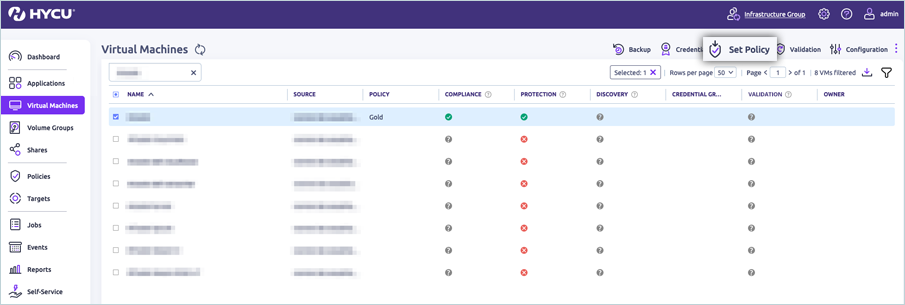
- Click Virtual Machines in the left-side menu bar under Dashboard, and then click Set Policy after selecting the required VM from the list.
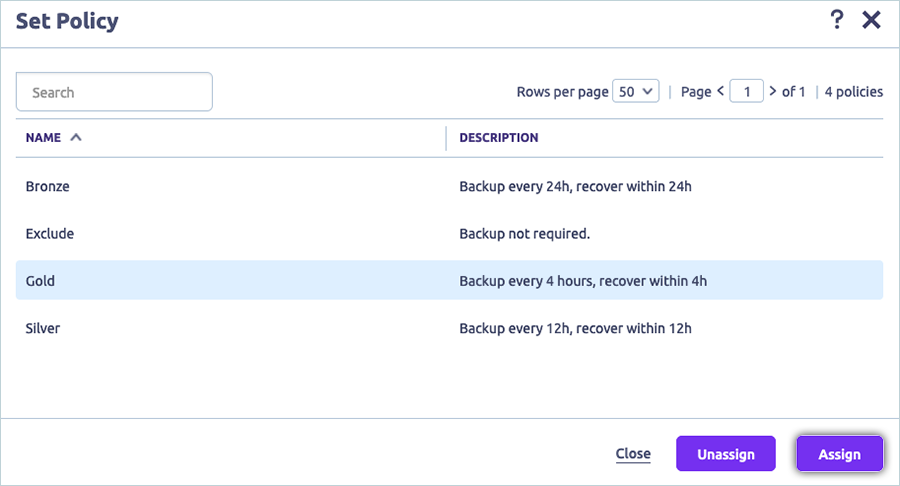
- In the Set Policy window, select the desired policy (Gold in our example) and click Assign.
The protected virtual machines will now be backed up to IDrive® e2 per the configured settings in the policy.
Note: Data restoration is handled by your specific backup solution provider and is affected by multiple variables that are unique to your environment. For application-related inquiries/support, it is strongly recommended that you seek guidance from the technical team of your backup solution provider.