Instructions for performing entire machine backup
Instructions for performing entire machine backup
Backup your entire computer – including the OS, system files, boot files, and programs – to secure it against system crash, OS failure, and natural disasters. You can backup your computer directly to the cloud. As the computer is backed to the cloud without creating a local copy, the backup process is faster and does not require any additional storage space.
To perform entire machine backup,
- Launch the IDrive® desktop application.
- Sign in with your IDrive® credentials. If your account is configured with private encryption, you will be prompted to enter the private key. Provide the private key to proceed.
- Click 'Entire Machine Backup'.
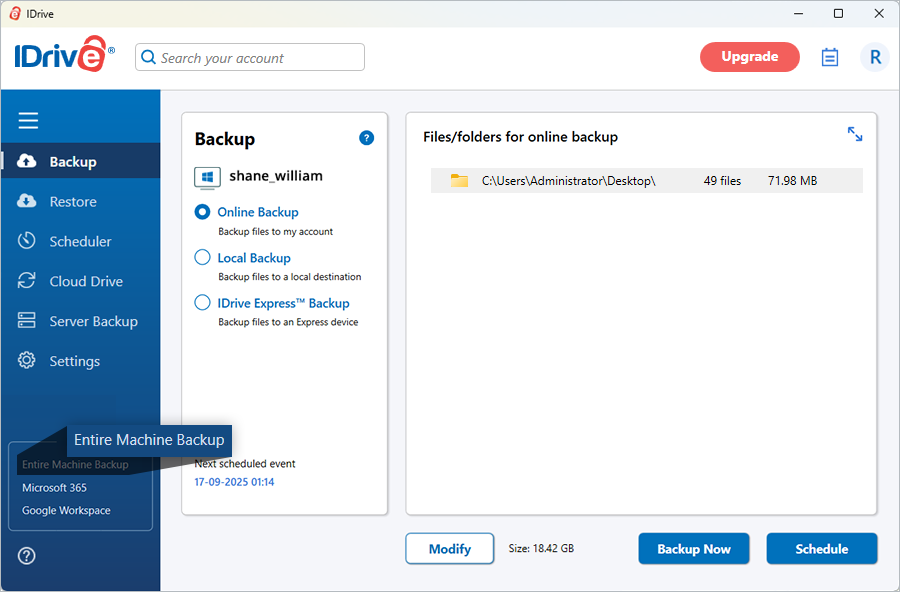
- Under 'Backup', select the 'Online Backup', or 'Local Backup' or 'IDrive Express™ Backup' radio button, based on the desired target location.
a. Cloud backup is direct and does not create a local backup copy.
b. In the case of encrypted local backup, choose a target drive for backup. - Click 'Schedule Now'.

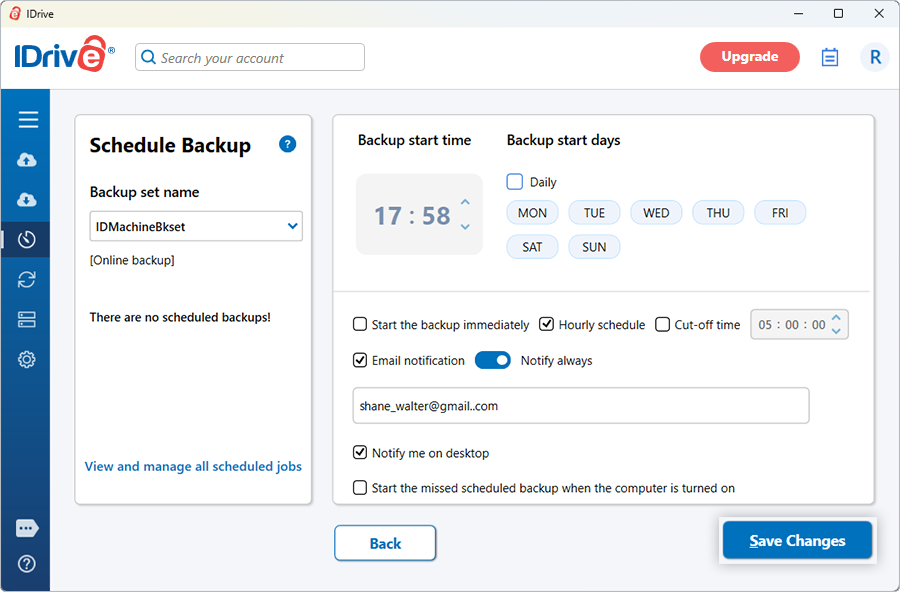
- The 'Schedule Backup' screen appears. Create a schedule for performing regular entire machine backup and click ‘Save Changes’.
You can also backup your entire machine to a local device.
To perform an entire machine backup to a local device,
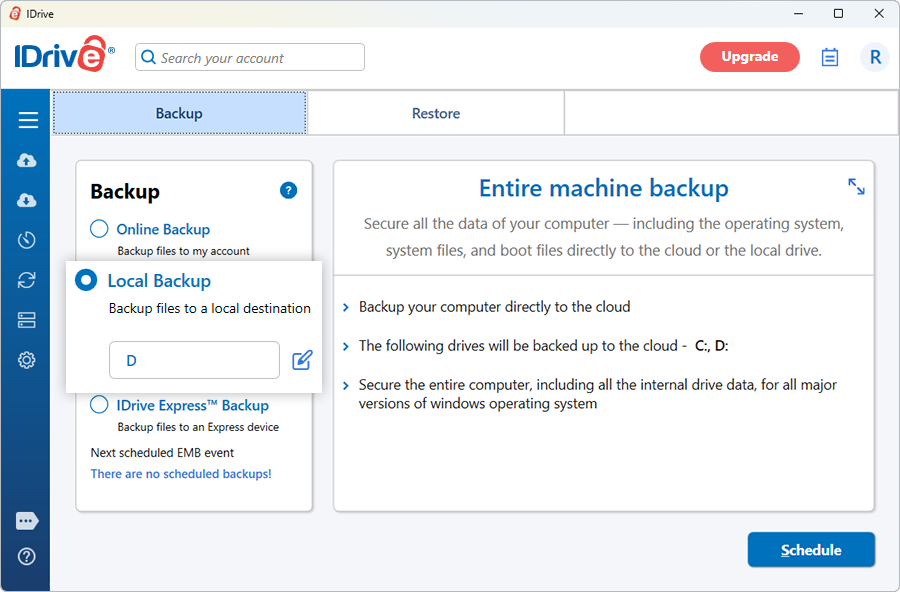
- Click ‘Entire machine backup’.
- Under ‘Backup’, select the ‘Local Backup’ radio button.
- Click
 and choose the desired local backup location.
 - Click ‘Schedule Now’.
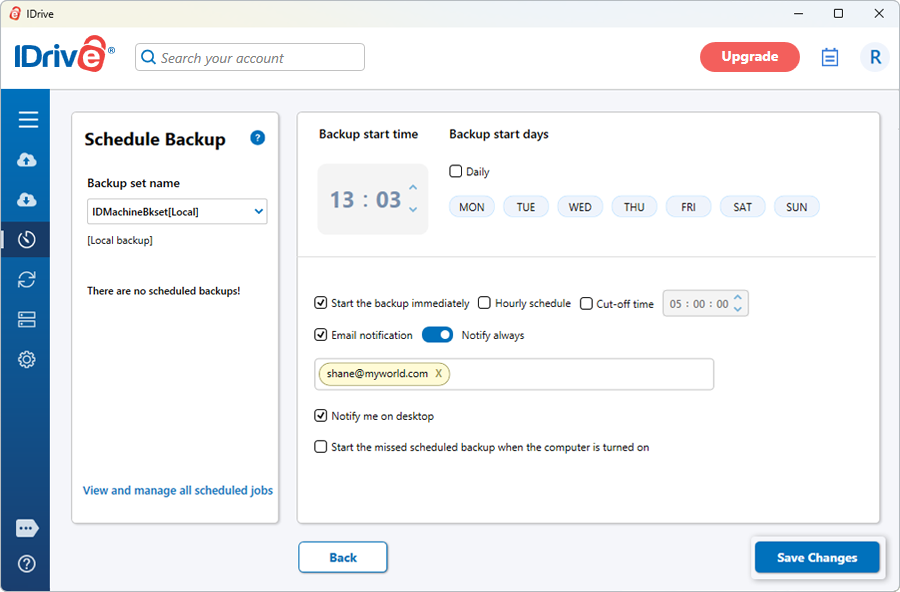
- The ‘Schedule Backup’ screen appears. Create a schedule for performing regular entire machine backup and click ‘Save Changes’.
Click here to view Restore Instructions.
Note:
- Entire machine backup can only be performed for BitLocker-encrypted drives that are in an unlocked state. Ensure that all encrypted drives are unlocked before starting the backup.
- Entire Machine Backup is not supported on computers with Encrypted File System (EFS) encryption enabled. To proceed with the backup, you must first disable EFS encryption.
- Users are advised to regularly test their backups and ensure compatibility with their system's hardware to mitigate potential recovery issues.