Secure your computers with Entire Machine Backup
Backup the entire system, including the operating system, program files, system files, and boot files directly to the cloud, with IDrive’s Entire Machine Backup. Backup of the system and boot files ensures that the operating system works normally when it's restored.
Machine backup to the cloud does not involve creating a local backup copy. So the backup process is faster and eliminates the need for any additional storage requirement. As the entire machine backup secures all the data of the computer, you can quickly restore your computer to its initial state in the event of a disaster. You can also recover individual files and folders from entire machine backup.
In addition to cloud backup, IDrive allows the selection of network computers or network-attached storage (NAS) locations as the destination for entire machine backup.
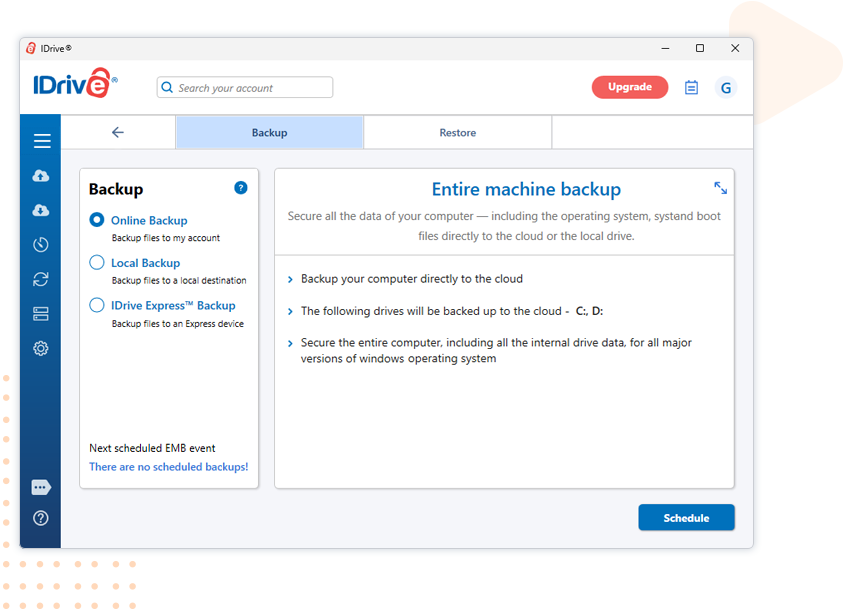
Entire Machine Backup
Using the IDrive desktop application, backup your system drives, programs, and operating system.
steps to backup your entire machineEntire Machine Restore
Quickly restore system data, including the operating system, to the local computer or any external drive.
steps to restore your machine- Secures the entire machine, including the internal drive data, for all major versions of Windows OS.
- Supports incremental backup. After the initial backup, only changed blocks of the files are backed up.
- Support Change File Tracking in NTFS drives for online entire machine backup.
- Supports data backup to the cloud for effective disaster recovery.
- Performs direct backup to the cloud, without creating a local copy, enabling faster data uploads to the cloud.
- Enables entire machine recovery, including the operating system.
- Enables entire machine restore from IDrive cloud.
- Supports recovery of entire machine backup to dissimilar hardware, via WinRE restore.
System Requirements
- Windows 7, Windows 8, Windows 8.1, Windows 10, Windows 11, Windows 2012 Server R2, Windows 2016 Server, Windows 2019 Server, Windows Server 2022, Window Server 2025
- Minimum hard disk space of 1 GB per volume for creating a shadow copy of your system
- 512 MB RAM, 500 MB free hard disk space for installed programs, 20 MB or more recommended for local caching
An entire machine backup creates a complete image of your computer, including the operating system, applications, system settings, and all files. It allows you to restore your entire system after hardware failure, ransomware, accidental deletion, or system crashes.
Yes. Entire machine backup lets you restore your system image to the same computer or a replacement device, helping you recover quickly after hardware failure or device replacement.
Yes. IDrive protects backups with AES 256-bit encryption and secure data transfer protocols, helping keep your system images and data safe from unauthorized access.
An entire machine backup typically includes the operating system, installed applications, user accounts, settings, documents, photos, videos, emails, and other data stored on your computer.
Yes. A recent system image backup can help you restore your computer to a clean state after a ransomware attack, minimizing downtime and data loss.
- Note:
- Entire machine backup can only be performed for BitLocker-encrypted drives that are in an unlocked state. Ensure that all encrypted drives are unlocked before starting the backup.
- Entire Machine Backup is not supported on computers with Encrypted File System (EFS) encryption enabled. To proceed with the backup, you must first disable EFS encryption.
- Users are advised to regularly test their backups and ensure compatibility with their system's hardware to mitigate potential recovery issues.
- Recovery Limitations: The restoration and booting of your computer from an entire machine backup may not be successful in all scenarios. Factors such as dissimilar hardware, boot file issues, RAID configurations, or other unforeseen circumstances may cause the restore process to fail. It is not guaranteed that a successful backup will restore the system to its original state under all conditions.
- Alternative Recovery Options: If a full system restore fails, users can still recover individual files and folders from their backups, ensuring that critical data remains accessible.