Mass deployment via Microsoft Intune
Deploy IDrive® via Microsoft Intune (Mass Deployment for Windows)
Set up cloud backup and recovery for your business-critical Windows endpoints by deploying IDrive® via Microsoft Intune. Add the IDrive® MSI application to Microsoft Intune and install it remotely on multiple computers. This deployment will install the IDrive application on all the target machines, while the user has to log in manually.
Prerequisites:
- Download IDrive MSI (Full Client) and the MSI (Thin Client)
- Microsoft endpoint manager admin center access
Steps to Deploy the IDrive® MSI Package Using Microsoft Intune
- Sign in to the Microsoft Intune admin center.
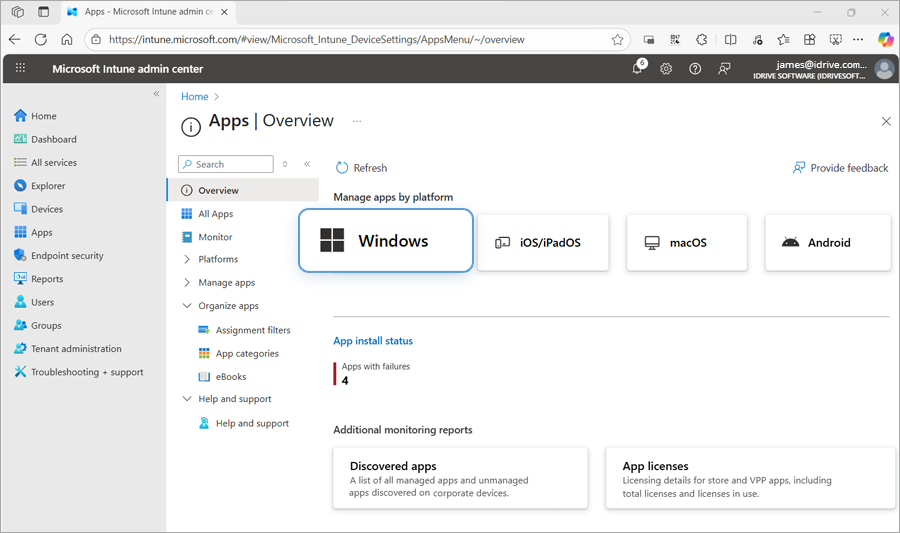
- Navigate to Apps > Windows.
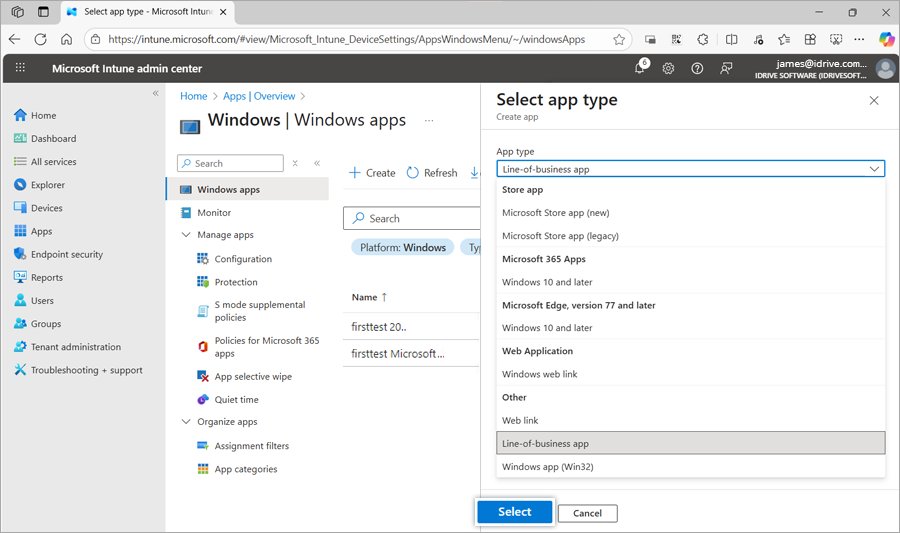
- Click Create and choose Line-of-business app from the dropdown. Click Select.
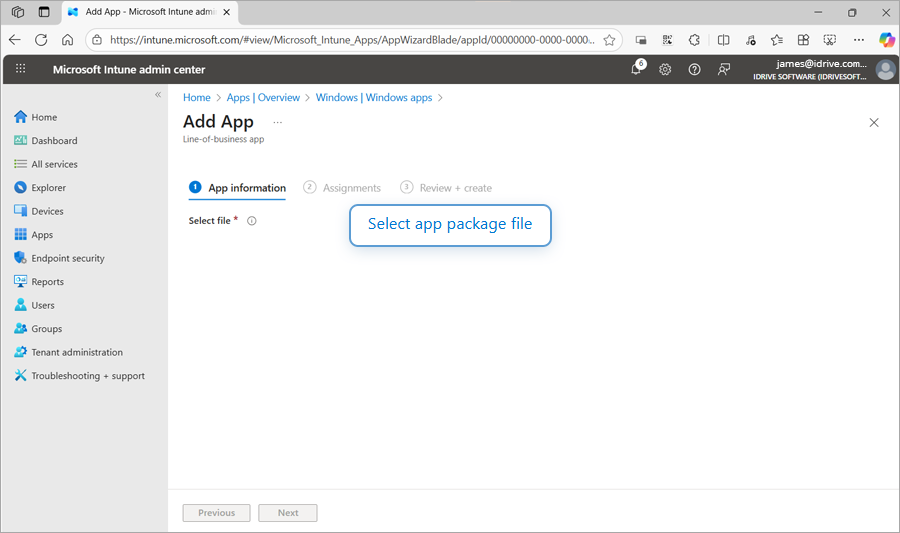
- In the Add App screen, click Select app package file.
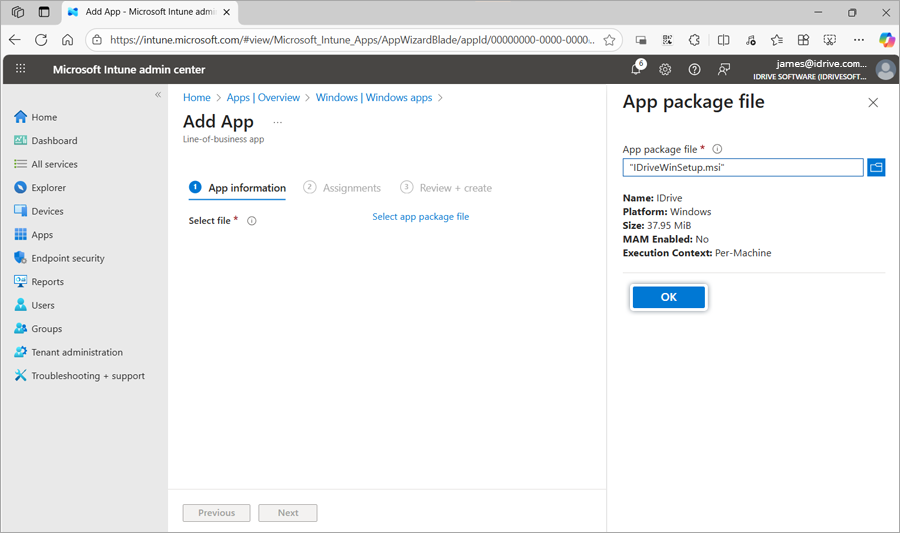
- Locate the downloaded IDrive® MSI installer package on your computer and click OK.
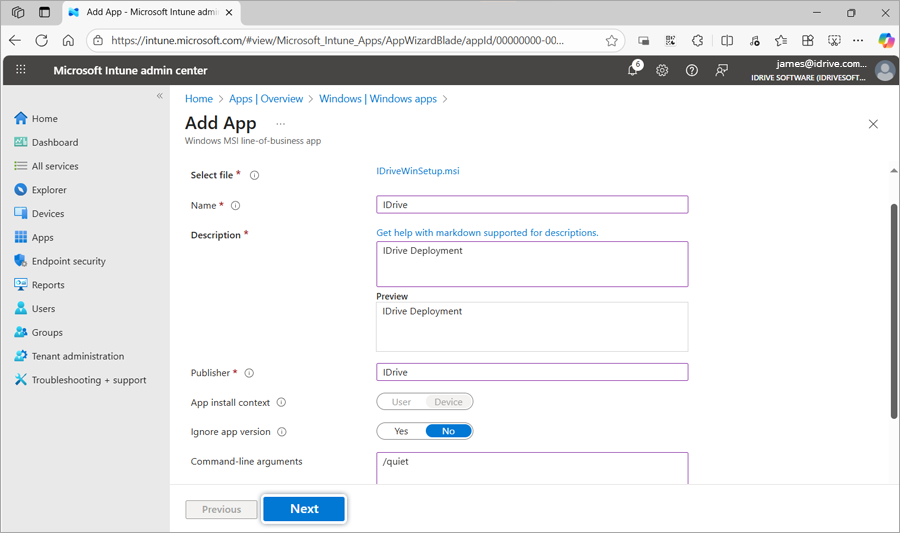
- You will be navigated to the 'App Information section'. Add the following parameters:
Name: IDrive®
Description: Mass deployment for IDrive®
Publisher: IDrive
App install context: It is set to Device
Ignore app version: No
Command-line arguments: /quiet - Click Next.
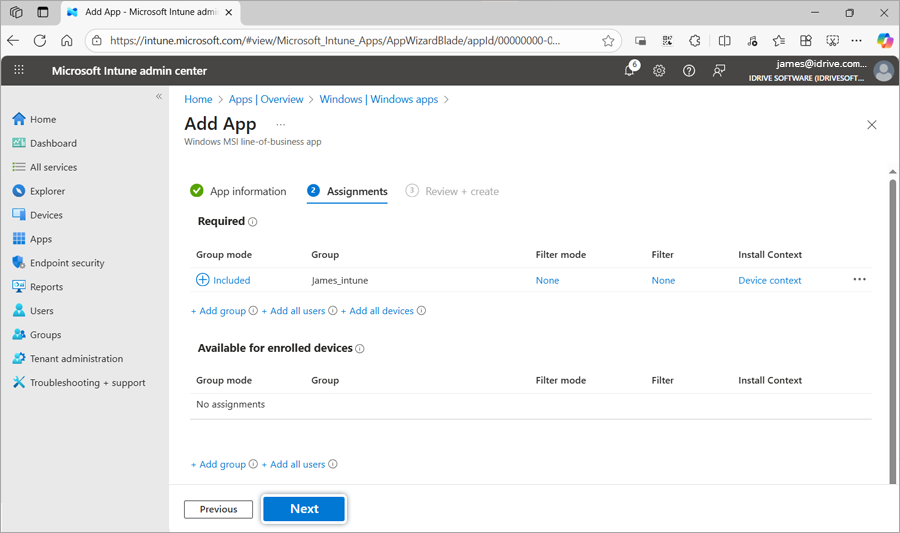
- Click +Add group. Choose the group for deployment, and click Select. You can also select +Add all users or +Add all devices if you wish to deploy the application for all users or all devices, respectively.
- Click Next.
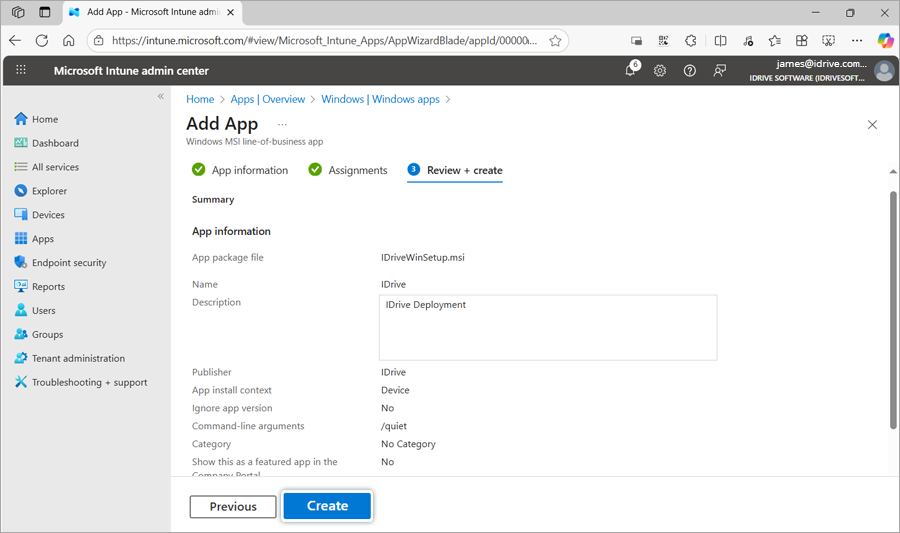
- Review the changes and click Create.
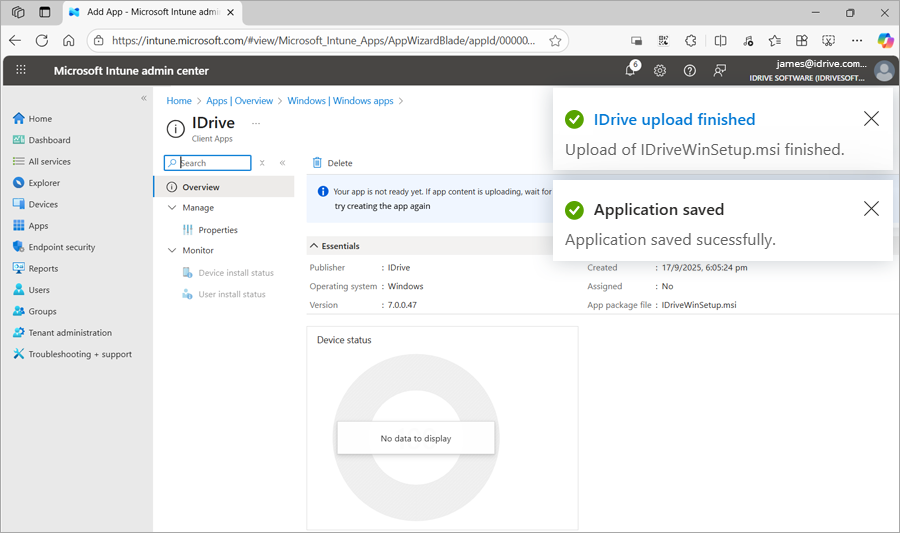
- Wait for the IDrive® MSI file to finish uploading and for the application to be saved.
It may take some time for the machines to receive the deployment package. To speed up the process, you may manually sync the Windows devices or perform a reboot. Learn how to sync from Microsoft Intune or via a Windows 10 Machine or later.