When I sign in to my IDrive account for the first time on a machine, I notice that some folders have already been scheduled for backup. Why?
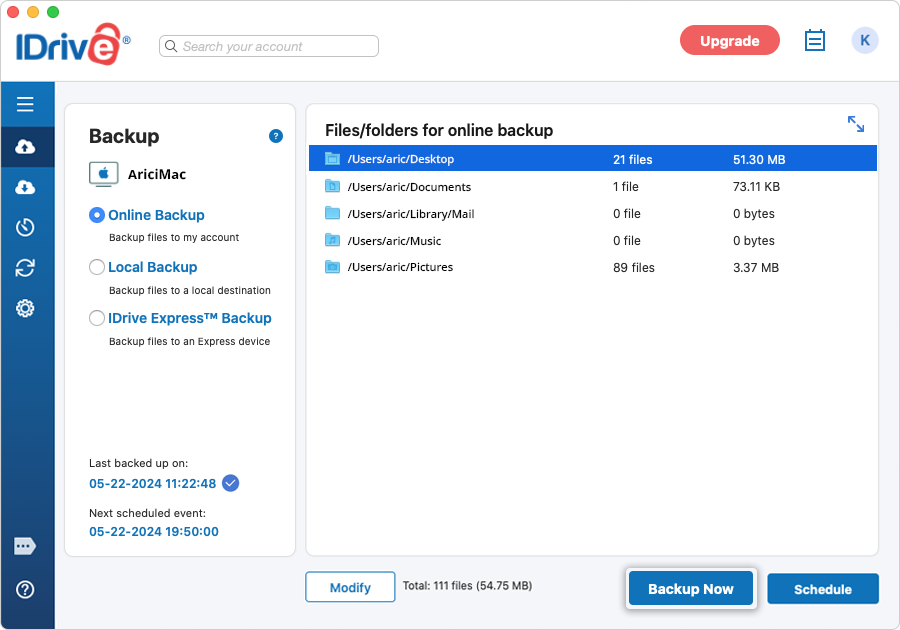
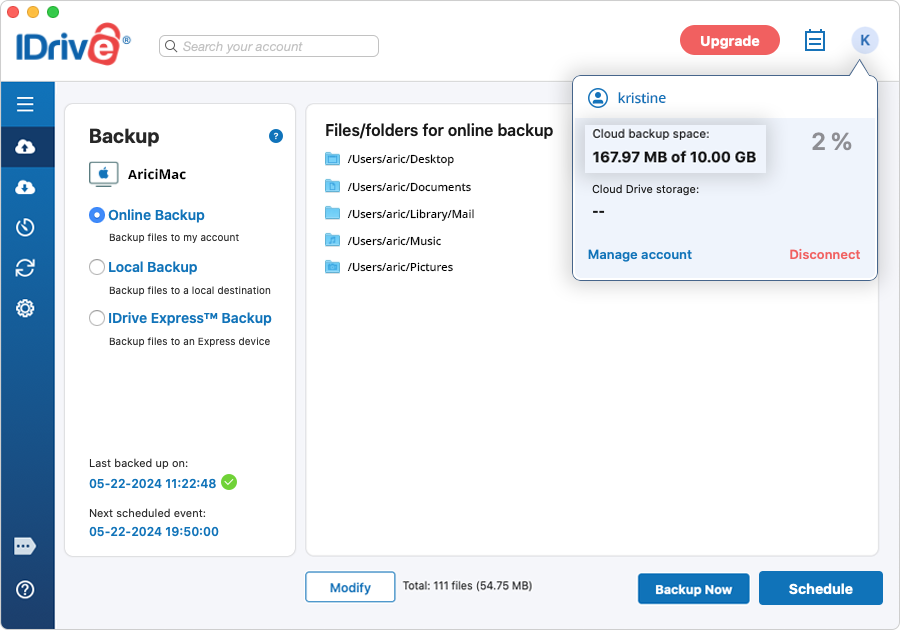
IDrive is an automated online backup application. Hence, critical folders like Desktop, Documents, Pictures, Library/Mail, and Music are pre-selected for backup. If the pre-defined settings are not altered, the application commences the backup of the default backup set once the scheduled backup time is reached.
To backup the files/folders to your IDrive account, select the 'Online Backup' radio button. Alternatively, select 'Local Backup' to backup the file(s)/folder(s) to your computer and 'IDrive Express™ Backup' to backup files/folders to an IDrive Express device. For local and Express backup, click and select a location to backup your data to the local drive or Express device. To change the files/folders/drives in a backup set, click the 'Modify' button, on the respective screen.
Click the 'Backup Now' button to start an immediate backup.
To change the day, time, and frequency for the scheduled backup job, click the 'Schedule' button.
Under 'Backup' go to 'Online Backup', 'Local Backup, or 'IDrive Express Backup'.
Click 'Modify' and select the files/folders for backup.
Click the 'Schedule' button to schedule backup jobs.
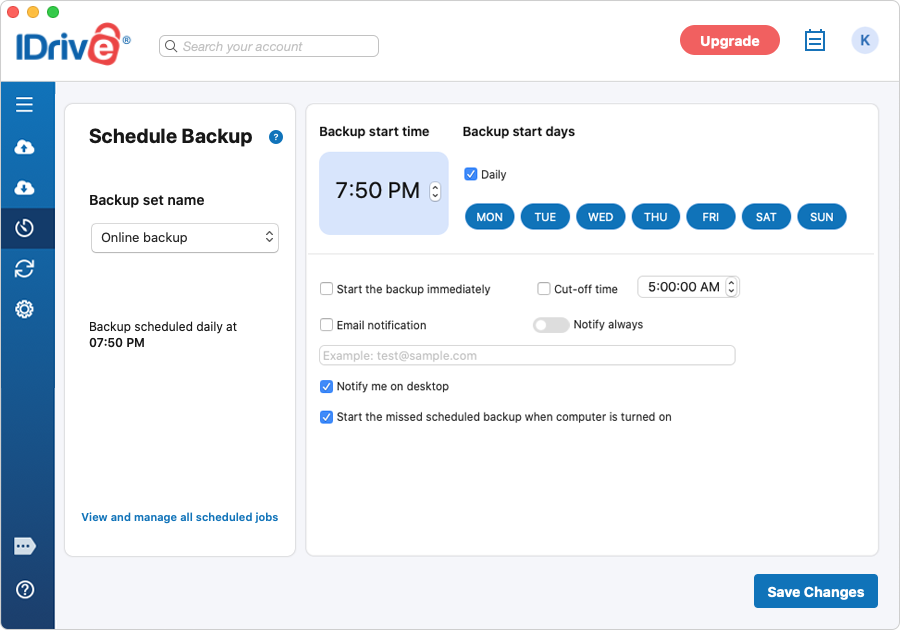
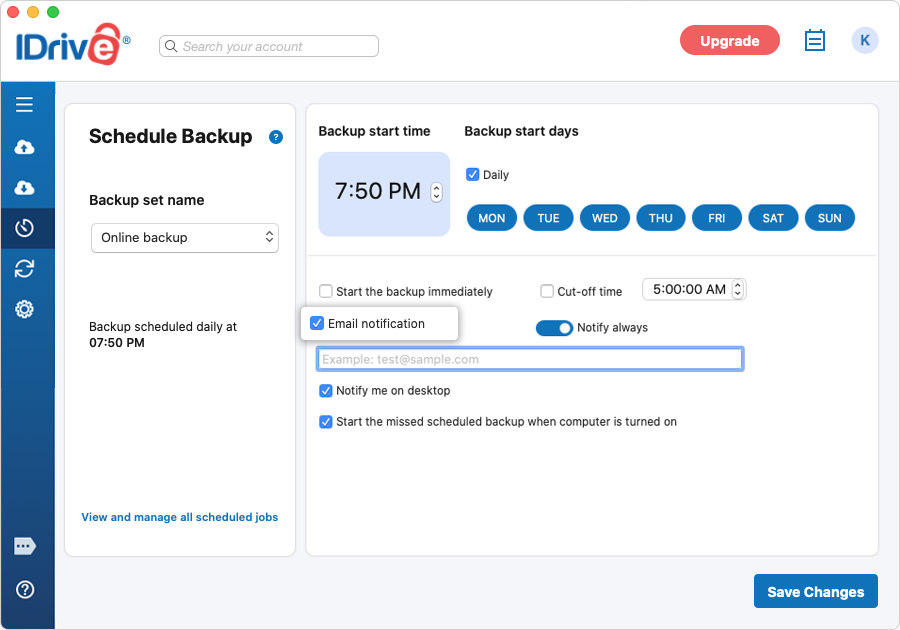
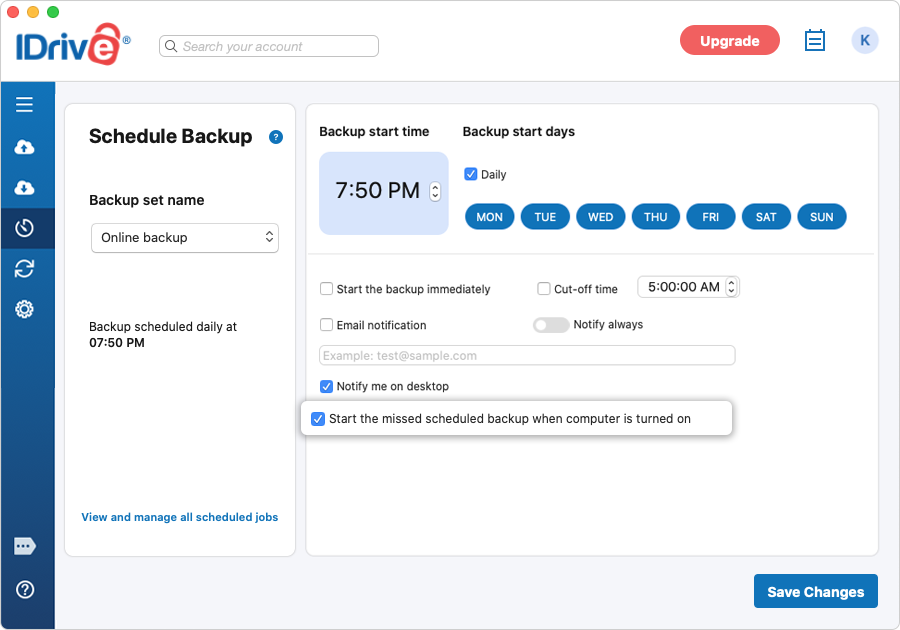
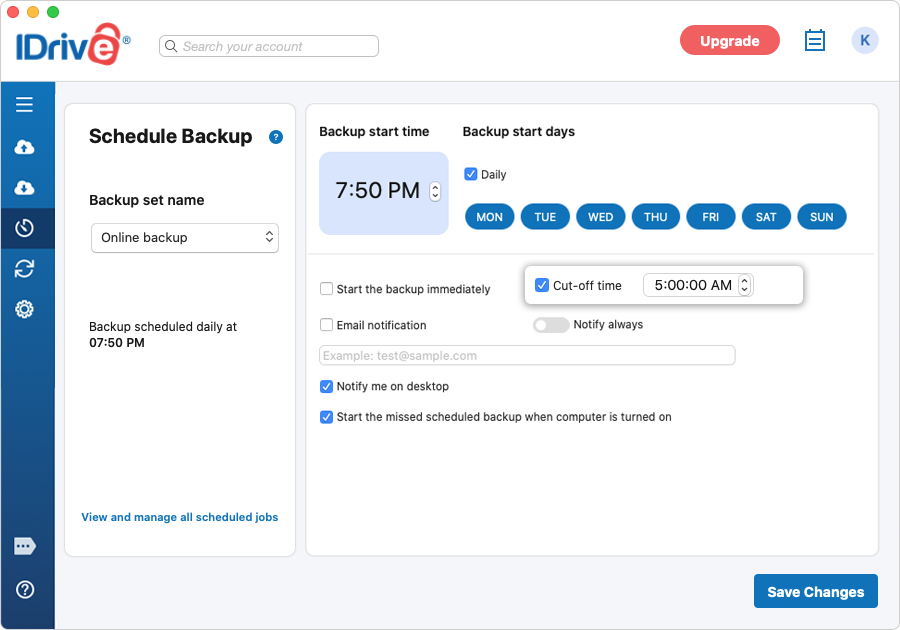
The Scheduler has the following options:
Backup start time: Set the time at which your scheduled backup should start.
Daily: Select this option to run your backup jobs daily.
Custom: Select the days of the week on which you wish to run your backup jobs.
Start the backup immediately: Select this option to run a backup job immediately.
Hourly schedule: Select this option to configure backups to run at hourly intervals.
Cut-off time: Set the time at which your scheduled backup should stop.
Email notification: Select this option to receive email notifications on the status of the scheduled backup job. Enter the email address on which you want to receive the notifications.
Notify always: Enable this toggle button to get all backup notifications.
Notify me on desktop: Receive notifications on the desktop regarding backup jobs.
Start the missed scheduled backup when the computer is turned on: Select this option to resume a missed scheduled backup job due to the computer being switched off.
Can I schedule full and incremental backup on specific days?
IDrive does not have the conventional concept of full and
incremental backups (where modified data is stored separately from full backup). Every backup is basically a full backup with an
incremental effect.
IDrive overwrites the full backup with the modifications made to it during backup. In other words, you have full backup results each time. This helps in fast restores when needed.
IDrive uses advanced patching technology to determine the changed data at source and apply only the modified blocks onto the data at IDrive. No efficiency is lost due to the IDrive methodology of updating full backups directly every time.
Is it possible to receive email notifications on the status of my backup jobs?
Yes, you can set up backup notifications via email.
To manage your backup notifications,
Sign in to the IDrive desktop application.
Go to 'Scheduler'.
Select the 'Email notification' checkbox to receive critical backup notifications over email. Enable the 'Notify always' toggle button to get all backup related notifications.
I am not receiving an email notification for my scheduled backup(s). Why?
Ensure that you have selected the 'Email notification' checkbox from the 'Scheduler', provided a valid email address, and enabled the 'Notify always' toggle button.
It is possible that email notifications from IDrive might mistakenly be getting filtered out as Spam and reaching your Spam or Bulk mail folder.
For confirmation on the backup jobs, you can also view the logs.
I am backing up an external network drive to my IDrive account. If I use a new Mac machine with the same external network drive attached to it, will it impact the backups?
By default, IDrive creates a unique root folder with the Mac name to backup data, which mirrors the complete data structure hierarchy of your Mac. So your files from external drives will be backed up to the connected Mac name folder.
If you now connect your external drive to the new Mac machine and perform the backup, your backups will be impacted, as data from the external drive will be backed up to the new Mac name folder created under your account.
However, in case the Mac machine names are the same on both the old and new systems, your backups will not be impacted.
Will my backups take place even when my Mac is in sleep mode?
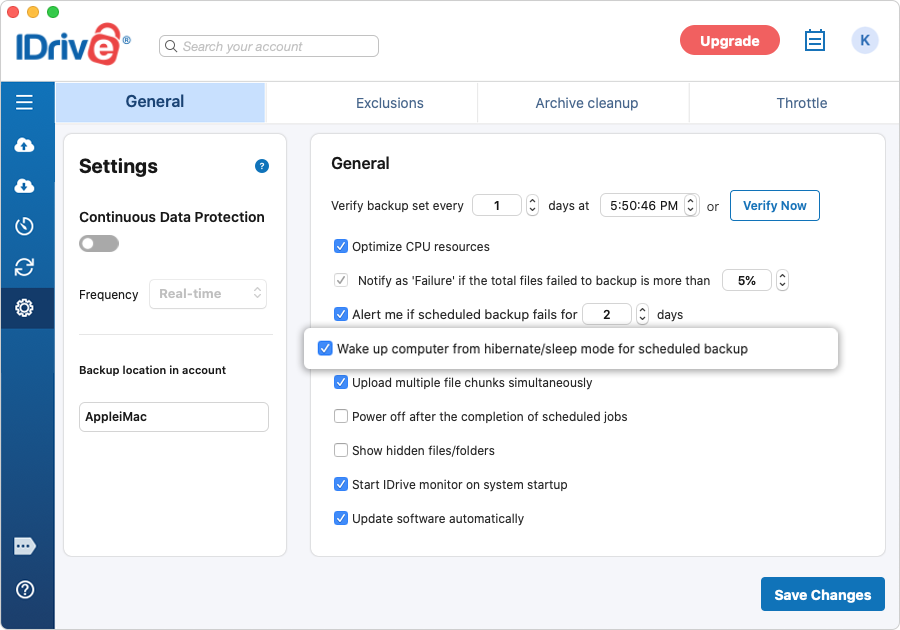
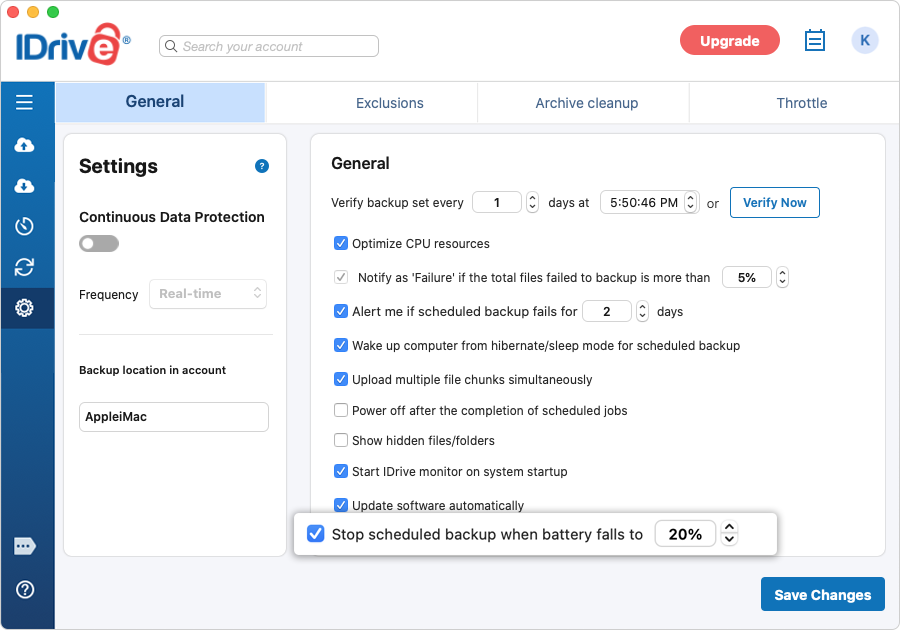
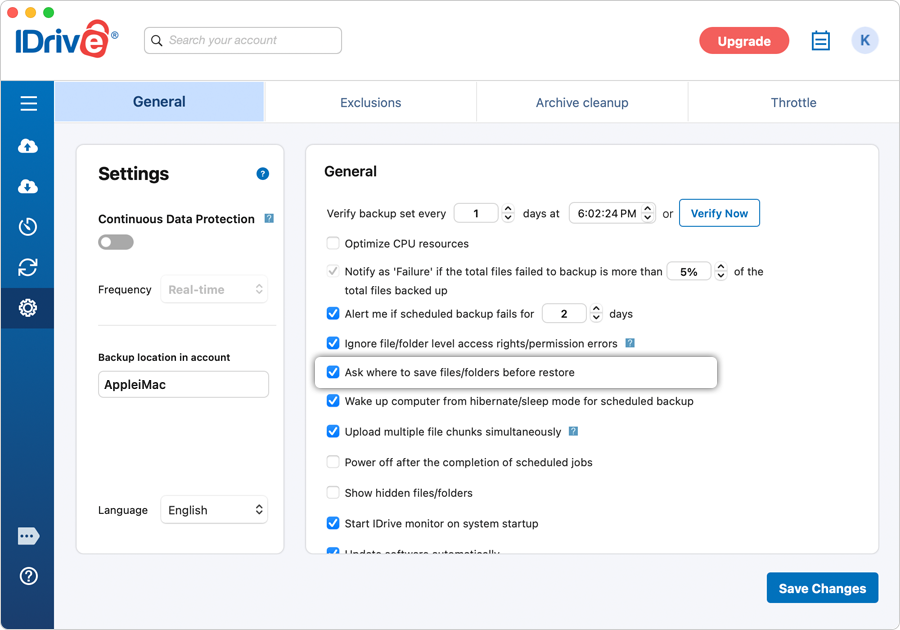
Yes, your scheduled backups will take place even in the sleep mode if you select the 'Wake up computer from hibernate/sleep mode for scheduled backup' checkbox from 'General' under the 'Settings' screen.
What happens if my backup set contains files or folders without the required access rights?
If your backup set contains files or folders without the required access permissions, IDrive cannot back up those items. By default, IDrive skips such files or folders.
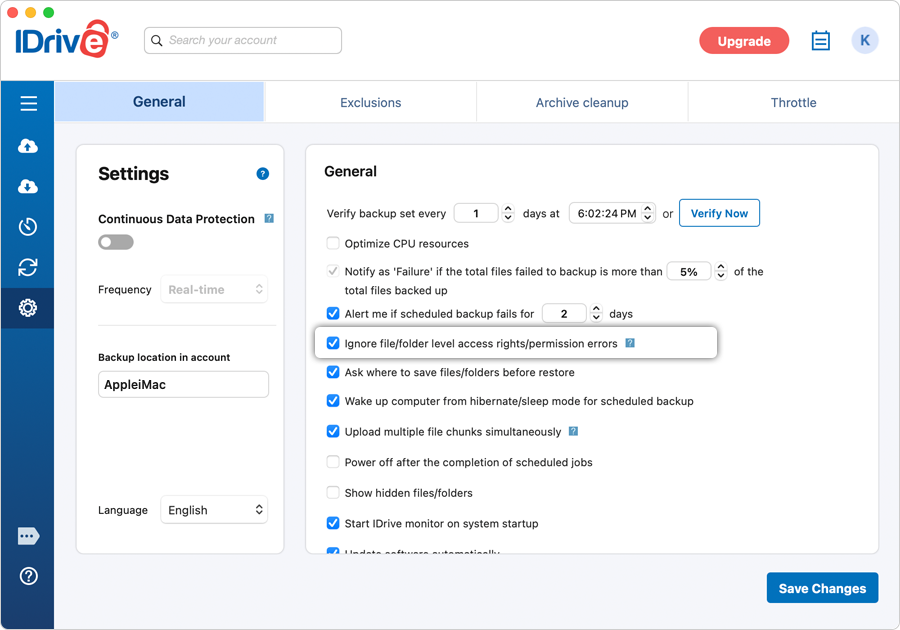
If the 'Ignore file/folder level access rights/permission errors' option under the 'General' tab is enabled, those files or folders are not considered when determining the backup status.
If you disable the 'Ignore file/folder level access rights/permission errors' option, those files or folders are marked as 'Failed' in the backup log and are considered when determining the final backup status.
To configure this option for network and external drives,
Sign in to the IDrive application.
Click 'Settings'.
Under the 'General' tab, enable 'Ignore file/folder level access rights/permission errors'.
Will a missed scheduled backup take place when the computer is restarted after the scheduled time?
Yes. The scheduled backup will commence as soon as you restart the computer even if it is after the scheduled time. However, this is applicable only if you have selected the 'Start the missed scheduled backup when the computer is turned on' option from the 'Scheduler'.
In case you have not selected the option, then the scheduled backup will commence only if you restart the computer within 30 minutes of the scheduled time.
If you restart the computer after 30 minutes of the scheduled time, the scheduled backup will commence at the next frequency (as per the date and time that was set earlier).
Can I automatically stop the scheduled backup in IDrive if my laptop battery is running low?
Yes, you can choose to stop your ongoing scheduled backup whenever your laptop battery drops below a predefined value. To enable this option, simply select the corresponding checkbox to set the battery percentage to anything between 20 and 50 from 'General' under the 'Settings' screen.
The status of your scheduled backups can be viewed using the IDrive status item on the system menu bar.
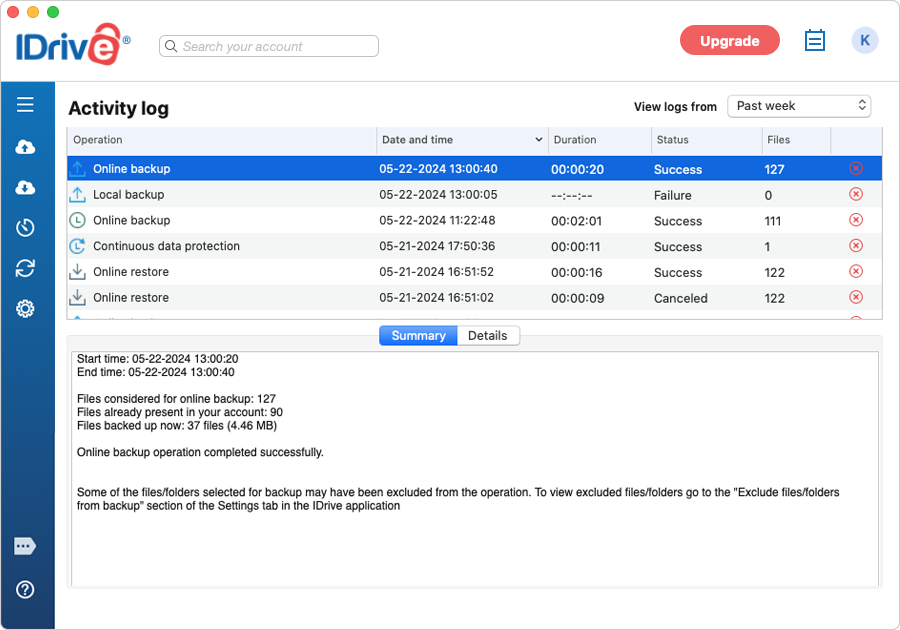
Click 'View logs' on the IDrive Status Item or click the 'View Logs' button on the application screen. The 'Activity log' screen will appear. Click 'Details' to see the complete status of the scheduled backups.
Yes. Using the 'Scheduler' > 'Cut-off time' option, you can stop the scheduled backup at a specific time. The backup is resumed at the next scheduled time from the point it was stopped.
How do I restore files/folders from my IDrive account to the local machine?
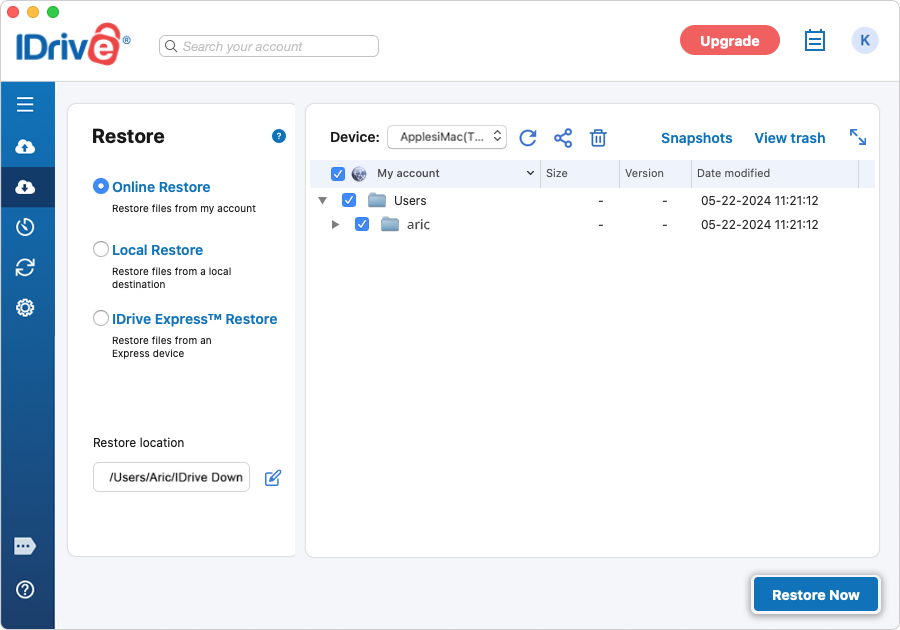
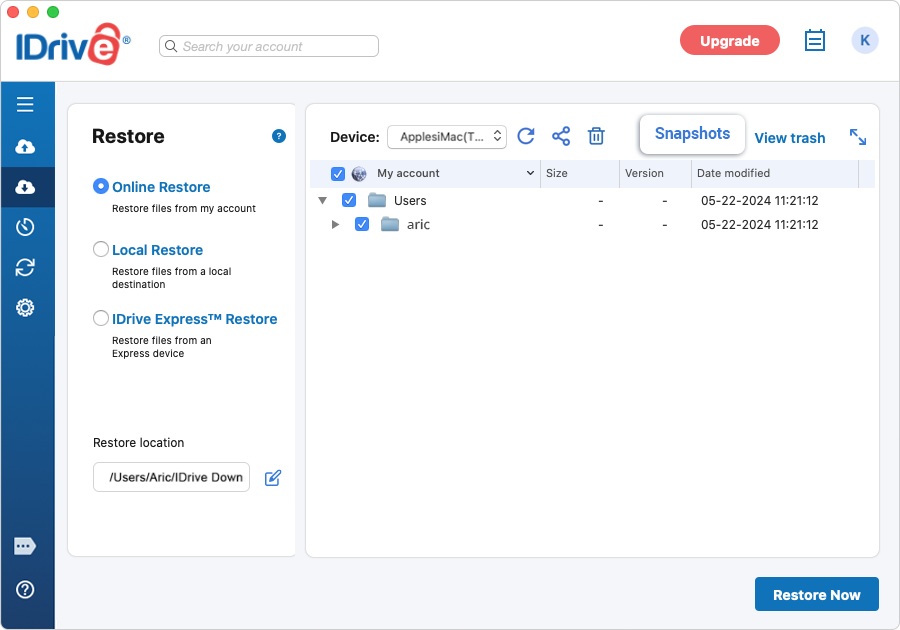
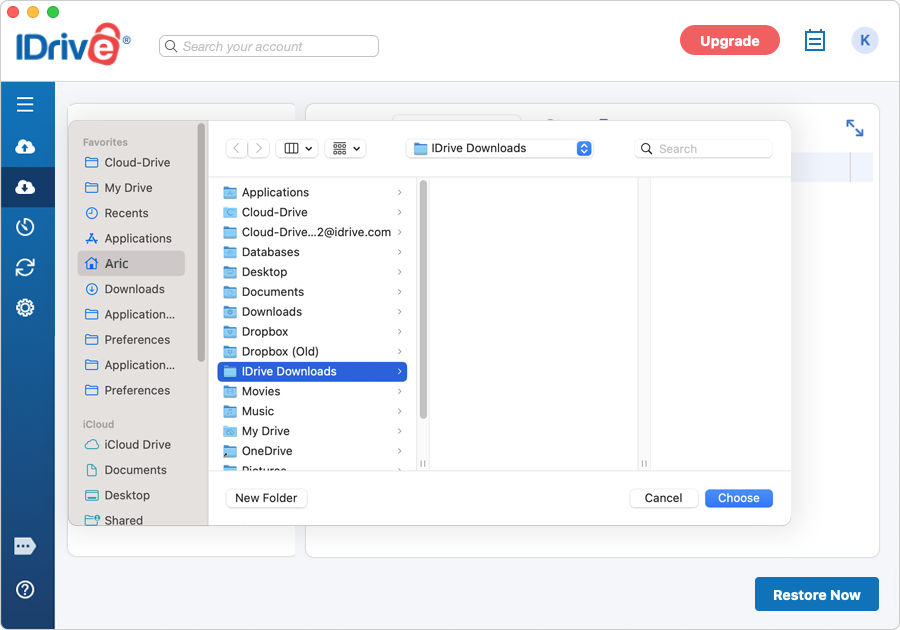
Under 'Restore' select the 'Online Restore' radio button. Select the files/folders that you need to restore and choose the desired local 'Restore location'. Click the 'Restore Now' button. The chosen files will be restored to the selected location.
How does 'Restore to original location' differ from a standard file restore?
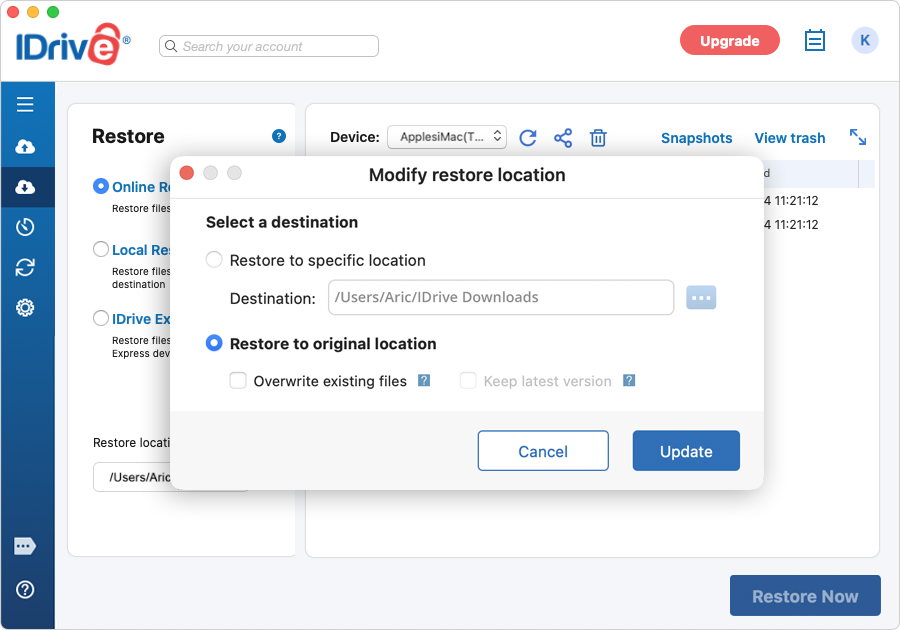
A standard file restore allows you to restore backed-up files from the cloud to any location you choose on your computer. In contrast, Restore to original location returns files to the exact folder structure and file paths they occupied at the time of backup.
Is restored using 'Restore to original location', the file ABC.txt will be restored to the Examples folder within the Documents on the Macintosh HD drive of John-Mac machine.
Restore behavior when restoring to the original location
When restoring files to their original location from the cloud, the outcome depends on the restore options selected:
Overwrite existing files: When enabled, any existing files at the destination are replaced with the backed-up versions. If disabled, files that already exist at the destination are skipped and not restored.
Keep latest version: This option is available only when 'Overwrite existing files' is enabled. When selected, the restore process compares timestamps and retains the most recent version of the file, whether it exists locally or in the cloud. - If the local file is newer, it is preserved. - If the backed-up version is newer, it replaces the local file.
To restore files to their original location,
Go to 'Restore'.
Select 'Online Restore' or 'Local Restore'.
In the 'Restore location' section, click The 'Modify restore location' popup appears.
Select 'Restore to original location'.
Click 'Update'.
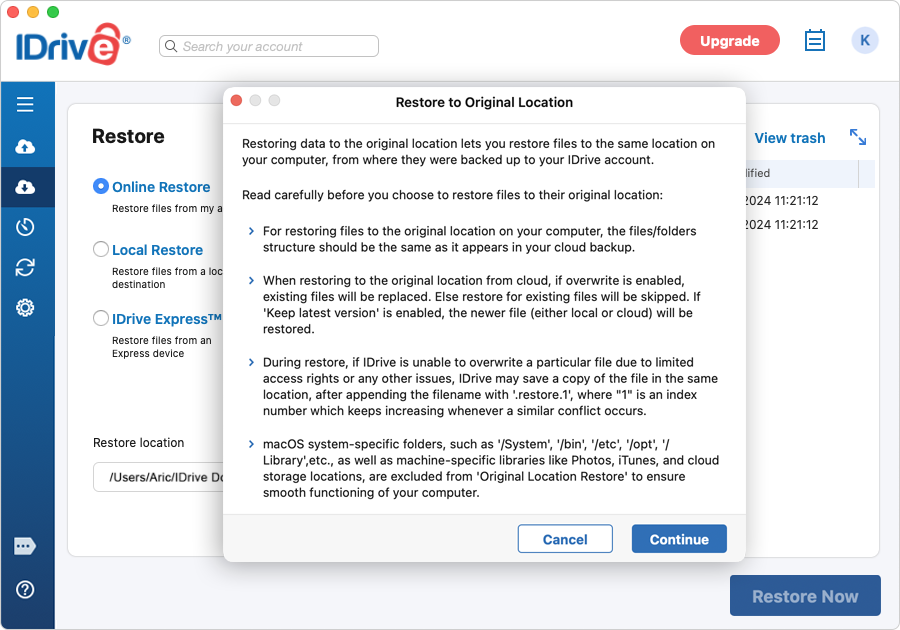
Click 'Restore Now'. A confirmation popup appears with 'Restore to original location' related information.
Click 'Continue' to proceed with the restore.
To perform a standard file restore (restore to a location you select manually), in the 'Modify restore location' popup, choose 'Restore to specific location'.
Note:
If IDrive is unable to overwrite a file due to permission restrictions or file locks, it saves the restored file in the same directory with 'restore.1' appended to the filename. The suffix increments automatically for additional conflicts (for example, 'restore.2', 'restore.3').
Certain macOS system directories (such as /System, /bin, /opt, /Library) and device-specific libraries (including Photos, iTunes, and cloud-synced folders) are excluded from 'Restore to original location' to maintain system integrity.
One of the two IDrive accounts I hold has expired. I had scheduled a backup job from both accounts. I want to delete the same from the account that has expired while retaining the jobs for the other account. Is this possible?
Yes, you can delete the scheduled backup/restore jobs using the 'Manage all the scheduled Jobs' feature in IDrive.
Click the IDrive status item on the system menu bar and select 'Scheduler' > 'Manage all scheduled jobs'. In the 'Manage all scheduled jobs' screen, select the scheduled backup from the list and click 'Delete'. You will be prompted to confirm the deletion, click the 'Yes' button.
Can I search and restore a particular file from my IDrive account?
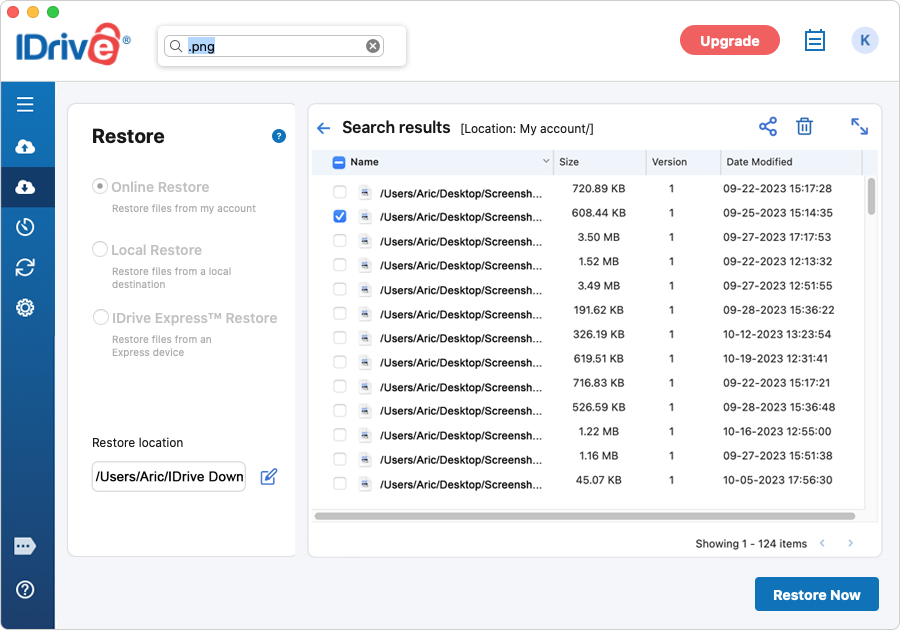
You can use the search feature to restore specific files from your IDrive account.
To search and restore files,
Under 'Restore' click 'Online Restore'.
Type the filename or a related string in the 'Search your account' field and press 'Enter'.
From the search results, select the desired file and click 'Restore Now'.
You can search and restore files from your local and Express device by selecting 'Local Restore' or 'IDrive Express' Restore' radio button.
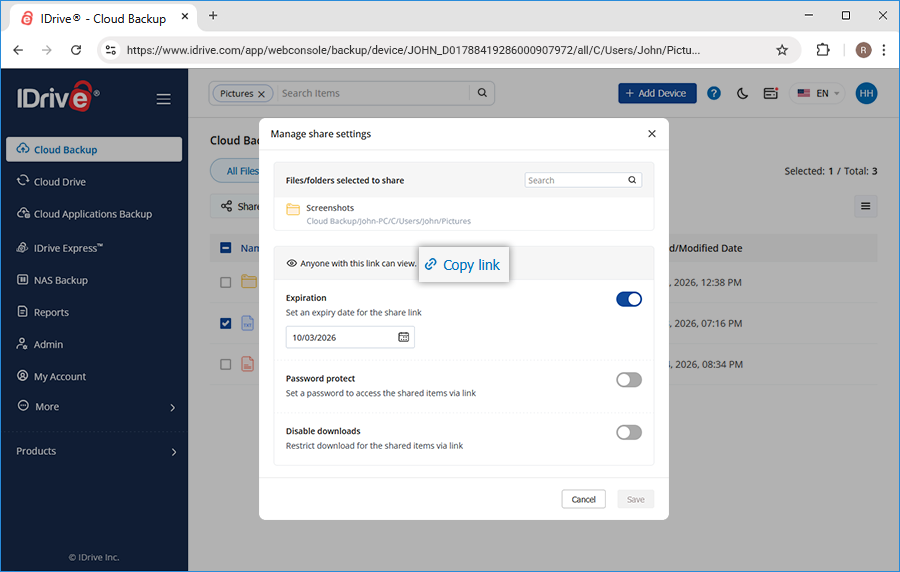
You can also delete and share the files/folders that appear in the Search results of your online backup by clicking and The share option is not available in the search results of your local and express backup.
To search and restore files from a specific folder, right-click on the desired folder and select the 'Search' option. Type the filename or a related string in the Search field and press 'Enter'. From the Search results, select the desired file, and click 'Restore Now'.
Can I back up the Time Machine data to my IDrive account?
IDrive does not recommend backing up the Time Machine data folder. Time Machine will not recognize the backed-up data for recovery at a later time. In addition, including the Time Machine folder in your IDrive backup can significantly increase your archive size, as it may create multiple copies of the same files.
By default, IDrive excludes the Time Machine data folder ('Backups.backupdb') from your backup set.
If you still want to include the Time Machine folder in your backup set,
Go to 'Settings' > 'Exclusions'.
Under the 'Exclude files/folders from backup' section, select 'Backups.backupdb' folder and click to remove it from the excluded files and folders list.
Click 'Save Changes'.
Go to 'Backup' and add the Time Machine folder to the backup set.
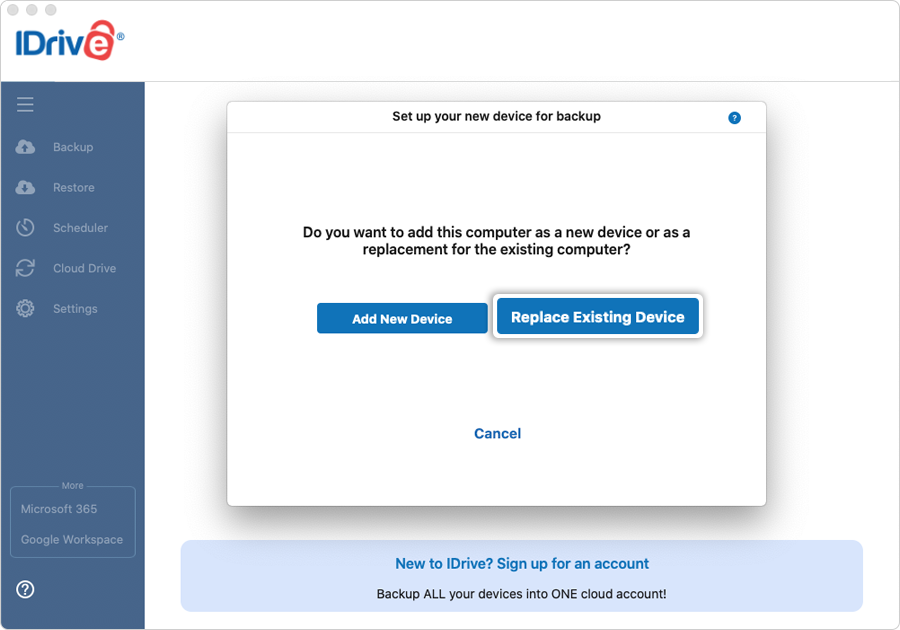
When I am signing in to my IDrive account for the first time on a new computer, it is asking me to select location/computer for backup. Why?
IDrive allows you to restore your previous computer's backup archive on your new computer. You can select the 'Replace Existing Device' option, after signing in reconnect to the previous computer's backup archive in case you are replacing an old computer, replacing the computer's hard drive, or recovering after an OS reinstall. By adopting the previous computer's backup archive, you can avoid time-consuming initial backup of your files.
To adopt your backup archive,
Download and install IDrive on your computer.
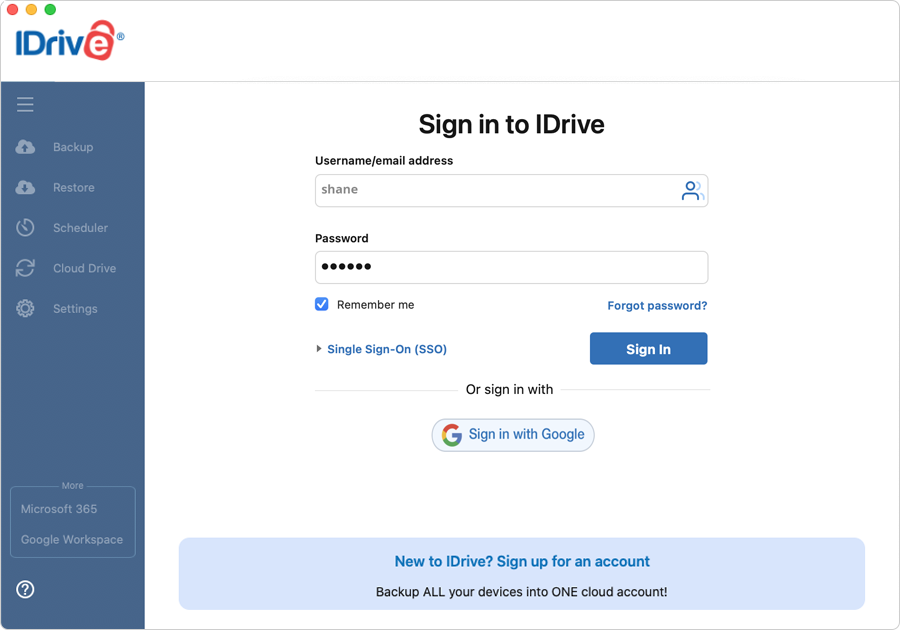
Sign in to IDrive using your credentials.
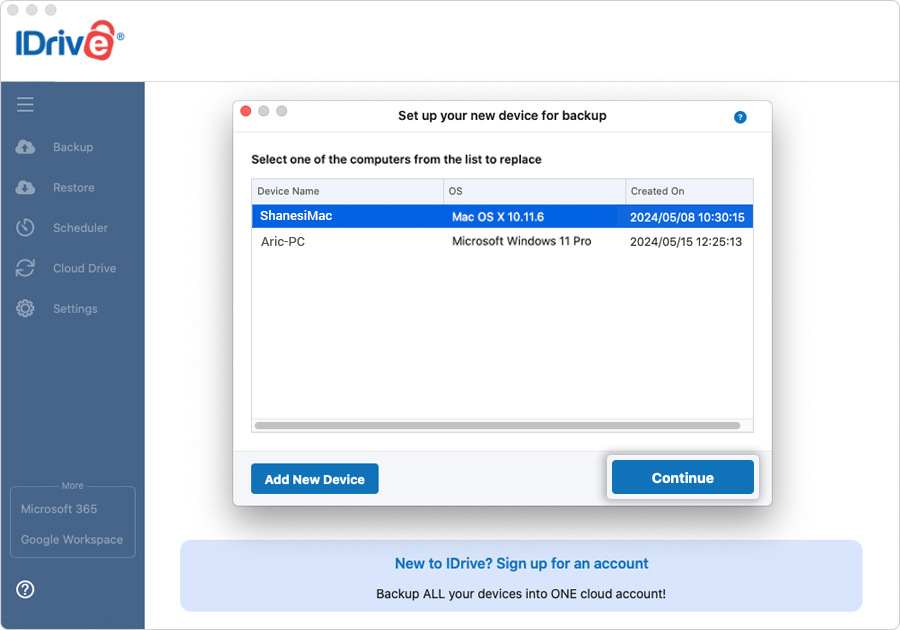
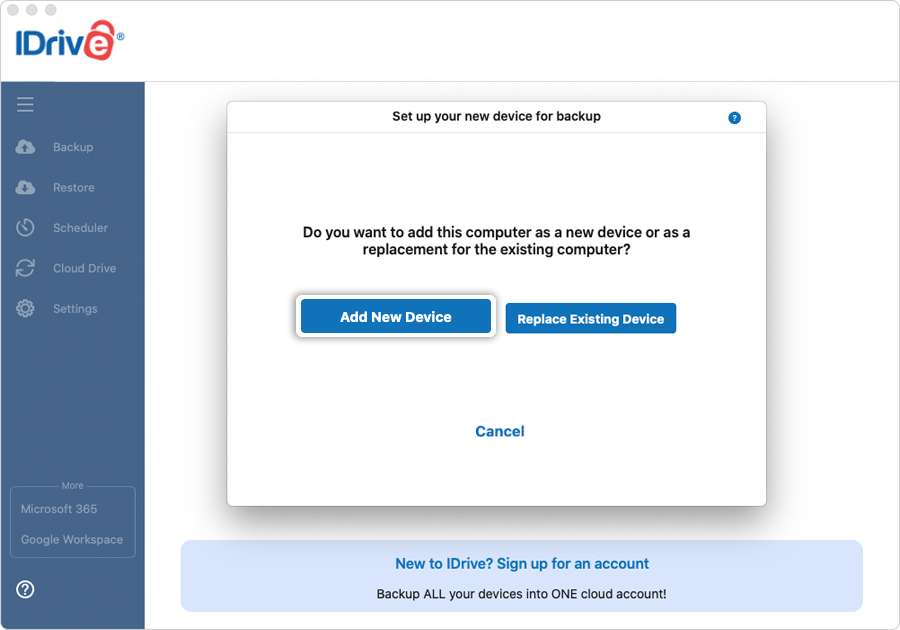
Click 'Replace Existing Device' when the 'Set up your new device for backup' screen appears. A list of locations/computers linked to your account appears.
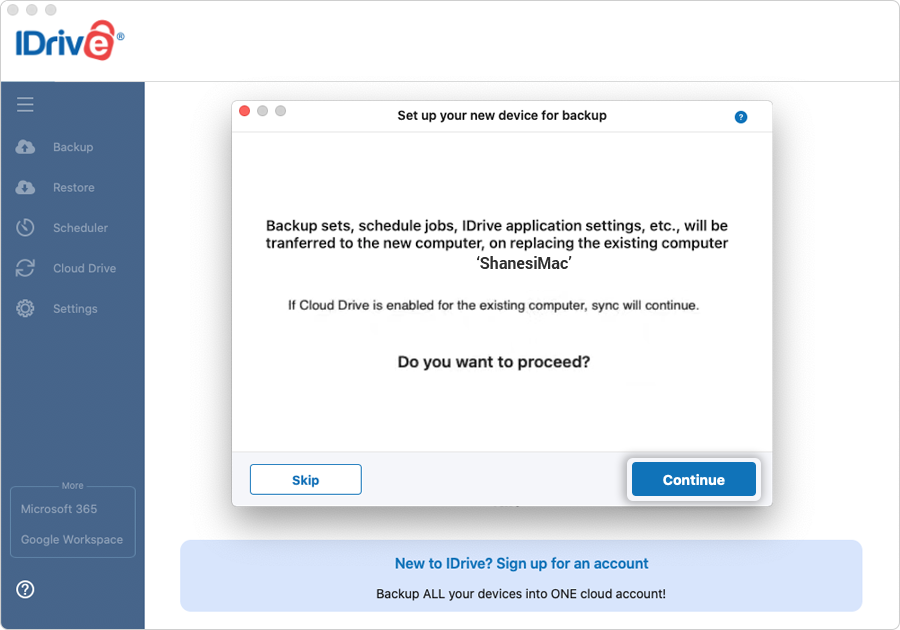
Select the desired computer from the list of computers linked to your account to restore your previous backups and click 'Continue'.
In the confirmation screen, click 'Continue'.
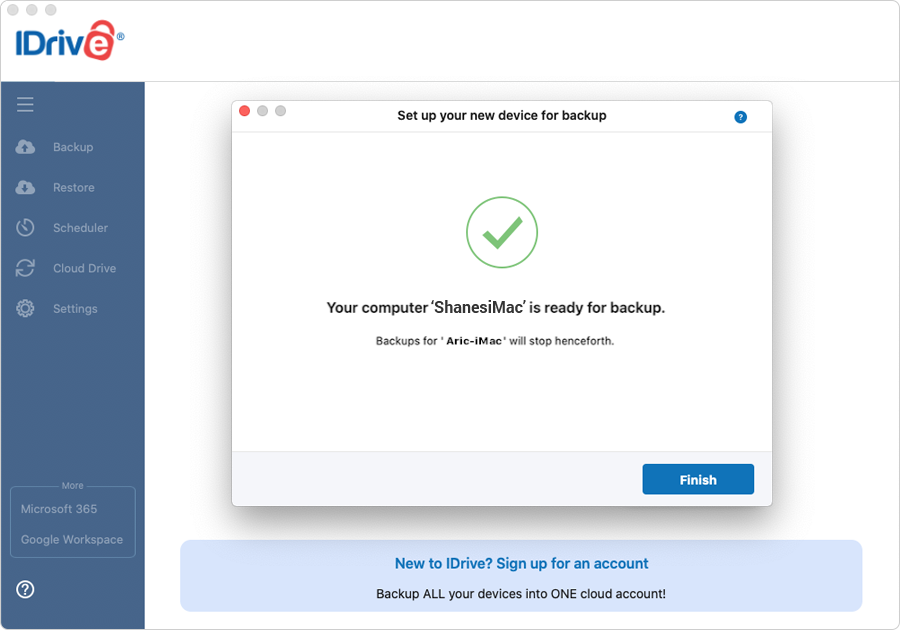
A message appears when the existing computer is replaced successfully. Backups will stop for the existing computer.
In case you do not wish to adopt your previous backups on the new machine, you can click 'Add New Device' when prompted to select the computer for backup.
I can see a 'Snapshots' button on the Restore menu. What is it?
Certain accounts may see the feature 'Snapshots' in the application. A snapshot is a point-in-time capture of a file or folder. With the IDrive® snapshot feature, you can take a real-time image of a file/folder with all its contents and store it in your IDrive account. These historical views of your data stored in your IDrive account allow you to perform point-in-time recovery. They are useful in case your files are corrupted by malware and you want to restore a previous version of the files.
To perform a snapshot-based restore,
Go to 'Restore' and click 'Online Restore'.
Click 'Snapshots'.
Select the date and time and click 'Submit'. A list of all the data backed up on or before the selected date appears.
Select the required files/folders and click 'Restore Now'.
How do I restore the data backed up on a local or Express device?
To restore data from a local device,
Sign in to the IDrive application with your 'Username' and 'Password'.
Under 'Restore' select the 'Local Restore' radio button.
Select the required local drive. You will be able to see all the files/folders backed up to this local drive.
Select the file(s)/folder(s) to restore.
Choose the desired 'Restore location' on the local computer.
Click 'Restore Now'.
Note: Mac local backups can only be restored to Mac computers.
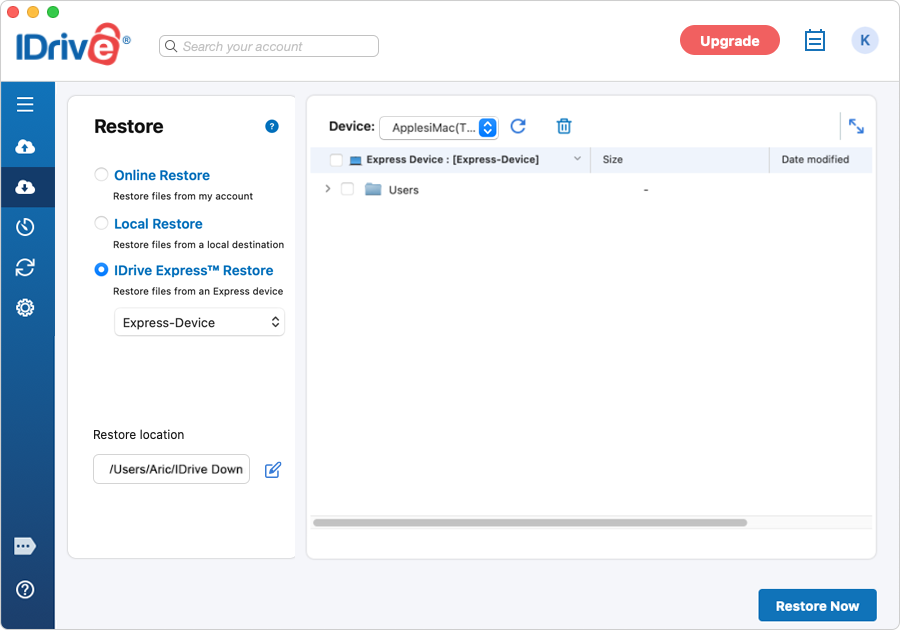
To restore data from an Express device,
Sign in to the IDrive application with your 'Username' and 'Password'.
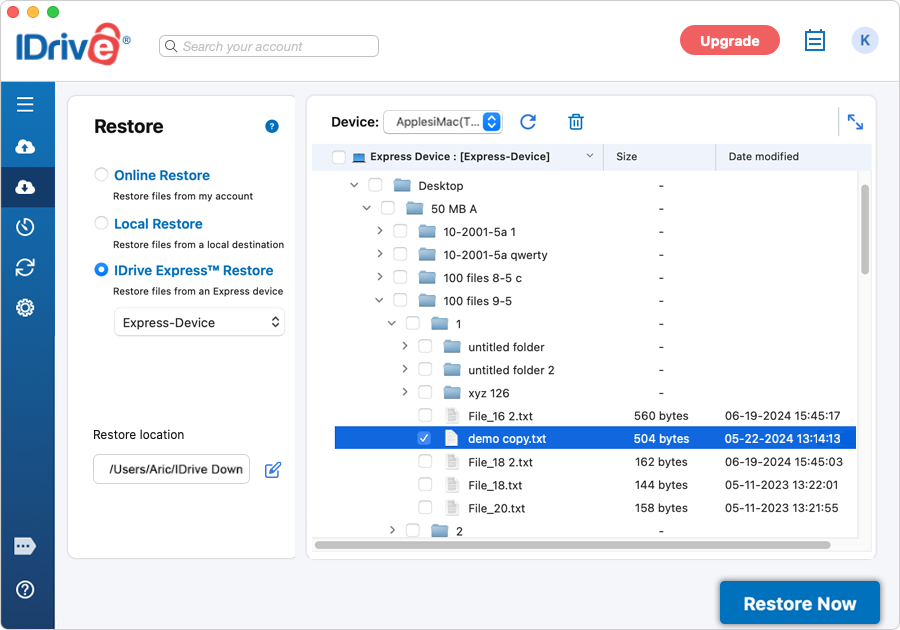
Under 'Restore' select the 'IDrive Express™ Restore' radio button.
Select the file(s)/folder(s) to restore.
Choose the desired 'Restore location'.
Click 'Restore Now'.
What is Versioning?
IDrive retains previous versions of all files backed up to your account. Currently you can restore 30 previous file versions, and for accounts created prior to 11-07-2018 you can restore up to 10 versions, to any location on your local computer.
Does versioning (previous versions of files) impact the available quota (storage space in my account)?
Your available quota depends on the storage requirements of the most recent view of your data. Backup of older versions do require additional space, however, this is not charged to your usage. In other words versioning does not increase your storage requirement.
Does IDrive support folder-wise restore of files with earlier versions? *
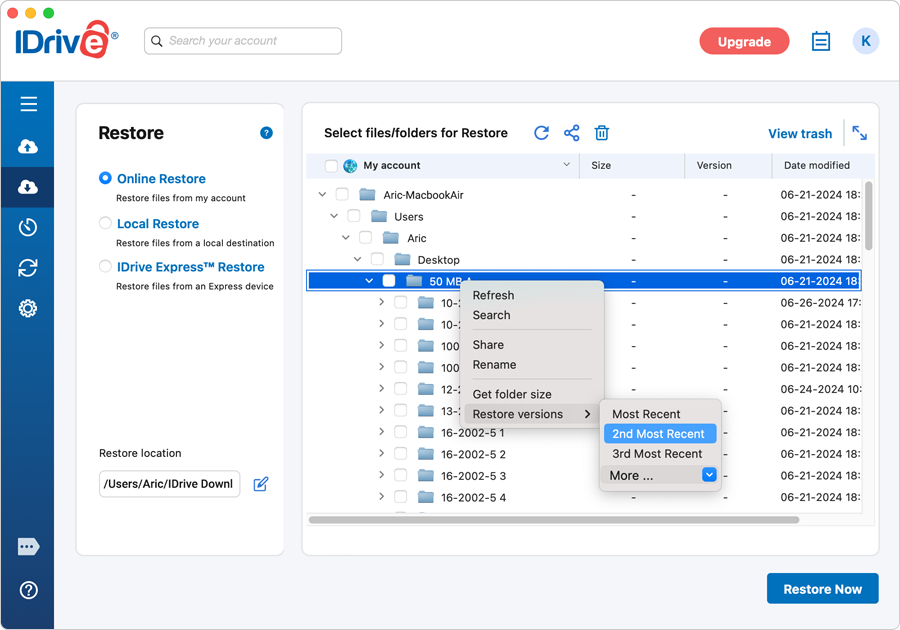
Yes, to restore a folder with earlier versions of files, you can right-click on the required folder and hover on 'Restore Versions' any of the following options:
Most Recent - Use this option to restore the latest versions of files in the folder.
Example: If a folder has 5 files, all the 5 files will be restored in the latest versions available.
2nd Most Recent - Use this option to restore files prior to the last backed up version.
Example: If a file in the folder has 3 different versions, this feature will restore only the version prior to the last backed up, i.e., file version 2.
3rd Most Recent - Use this option to restore the third last version of a file in a folder.
Example: If a file in the folder has 3 different versions, this feature will only restore file version 1.
More - Provides an option to restore from fourth to tenth most recent version of files in a folder.
* Note: For some accounts, certain functions like folder-level versioning, version restore from Trash, Continuous Data Protection for fixed drives, adopting backup archive and settings from a device, and Snapshots are not available.
Can I use my IDrive account to backup data from both Windows and Macintosh computers?
Yes, IDrive accounts created after 11-23-2011 offer cross-platform compatibility enabling you to backup and sync data from both Windows and Macintosh computers.
However, IDrive accounts created prior to 11-23-2011 are not cross-platform compatible, as these accounts work on different technologies.
Perform the following steps to install the application:
Download the application. Double-click IDrive.dmg and then IDrive.pkg. The 'Welcome to the IDrive Installer' screen is displayed.
Click 'Continue' to proceed with the installation. The 'Software License Agreement' screen appears. Click 'Agree' to proceed.
Select the location where you want to install the application, using 'Change Installation Location' and click 'Install'.
A screen is displayed for verification. Enter the valid system password (administrator password) and click 'OK'. On successful installation, the 'Installation Succeeded' message is displayed.
How to grant full disk access on MAC OS 10.14 Mojave or later?
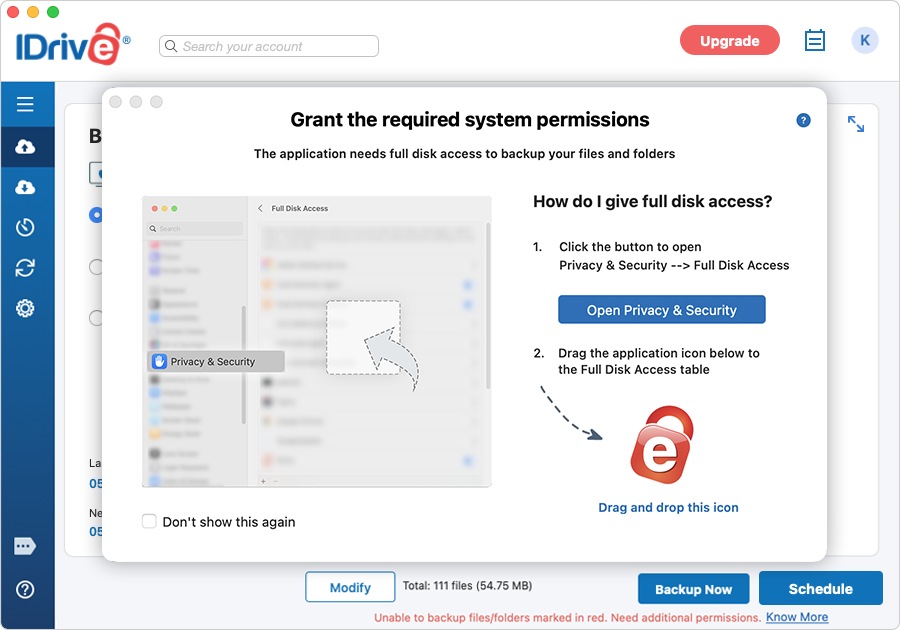
Mac OS 10.14 Mojave or later requires user consent for applications to access privacy-sensitive or protected data. You need to grant full disk access permission to IDrive, if your backups fail due to an "Operation not permitted" error.
If permissions are not already granted, IDrive prompts you to allow access when the application is launched.
Grant Full Disk Access when prompted by IDrive
In the 'Grant the required system permissions' popup click 'Open Privacy & Security'. Note: If the popup does not appear, log out and log back in to the IDrive desktop application.
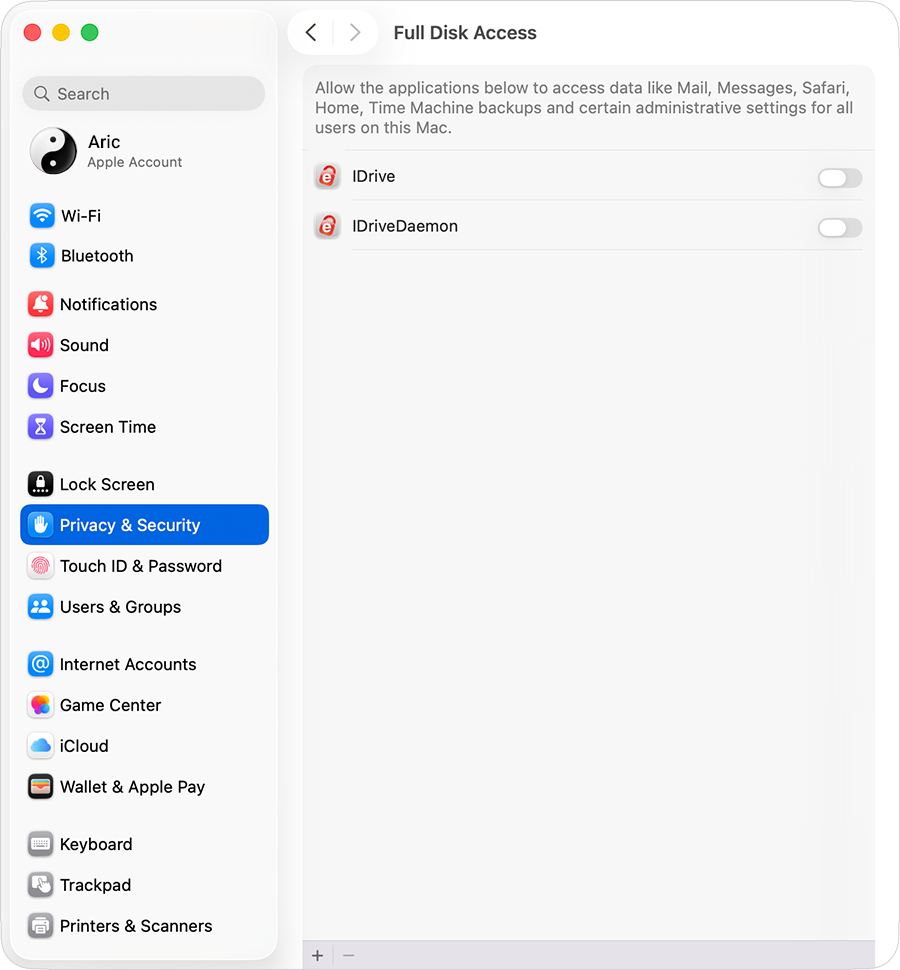
The 'Full Disk Access' screen opens automatically. Note: If clicking 'Open Privacy & Security' does not open the 'Full Disk Access' preferences, open them manually from 'System Settings' > 'Privacy & Security' > 'Full Disk Access'.
Drag the IDrive application icon into the Full Disk Access table.
The IDrive and IDriveDaemon applications are added.
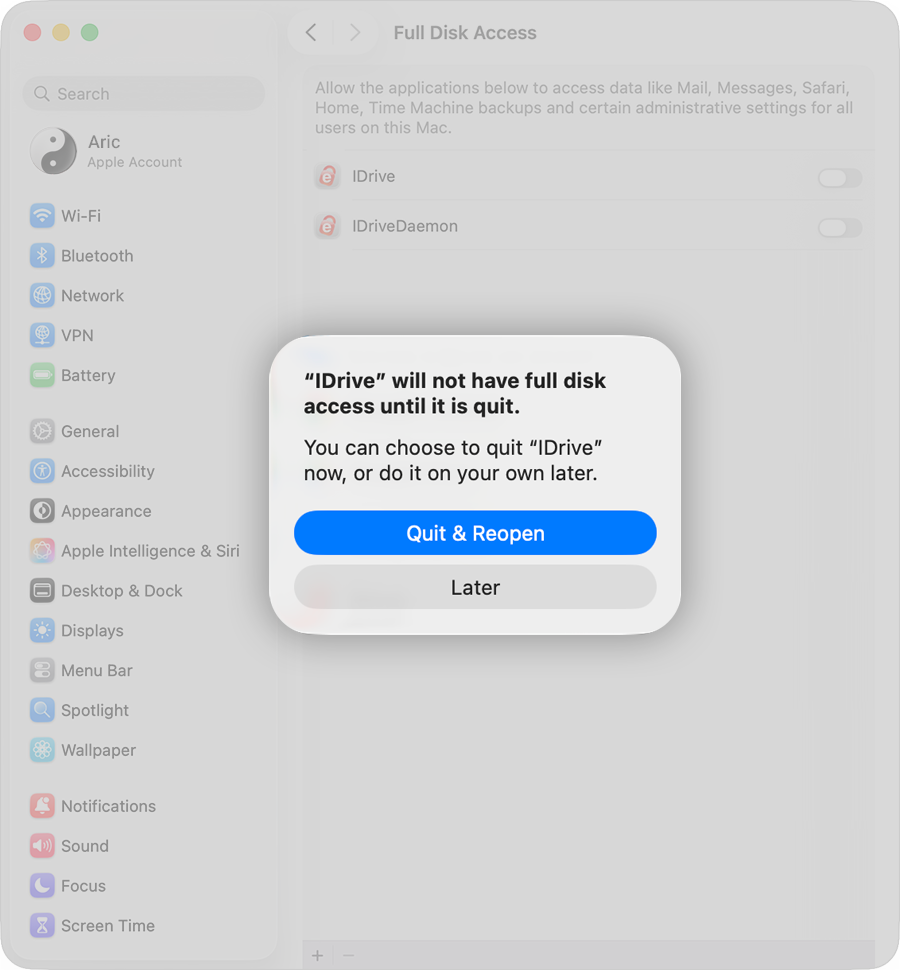
When prompted, click 'Quit & Reopen' for IDrive and IDriveDaemon to apply the changes.
When I sign in to my IDrive account for the first time on a machine, I notice that some data has already been scheduled for backup. Why?
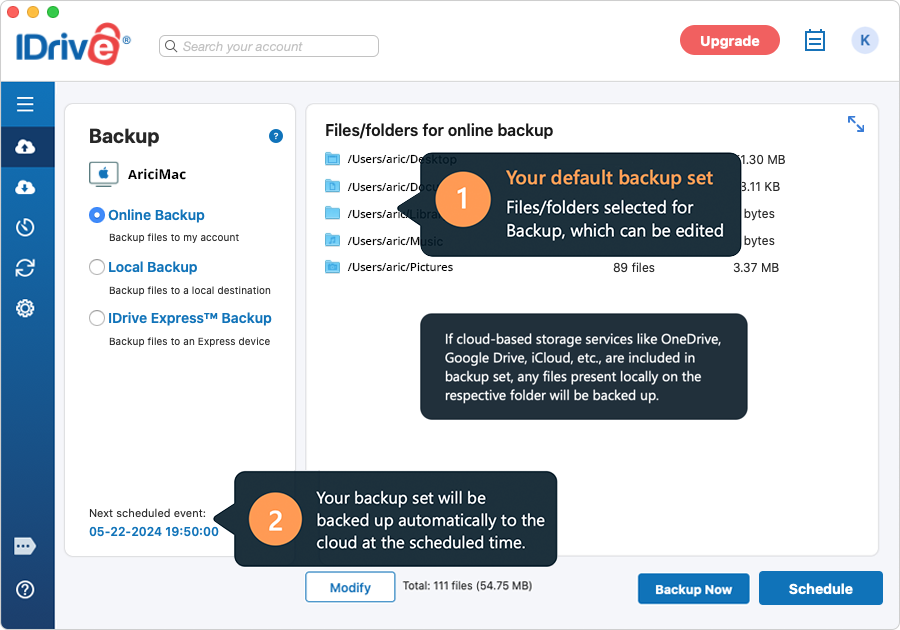
IDrive is an automated online backup application. To safeguard your critical data, the Desktop, Downloads, Documents, Library/Mail, Music and Pictures folders are selected for backup by default, with the scheduled time set to off-peak hours. If these settings are not altered, the application commences the backup of the default Backup set once the scheduled backup time is reached. However, you can change the settings.
On the first sign in to your account, a screen is displayed as below from where you can edit the contents of the backup set by clicking on the 'Modify' button, and schedule parameters using the 'Schedule' button.
If I perform frequent backups, would I end up using my quota quickly?
IDrive deploys an intelligent incremental backup system where changes to contents of the Backup set are sent to the IDrive servers. If data is removed / deleted / reduced, the space used in the
account reduces. The latest file copy is used to compute your quota. The previous versions of files are stored for free.
I have deleted some unwanted files / folders from my IDrive account, yet the storage space used remains unchanged. Why?
The storage space used information is not displayed in real-time, but computed on a periodical basis. For updated information on the cloud backup space and Cloud Drive storage in your account, click the username icon. The storage information will be displayed on the screen. For accounts with a large number of files, the process may take a while.
IDrive uses 256 - bit AES encryption for data transfer and storage with a user-defined key that is not stored anywhere on our servers. This ensures data is safe and secure.
By default, the IDrive application transfers only the modified portions of your backed up files after full initial backup. This optimizes your bandwidth usage and ensures that backups are quick.
How can I regulate my Internet bandwidth usage for IDrive?
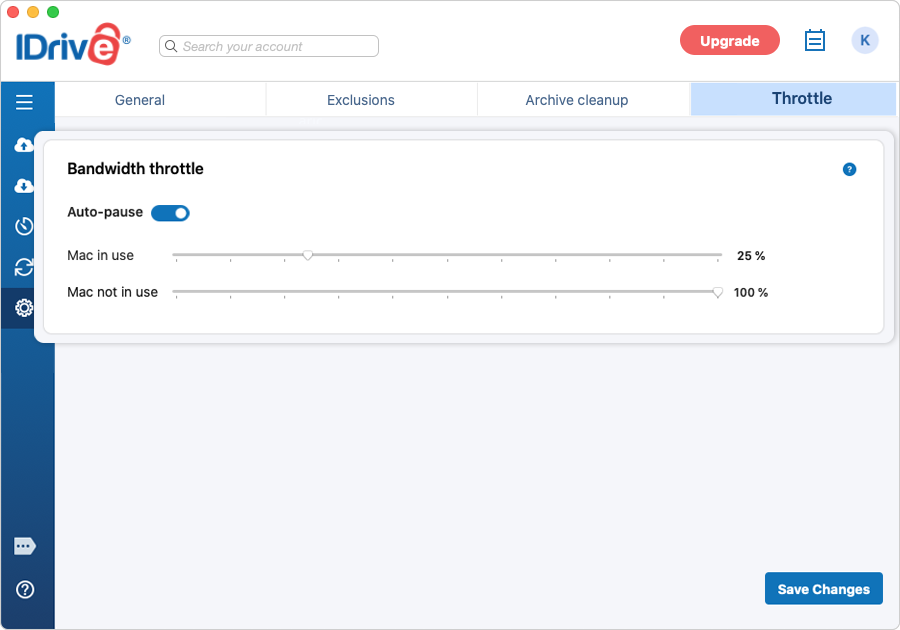
The Bandwidth throttle lets you set the Internet bandwidth to be used by the IDrive application for backups. By default, the bandwidth throttle value is set to 100%.
You can enable the 'Auto-pause' option, which makes intelligent guesses on bandwidth throttle during backup operation to ensure an optimal desktop experience during user activities with the following options:
Mac in use: This option lets you set the bandwidth to be used by IDrive for backups, when it is in use. By default, it is set to 25%. This allows other applications to run without hindrance.
Mac not in use: This option lets you set the bandwidth to be used by IDrive for backups when it is not in use. By default, it is set to 100%.
Note: The percentage set for Bandwidth throttle is applicable for both scheduled and interactive backups.
How do I locate files/folders in my IDrive account?
To locate files/folders backed up to your IDrive account,
Go to 'Restore'.
Select 'Online Restore' radio button.
Enter the search term (full or partial file/folder name) in the search bar, and press the 'Enter' key. Entries matching the search criteria are displayed and can be restored.
What is the Archive Cleanup feature and how does it work?
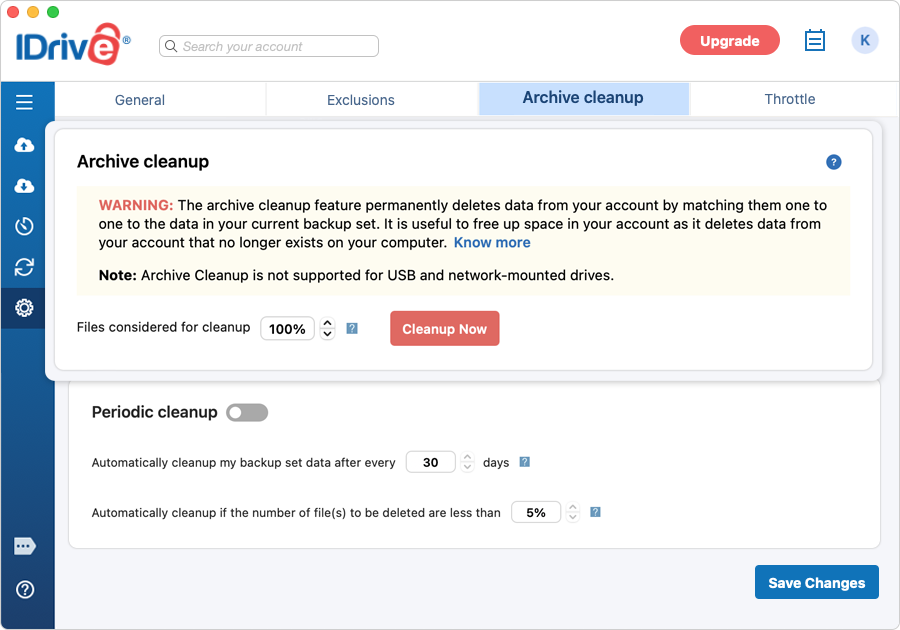
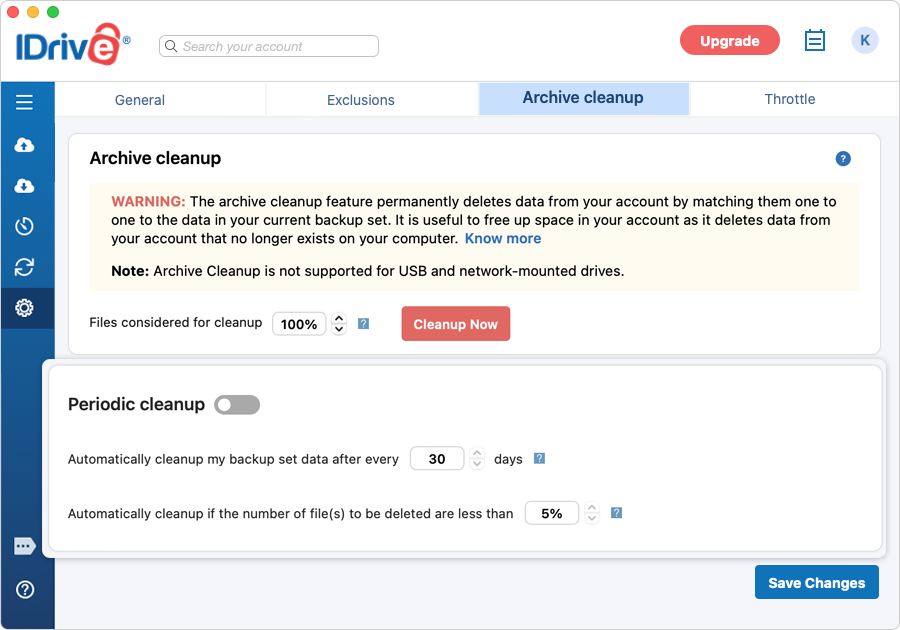
The Archive cleanup feature lets you permanently delete data from your account by matching the contents in your IDrive account with the data in the current backup set on your Mac. It is useful to free up space in your account as it deletes data from your account that no longer exists on your computer.
To use this feature,
Navigate to 'Settings' > 'Archive cleanup'.
Specify the percentage of files to be considered for backup and click 'Cleanup Now'.
IDrive will generate a list of items to be deleted from your account.
Click 'Delete' to delete them permanently from your account.
Note:
Archive cleanup permanently deletes data that no longer exists on your computer to free up space in your account.
You can regulate the percentage according to your preference. The percentage mentioned here refers to files considered for deletion in your account as a percentage of the total number of files. The purpose of this percentage-based control is to avoid the large-scale deletion of files in your account due to some unforeseen event on your computer. For most aggressive cleanup, set the percentage to 100%.
Archive cleanup is not supported for USB and network-mounted drives.
You can set up automated cleanup periodically by enabling 'Periodic cleanup'.
Periodic cleanup lets you set the frequency as well as the percentage of files to be considered. The frequency can be set to anything between 5 and 30 days; percentage to anything between 5% and 25%. Periodic cleanup helps in sustained control of the amount of data stored in your account over a period of time.
To access this option, turn on the toggle switch for 'Periodic cleanup' under 'Archive cleanup'.
Note:
This may result in the automatic deletion of data from your IDrive account. Set this option carefully.
The percentage mentioned refers to files considered for deletion in your account as a percentage of the total number of files. The purpose of this percentage-based control is to avoid the large deletion of files in your account due to some unforeseen event on your computer.
Periodic cleanup is not supported for USB and network-mounted drives.
I received an email warning about exceeding the quota limit. How do I adjust my account storage usage to be below the limit?
In order to ensure that the backups continue to operate successfully, IDrive allows for usage beyond the allocated quota.
For usage beyond the limit IDrive sends you periodic email warnings. You can upgrade your account to a higher plan with more storage or use any of the following methods to bring the storage usage within the allocated limits.
Archive Cleanup
Run an archive cleanup operation from 'Settings' in your IDrive desktop application. This may help in immediately bringing down the usage, especially if you have removed a substantial amount of data from your computer and you want that to be reflected in your account. Set the cleanup percentage to 100% for maximum impact.
Periodic Cleanup
Schedule a periodic cleanup from 'Settings' in the desktop application. However, note that the changes may not be effective immediately as the removal of data takes place at a later date based on the selected options, and there are limits imposed to avoid excessive deletion.
Delete Files
Remove file(s)/folder(s) from your account via the desktop application. Go to 'Restore', choose the file(s)/folder(s), and click . You must update the backup set after deleting the files to ensure backup does not take place for the deleted files.
IDrive maintains detailed logs of operations like backup, restore, sync, delete, etc. performed in your account.
To view the activity logs, click
Alternatively, you can click the IDrive status item and select the 'View Logs' option.
Note: To delete logs and log category details, click against the specific log and click 'Yes' in the confirmation popup.
Go to the 'Online Restore', or 'Local Restore', or 'IDrive Express™ Restore' radio button under 'Restore'. Select the files/folders that you wish to delete and click .
Is it possible to restore the files that are accidentally deleted from my IDrive account?
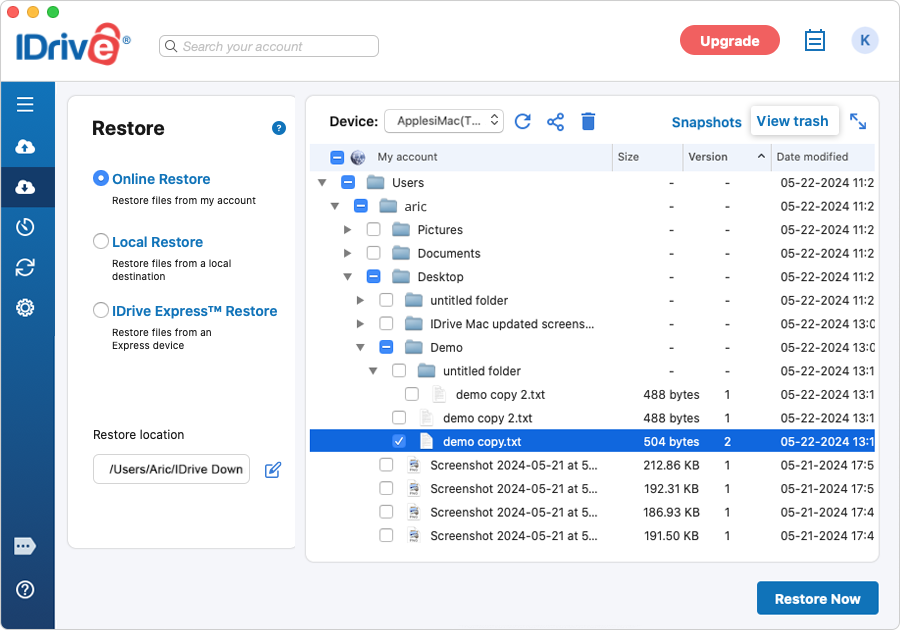
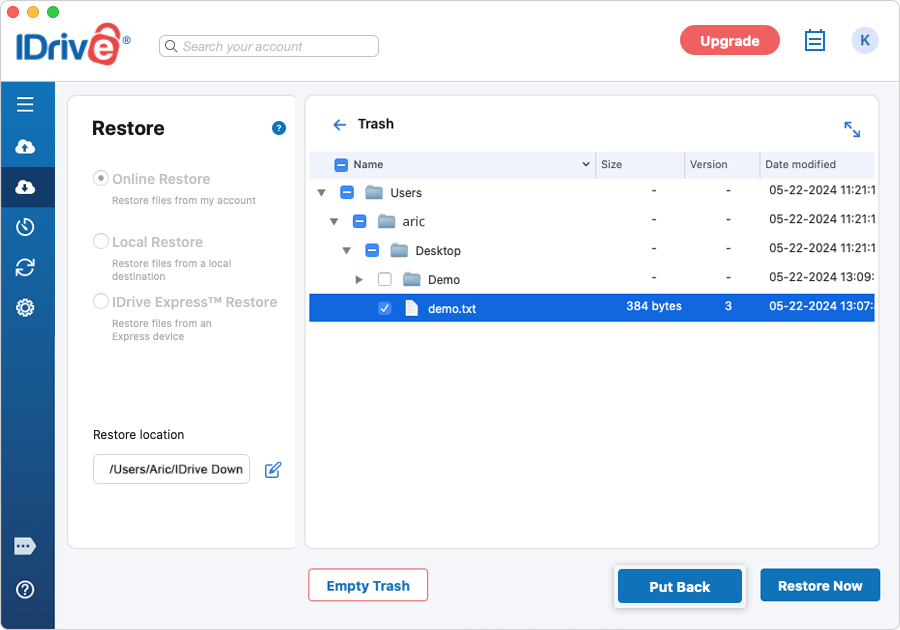
All the files that are deleted from your account will be moved to 'Trash'. You can either move your files to the original location in your IDrive account or restore them to your local computer. The files present in 'Trash' will automatically get deleted after a 30-day period.
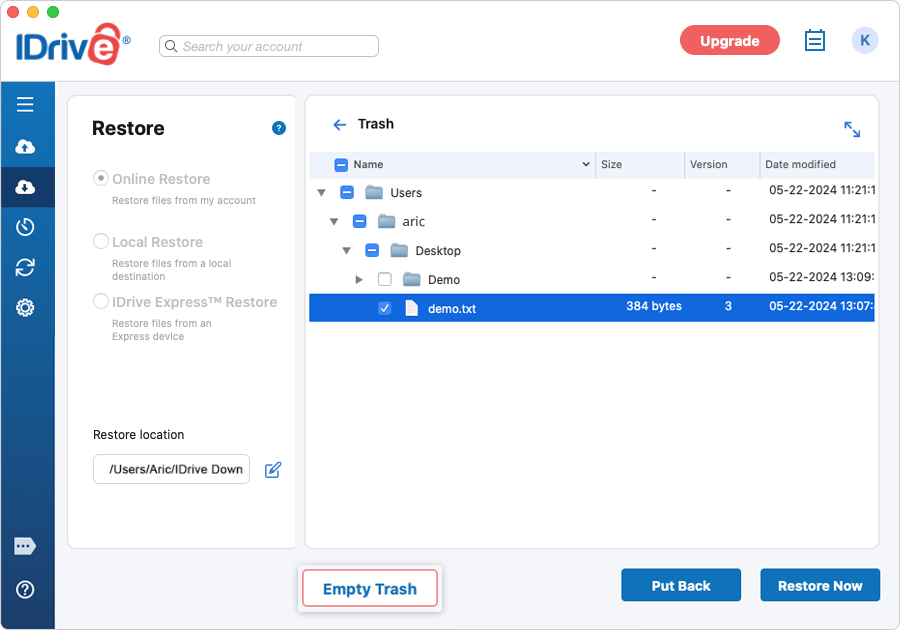
To move/restore your files from trash, follow these steps:
Select 'Online Restore' under 'Restore'.
Click 'View trash'.
Select the checkbox for the files you want to move/restore.
Click 'Put Back' to move the files to the original location in your IDrive account.
Click 'Restore Now' to restore your files to the desired location on your local computer.
Click 'Empty Trash' to permanently remove the deleted files.
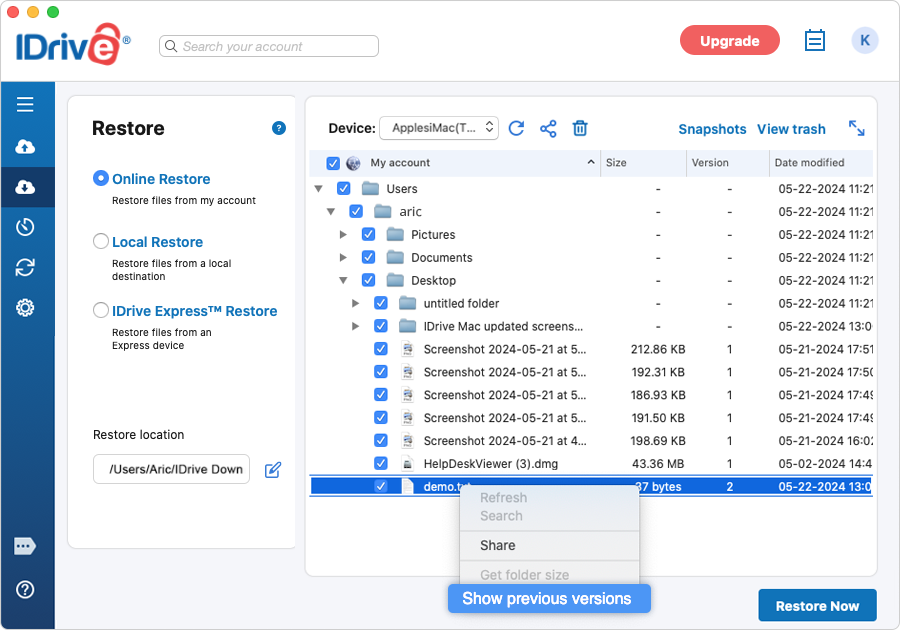
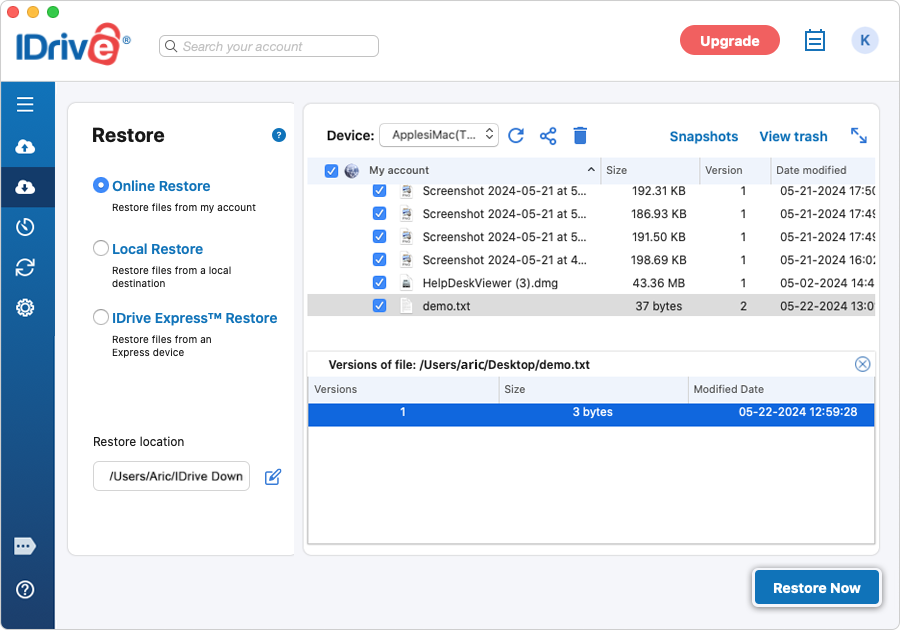
Can I restore the previous version of a file from Trash? *
Yes, you can restore the previous versions of a file from trash. Right-click on the desired file and select the 'Show previous versions' option. Select the required version and click 'Restore Now'.
I need a walkthrough of the IDrive desktop application interface.
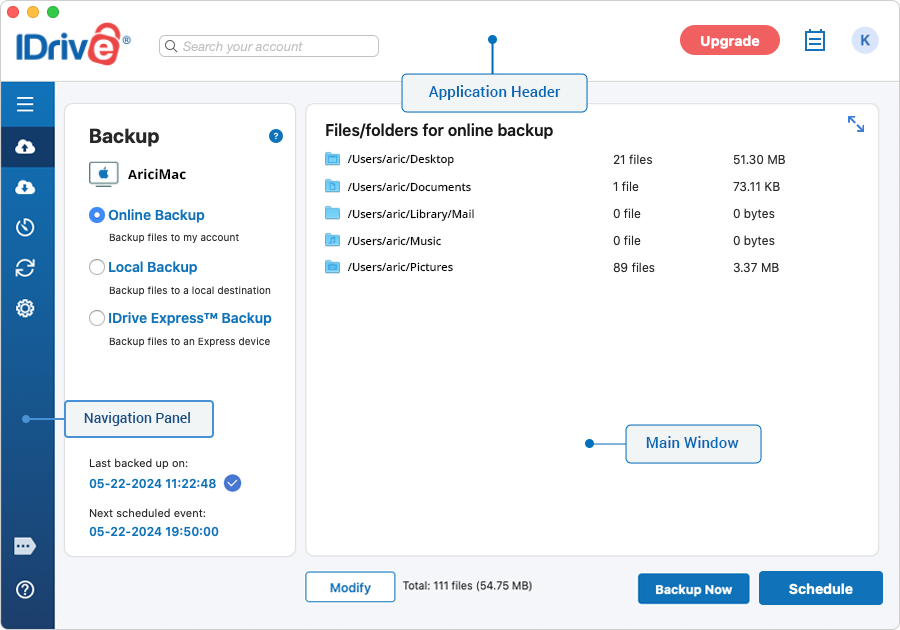
The IDrive desktop application interface can be split into three sections - application header, navigation pane, and main window.
Application header
The application header comprises the search, account quota information, Upgrade button, Activity logs, and your username with access to the web console.
Navigation pane
The navigation pane comprises five functional sections:
Backup - View and select files and folders to backup to your IDrive account
Restore - Displays all files / folders backed up to your account, allowing you to restore, share, search files / folders
Scheduler - Schedule your backups
Cloud Drive - Sync your files and folders in real-time across all the linked devices
Settings - Configure your IDrive account settings
Main Window
The main window displays contents related to the functional sections, selected on the navigation pane.
To stop a file from being backed up, you can insert files/folders from 'View Exclude Files' window. This method of exclusion keeps the contents of your backup set unchanged.
I have backed up certain folders (containing multimedia, etc.) which are not going to change. Can I remove them from my Backup set, presuming that the backed up data wouldn't be affected?
After you have backed up files that you will not update, you
can remove them from your backup set. All files, once backed up, remain unaffected
in your IDrive account even if you remove their reference from your backup
set.
I have included files from an external drive in my backup set. After I back them up, can I run subsequent backups without inserting the drive while my backup set still refers to it?
Yes. The absence of the external drive, referenced in your backup set, will not hinder your regular backup activity. However, files from the external drive shall not be backed up.
Can I backup the iCloud Drive folder on my computer to IDrive?
Yes, IDrive can backup any files present locally in the Desktop and Documents folders in the iCloud Drive folder on your computer.
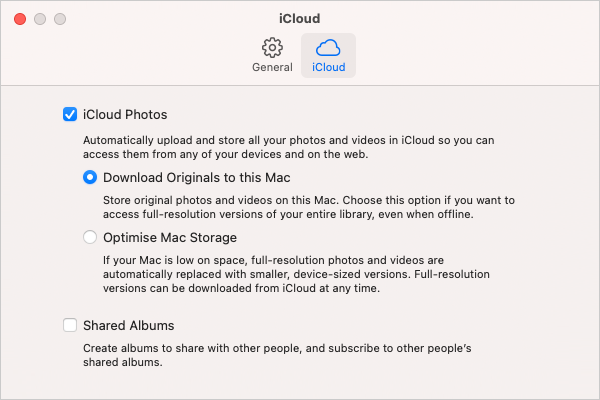
Make sure Desktop & Documents Folders is turned on in iCloud settings.
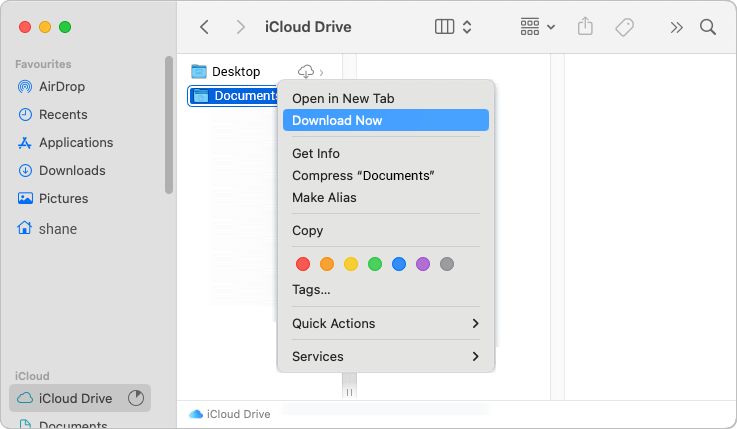
Open iCloud Drive from Finder.
Right-click the Desktop folder and select Download Now.
Similarly, right-click the 'Documents' folder and select 'Download Now'.
Once all the files are downloaded to your computer, you can add the Desktop and Documents folder to your backup set by navigation to Backup > Change. It will be backed up in the next operation.
Note: In case new files or folders are added to Desktop and Documents, you must download them to your computer and then perform a backup to IDrive.
What are the options available in IDrive Status Item?
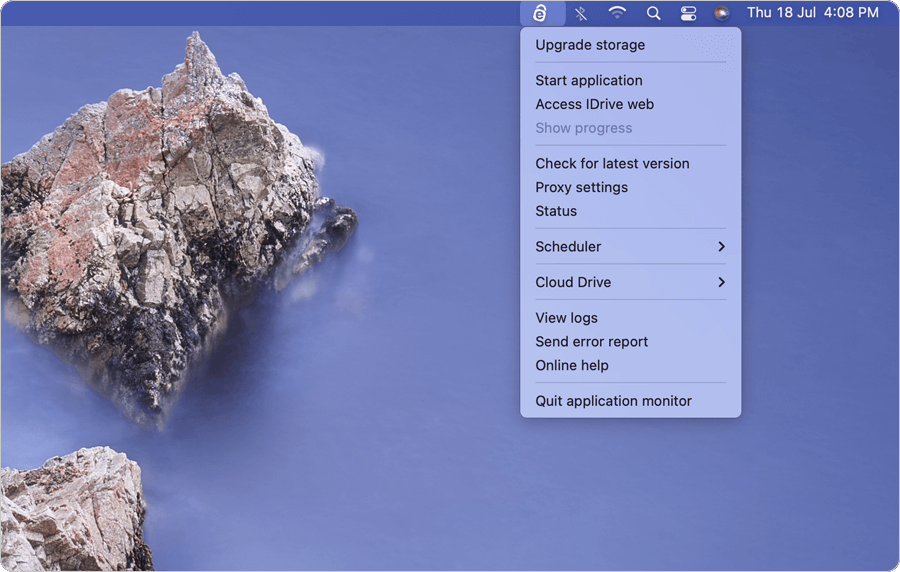
On installation, IDrive creates an IDrive Status Item icon on your system tray.
Clicking the IDrive Status Item icon provides access to the following options:
Menu Options
Upgrade storage: You can upgrade your account to a higher plan.
Start application: Start the IDrive desktop application.
Access IDrive web: Sign in to your IDrive web account to view and restore your files.
Show progress: You can view the progress of the scheduled backup job.
Check for latest version: This option gives you updates of the latest version of the IDrive application.
Proxy Settings: Configure the proxy settings to use the IDrive application.
Status: Displays the status of the last scheduled backup operation.
Scheduler: Manage your backup operations from the IDrive Status Item:
Manage all scheduled jobs: Manage your scheduled backup jobs and view the scheduled backup job details.
Pause the scheduled job: You can pause your scheduled backup.
Stop the scheduled job: You can stop your scheduled backup.
Disable all scheduled jobs: You can disable/enable all scheduled backup jobs.
Cloud Drive: Access Sync options.
My Cloud Drive folder: Open the Sync folder.
Pause/Resume: You can pause/resume a sync operation.
Recently modified items: Take a look at the files that have been recently modified.
Stop Sync: You can disable data synchronization.
View logs: Check the activity log reports of your operations.
Send error report: Contact IDrive support team for queries, suggestions or feedback.
Online help: Provides all information on the IDrive application.
Quit application monitor: Closes IDrive Status Item.
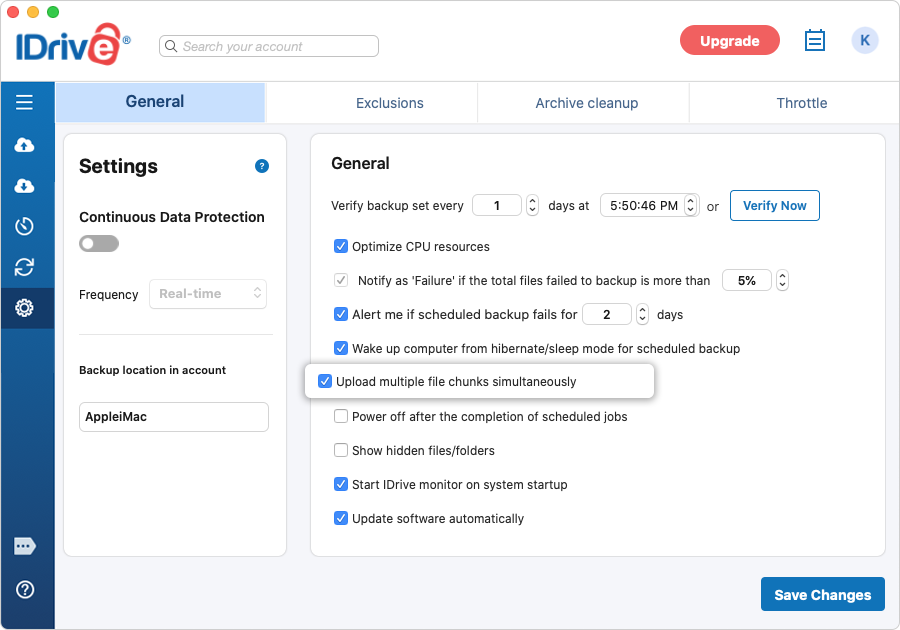
I see 'Upload multiple file chunks simultaneously' option selected by default under 'Settings'. Why?
The 'Upload multiple file chunks simultaneously' option will improve the data transfer speed during backups. This option is selected by default for user convenience. For optimum speed, ensure the internet bandwidth is high during data backups.
When I sign in to my IDrive account for the first time on a computer, why is it asking me to replace existing or add a new device for backup?
On signing in to your account, IDrive allows you to either add the computer as a new device or transfer the backup set, scheduled jobs, IDrive application settings, etc. from an already backed up computer to the new computer.
Transferring the backup set, application settings helps you to avoid time-consuming initial backup, in case you are:
Replacing an old computer
Replacing computer's hard drive
Recovering after an OS reinstall
Note: Online / local backup set and scheduled jobs for online and local data will be transferred.
To replace an existing computer,
Download and install IDrive on your computer.
Sign in to IDrive using your credentials.
When the 'Set up your new device for backup' screen appears, click 'Replace Existing Device'.
Select the desired computer from the 'Select one of the computers from the list to replace' screen and click 'Continue'.
Click 'Continue' in the confirmation screen.
A message appears when the existing computer is replaced successfully. Backups will stop for the existing computer.
To add the computer as a new device, you can click 'Add New Device' in the 'Set up your new device for backup' screen.
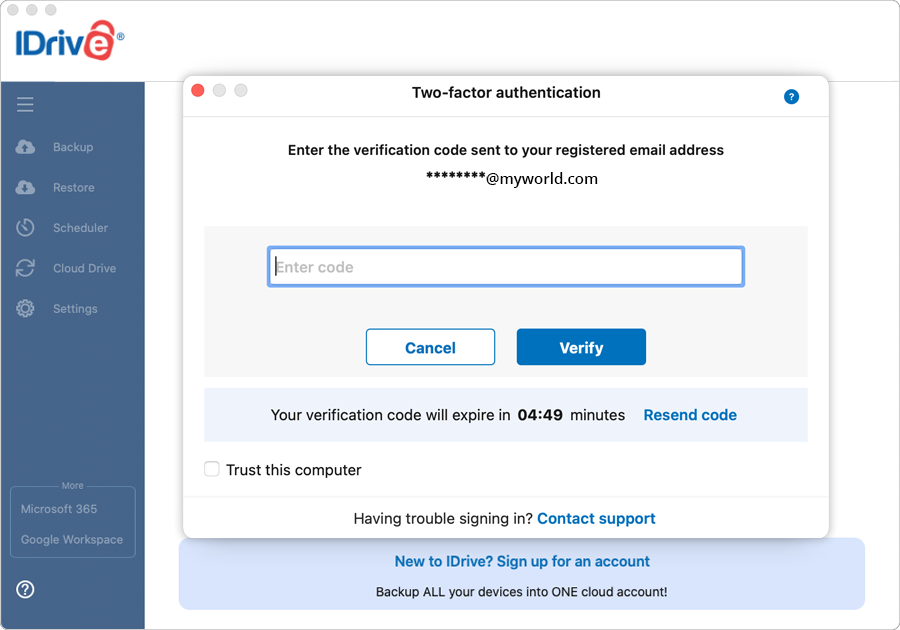
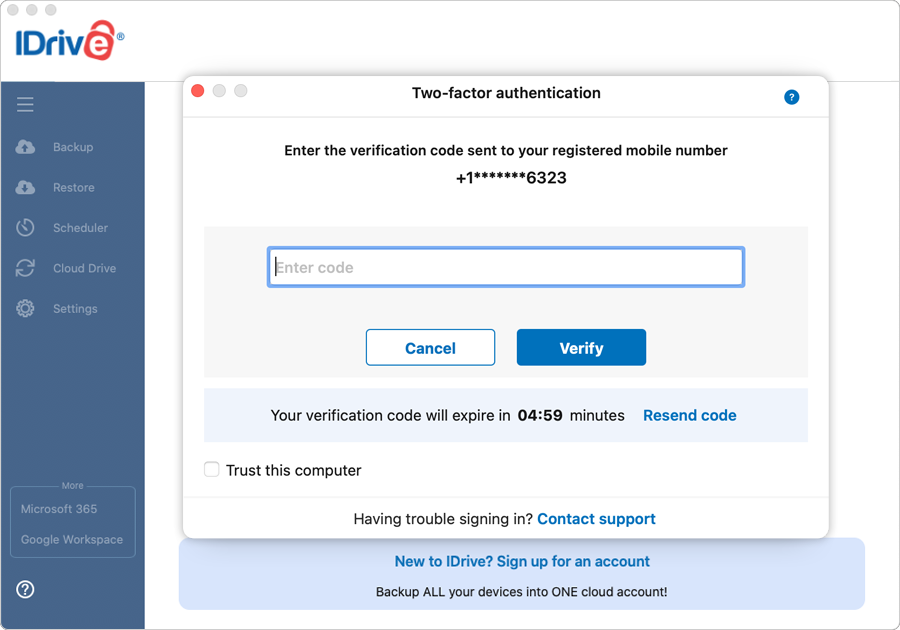
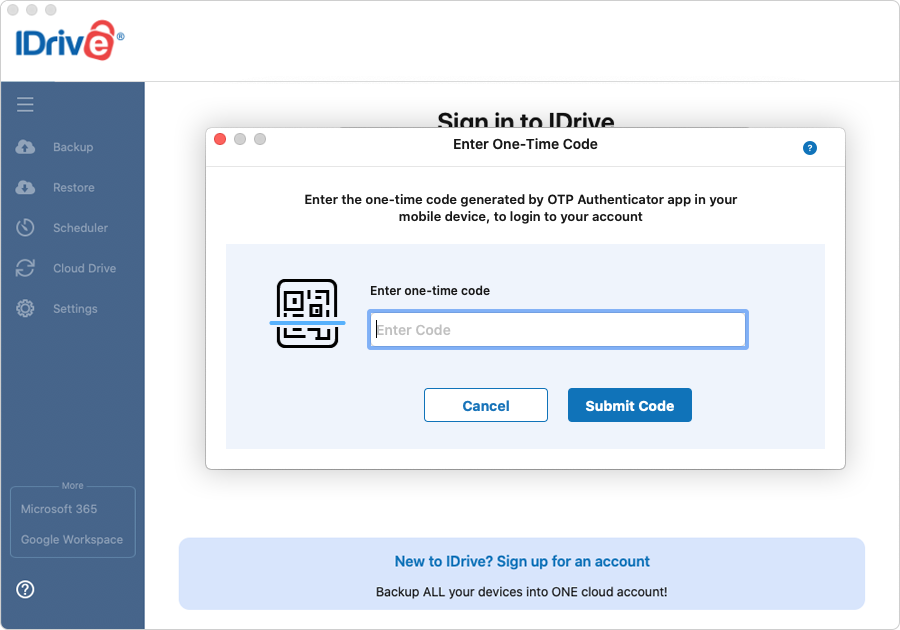
The two-factor authentication provides additional security to your account and helps in preventing unauthorized access. Once two-factor authentication is enabled via web, in addition to your password, you will need to enter a verification code sent to your email address or phone number or Time-based OTP authenticator app, while signing in to your IDrive account. Read more on how to enable two-factor authentication for your IDrive account.
How do I sign in to my IDrive account once two-factor authentication is enabled?
To sign in to your IDrive account after two-factor authentication is enabled,
On the IDrive application sign in screen, enter your username and password and click 'Sign in'.
If you have selected Email address or Phone number as the preferred method of receiving one-time verification code, enter the same and click 'Verify'. Note: You can also add your computer as a trusted device by selecting the 'Trust this computer' checkbox. Once a computer is added as a trusted device, users will not be asked to enter verification code during any subsequent sign in.
If you have selected Time-based OTP Authentication as the preferred method of receiving one-time verification code, enter the one-time code generated by the Time-based OTP Authenticator app in your mobile device and click 'Submit Code'.
 and select a location to backup your data to the local drive or Express device. To change the files/folders/drives in a backup set, click the 'Modify' button, on the respective screen.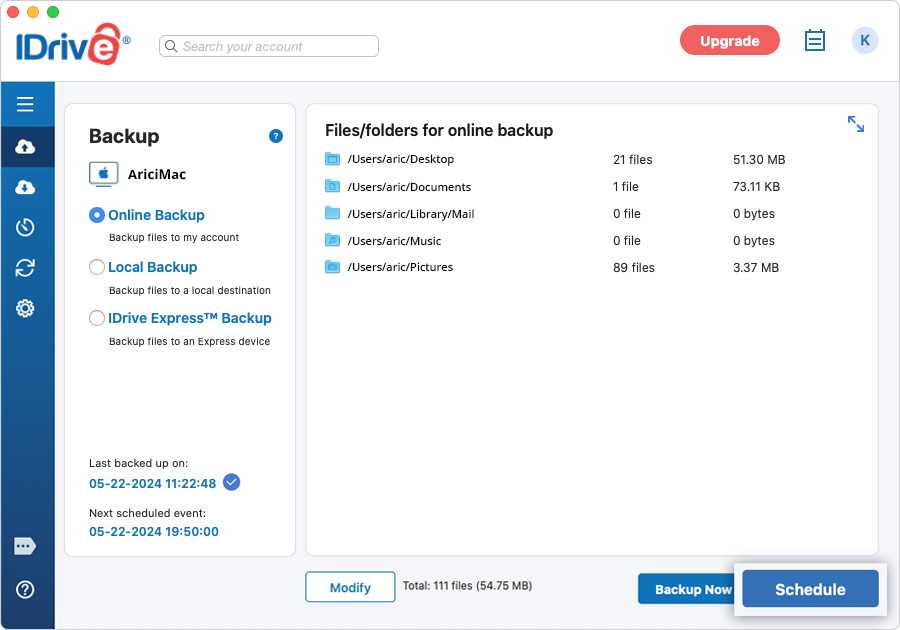

 to browse the files and folders.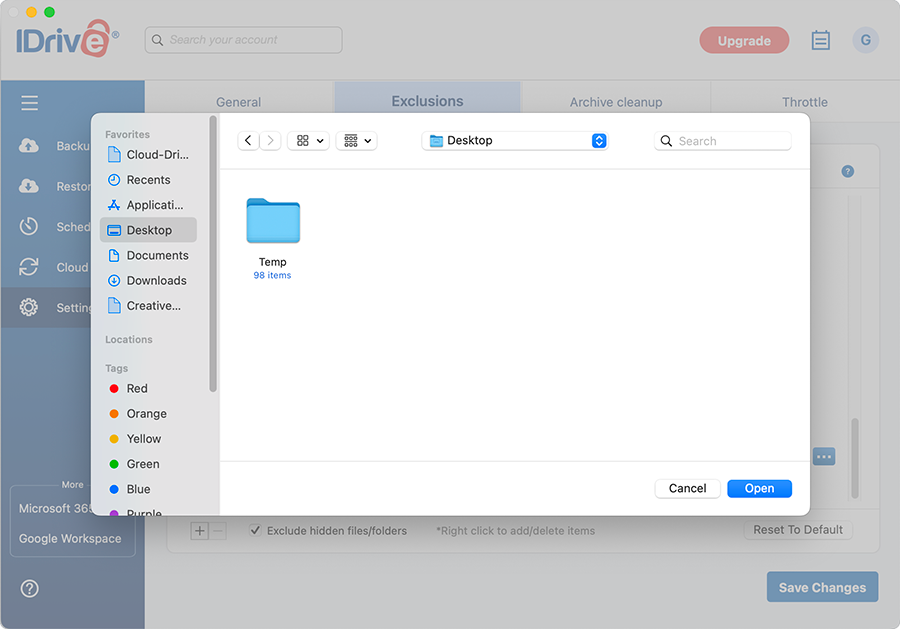

 and
and  The share option is not available in the search results of your local and express backup.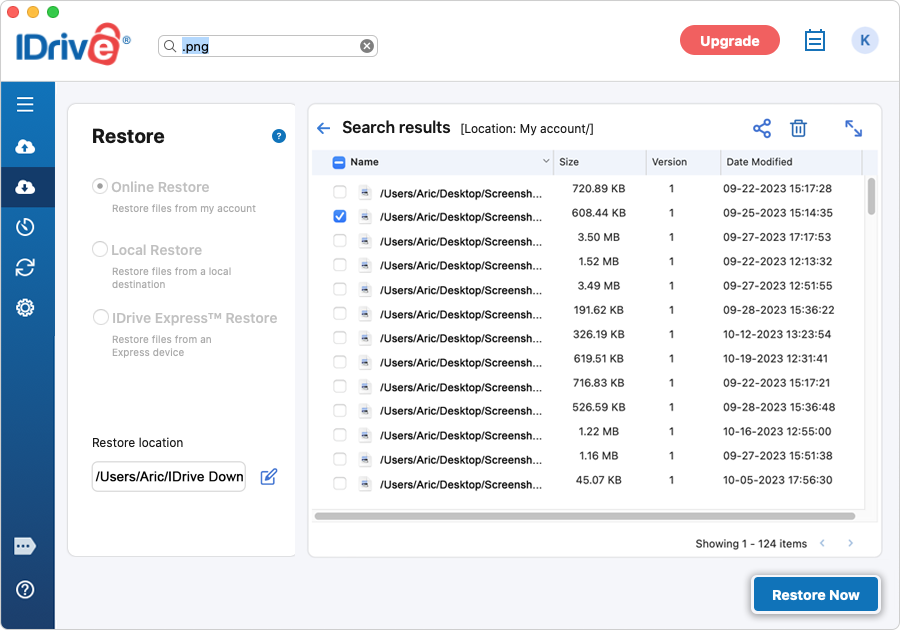
 to remove it from the excluded files and folders list.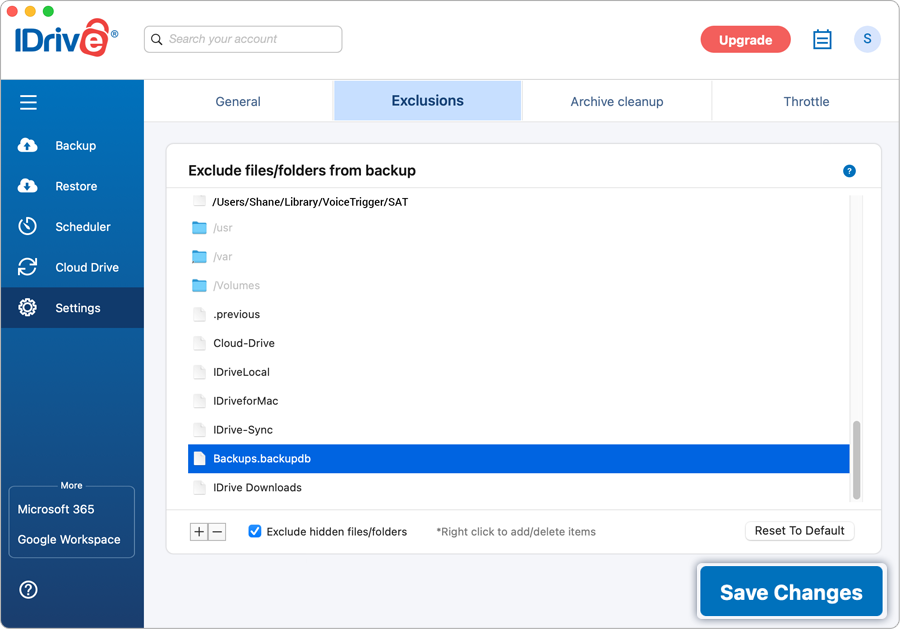
 Read Note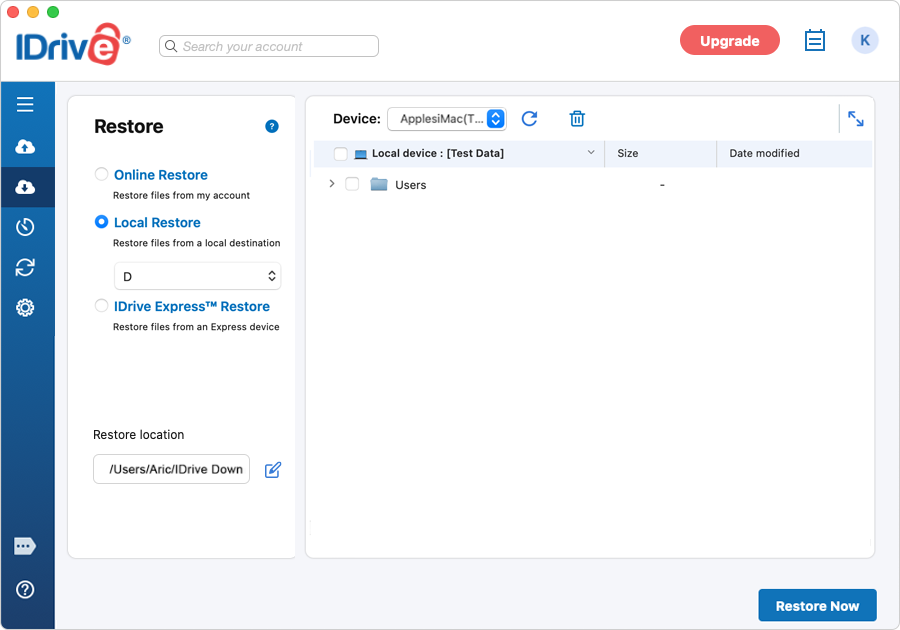
 . You must update the backup set after deleting the files to ensure backup does not take place for the deleted files.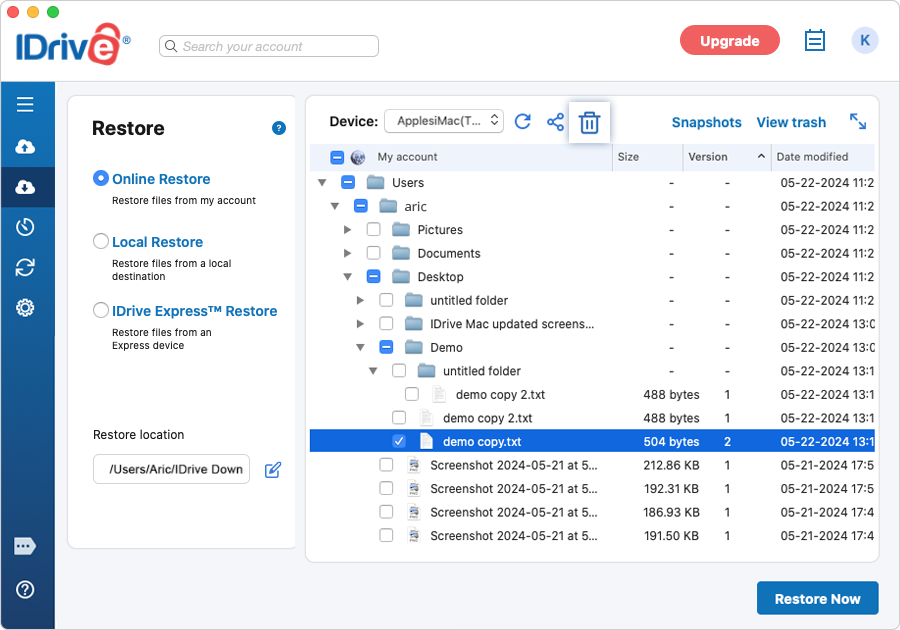
 . Alternatively, right-click on the files/folders you wish to share and select Share from the dropdown.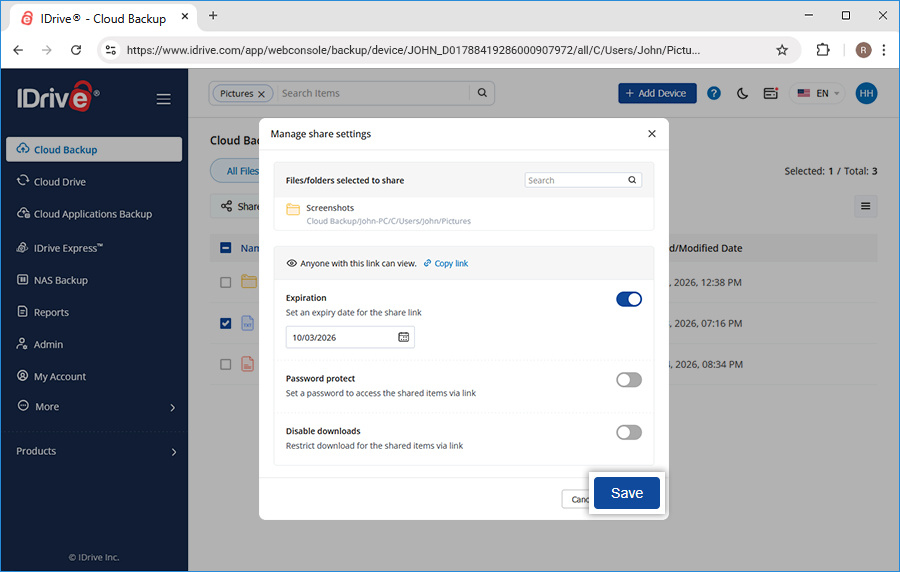

 against the specific log and click 'Yes' in the confirmation popup.