Home
 
Features Download Pricing Demo Security Partners Compliance Support FAQ
In case your query has not been addressed below, contact us through the feedback form for a prompt response.

Questions related to mobile access
Can I backup contacts from my device?
Can I backup photos / videos from my device?
How do I restore contacts to my device?
How do I restore photos to my device?
How do I search files in my IDrive account from iPhone / Android mobile?
How do I share my files / folders with my friends or associates?
Can I view the files / folders shared with me?
Can I edit backed up files on my iPhone / iPad / Android mobile?
What are the file / folder operations that I can perform on my device?
Can I access my iPhone backed up data through web?

Can I access my IDrive account on my iPhone / iPad / Android mobile?

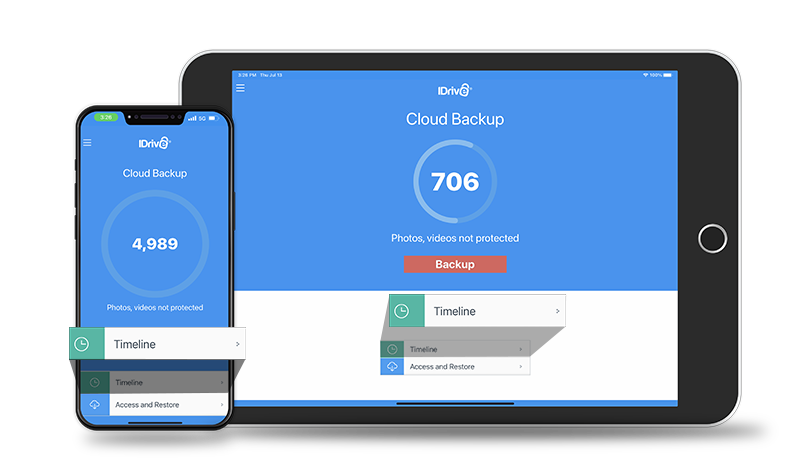
Yes, you can access your IDrive online backup account on your iPhone / iPad / Andriod mobile.

Steps:
1. Download and install the IDrive (Online Backup) app on your iPhone / iPad / Android mobile.
2. Login to the application using your IDrive credentials.

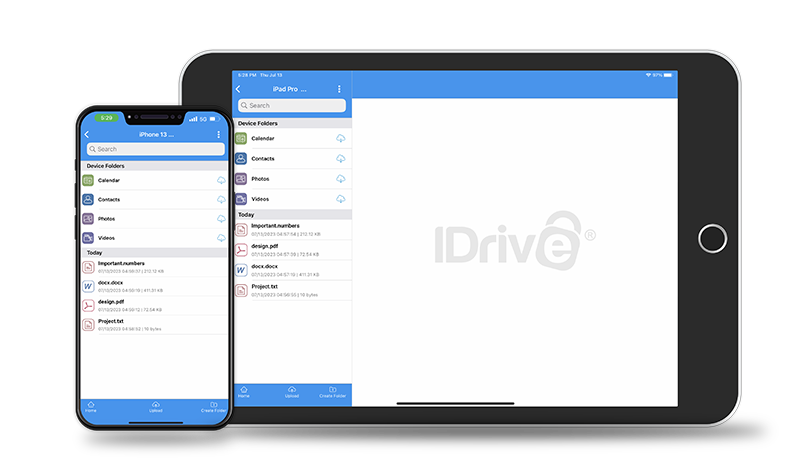
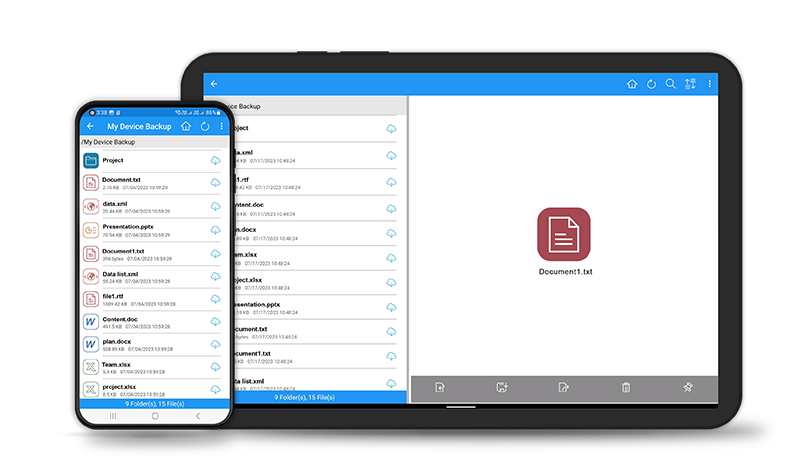
You can now browse, search and access all backed up file(s) / folder(s) in your IDrive online account. In case you have a private encryption key set for your IDrive online account, enter the key in order to view a backed up file.

Note: If you do not have an IDrive account, sign up for a new account.

Top

faq

Can I backup contacts from my device?

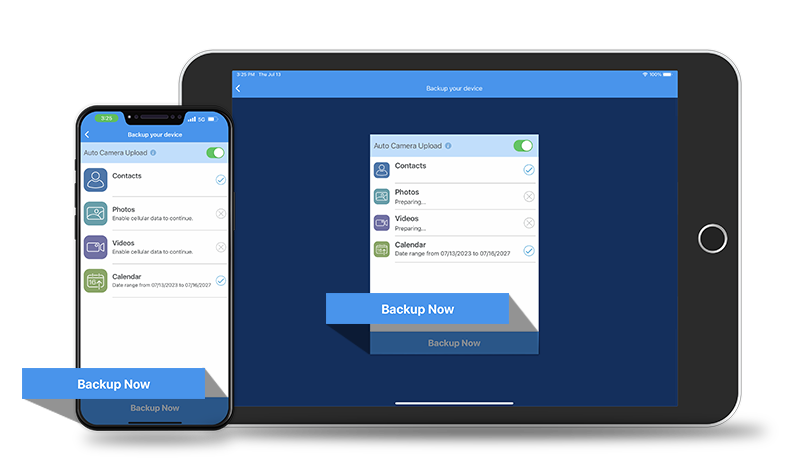
Yes, you can back up your contacts from the device to your IDrive account.

For iPhone:

Steps:
1. Log into the IDrive (Online Backup) app and tap on 'My Files'
2. Select 'My iPhone Backup' folder and tap on 'Contacts'
3. Tap on 'Backup' button to backup the contacts

For iPad:

Steps:
1. Log into the IDrive (Online Backup) app
2. Select 'My iPad Backup' folder under 'My Files' and tap on 'Contacts'
3. Tap on 'Backup' button to backup the contacts

For Android Mobile:

Steps:
1. Log into the IDrive (Online Backup) app and tap on 'My Files'
2. Select 'My Phone Backup' folder and tap on 'Contacts'
3. Tap on the Menu and choose 'Backup' to backup the contacts

Top

Can I backup photos / videos from my device?

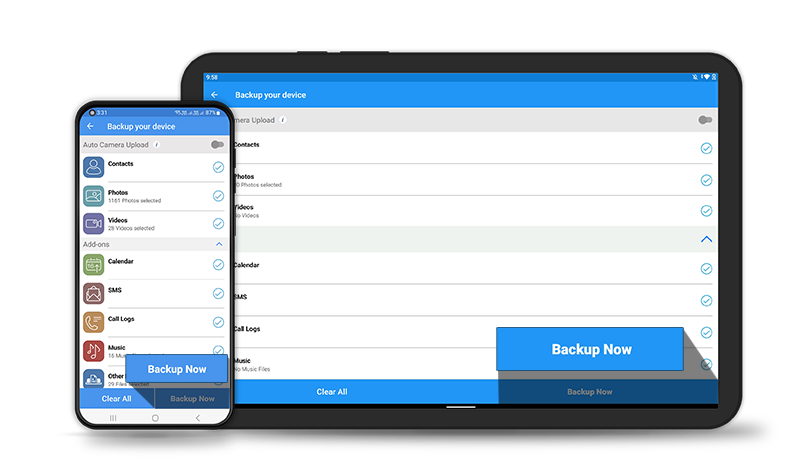
Yes, you can backup photos and videos from your device to your IDrive account.

For iPhone:

Steps:
1. Log into the IDrive (Online Backup) app and tap on 'My Files'
2. Select 'My iPhone Backup' folder and tap on 'Photos' / 'Videos'
3. Tap on the 'Backup' button and choose 'Select photos from gallery' / 'Select videos from gallery'
4. Select the desired photos / videos and tap on 'Done'

Note: Choose photos / videos from album or capture it live and upload. You can also view the backup progress.

For iPad:

Steps:
1. Log into the IDrive (Online Backup) app
2. Select 'My iPad Backup' folder and tap on 'Photos' / 'Videos'
3. Tap on the 'Backup' button, select from the Backup Progress menu and choose Photos / Videos from the gallery

Note: Choose photos / videos from album or capture it live and upload. You can also view the backup progress.

For Android Mobile:

Steps:
1. Log into the IDrive (Online Backup) app and tap on 'My Files'
2. Select 'My Phone Backup' folder and tap on 'Photos' / 'Videos'
3. Tap on Menu and select 'Backup'
4. Choose the album and tap on your desired photo / video to backup

Note: You can select and backup multiple photos / videos from your phone gallery.


Top

How do I restore contacts to my device?

You can restore your device contacts from your IDrive account.

For iPhone / iPad:

Steps:
1. Log into the IDrive (Online Backup) app
2. Select your desired device and tap on 'Contacts'
3. The latest version of contacts will be displayed, tap on action icon
4. Select the contacts you wish to restore
5. Tap on the 'Restore' button and choose your desired option

For Android Mobile:

Steps:
1. Log into the IDrive (Online Backup) app and tap on 'My Files'
2. Select your desired device and tap on 'Contacts'
3. The latest version of contacts will be displayed, tap on Menu
4. Select ‘Restore’ and choose the contacts you wish to restore
5. Tap on Menu, choose ‘Restore Selected' and select your desired option

Note:
To restore earlier versions of your contacts tap on 'Contacts' > 'Versions' and choose the desired version.


Top

How do I restore photos to my device?

You can restore your photos from your IDrive account.

For iPhone / iPad:

Steps:
1. Log into the IDrive (Online Backup) app
2. Select your desired device from the list and tap on 'Photos'
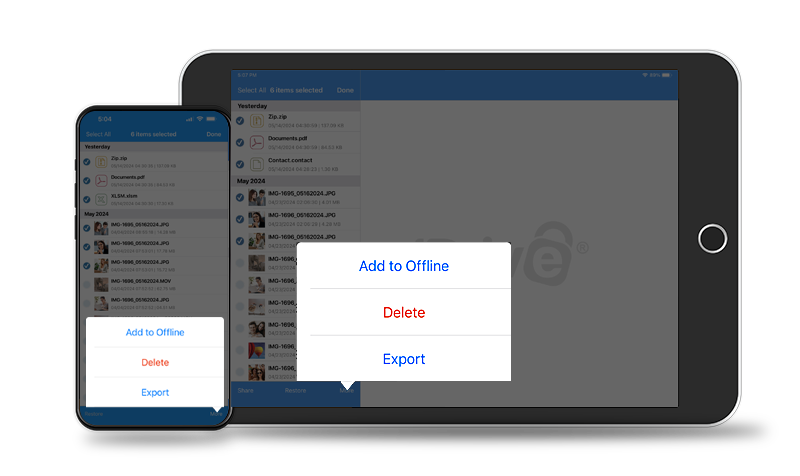
3. Tap on action icon and select the photos you wish to restore
4. Tap on the 'Restore' button

For Android Mobile:

Steps:
1. Log into the IDrive (Online Backup) app and tap on 'My Files'
2. Select your desired device and tap on 'Photos'
3. Tap on Menu and select ‘Edit’, choose the photos you wish to restore
4. Tap on Menu and select 'Restore'

Top

How do I search files in my IDrive account from iPhone / iPad / Android mobile?

You can search and preview any file in your IDrive online account from iPhone / iPad / Andriod mobile.

Steps:
1. Log into the IDrive (Online Backup) app
2. Select your desired computer from the list
3. Enter the complete or part of the file / folder name in the search bar; alternatively, on an Android mobile, select Menu and tap on 'Search'

Top

How do I share my files / folders with my friends or associates?

To share files / folders with friends or associates via the IDrive (Online Backup) app, follow the below instructions:

1. Log into the IDrive (Online Backup) app
2. Select your desired computer from the list
3. Tap on action icon, select the files / folders you wish to share and tap to enable the share feature; alternately, on an Android mobile, tap on Menu > 'Edit', select the desired files and tap on Menu > 'Share'
5. Provide valid email address(es) to send the share link to your contacts. Do not delete or move the shared files / folders after sending the email

Note: The Share option is available only for IDrive accounts with default encryption.


Top

Can I view the files / folders shared with me?

Yes, you can view the files / folders shared with you via web interface.

Steps:
1. Click on the share link received via email.
2. You can now view and download the shared files.

Top

Can I edit backed up files on my iPhone / iPad / Android mobile?

No, you cannot edit your backed up files on your iPhone / iPad / Android mobile. You can only view the files in your IDrive online account.

Top

What are the file/folder operations that I can perform on my device?

You can perform all file / folder operations like cut, copy, rename, delete and create a new folder on your device.

Top

Can I access my phone backed up data through web?

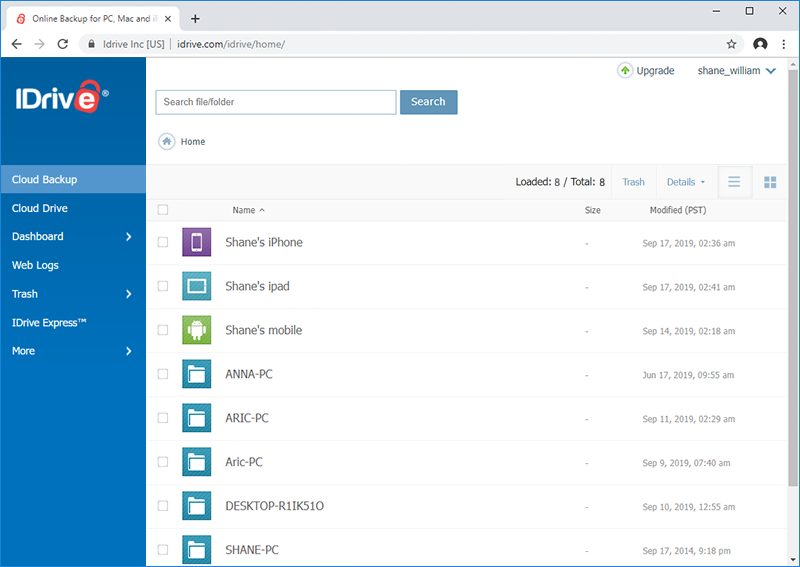
Yes, you can access your phone contacts, photos and videos backed up to your IDrive account via the web.

Login to your IDrive account via any web browser. Select the folder with your phone name. Now you can choose 'Contacts' / 'Photos' / 'Videos' folders to access your phone contacts, photos and videos backed up to your IDrive account.

Top