|
|
|
| |
I did not select any backup set after a fresh application install and logged in for the first time. However, the application backed up some of my files, why?
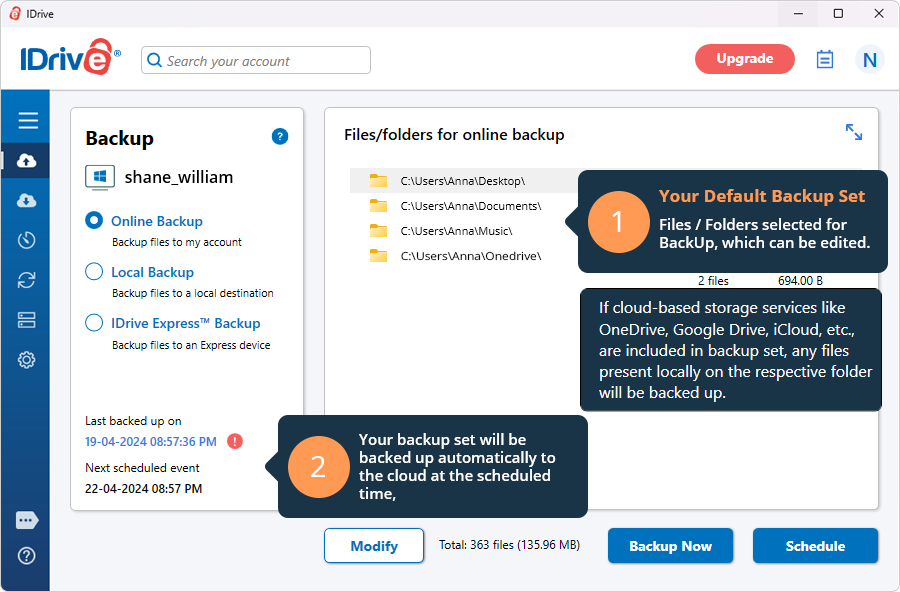
IDrive-E is a hands-free automated remote backup application. So, your ‘My Documents’ folder would be considered as part of the default backup set with a scheduled time set to the 'recommended backup time' set for 'off peak hours' with the Idle time backup option as default. Based on this and provided the changes are not altered, the application would commence backup of the default backup set once the scheduled backup start time has been reached. |
 |
|
| What is the 'Automatic Selection' feature?
The 'Automatic Selection' feature helps you to automatically backup your most commonly used application data such as ‘Microsoft Outlook’, ‘Microsoft Outlook Express’, the ‘My documents’ folder, the ‘My Favorites’ folder etc.
By default, the ‘Automatic Selection’ wizard selects the list of 'most commonly used user data' and the 'most common application data types' that are to be backed up. You may select/deselect the required application types depending on your backup needs.
You may opt for the 'Automatic Selection' option by clicking on the 'File selection wizard' menu item. |
 |
|
How do I create a backup list for backup?
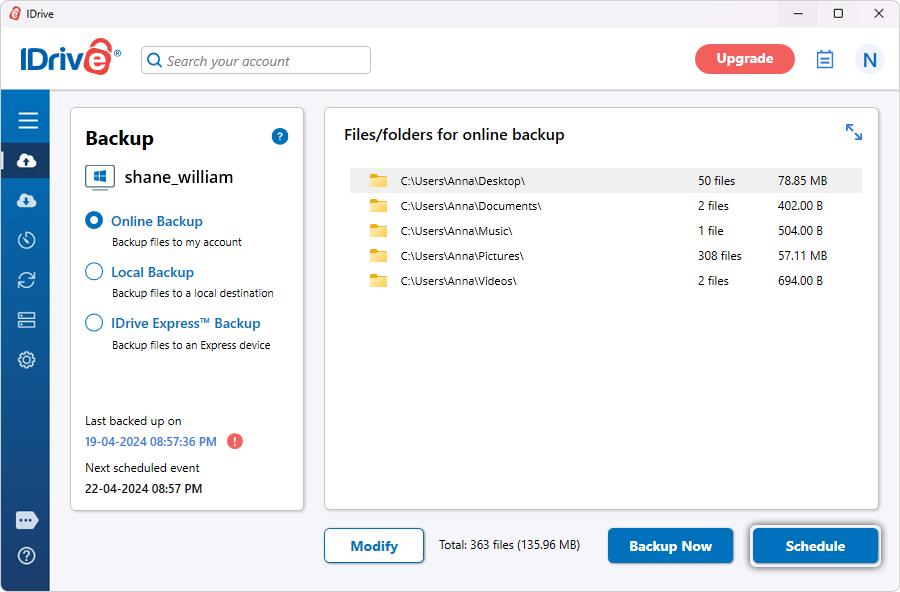
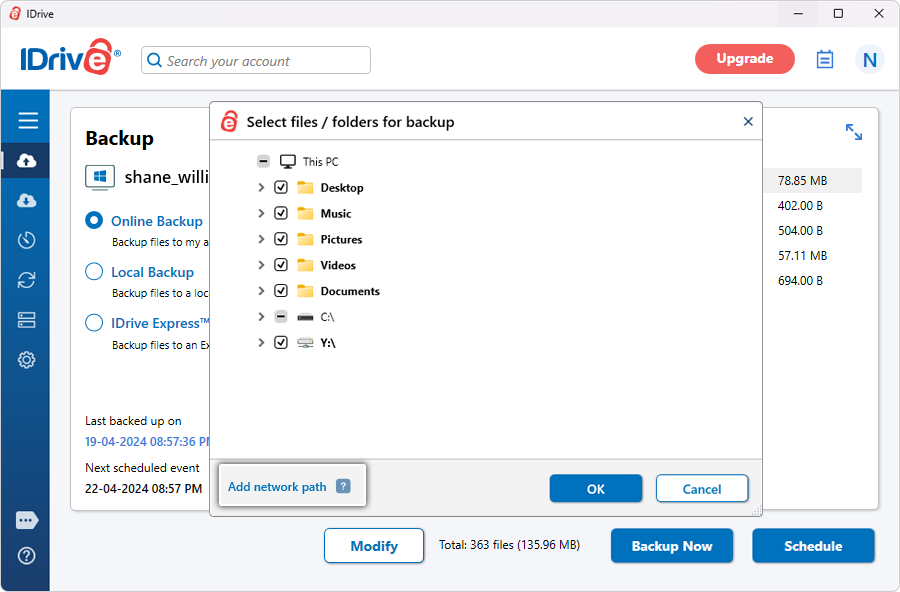
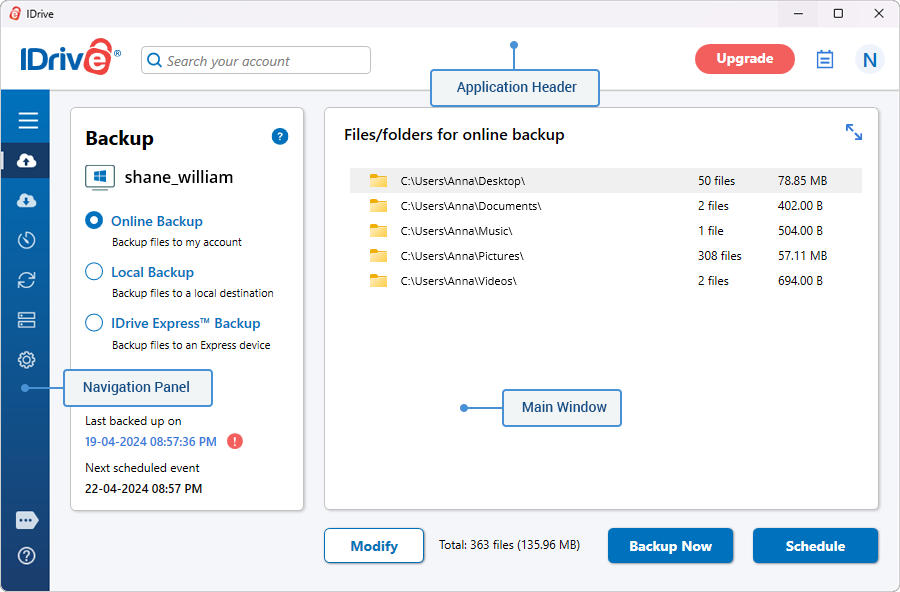
Once you login to IDrive-E with your username and password, the IDrive-E client will display two control tabs namely ‘Backup’ and ‘Restore’. Please go to the Backup tab and simply check mark the files/folders you wish to backup. You may view the selected files/folders on the 'Contents of my backupset' panel. |
 |
 |
|
How
do I edit a backup list?
You can edit the backup list by selecting/deselecting files/folders/drives from under the ‘My Selection’ available items under the ‘Backup’ tab. Files/folders/drives can be added and removed to/from the existing backup list by selecting and deselecting the required item(s). Selected backup folders/drives can be viewed under the 'contents of my backupset' panel. |
 |
|
How
do I perform an interactive backup?
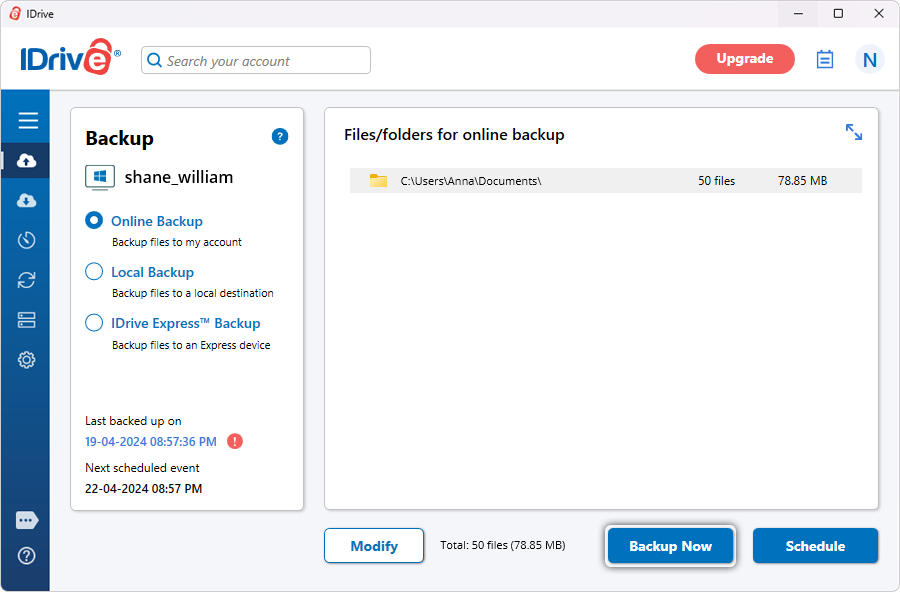
Select the required files/folders/drives for backup, click on the ‘Backup Now’ button to start the backup process in an interactive mode. |
 |
 |
|
How do I perform a scheduled backup?
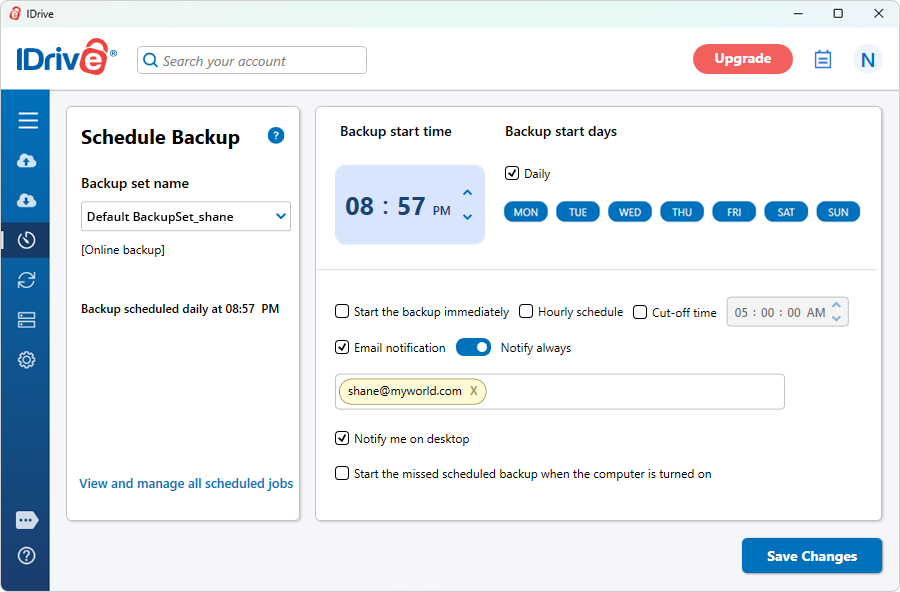
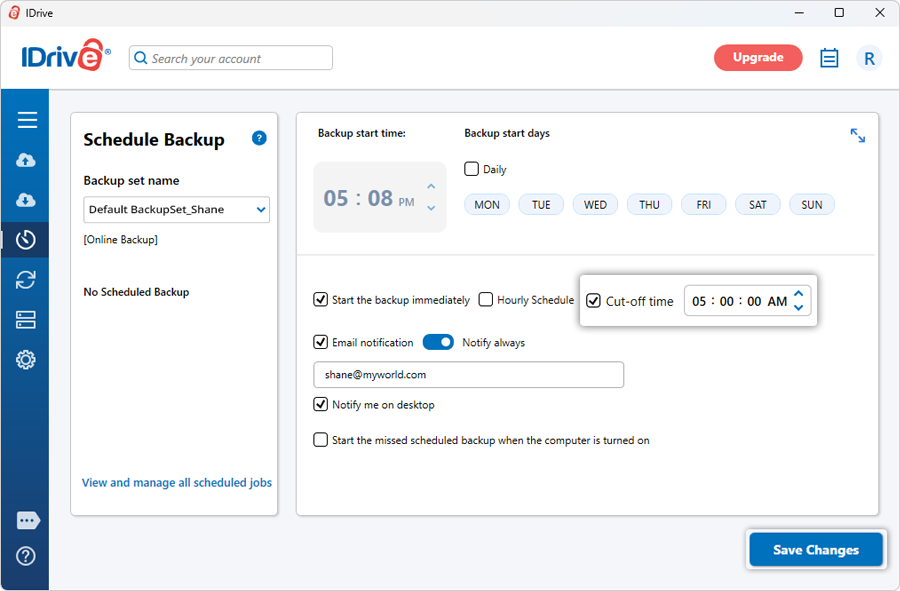
Select the required files/folders/drives for backup, click on the ‘Schedule Backup’ button to perform the scheduled backup for the desired date/time.
You may schedule the Backup in the following ways:
-- No Backup schedule
-- Use Recommended Backup Time
-- Use Custom Backup Time
-- Start the Backup Immediately
The ‘Use Recommended Backup Time’ option enables faster backups at off peak hours.
The ‘Use Custom Backup Time’ option allows users to schedule the backup for a future date and time.
The ‘Start the Backup immediately’ option allows the user to take the backup immediately with the frequency ‘Once’. The backup job would start in a few minutes
Select the 'Frequency' item from the drop-down box.
|
 |
Email notification
The user will receive an email about the status of the scheduled backup.
‘Send log extract’ and ‘Mail to’ options are enabled if the ‘Notify on failure’ or the ‘Notify always’ options have been selected.
Desktop notification
When the Desktop notification option is checked, the user will be notified via a desktop prompt after the completion of the scheduled backup job.
Click on the ‘OK’ button to schedule the backup for a future date and time. |
 |
|
How do I delete
my backup set data?
You can execute this operation in the following ways:
1) Select the 'Backup' tab
Click on Preferences > Backup Options > Remove Backup set entries
2) Right-click on the file/folder/drive in the Backupset panel and choose the 'Remove' option from the menu item.
3) Highlight the backup set content and hit the ‘Delete’ key from the keyboard. |
 |
|
| What is Bandwidth Throttle?
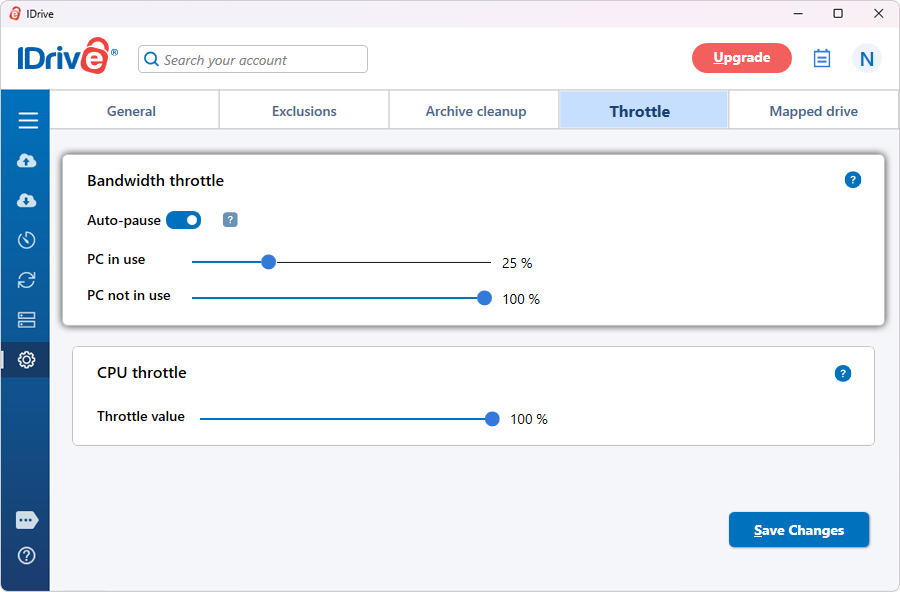
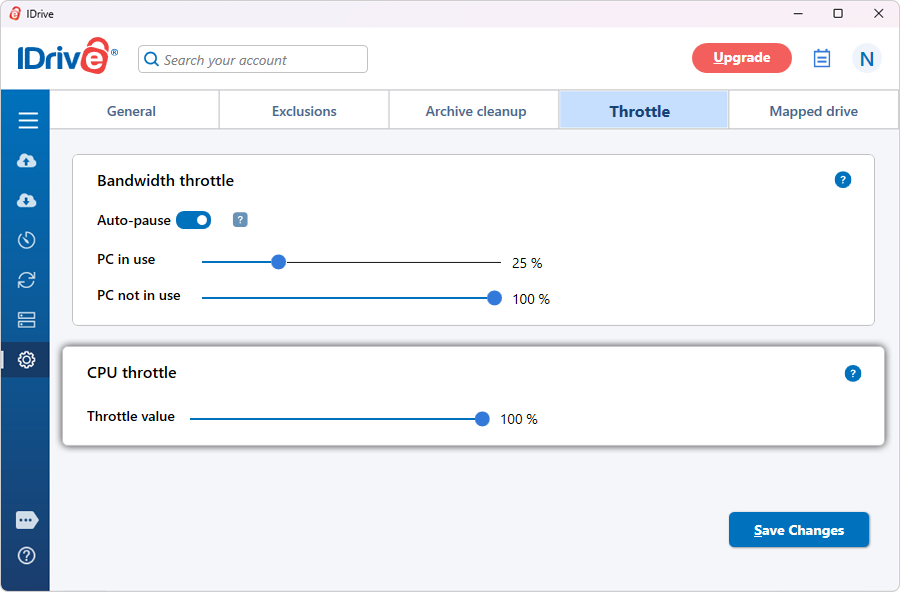
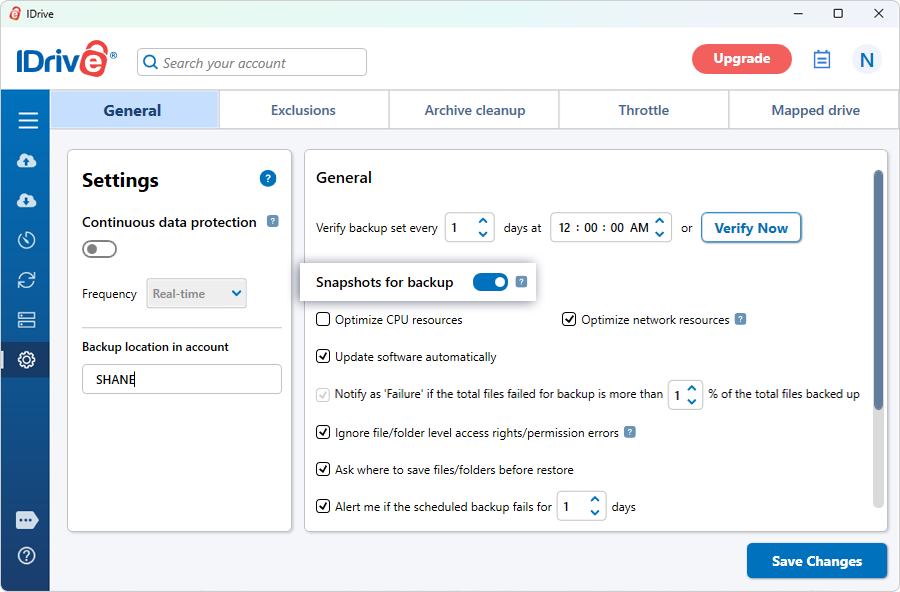
By default the application uses maximum bandwidth. This will affect the performance of other Internet applications especially when you have large scheduled backup jobs that are scheduled during your working hours. To circumvent this, users can reduce the application bandwidth and access other Internet applications without any interruptions. |
 |
|
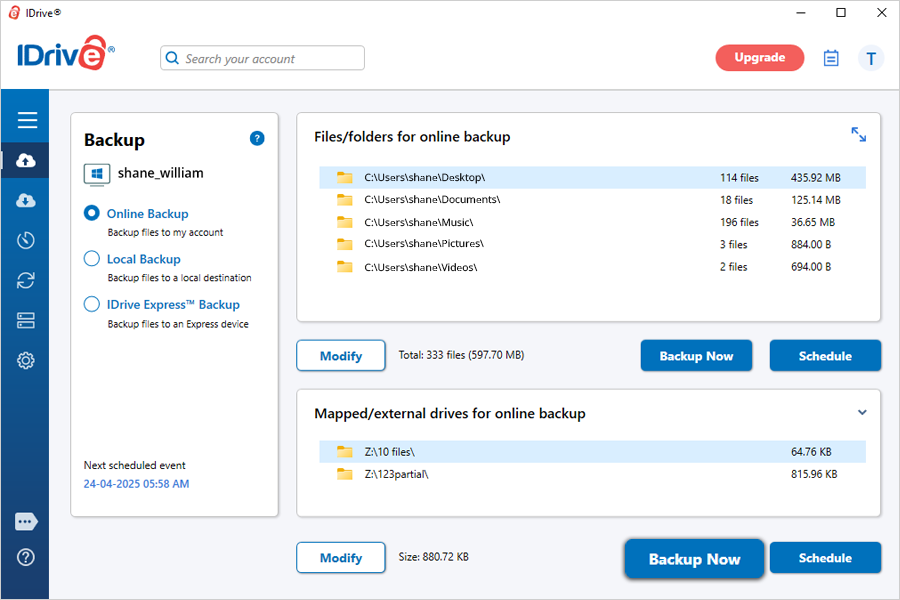
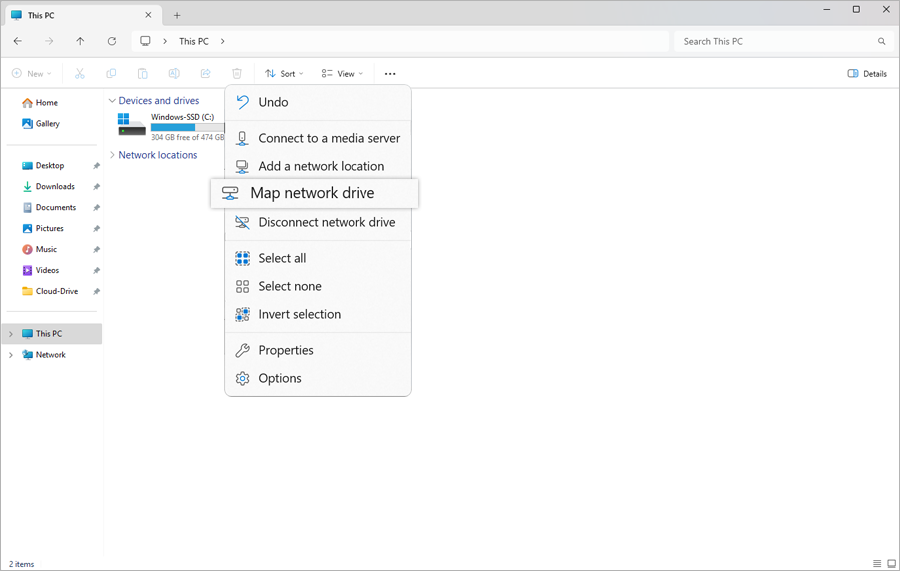
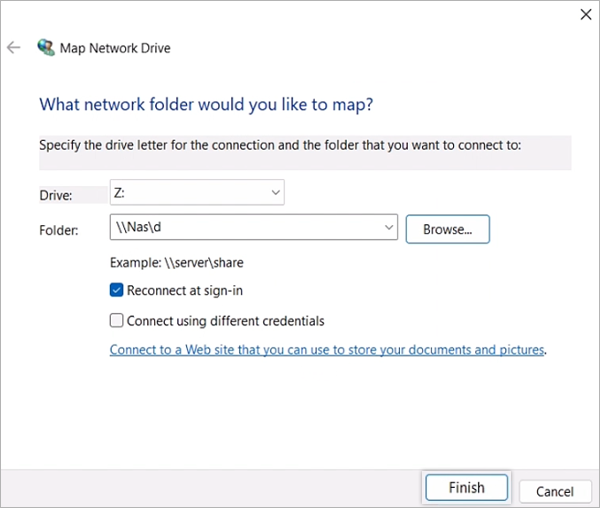
| How do I perform the backup of the mapped drives that I have selected for backup using IDrive-E?
For a majority of users, backing up of data on mapped drives is no different from backing up of data on local disks. For those who have opted for the 'NT Service' mode of install for IDrive-E, they might want to review the following guidelines:
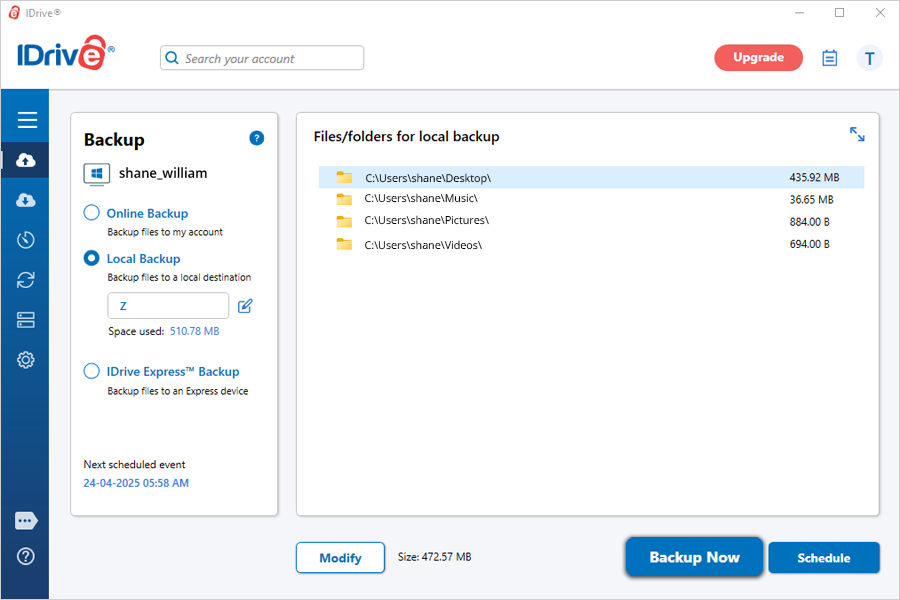
-- The Mapped drive you have created would be available under the 'Backup' tab pane view of the IDrive-E client application.
-- Here, you need to check the required files/ folders to be backed up from the mapped drive.
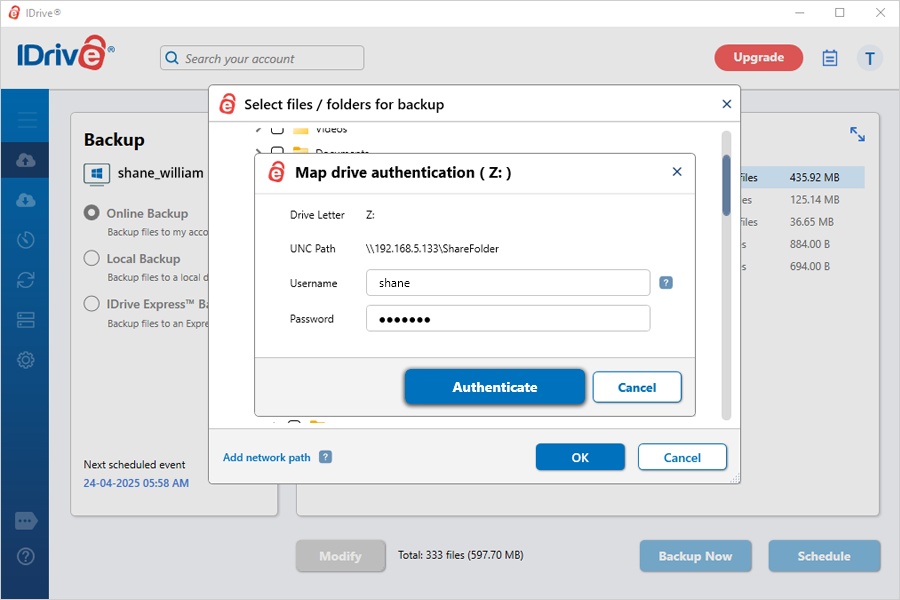
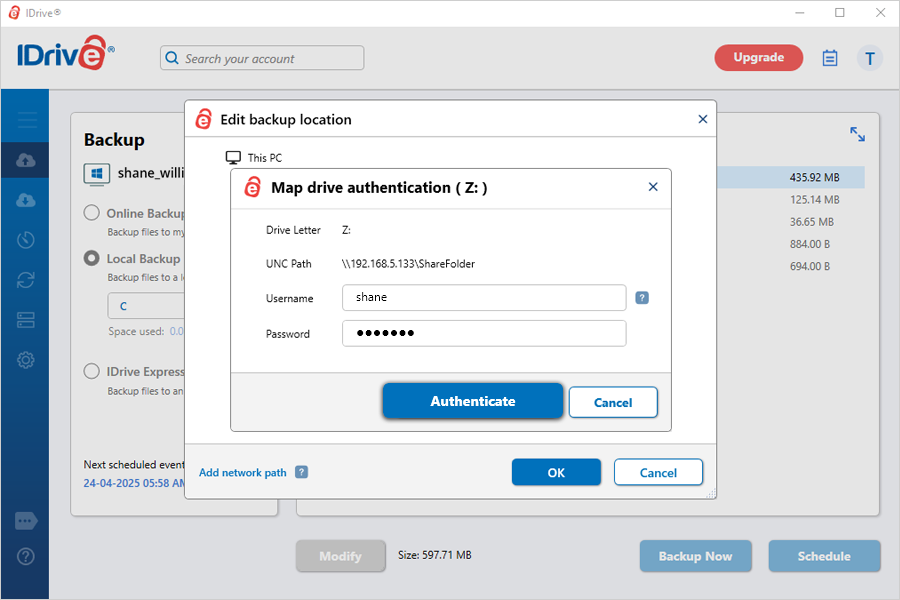
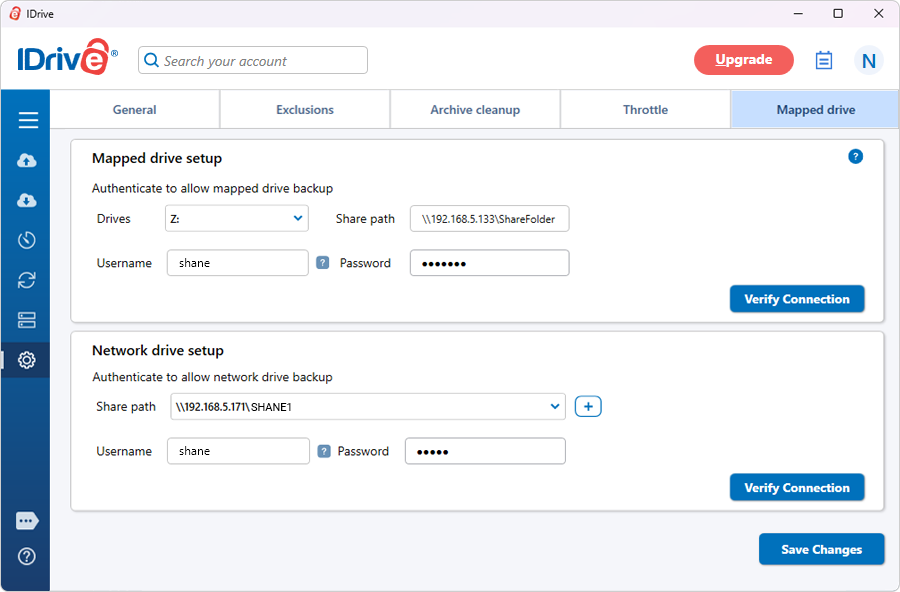
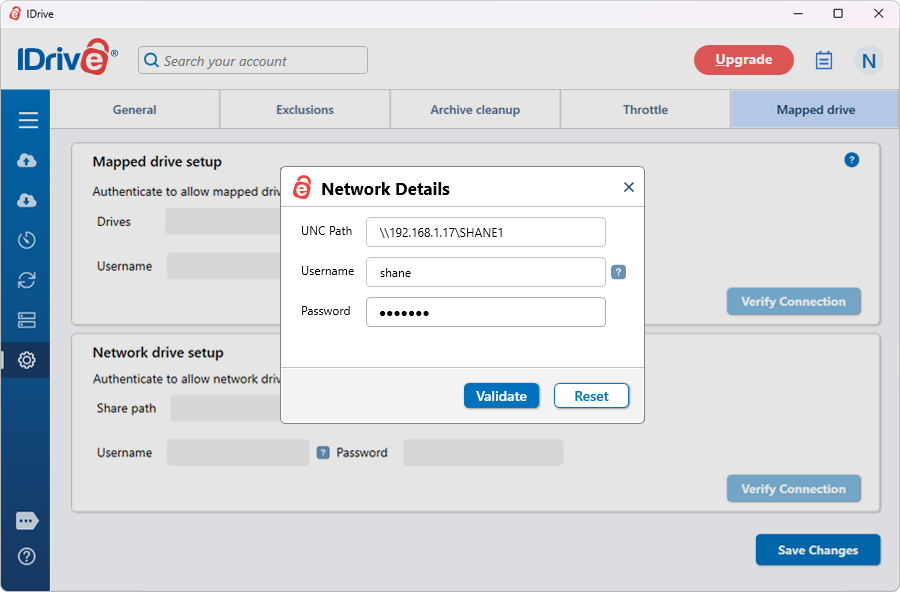
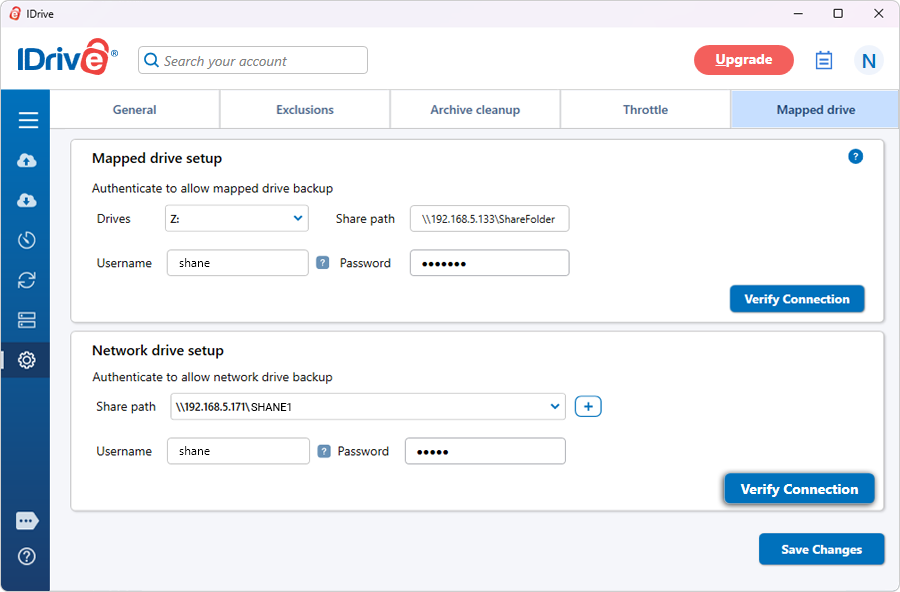
-- Then, please select the 'Mapped Drive Setup' option from the 'Option' menu and the following Mapped Drive
Setup screen appears.
-- Please enter the username/password for the mapped drive that you have selected.
-- Press the ‘Save’ button to save the settings. |
 |
 |
|
Do scheduled backups of my mapped drives take place when the Windows system has been logged off?
Yes. You can schedule the backup of mapped drives as per your chosen schedule i.e. the desired date/time/frequency etc. and the scheduled backup of those mapped drives should commence just like any other conventional scheduled backup job. |
 |
|
| |
I am not able to open my Outlook email client during the backup of my Outlook pst files. I get an error that indicates the file may be in use, Why?
For Windows XP and Windows 2003 server machines, the above issue should not arise. However, for other Windows OS, the IDrive-E agent might lock your outlook email client to perform a successful backup of your outlook open files.
Please note that you should close your MS Outlook email client before initiating a backup operation for all Windows OS other than Windows XP and Windows 2003 server where open file backup is supported. |
 |
|
Can I backup open files with IDrive-E?
Yes, you can backup open files using the Open file Backup feature available with IDrive-E. Note that this feature is available only for Windows XP and Windows 2003 servers and not for all Windows operating systems. The most common open files that can be backed up by using the Open file Backup feature are Outlook files (.pst), QuickBooks, Quicken, ACT, MS-Money, MS-Word, MS-Excel, MS-Access, MS FoxPro etc.
To use this feature, please select the option `Enable Open file Backup (available only for Windows XP and Windows 2003)’ in the `Preferences’-> 'Open file Backup' screen of IDrive-E. Also, please ensure that the selected temporary location on the local computer for Open file Backup has sufficient free space to hold the open files during backup. |
 |
 |
|
| |
| How can I disable the Open file Backup feature?
To disable the Open file Backup feature, click on the `'Open file Backup' option from the menu bar of IDrive-E main screen and uncheck the `Enable Open file Backup (available only for Windows XP and Windows 2003)’ option. |
 |
|
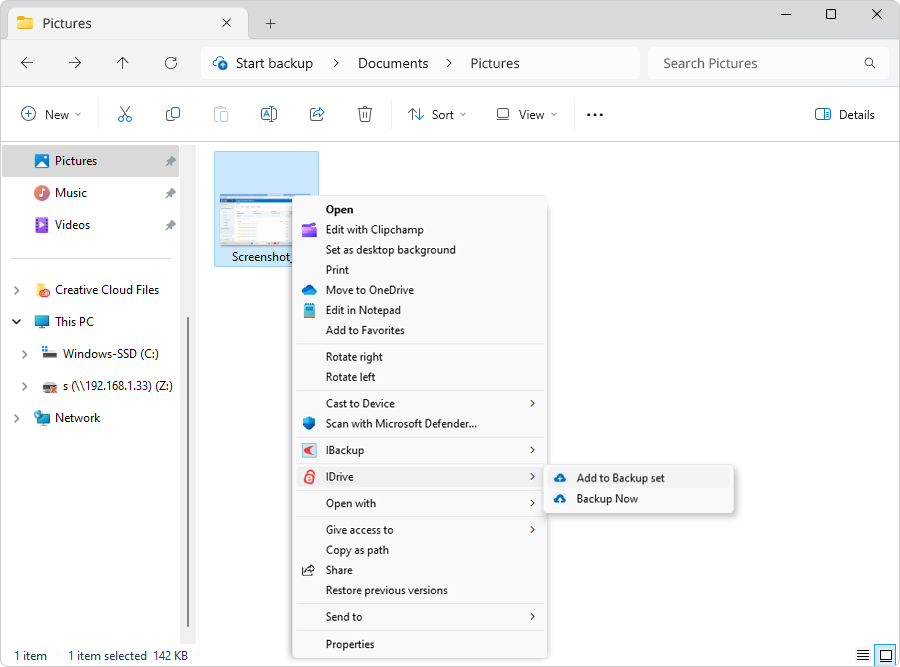
How can I add items to IDrive-E backupset from Windows Explorer?
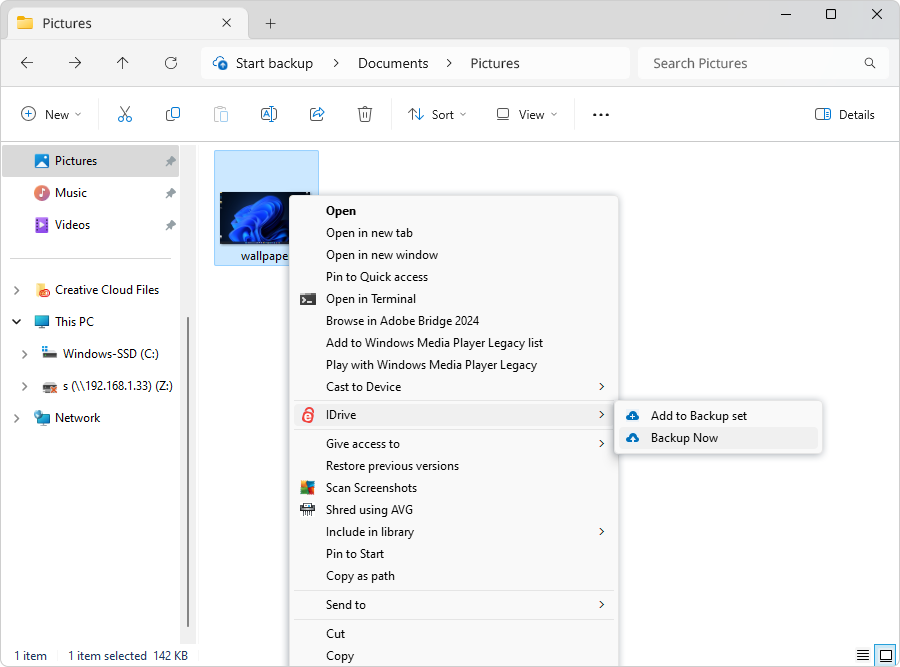
To add files and folders (backup set) directly from the Windows Explorer, browse to the required folder using Windows Explorer and then right-click on the file/folder and then choose ’IDrive-E’-> click on ‘Add to Backup Set’. The selected files and folders would be added to the existing backup set. IDrive-E will select the items from this backup set when you perform the next ‘Interactive or Scheduled’ backup. |
 |
|
How can I perform interactive backups from Windows Explorer?
Browse to the required folder using Windows Explorer, right-click on the respective file/folder and select the option ’IDrive-E’ and then click on ‘Backup Now’. IDrive-E will immediately start backing up the selected files or folders to your IDrive-E account. |
 |
|
How can I open ‘IDrive-E Explorer’ from the ‘IDrive-E Classic’ interface?
From the ‘IDrive-E Classic’ interface, click on ‘Options’->’IDrive-E Drive’ on the menu bar. This action will open the ‘IDrive-E Explorer’ interface using which you can perform all restore related operations with a typical 'Windows Explorer' like interface. |
 |
|
| Do I need to restart my computer after the IDrive-E installation is complete?
There is no need to restart your computer after IDrive-E has been installed - if you want to work with ‘IDrive-E Classic’ right away. You can perform all operations such as the selection of data, perform the immediate backup of the selected files and folders or perform the scheduling of backups with ‘IDrive-E Classic’ without restarting your computer.
However, to use the ‘IDrive-E Explorer’ you must restart your computer after the IDrive-E installation has been completed. |
 |
|
How can I manage backups I have scheduled with IDrive-E Classic on my computer?
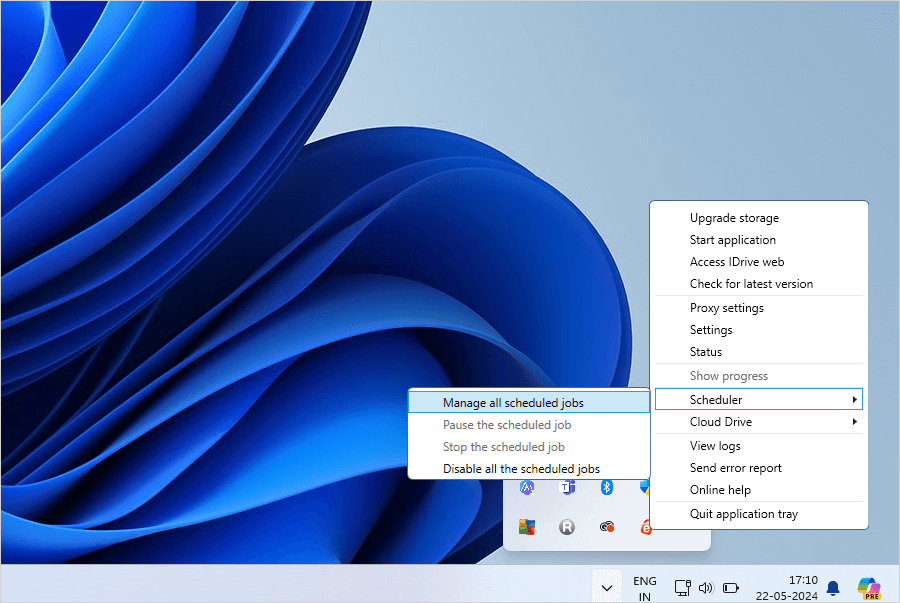
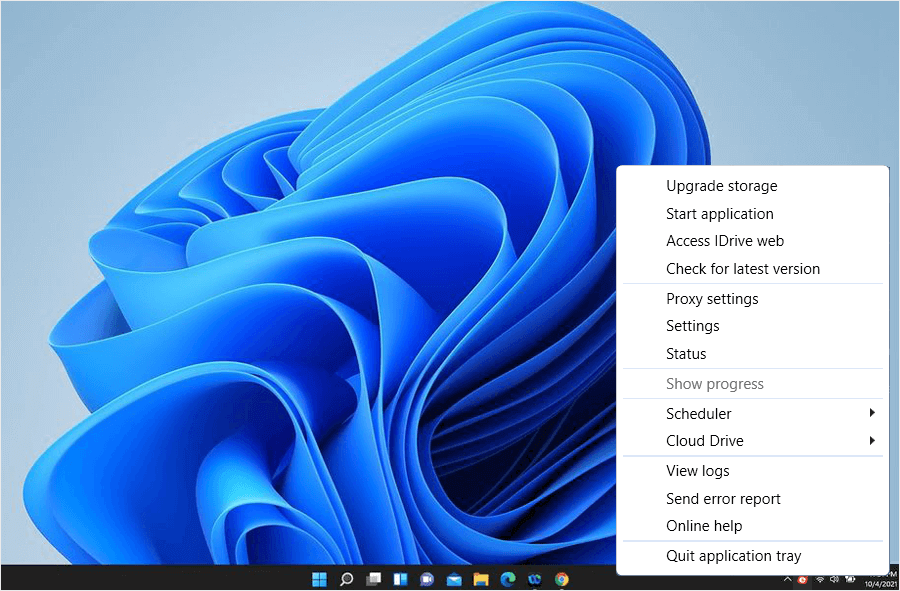
You can edit the frequency and the scheduler settings for any of the backups you have scheduled by clicking on the ‘Manage all the scheduled jobs’ option from the IDrive-E tray menu as shown below: |
 |
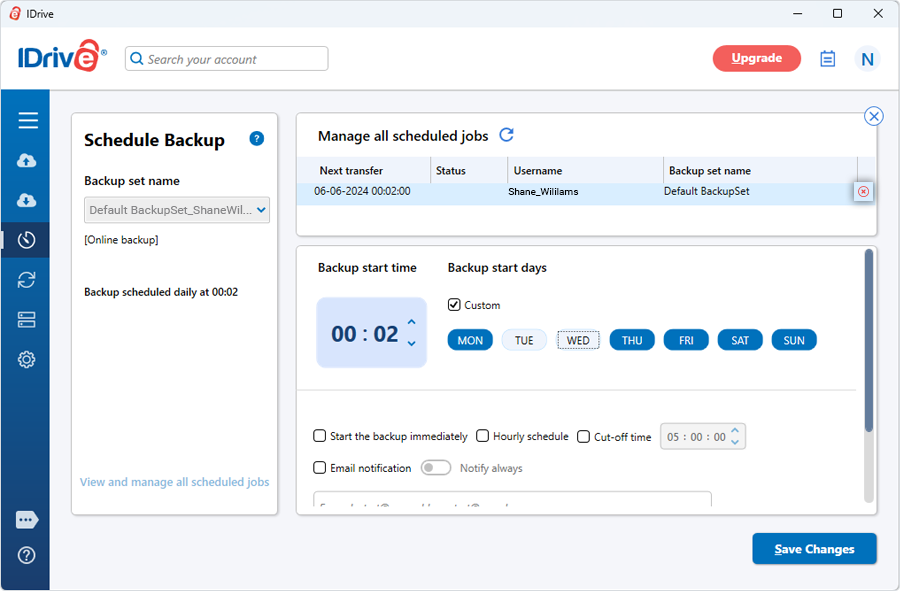
The frequency and the options pertaining to the desired scheduled backup job can be changed using the 'Manage all the scheduled jobs’ screen shown above.
You can do this in the following ways:
1.Highlight any entry and click on the ‘Edit’ button.
2.Double-click on any entry in the list.
3. Highlight any entry in the list -> Menu -> Edit.
You can edit the backup options in the same manner as you would while scheduling a backup job.
An unwanted scheduled backup entry can be deleted in the following ways:
1.Highlight any entry, and click on the ‘Delete’ button.
2. Highlight any entry in the list and click on ‘File’ -> ‘Delete’.
3. Highlight any entry in the list and hit the ‘Delete’ key from the keyboard.
You can also stop the scheduled backup that is under progress. (It will show the status as ‘In Progress’ on the Status column).
To stop the scheduled backup, you can perform any of the following:
1.Click on the ‘Stop Transfer’ button on the toolbar.
2.Click on ‘Tools’ -> ‘Stop Transfer’. |
 |
|
Will my scheduled backup continue in case of sudden system restarts while the scheduled backup operation is under progress?
Yes, the scheduled backup that was in progress would automatically continue once you restart the computer. |
 |
|
How many prior versions of a file can I store in my account?
You can use the file versioning feature to maintain the history of changes made to a particular file. Currently the last 30 versions of a file are stored and maintained on the IDrive-E servers. |
 |
|
How
do I restore the latest version of one or more files?
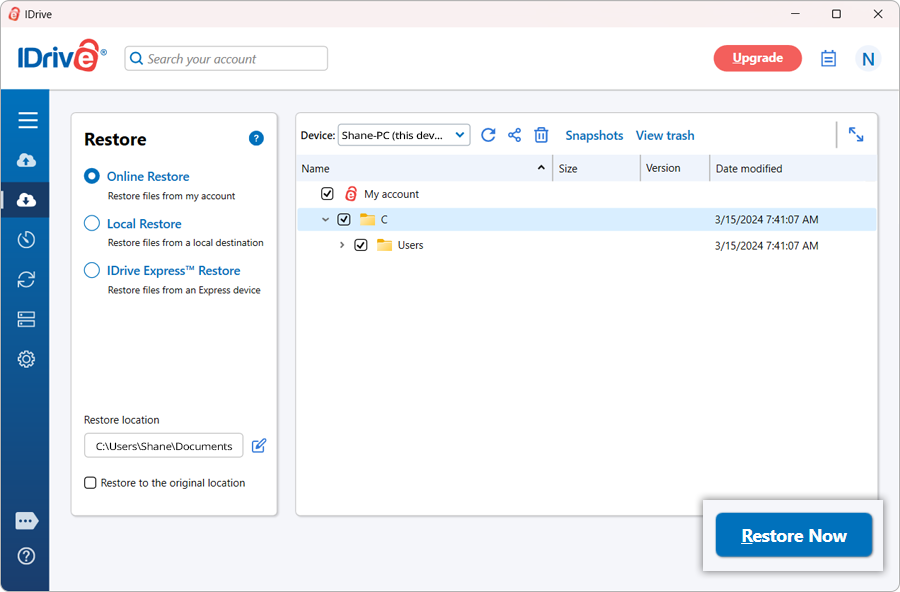
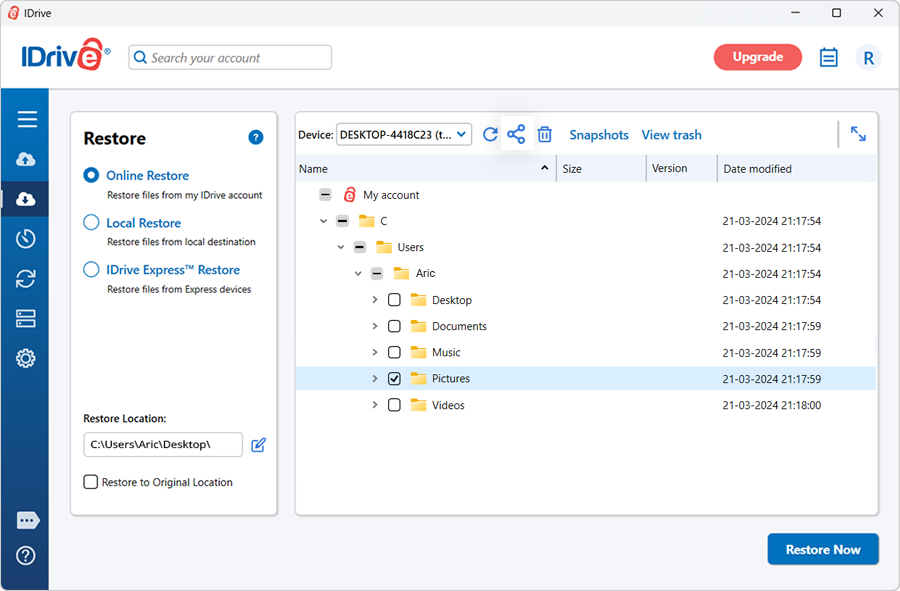
To restore the latest version of any file, please switch to the 'Restore' tab. Here, on the right hand pane of the tab you may view the list of files with their latest versions.
Now, please select the required files and click on the ‘Restore Now’ button.
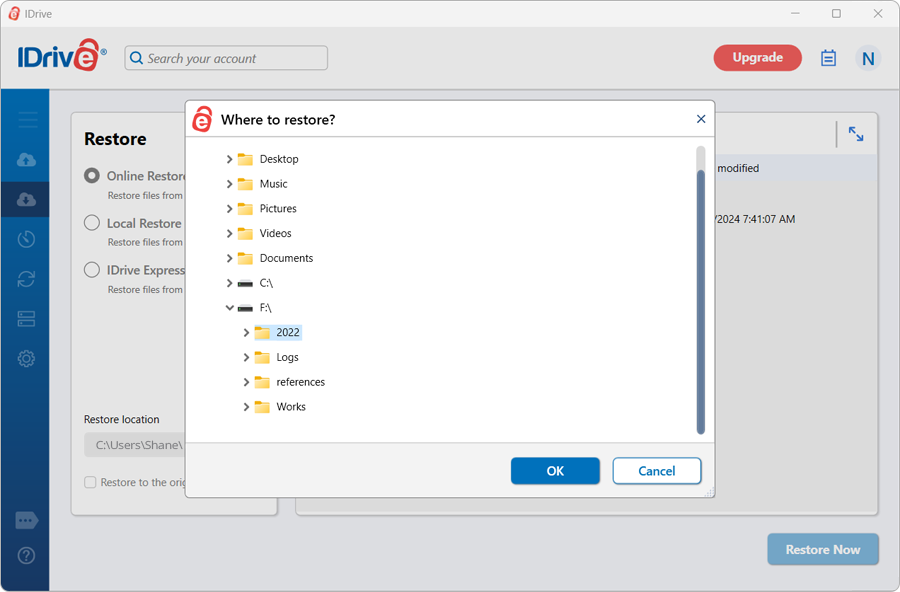
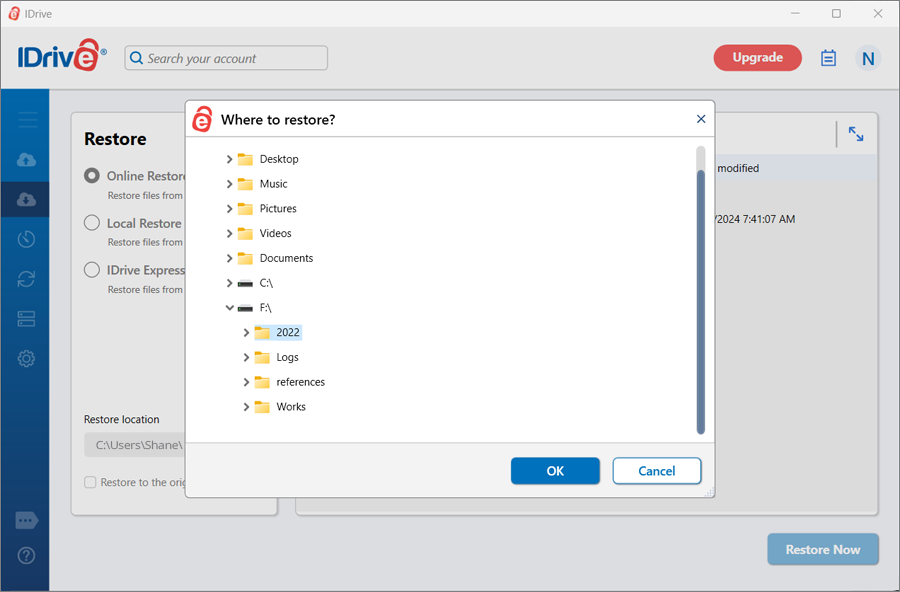
After selecting the files, please choose the required destination directory from the ‘IDrive-E Destination directory’ screen to restore your data. |
 |
 |
|
What
is a backup set ? How do I restore files as of a backup
set?
A backup set identifies a set of file versions that were backed up during a single backup operation. A backup set is identified by the start date and time of the backup. A backup set also allows users to restore point-in-time versions of files to their computers.
On the ‘Restore’ tab , you would find the 'Backupset date/time’ selection box. From this list of backup sets, you may restore files as of a particular backup date and time. Selecting a backup set from the selection list shows the point-in-time view of the files. |
 |
 |
|
| How do I view the versions
of a single file stored in my account?
You can view the versions of each file stored in your account in the following ways:
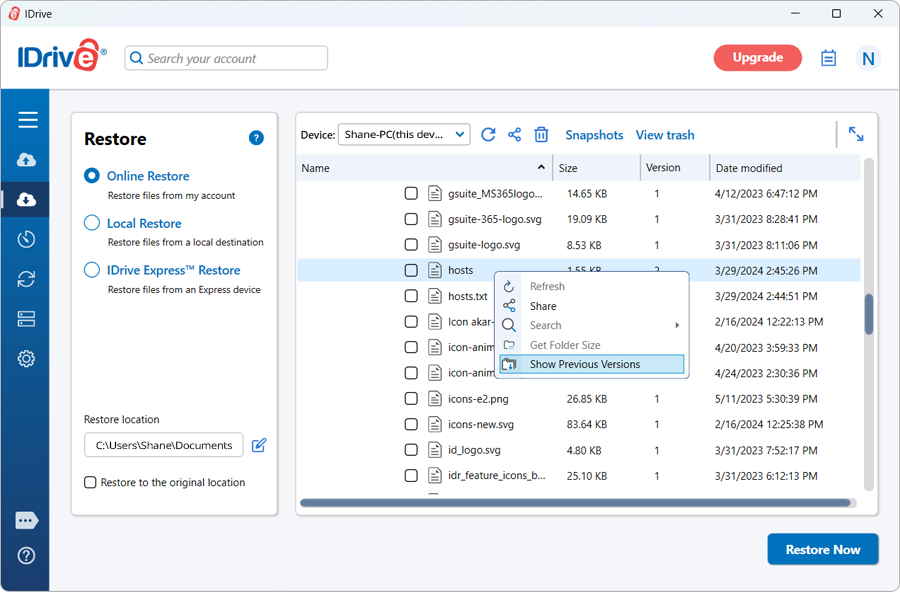
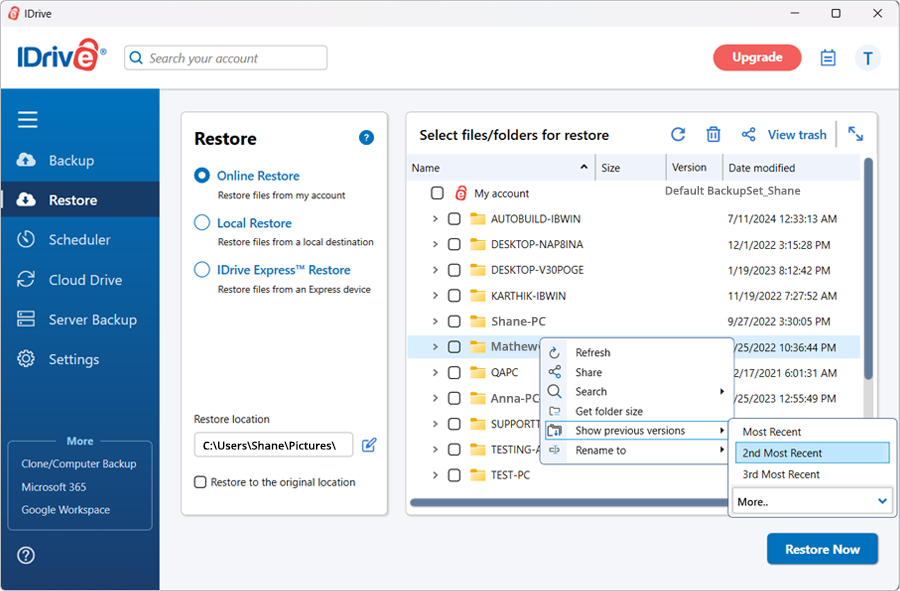
1) On the right pane of the Restore tab, right click on the required file and select the ‘View History’ option from the list.
2) On the right pane of the Restore tab, click on the required file and select the 'History' icon from the tool bar.
3) On the 'Restore' tab view, please select a file from the right pane and then click on Options menu item > View History.
4) On the ‘Restore’ tab view, double click on the required file.
|
 |
 |
|
| How many versions of
a single file can I maintain in my account?
You can maintain up to 30 versions of a single file in your account. If more versions of the file exist, then only the last 30 versions of the file will be stored on the IDrive-E servers.
|
 |
|
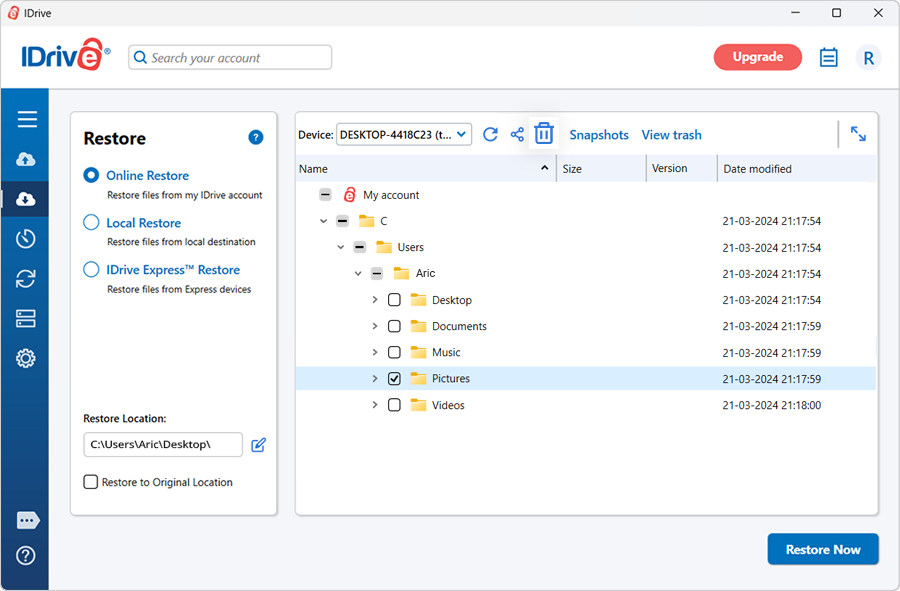
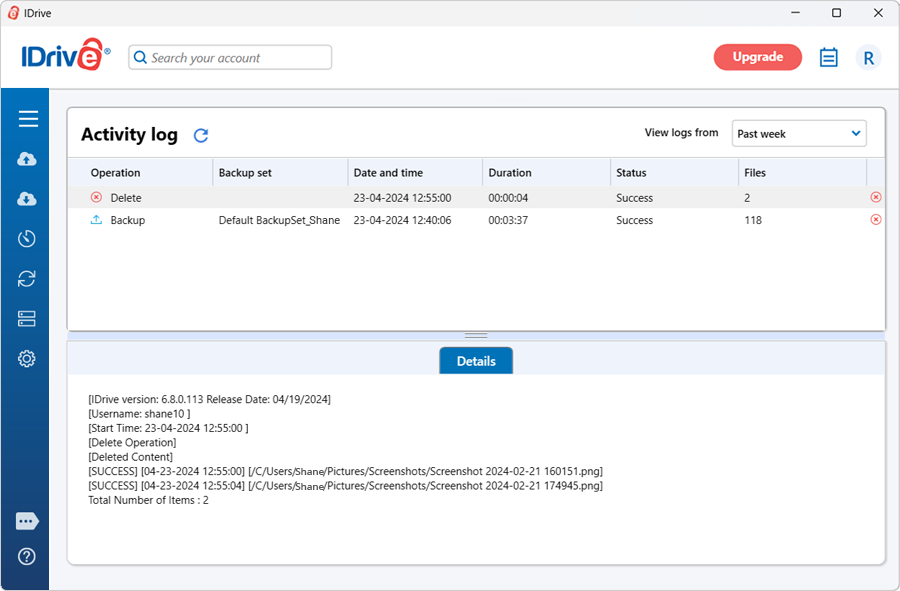
How do I delete data from my account?
To delete a particular file/folder from your IDrive-E account please follow the steps:
Step 1. You need to deselect the necessary files/folders on the 'Backup' tab before it can be deleted from your IDrive-E account. (In order to deselect the files/folders, please go to the 'Backup' tab and simply uncheck the files/folders that you wish to delete from your account).
Step 2. After deselecting entries from the 'Backup' tab, please click on the 'Restore' tab. On the right pane of this view, select the individual file or folder to be deleted. Then click on the 'Delete' icon available on the toolbar or click on the Options menu item > Delete files/ folders. |
 |
|
| How do I restore the files that are backed up as of a particular date/time?
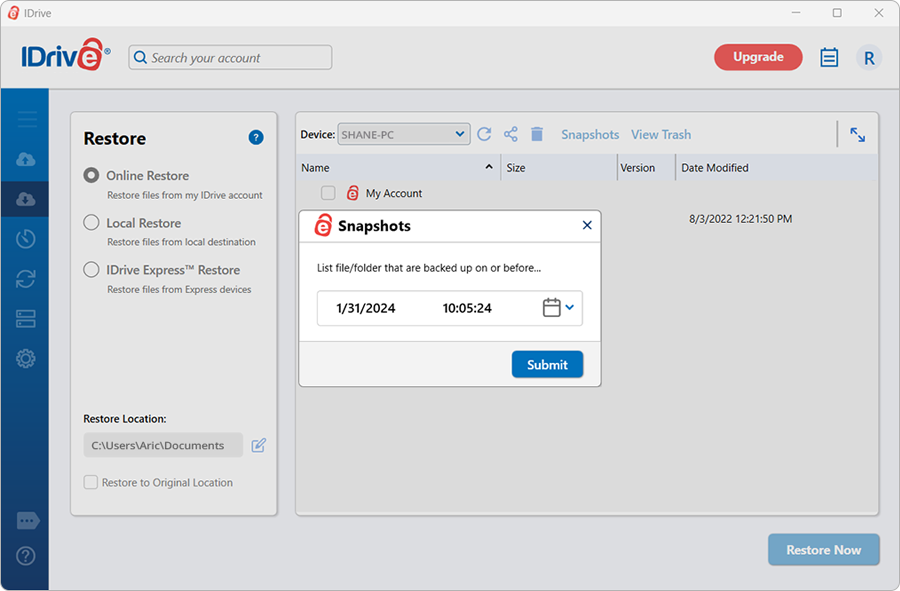
IDrive-E maintains the backup data image at the time of backup. This feature allows users to restore the files that are backed up as of a particular date/time.
You can access this option under the restore tab,
Preferences > Backupset Restore Options > Show backed up files that existed on local machine at the date/time. |
 |
|
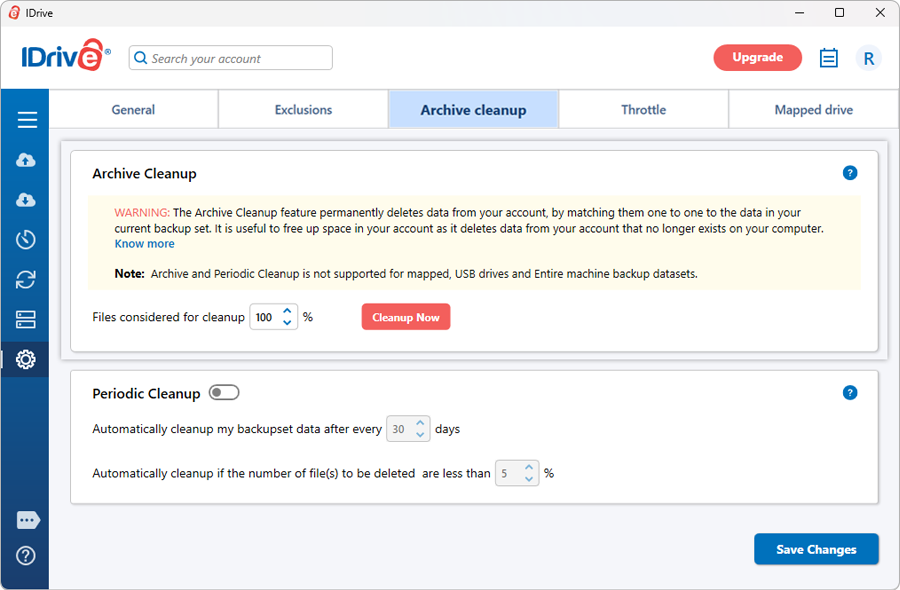
| What is the sync feature?
The ‘Sync’ feature lets you match the contents of your IDrive-E account to exactly the same as that on your ‘My Computer’ for the selected files/folders existing on your IDrive-E account.
This is a very useful option if you have been backing up regularly, and you have cleared up some data on your computer and wish to clear the same on IDrive-E account as well as to bring them in sync.
However, we recommend you to use this feature carefully only after you have completely understood how the sync feature works. |
 |
|
| How does the sync feature work?
Once you click on the Sync icon on your ‘Restore’ tab of IDrive-E, the application displays the list of files/folders that are not present currently on your “My Computer” but those that are still available on your IDrive-E account. You need to select the files/folders that you wish to delete from your account. Once that is done by pressing the ‘Sync’ button, you would be able to delete those files/folders from your IDrive-E account. |
 |
 |
|
| |
|